December 8, 2018

The Best and Worst Linux Email Clients

There is one word that really defines Linux, and that word is choice.
Choose a distro, choose a package manager, choose a browser, choose an email client, choose an audio player, video player, office package, chat client, video editor, image editor, choose a wallpaper, choose compositing effects, choose a toolbar, a panel, choose gadgets, widgets, choose a menu. Choose a dash, a bash, choose a forum to crash. Choose your future, choose Linux, choose life.
This guide lists 4 email clients that are to be highly recommended and one that needs a little bit of work to make it worthwhile.
In the past, people used to get a free email service from their internet service provider. The interface for that email service was usually fairly poor, so there was a big need for a decent email client. Unfortunately, most people ended up with Outlook Express instead.
People soon began to realize that the limitation of having an email with your internet service provider was that you would lose your email when you changed ISP.
With companies like Microsoft and Google offering free webmail services with large mailboxes and a decent web interface the need for big hefty email clients at home has been reduced, and with the birth of smart phones this requirement has dwindled even further.
Email clients, therefore, have to be very good in order to make them more worthwhile than using the web interface.
The email clients in the list below have been judged on the following characteristics:
  • Ease of setting up with a common mail provider (i.e. Gmail)
  • General functionality
  • Ease of use
  • Performance


Evolution

Evolution EMail Client.
Evolution is head and shoulders above every other Linux-based email client. If you want a Microsoft Outlook style appearance for your email then this is the application you should choose.
Setting up Evolution to work with services such as Gmail is as easy as following a simple wizard. Basically, if you can log in via the web interface then you can log in using Evolution.
Functionality wise you obviously have the ability to send and receive emails but within that category, you can create signatures, choose whether to use HTML or plain text emails, insert hyperlinks, tables, and other features into your emails.
The way you view emails can be customized so that your preview panel can be turned on and off and positioned where you want it to be. You can add extra columns to sort your emails by and the labels within Gmail appear as folders.
Evolution isn't just a mail client, however, and includes other options such as a contacts list, memos, task list, and calendar.
Performance wise Evolution runs well but it is generally part of the GNOME desktop environment so is probably better on more modern machines.


Thunderbird


Thunderbird Email Client.
Thunderbird is probably the best-known email client that runs on Linux because it is also available for Windows and anybody who doesn't want to spend their hard earned money on Outlook and who has a dedicated email client (as opposed to using the web interface) probably uses Thunderbird.
Thunderbird is brought to you by the same people who brought you Firefox, and as with Firefox it has a nice interface and has loads of functionality.
Unlike Evolution, it is just a mail client and doesn't have the calendar feature, and so there isn't the ability to add tasks or create appointments.
Connecting to Gmail is as easy with Thunderbird as it is with Evolution and it is simply a case of typing in your username and password and letting Thunderbird do the rest.
The interface can be customized to with an inch of its existence whether you are changing the appearance of the preview pane or sending an email with hyperlinks and images.
The performance is very good but if you are one of those people who never delete email then it can take a while for the mail to load the very first time you set it up.
All in all, Thunderbird is a decent email client.

KMail


KMail Email Client.
If you are using the KDE desktop environment then it is highly likely that the default mail client is KMail.
KMail is a decent mail client which complements the rest of the applications available within KDE.
Basically, if you have KMail installed then there is no reason to install Evolution or Thunderbird even though they appear higher in this list.
Connecting to Gmail is again as easy as entering your email address and password and KMail will do the rest.
The basic layout is much like that of Microsoft Outlook but as with everything in the KDE world, it can be heavily customized to look just the way you want it to.
All the features that you can expect from a mail client are included as with Thunderbird and Evolution. There isn't a calendar, notes or task manager, however.
There is, however, a very decent search feature. It is generally hard to beat Google's own web client when searching for a specific email, but KMail has a very complex and fully featured tool for searching your mail. Again, this is useful if you never delete your email.
When it comes to performance, well it performs as well as the KDE desktop that it is sitting on What this means is that it will work great on a semi-decent laptop but probably isn't much use on a 1 GB netbook.

Geary


Geary.
Every mail client mentioned thus far has stated that the performance is good but not good enough for the 1 GB netbook.
What then should you use if you are using an older machine? That is where Geary comes in.
The trade-off, however, is that there aren't that many features and it isn't very customizable.
Obviously, you can compose emails and you can choose between plain text and rich text but it doesn't have nearly as many features as the other clients mentioned.
You can also choose whether to have a preview pane when reading emails and the labels from Gmail are listed as folders.
Connecting Geary to Gmail was as simple as it was for the other mail clients listed and simply requires an email address and password.
If you need a mail client and you don't want to use the web interface and you aren't bothered about big features then Geary is the email client for you.

The Not So Good Email Client - Claws


Claws Email Client.
Claws is the least impressive email client. For one trying to get it to work with Gmail is an absolute nightmare.
You need to go into your Gmail settings and change settings to enable Claws to connect to it and even then there is no guarantee it will connect.
The main problem is this: for an email client to be useful (as with any other application) it needs to serve a purpose that other applications don't serve or be better than other applications serving the same purpose.
For instance, it is a matter of opinion whether Evolution is better than Thunderbird or whether Thunderbird is better than KMail. Evolution has extra features and a more cosmetically pleasing interface. Thunderbird and KMail have more settings and are more customizable.
Geary serves a purpose because it is lightweight and can work on older hardware. Claws is supposed to fill the same space as Geary. The trouble is that if it is too hard to set up then it isn't worth the time to invest to get it set up in the first place because there just aren't enough features to make it worthwhile.Thanks for letting us know!


Source: https://www.lifewire.com/best-worst-linux-email-clients-2204889

November 18, 2018

Xfburn – A Simple and Easy to Use CD-DVD Burning App with support for Blu Ray discs

Xfburn to Burn CDs, DVDs, or BluRays, ISO images | Create Audio CDs, ISO images
January 9, 2017
Xfburn is a simple CD/DVD/Blu-Ray support, large file support (iso9660 level 3) burning tool based on libburnia libraries.
It can blank CD/DVD(-RW)s/Blu-Ray, burn and create iso images, audio CDs, as well as burn personal compositions of data to either CD or DVD. It Is stable.
It’s in the Xfce Desktop Environment but you can use anywhere.
Currently implemented is:
Create data compositions
Burn to CD, DVD, or BluRay (BD)
Create ISO images
Burn ISO images
Create and burn audio CDs
Blank discs
Format and deformat DVD-RW discs
Audio CD support details

How to Install Xfburn on Ubuntu, Debian, Linux Mint, Elementary Os and other Ubuntu based Distros

Launch a terminal window (ctrl+alt+t), and type the code (you can copy – paste the code):
sudo apt-get install xfburn
or
sudo apt install xfburn

How to Install Xfburn on Fedora

Launch a terminal window and type the code (you can copy – paste the code):
sudo dnf install xfburn
or
sudo yum install xfburn

Xfburn 0.5.2 Review – A Simple and Easy to Use CD Burning App


Xfburn is an application that allows users to burn CD, DVDs, and Blu-rays, whether it's just data, ISO files, or music files. We’ll now take a closer look at this minimalistic software that has only a few options.


There was a time when burning your own disks was something normal and users were doing this operation on a regular basis. The advent of high-speed Internet and USB drives has made this operation a little redundant, but not everyone has access to this kind of options.
In fact, we have to keep in mind that a large portion of the planet still can't afford to buy proper USB drivers or to access the Internet with ridiculous bandwidth. In fact, many people still rely heavily on CDs and DVDs and that is the main reason why most distros can still fit on a CD, even after we think that they have become obsolete.
As you can imagine, there are numerous applications that can do this sort of job on Linux. Ubuntu users are familiar with Brasero, and this software is integrated in numerous other operating systems, but there are others, like Xfburn for example, which are just as good.
InstallationI tested the software in Ubuntu 14.04 (Trusty Tahr) and I had no kind of problems with it. The only issue that you might encounter is the fact that the repositories have an older version of Xfburn, 0.5.0. If you're fine with that, then you just open Ubuntu Software Center and install Xfburn from there. The process is simple and painless.

If you want the latest version, then things are a little more complicated. You will need to compile the software, but that’s actually simpler than it sounds. It's not a big application, it takes little time, and the fact that it's already present in the repositories helps a lot.

Normally, if you're compiling something from scratch, you're going to run into dependency problems. Each dependency has to be installed, one at a time, after the ./configure command fails. Xfburn actually has a lot of dependencies, but that's not a problem because we're going to use the Ubuntu repositories to make our work easier. All you have to do is to run these commands in a terminal (you need to be root in order to make it work):

 code
sudo apt-get build-dep xfburn
./configure
make
sudo make install

 That should be about it. The entire process should take just a few minutes, even on low-end machines. Usage

The interface of Xfburn is actually very simple and many users will appreciate this fact. This is a software designed to do a specific task and it's not encumbered by numerous features that most users are unlikely to use.

Users can choose from “Burn Image,” “New Data Composition,” “Blank Disc,” and “Audio CD.” Most of them are self-explanatory, with the exception of Blank Disc. This one can be used to delete a rewritable CD or DVD.

The interface is actually tabbed and some of the options will open as tabs. “Burn Image” opens a popup window with a few clear options and all that users really have to do is to provide the path to the image and the writing speed. The “Blank Disc” opens a similar window, but “New Data Composition” and “Audio CD” actually open in tabs. All the features are straightforward and with very few options. As expected, writing Audio CD needs GStreamer installed.
The interface can be enhanced a little from the View menu and users can choose to see a file browser at all times. The Preferences are barren and the only interesting option is the one allowing users to see hidden files.


The Good

The Xfburn software is simple and does the job it is supposed to do. It seems to be quite stable, despite the version number, and it's good enough to be integrated in Ubuntu, for example.

The Bad

The only function that might enjoy more options is definitely “Audio CD.” Some plugins that enhance this feature are sorely missed. For example, some sort of metadata handling might be a good idea.

Conclusion

If you're tired of the same old applications, you should give Xfburn a try. Its simple approach and the spartan look are actually quite nice and the software is very stable. I haven't burned any DVDs in a while, but I'm going to use Xfburn the first chance I get.

Source: https://www.softpedia.com/reviews/linux/Xfburn-Review-452800.shtml


October 30, 2018

Keep A Portable Ubuntu Installation With You Wherever You Go

Having a PC in your pocket is a massive advantage. But how can it be done easily? The answer, of course, is via a USB stick (although there are three smartphone options offering their own take on the PC in a pocket dynamic).
With a version of Ubuntu (or most other Linux distros) installed on your USB stick, you’ll have access to the web, to your favorite files and folders… all without the pain of lagging a laptop around.

USB vs Smartphones

Since mid-2015, three mobile operating systems have been offering desktop functionality when connected via wireless HDMI or Miracast. Windows 10 Mobile has Continuum, while Android has a trio of options offering similar experiences. Meanwhile, the short-lived Ubuntu Touch had Convergence, another Continuum-esque reconfiguration.
Essentially, these pocket-based PCs offer a desktop experience, powered not by a PC or laptop, but by a smartphone. The results are mixed, but all are suitable for office tasks and browsing the web.
Installing a desktop operating system on a USB thumb drive, meanwhile, has some key advantages. For a start off, there is little chance of your chosen platform suddenly stopping. If it does, simply switch to a different Linux operating system. And then there’s the added portability factor. You can keep a USB thumb drive in your wallet, pocket… maybe even a shoe!
(SD cards are also an option for a portable operating system, but SD slots are less common than USB ports.)
Smartphones offer a good desktop experience, but with a USB thumb drive with Ubuntu installed, you’re getting the real thing. Just so long as you have a PC to plug it into, of course…

You and Your USB Thumb Drive

To keep a copy of Ubuntu with you everywhere you go, you’ll need to find a USB thumb drive that has enough capacity for your needs. While you might get away with 8 GB, we’d recommend 64 GB or higher for a good computing experience.


You might also want to select your USB thumb drive based on how small it is. After all, if you’re planning to keep the drive on your person for security and privacy reasons, the smaller the better. Perhaps it might slip into a secret pocket, or the lining of an item of clothing? The SanDisk Fit series of thumb drives are particularly compact.
With your USB drive primed and ready, it’s time to make your decision. Which type of portable Ubuntu installation will you choose?

Live Ubuntu USB Media

The simplest option you have to install Ubuntu on your USB stick is to create a bootable Live disk. All Linux operating systems can be run in this way. The live option, intended initially for optical discs, lets you boot (and sample) the operating system with affecting that of the host computer.
When you write Ubuntu to USB with the aim of installing it on a computer, it has this Live disk functionality. So, all you need to do is insert the disk into your PC and restart; upon rebooting, the USB stick takes over, giving you instant access to your portable Ubuntu.
Note that any activity you engage in will not be stored on the USB stick; however, internet activity will be recorded by the ISP. If you’re using this in a library or cyber cafe, there will probably be logging in use there too.
Sadly, any data you create, or programs you install beyond the preinstalled choice, will also be deleted once your session ends.

Save Your Data with Persistent Storage

If you want to save any work between sessions (that is, each time you use your Ubuntu USB stick) then you’ll need persistent storage.


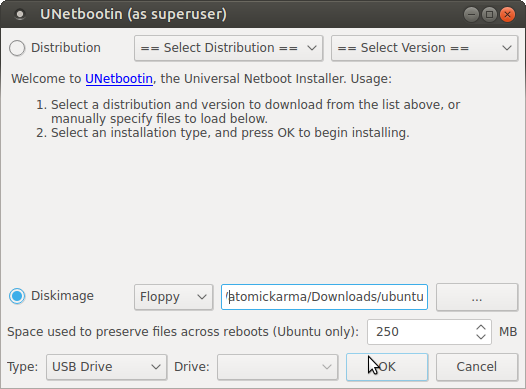
Keep A Portable Ubuntu Installation With You Wherever You Go muo linux live usb unetbootin


This is an option in tools like Unetbootin, which supports the provision of a persistent partition that can be used for installing your preferred apps, and saving your personal data to. As a result, the apps and data you need regular access to will be waiting for you each time you boot. Note that this is an option supported only by Ubuntu.

The shortcoming of this approach is that you’ll find that it is tougher to upgrade your version of Ubuntu. As a result, we recommend relying on a Long Term Support (LTS) distribution for your choice of Ubuntu operating system.

Full Installation on Your USB Stick

You can take the idea of a persistent Ubuntu installation further by installing the operating system not to a hard disk drive, but to the actual USB device.


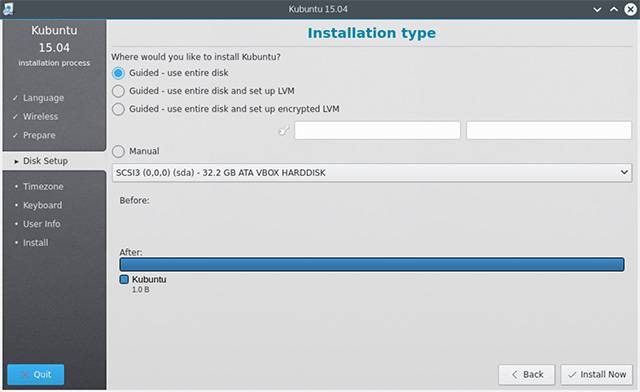
Keep A Portable Ubuntu Installation With You Wherever You Go ubuntu install destination


This approach will enable you to use the USB device not as a Live Ubuntu experience, but as an actual portable hard disk drive. Ubuntu will be in its installed form, resulting in a completely persistent storage. Better for updating the operating system, it does have its shortcomings: Ubuntu may expect hardware from one PC to be there when the USB thumb drive boots up on another computer.
However, this is a minor consideration in most cases. As long as you don’t use it to install any proprietary graphics drivers, you should be fine.

A Quick and Easy Setup!

Simple to set up and create, an Ubuntu-based portable USB PC makes sense to have with you at all times. Even if you don’t use it regularly, it could prove useful in a pinch.
Perhaps you visit libraries or cyber cafes often? You might be hot-desking at work, or need to access a PC at a location where you volunteer. Or you might simply need to get some processing power out of an old PC or laptop at home.

Whatever the case, a portable Ubuntu installation on your USB stick is the answer. While there is a Windows alternative, it presents a far more complicated situation, insofar as software licences go.
But that’s not a problem for Linux. Simply install Ubuntu on your USB thumb drive, and go portable!


Source: https://www.makeuseof.com/tag/keep-portable-ubuntu-installation-wherever-go/


How to make a Linux Live USB drive


October 29, 2018

IBM to Buy Red Hat, the Top Linux Distributor, for $34 Billion


IBM is making a big move to bring more software developers under its wing by acquiring Red Hat, the largest distributor of the popular open-source operating system Linux, for $34 billion.

The purchase, announced on Sunday afternoon, is the latest competitive step among large business-software companies seeking an edge in the fast-growing market for cloud computing.

In June, Microsoft acquired GitHub, a major code-sharing platform for software developers, for $7.5 billion.

IBM’s purchase of Red Hat, the largest distributor of the open-source operating system Linux, is the latest competitive step among large business software companies to gain an edge in the cloud computing market.

With the deal for Red Hat, IBM is trying to position itself as a kind of corporate “Switzerland” in cloud computing — a trusted partner of businesses that are moving to the cloud, but are leery of becoming dependent on one major cloud supplier.
In the cloud model, software developers write applications that run on remote data centers. The advantage can be lower costs and faster development of new business software.

IBM is a champion of a hybrid approach to cloud computing. That means some crucial data and applications run on cloud technology inside a company’s data centers, while other computing tasks run on the clouds of tech companies.
The major third-party cloud platforms are Amazon, Microsoft and Google. Businesses complain that these cloud suppliers include proprietary technology that makes it difficult to switch from one cloud to another.

The IBM cloud strategy is to supply both hardware and software for companies to build their own private clouds, and it also has a third-party public cloud offering.

IBM, analysts say, cannot really compete broadly with so-called hyperscale cloud companies — Amazon, Microsoft and Google — which tap their deep coffers to spend many billions of dollars a year to build more giant data centers.
But IBM and Red Hat say they are well placed to be leaders in helping corporations make the transition to cloud computing without getting locked into the technology of an internet giant.

The two companies say they plan to offer the technology to link a company’s in-house cloud and multiple third-party clouds.

“Enterprises are moving to the cloud but 80 percent of them are not there yet,” said Arvind Krishna, an IBM senior vice president in charge of its hybrid cloud offerings. “We can provide a much easier path to manage and make secure both private clouds and links to multiple public clouds.”

Red Hat, founded in 1993 and based in Raleigh, N.C., has built a profitable business, with $2.4 billion in revenue last year, around open-source software, mainly Linux. Open-source code is distributed free, and can be modified by far-flung programmers, under certain rules.

Red Hat has expanded — and made money — by offering technical support, quality control, software tools and a forum for collaboration, charging subscription fees.

Linux is the preferred operating system for cloud computing. “For most corporations, hybrid cloud is the only practical way to the cloud,” said Paul Cormier, president for products and technologies at Red Hat.
The link with IBM, Mr. Cormier said, will accelerate Red Hat’s progress in the market for corporate cloud migrations.
Red Hat will join IBM’s cloud team, the companies said in a joint statement, but as a “distinct unit” to preserve its independence and neutrality in open-source development.

IBM’s offer of $190 a share in cash is more than a 60 percent premium over Red Hat’s closing price on Friday, $116.68 a share.

The hefty price tag, said one person close to the deal, who asked not be to identified because he was not authorized to speak publicly, is justified by Red Hat’s growth and strong cash flow.

IBM, he said, is paying about 30 times Red Hat’s free cash flow, well below the average for recent software company acquisitions, and it will help lift IBM’s growth and cash flow.

The boards of both companies approved the deal, and the sale is expected to close in the second half of next year. Goldman Sachs, JPMorgan Chase and Lazard advised IBM on the deal, and Guggenheim Partners and Morgan Stanley advised Red Hat.
IBM’s purchase of Red Hat, the largest distributor of the open-source operating system Linux, is the latest competitive step among large business software companies to gain an edge in the cloud computing market.CreditCreditPau Barrena/Agence France-Presse — Getty Images

Source: https://www.nytimes.com/2018/10/28/business/ibm-red-hat-cloud-computing.html

October 24, 2018

A Review of elementary OS 5.0 "Juno" by Jesse Smith of DistroWatch

elementary OS 5.0 "Juno"
elementary OSelementary OS is an Ubuntu-based distribution featuring a special desktop environment called Pantheon. The project's latest version, elementary OS 5.0, carries the code name "Juno" and is based on Ubuntu 18.04. (I will sometimes refer to this version of the distribution alternatively as Juno or elementary in this review.) Juno includes many changes and its release announcement is a lengthy read. Some of the highlights in the Juno release include:
  • The software centre allows users to pay what they want for programs, with the option to try a program first and donate to the upstream developer later.
  • The Scratch code editor as been renamed Code and integrates better with git repositories to show available code branches
  • The terminal, and other core programs, include dark themes and the terminal offers easy font resizing.
  • The Epiphany web browser supports Firefox Sync to share bookmarks and passwords across multiple devices.
  • Juno includes Night Light to reduce blue light levels in the evening.
  • Application windows with shared edges can be resized together.
  • Picture-in-picture mode lets us see previews of windows when an application's window is covered.
  • We can tap the meta key to see desktop short-cuts.
  • There is a new problem reporting tool to help us file bugs with the proper upstream project.
Installing 

elementary OS runs on 64-bit computers and the live media download is 1.4GB in size. Booting from the media brings up a graphical window where we are asked if we would like to try elementary's live mode or start the system installer. I opted to jump immediately into the installer. The installer appears to be an unmodified copy of Ubuntu's Ubiquity installer. It begins by asking us to select our preferred language from a list and we have the option of clicking a link to open the distribution's release notes. I tried to open the release notes and found it opened a web browser which showed a "page cannot be found" error from elementary's web server. 

Undeterred, I continued through screens asking for my keyboard's layout, whether I wanted to install software updates and third-party media support during the installation, and picking my time zone. Partitioning can be handled automatically by the installer or we can manually create partitions. I like the manual options which are easy to navigate and support virtually every Linux file system. I opted to use a Btrfs volume for my root partition. The last screen asks us to create a username/password combination for ourselves. The installer copies its packages to our hard drive and then offers to restart the computer. 

Early impressions 

elementary boots to a graphical login screen where we can sign into our account to bring up the Pantheon desktop. The desktop features a thin panel along the top of the screen which provides us with an application menu, a clock and the system tray. A dock (called Plank) sits at the bottom of the display, providing us with a macOS style launcher and application switcher. When an application's icon is visible on the dock, we can right-click it to pin the application to the dock for quick access later. 

The application menu
elementary OS 5.0 -- The application menu
(full image size: 1.2MB, resolution: 1280x1024 pixels) 

The application menu defaults to showing application launchers in a large grid, however we can click a button to switch to a split menu with software categories on the left and launchers on the right. The launchers are all given names indicating their purpose. Some examples include Mail, Calendar, Files, and Videos. This should make it easy for newcomers to quickly find the software they want to use. 

The desktop is mostly empty and relatively distraction-free. When the system wants us to tell us something it generally places a red mark on the notification icon in the system tray, or puts a similar red marker on the software centre icon in the dock. There are some visual effects to liven up the desktop and launched program icons jump up and down a little on the dock, but otherwise the desktop tries to avoid distracting us. 

Software management 

Software management, both installing new programs and upgrading existing ones, is handled by the App Centre. The software centre has two tabs, the first shows us recommended software and categories of programs we can browse. Clicking a category (or typing a search for a program name) brings up a list of available software. Program names and icons are shown on the left side of the page with a brief description. Clicking an entry brings up a full page description with a screen shot. 

The software centre
elementary OS 5.0 -- The software centre
(full image size: 844kB, resolution: 1280x1024 pixels) 

Some applications are listed with a price. Clicking the price allows us to adjust it up or down. This allows us to pay what we want (including nothing) for applications to help support the developers. Most programs are simply listed as free. Generally no-cost programs cannot accept donations directly and we cannot offer the developers money through the software centre. 

The software centre's second tab lists installed items which we can remove with the click of a button. Available software updates are listed at the top of the page. Low level packages, such as command line tools and libraries, are bundled together into one entry referred to as operating system updates. Each desktop program gets its own, separate entry when updates are released. I encountered a few updates during my trial and these downloaded and installed without incident. Some software gets pulled in from elementary's own repositories, but much of the software comes from Ubuntu's repositories. 

I found the software centre generally worked well and was easy to navigate. My one serious complaint was that when I had queued multiple programs for installation, there was no sense of the overall progress. A tiny "busy" indicator appeared in the upper-right corner of the window, but it didn't give any sense of how many packages were still waiting to be installed, or how long it would take. 

Applications 

Juno ships with the Epiphany web browser, Pantheon Mail, a calendar and what appear to be custom-made music and video players. The distribution's photo manager also appears to be unique to elementary. We can find a code editor, web cam utility and calculator in the default applications. I was pleased to find the audio player and photo manager both automatically detected and imported files from my Music and Pictures directories, respectively. elementary ships with a full range of codecs for playing music and video files. 

Automatically importing pictures into the photo manager
elementary OS 5.0 -- Automatically importing pictures into the photo manager
(full image size: 637kB, resolution: 1280x1024 pixels) 

In the background Juno uses Ubuntu 18.04 to supply the core files, command line tools and manual pages. The distribution uses systemd for its init implementation and runs on Linux 4.15.0. 

While playing around with the available software, I made some observations I would like to share in no particular order. The first was that Epiphany used a lot of CPU resources when I ran Juno in a virtual machine. With an empty tab open Epiphany used about 90% of my CPU. When loading a simple page CPU dropped to around 20-30%. These numbers are lower when running Juno on physical hardware, but the trade-off was the X11 process always used about 10% of my workstation's CPU, which somewhat balanced things out. To compare Epiphany to other browsers, I installed Falkon (formerly QupZilla) and Firefox. Falkon used about the same amount of RAM as Epiphany, but about a third as much CPU. Firefox used around the same amount of CPU as Falkon (notably less than Epiphany), but used twice as much memory when visiting the same websites. In short, I found Epiphany was the lightest browser by memory usage, but the heaviest on CPU usage. 

Something I found odd about using Juno is there is no plain text editor, a common component of almost all modern operating systems. The Code programming editor can double as a text editor, but its start-up screen, features and default behaviour of numbering lines may put off people who just want to quickly jot notes or make a grocery list. On a related topic, there is no default productivity suite, but multiple ones are available through the software centre. I found that when I installed the LibreOffice package it installed just the LibreOffice greeter. Usually, on other distributions, LibreOffice is a meta package that installs the whole suite, but with Juno we need to install each component of the suite (Writer, Calc, etc) separately. This may cut down on bloat, but it meant I ended up making multiple trips to the software centre for more pieces of the suite. 

Setting up a printer
elementary OS 5.0 -- Setting up a printer
(full image size: 1.1MB, resolution: 1280x1024 pixels) 

I had hoped to use Timeshift to take snapshots of my operating system, which was one of the reasons I installed elementary on a Btrfs volume. Unfortunately, Timeshift is not in elementary's repositories. As a result I was unable snapshot the system the same way I could with Linux Lite or Linux Mint, two other Ubuntu-based distributions. 

Sometimes I would see a red dot over the notification icon in the system tray and click it, only to find no notifications were waiting. I'm not sure if this meant I had already dealt with the issue or if the notifications automatically clear after a certain amount of time. 

Hardware 

Earlier I mentioned running Juno in both a virtual machine (VirtualBox) and on a workstation. When running in the virtual environment, Juno performed fairly well. The desktop was sometimes a little sluggish, but never terribly so. The only time I saw Pantheon really slow down was when there was a lot of disk activity going on, such as when I was installing new applications. When running on the workstation, Juno was pleasantly responsive. The desktop does a good job of being both responsive and visually engaging. The icons and effects are pretty without being overly distracting, in my opinion. 

A fresh install of elementary used about 4.7GB of hard drive space and consumed 490MB of RAM when signed into the desktop. This puts elementary comfortable in the mid-range of memory usage when compared against most mainstream Linux distributions. 

Fun features 

At the beginning of this review I mentioned the Juno release announcement mentions several enticing features. One is that the default applications generally remember where we were working and bring us back to that point. The virtual terminal and file manager both remember our last working directory and open to that location. 

One useful trick the desktop can perform is zooming in and out. Pressing the meta key and the + or - keys zooms our view of the desktop in or out. This can be handy in cases when we would usually want to use a magnification tool, but don't want to open another program. 

Application windows that have been moved to the sides of the desktop snap into place. When two windows are placed side-by-side, they share an edge. This edge can be clicked on and moved left or right, changing the dimensions of both windows at the same time. 

A video window preview
elementary OS 5.0 -- A video window preview
(full image size: 608kB, resolution: 1280x1024 pixels) 

One neat feature is the picture-in-picture preview. Pressing the meta key and F lets us click on a window we always want to be able to see all the time. Then, whenever the selected window is covered or minimized, a small preview of the window is visible on the desktop. The preview window can be moved and resized. This keeps it out of the way and makes it possible to monitor progress taking places in other windows. 

In the settings panel there is an About module. Opening this module presents the option to report bugs. Choosing to report a bug brings up a window that helps us locate the application which was causing the problem. Selecting a program then opens our web browser to the program's issue tracker where we can file a bug report. This might not be quite as fancy as automated bug reporting, but it makes it easy to file bugs against core components without searching GitHub. 

Reporting an issue
elementary OS 5.0 -- Reporting an issue
(full image size: 1.4MB, resolution: 1280x1024 pixels) 

Settings 

Speaking of the settings panel, most of the settings modules are fairly standard and should seem familiar to anyone who has used a member of the GNOME family of desktops. Some features did stand out though. For example, we can fine-tune notifications on a per application basis. This means we can have one application play a sound while another can leave a notice in the system tray. We can silence other applications entirely. 

Adjusting notifications
elementary OS 5.0 -- Adjusting notifications
(full image size: 1.2MB, resolution: 1280x1024 pixels) 

There is a parental controls module. It offers to limit login times, which websites a user can visit and what applications a user can run. All limitations are set on a per user basis and, we are warned, the limits only work on standard (non-admin) accounts. I tried these features, blocking some domains and restricting access to the software manager on a standard user account. I then signed in as the hapless user and found none of the restrictions worked. I could still visit forbidden websites and run the application store, and even install or remove packages through the software centre. In short, the parental controls did not work at all for me. 

Trying to block websites
elementary OS 5.0 -- Trying to block websites
(full image size: 394kB, resolution: 1280x1024 pixels) 

The user account module worked for me, but one curiosity is that it lists a guest account as being available and enabled by default. I had not noticed a guest account up to that point, and logged out to check. I could find no way to sign in as a guest, so the guest account options also appears to be broken. 

At first I did not notice a firewall configuration tool, but I did find one under the Security & Privacy module. The Security & Privacy module handles the firewall (off by default), location services (on by default), and recording file/application history (on). These are the opposite of the defaults I would prefer, but they are easy enough to change. 

Donation controversy 

While not a technical feature of elementary, I think it is worth noting that the elementary developers are making a solid effort to make their project (and the projects listed in their software centre) financially self supporting. Personally, I see the appeal, especially for application developers. Being an open source developer often means putting a lot of effort into software people want to use for free while receiving timely support, bug fixes and new features. Making it possible for people who want to financially support developers to contribute money, while still giving away the operating system and applications for free, is a goal which would seem to benefit everyone and hurt no one, in my opinion. It has the side benefit of allowing some developers to put more time into their creations, working on open source projects instead of other, possibly proprietary, ventures. 

While a lot of Linux distributions accept donations, and many upstream applications do too, elementary seems to receive an unusual amount of criticism for their approach. People often take issue with the donation page elementary displays prior to starting downloads, and some readers insist DistroWatch should remove elementary from our database for being too commercial. (No one seems to take issue with Red Hat Enterprise Linux or SUSE Linux Enterprise also being listed, despite both being commercial products). Personally, I think elementary has found a good balance between making it possible for users to donate without making it a requirement. All we need to do to opt out of paying money, to elementary or upstream developers, is to set the donation field to $0, and that seems like a small hurdle indeed for gaining access to polished, professional software. 

Conclusions 

I found a lot to like about Juno. The release announcement is detailed and shows lots of examples and screen shots. The operating system is easy to install, thanks to Ubuntu's Ubiquity installer and there is a nice collection of default software that will likely appeal to inexperienced users. 

The Pantheon desktop and icons are beautiful. I sometimes ran into sluggish moments with the desktop, but usually only when the disk was under load or I had a video playing. I was really impressed by how Pantheon was put together and I like a lot of the little convenience features. The picture-in-picture preview and the shared edge window resizing are great. I also love that tapping the meta key will show a list of desktop short-cuts. It is little details like these which give the distribution a polished, friendly feel. 

I already mentioned the icons look good and it bears repeating. Minimal icon design drives me mildly mad. I don't like functions represented by vague dots or arrows, I want a detailed icon and (preferably) text to let me know what a button does. elementary does a good job of making icons distinct, clear in purpose and typically accompanied by a text label or tooltip.

There were a few problems. Some of them were fairly minor, like Epiphany using high CPU load, especially in the virtual machine, or X11 gobbling CPU cycles on my workstation. There were other little touches like the release notes link in the installer not working, that are perhaps only worth mentioning because the rest of the experience was generally so polished and showed a lot of attention to detail. 

My few serious complaints were with user accounts. Specifically, there appears to be a guest account enabled, but I could not find any way to sign into it. It is not a big deal to set up another account for guests, but it makes me wonder if the enabled (and hidden) account could be exploited. I also found it disappointing the parental controls did not work to block application access or forbidden websites. 

On the other hand, I think Pantheon includes some great features and I like that it is fairly flexible in its look and behaviour. The flexible notification area and the quick switching between application menu styles were welcome features. 

Generally speaking, I think elementary OS looks and feels professional. I hope it gets picked up by more hardware sellers, like System76, as I think Juno feels polished and looks good. I think it will especially appeal to less experienced users, but many of the features and the Code tool will likely be useful to more advanced users and developers too.
* * * * *
Hardware used in this review

My physical test equipment for this review was a desktop HP Pavilon p6 Series with the following specifications:
  • Processor: Dual-core 2.8GHz AMD A4-3420 APU
  • Storage: 500GB Hitachi hard drive
  • Memory: 6GB of RAM
  • Networking: Realtek RTL8111 wired network card
  • Display: AMD Radeon HD 6410D video card
* * * * *
Visitor supplied rating

elementary OS has a visitor supplied average rating of: 8.5/10 from 163 review(s).
Have you used elementary OS? You can leave your own review of the project on our ratings page.

Source: 
https://distrowatch.com/weekly.php?issue=20181022#elementary

September 18, 2018

FF-Multi-Converter: A Great Application for Linux/Ubuntu/Linux Mint

You may have heard and used multimedia converter application as audio/video files converter only. FF-Multi-Converter is an application that lets you convert audio/video files to various formats, documents to several formats and images to most used formats. isn't it great? This application is around for a while and you may or may not used it. The most recent version ported to Python3 and now supports most of the Linux distributions.

FF-Multi-Converter uses FFmpeg for audio/video files conversion, unoconv for documents coversion and ImageMagick utility for image conversion. The main goal of this application is to offer most popular multimedia types in one application and provide different conversion options for them easily through a fairly easy to use graphical interface, you will find this application very handy and useful. It is written using Python3 and PyQt5, released under GNU General Public License (GPL V3).


Features:
  • Conversions for several file formats.
  • Very easy to use interface.
  • Access to common conversion options.
  • Audio/video ffmpeg-presets management.
  • Options for saving and naming files.
  • Multilingual - over 20 languages.

Supported formats:
  • Audio/Video formats:
    • aac, ac3, afc, aiff, amr, asf, au, avi, dvd, flac, flv, mka, mkv, mmf, mov, mp3, mp4, mpg, ogg, ogv, psp, rm, spx, vob, wav, webm, wma, wmv
    And any other format supported by ffmpeg.
  • Image formats:
    • bmp, cgm, dpx, emf, eps, fpx, gif, jbig, jng, jpeg, mrsid, p7, pdf, picon, png, ppm, psd, rad, tga, tif, webp, xpm
  • Document file formats:
    • doc -> odt, pdf
    • html -> odt
    • odp -> pdf, ppt
    • ods -> pdf
    • odt -> doc, html, pdf, rtf, sxw, txt, xml
    • ppt -> odp
    • rtf -> odt
    • sdw -> odt
    • sxw -> odt
    • txt -> odt
    • xls -> ods
    • xml -> doc, odt, pdf

Available for Ubuntu 18.04 Bionic/18.10/16.04 Xenial/14.04 Trusty/Linux Mint 19/18/17/other Ubuntu derivatives
To install FFMultiConverter in Ubuntu/Linux Mint open Terminal (Press Ctrl+Alt+T) and copy the following commands in the Terminal:


Terminal Commands:

sudo add-apt-repository ppa:noobslab/apps

sudo apt-get update

sudo apt-get install ffmulticonverter


To install in any Linux distribution, download latest FF-Multi-Converter and extract it. You need to install these dependencies (python3, pyqt5, ffmpeg, imagemagick, unoconv). Then use following command to install it from extracted folder.


Terminal Commands:

python3 setup.py install 

 
That's it

Source:  https://www.noobslab.com/2018/09/ff-multi-converter-great-application.html

September 13, 2018

WPS Office Update Now Available to Download for Ubuntu

An updated version of WPS Office for Linux is available to download for Ubuntu and other Linux distributions.
The popular China-based office suite (formerly known as Kingsoft Office) is not open source but it is free to download and to use.

A handful of features (including cloud backup) are only available to users with a premium or professional subscription/serial key, while other features (like a PDF reader) are exclusive to the iOS and Android apps.


This week saw an update to WPS Office 2016 for Linux released, which serves as the first major update to this particular office suite this year.
Among the changes and improvements on offer through this update:
  • Custom quick access toolbar
  • Manual directory function
  • Support “text sort” and “table sort”
  • Artistic page borders
  • Ability to accept or reject format revisions
  • Support for pivot charts
  • The digital format supports the locale
  • New “font preview” function
  • Support batch delete remarks function
The appeal of WPS Office for Linux is that it looks similar to Microsoft Office
You can see a full list on the WPS Community download page, which we’ll get to in a second.

Worth a punt?

Like fellow free productivity software FreeOffice, SoftMaker Office, and LibreOffice, WPS Office boasts of its “compatibility with Microsoft Office document formats”.
But the real appeal of WPS Office for Linux over its rivals is that it looks similar to Microsoft Office.
Like, awfully similar:
WPS office - presentation
WPS Office say their productivity suite has been installed 1.2 billion times across Windows, Linux, iOS and Android, with users swayed by its affordability, compatibility, and comparability to to Microsoft Office and its Microsoft PowerPoint, Excel and Word applications.
Popular though it is I should mention that WPS Office for Linux is in perpetual alpha — so if you plan to install WPS Office on your Ubuntu desktop do keep that caveat cautiously in mind.

Download WPS Office for Ubuntu

You can download WPS Office for Linux from the “WPS community” website link below, where installers are provided for both 32-bit and 64-bit Ubuntu.

For Windows builds head over to the official WPS website.


Source: https://www.omgubuntu.co.uk/2018/09/wps-office-update-download-for-ubuntu