A great article from
http://www.linuxbsdos.comOne tool that has seen very little or no change over the past several releases in
Ubuntu Desktop
is the installation program. So it is somewhat surprising that some
users are having problems dual-booting Windows 7 and Ubuntu 12.04 using
a tutorial written for
Ubuntu 11.04.
Stemming from comments in that article, and email from readers, I
decided to revisit that tutorial using Ubuntu 12.04. So the purpose of
this article, is to show how to dual-boot Windows 7 and Ubuntu 12.04 on a
computer with one hard drive. And it will be on a computer with an
existing installation of Windows 7. If there is a need to, you may
reinstall you copy of Windows 7.
First things first. Download a copy of Ubuntu 12.04 installation image from
here.
Depending on your platform, you may download the 32- or 64-bit
installation image. Images used for this tutorial were taken from test
installations using a 32-bit installation image in both a virtual
environment using VirtualBox, and on real hardware. In either case, I
did not encounter any errors that others have reported, so I am certain
that if you follow this guide, you should have a computer with both
Windows 7 and Ubuntu 12.04 installed in a dual-boot configuration.
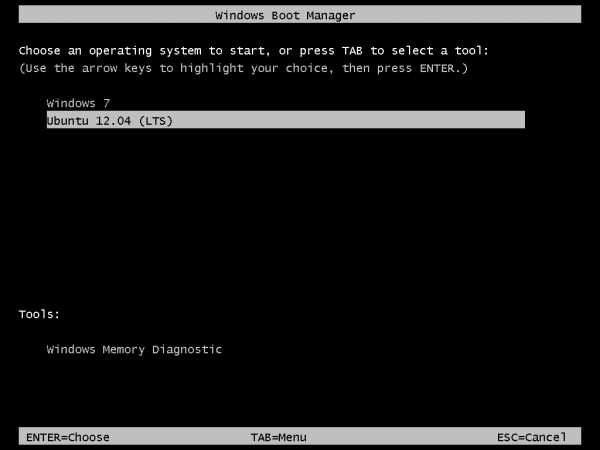
So that anytime you reboot the computer, you should see Windows 7′s
boot menu with two entires listed – Windows 7 and Ubuntu 12.04 (LTS).
Then you may choose to boot into Windows 7 or Ubuntu 12.04.
Now that you know what the overall goal is, how do you get from here
to there? First, understand that if you have a computer running Windows
7, that Windows 7′s boot manager is responsible for making sure that the
system boots. Installing Ubuntu on the same hard drive throws another
boot manager into the mix, so the most important decision you are going
to make about this, is which boot manager (Windows 7′s boot manager or
Ubuntu’s) do you want to be responsible for primary boot operations?
When dual-booting Windows 7 and a Linux distribution on a computer
with one hard drive, the best option is to have Windows 7′s boot manager
be the primary boot manager. Why? Because whenever you reinstall or
update Windows 7, its installer will overwrite anything it finds in the
portion of the hard drive where critical boot-related programs are
installed. That portion of the hard drive is known as the Master Boot
Record (MBR). Also, certain anti-virus programs have been known to mess
with the contents of the MBR, so installing GRUB in another location
will ease the maintenance headache associated with your system. This
point determines where GRUB will be installed.
If you are not familiar with disk partitioning (in Linux) and dual-booting, it is highly recommended that you read
guide to disks and disk partitions in Linux and
tips for dual-booting Windows and Linux.
By default, a new installation of Ubuntu 12.04 is installed on two
partitions – a main partition, and Swap. The main partition is usually a
primary partition and the Swap, a logical partition. And if Ubuntu is
the only operating system on the hard drive, you will see both
partitions labeled
/dev/sda1 and
/dev/sda5.
Because you are going to install it on a computer with another
operating system on it, the partitioning scheme will have to change.
The recommended partition scheme that will work better with the
system you are about to install, will consist of at least three
partitions. They are the:
- Boot partition – This is where GRUB will be
installed, instead of in the MBR. Installing GRUB in the boot partition
is where users have encountered errors, so pay particular attention to
what you do with this partition
- Root partition – This is where all the programs will be installed
- Home partition – This is optional, but it helps to have your files and folders on a separate partition
- Swap space
I think what you need to do should be pretty clear now. Time to begin
the process! If you have not done so already, burn the installation
image (of Ubuntu 12.04) you downloaded to a CD or transfer it to a USB
stick, and boot the computer from it. When booted from the CD, you will
be given the option to boot into a Live Desktop or start the
installation without visiting the Live Desktop. It does not matter which
option you choose, but booting into the Live Desktop and starting the
installation from there seems to be a very good choice.
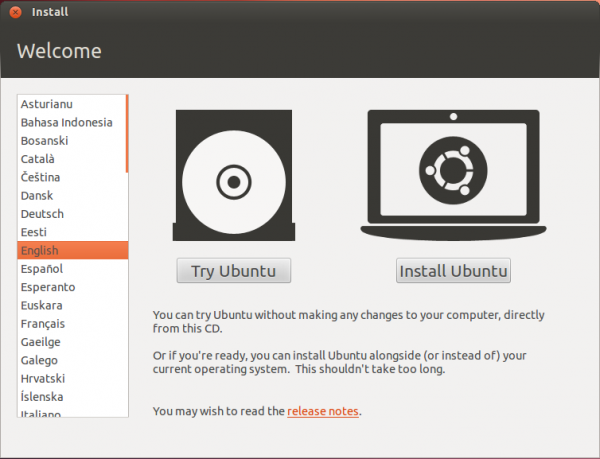
Whether the installation process is started from the Live Desktop or
not, clicking through the installer gets you to the step shown in the
image below. The most important information here is the minimum disk
space (4.4 GB) recommended for a successful installation of Ubuntu
12.04. That piece of information will help you determine how much disk
space to allocate to the root partition.
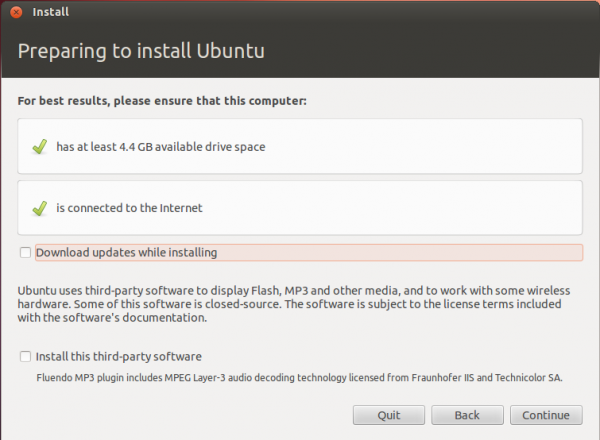
Clicking
Continue from the previous step will land
you here. If, as in this example, you have Windows 7 installed on the
target hard drive, you should see the same three options shown here.
Because you will be creating partitions manually, the option you want to
select is
Something else.
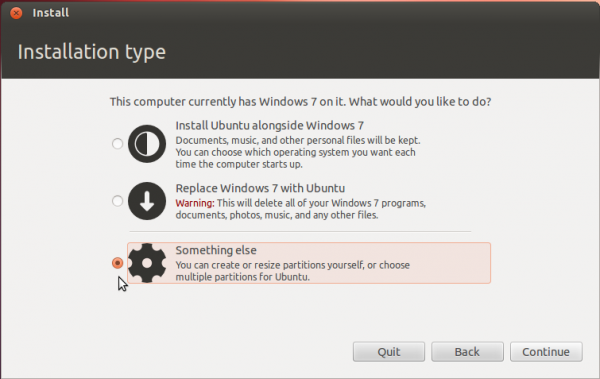
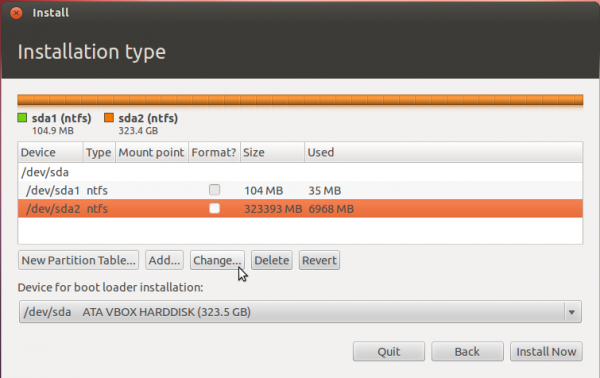
That should bring you to the Advanced disk partitioning tool. Again,
if we are operating from the same point, that is, if you have a default
installation of Windows 7 on the target hard drive, you should see two
ntfs partitions (
/dev/sda1 and
/dev/sda2) listed. The main Windows 7 partitions, also popularly known as the
C drive, is your
sda2. To install Ubuntu, you will have to resize that partition.
Note: If have free unallocated space on the hard drive, you do not have to go through this partition resizing process. To resize the partition, select it and click the
Change button.
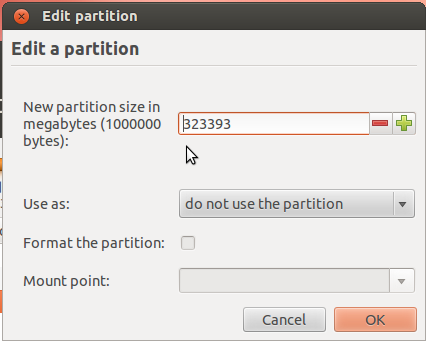
That should open this window. The only thing to do here, is tell the
installer how much disk space you want to keep for Windows 7. The rest
will be used for Ubuntu. The system used for this tutorial has about 324
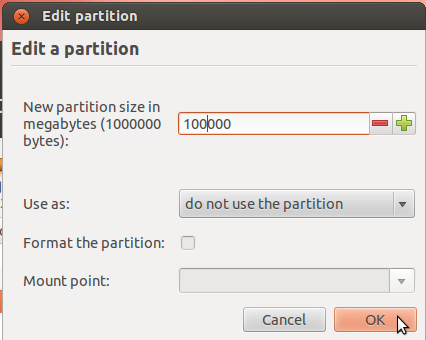
GB of disk space. I chose to keep 100 GB for Windows.
So the window now looks like this. Click
OK.
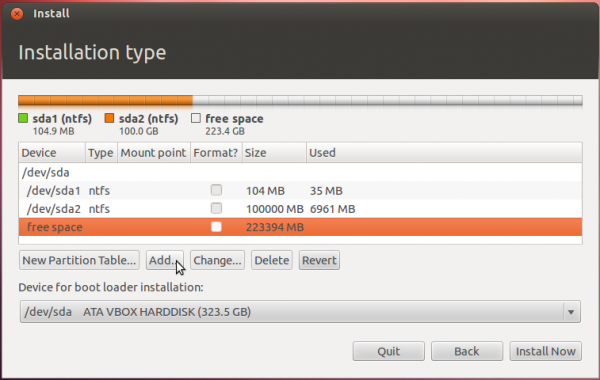
After the partition has been resized successfully, you should see the freed space marked as
free space. Select it and click
Add to start creating partitions for Ubuntu 12.04.
Though you need to create at least three partitions for installing
Ubuntu, I will create four just to show how it should be done if you
want to have the home directory on a separate partition.
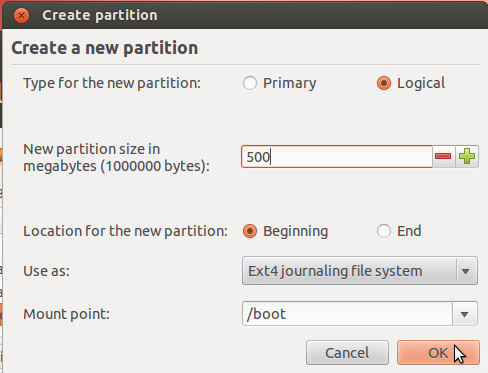
The boot partition is the first partition you want to create. The
recommended size for it, is 500 MB. That is way too much for the actual
disk space that will be used initially, but if you expect to use the
system for a long time, spanning several updates, you need the extra
space. The mount point should be /boot. And you want to keep the default
file system – ext4. This is important because errors have been reported
when using ext2 for the boot partition.
OK.
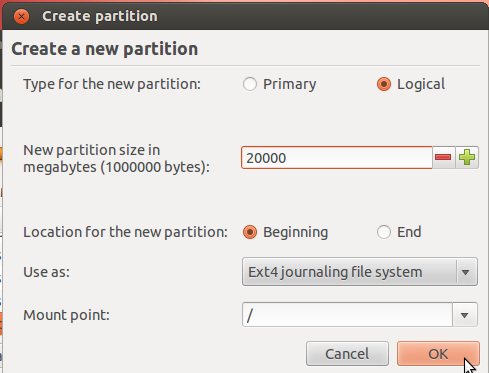
The second partition will be the root partition. For this tutorial, I
assigned 20 GB to it. Anything that is at least more than 75% above the
recommended minimum of 4.4 GB should be good. The mount point should be
/. Keep the default file system.
OK.
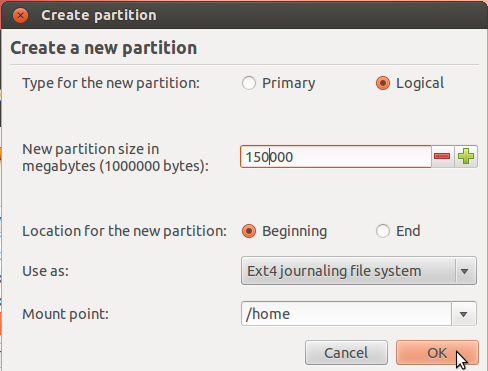
The third partition is for the home partition. Since this where any
file you download or generate is stored, it should be assigned the bulk
of the available disk space. Use /home as the mount point, and keep the
default file system.
OK.
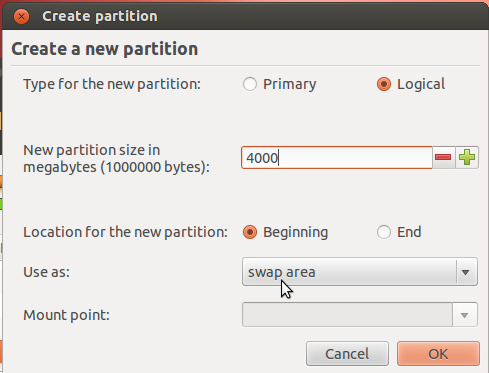
The fourth and last partition will be for Swap. This is disk space
made available for the system to use as virtual memory whenever the need
arises. Give it an appropriate size (4 GB or 4000 MB should be more
than enough on any system). Select
swap area from the
Use as dropdown menu.
OK.
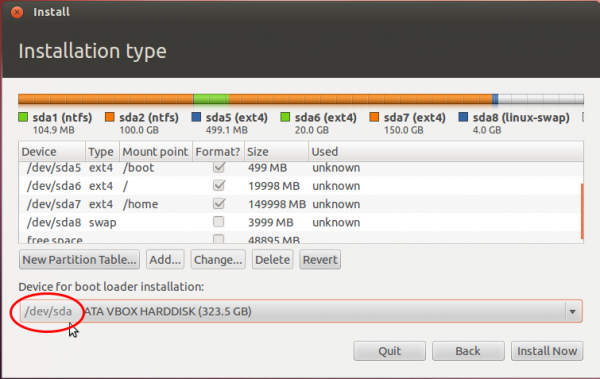
Back to the main Advanced disk partitioning tool window, you should
see the partitions you just created, besides the existing ntfs (Windows
7) partitions. Because the first Ubuntu partition was created as a
logical partition (the installer does that by default), it is listed as
sda5.
This is the boot partition and it is where the boot files for Ubuntu
will be installed, not in the MBR, which is the default. Note that
installing GRUB in the MBR is the same as installing it in
sda. This is what you see in the
Device for boot loader installation dropdown menu. So what you want to do here, is select
sda5 (our boot partition) from that menu.
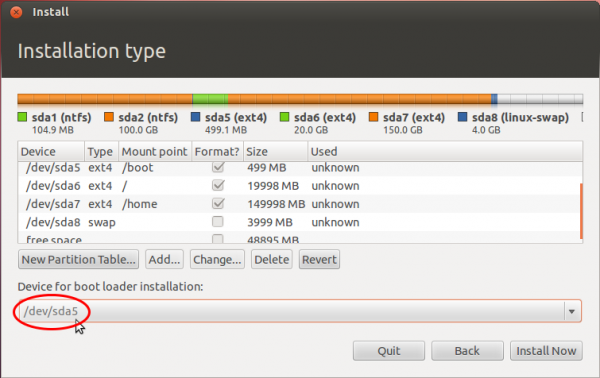
When you are done selecting it, the window should look like this. click
Install Now to continue with the rest of the installation process.
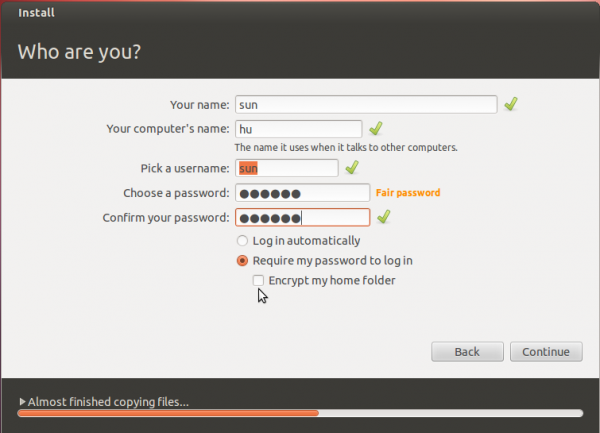
At the user account setup step, you might want to enable encryption of your home folder by enabling
Encrypt my home folder. This does not afford you the same level of physical security as full disk encryption, but it is better than no encryption.
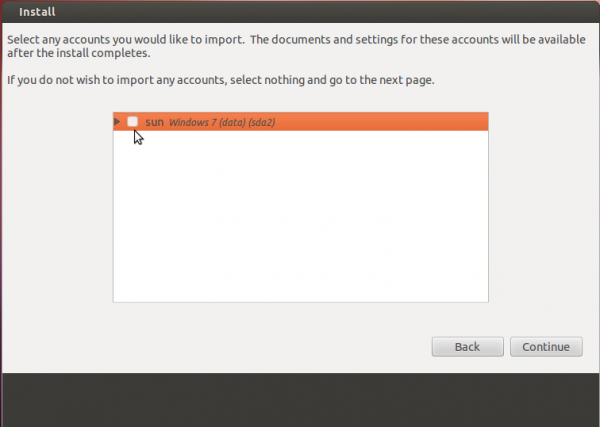
And you have the option of importing your settings from the Windows side to Ubuntu.
After installation has completed successfully, reboot the computer.
It should reboot into Windows. This is expected. At this point, Windows
does not know that it is now sharing the computer with another operating
system. The next step is to tell it, and modify its boot menu to
reflect that fact.
The easiest program to use for this task, is EasyBCD, a free program
by NeoSmart Technologies. There is a paid version, but for personal and
non-commercial use, it is free. You may download it from
here.
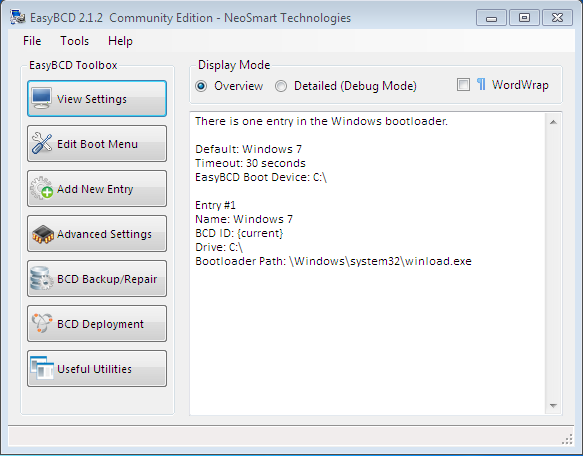
Install it as you would any Windows 7 application. Start it. The main
interface is shown in the image below. To begin the process of adding an
entry for Ubuntu 12.04 in Windows 7′s boot menu, click on the
Add New Entry tab.
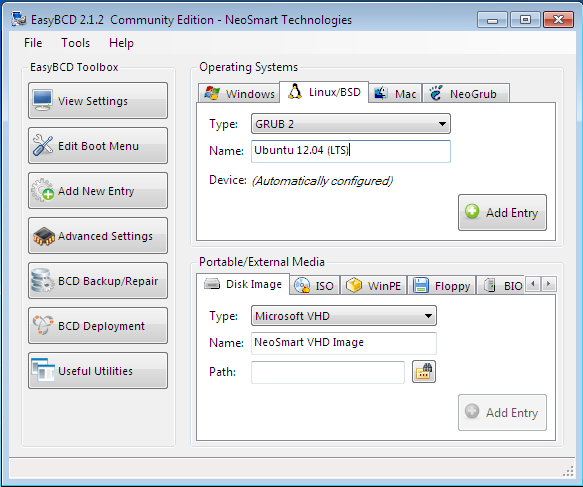
Then on the
Linux/BSD tab. From the
Type dropdown menu, select
GRUB 2, the version of GRUB used by Ubuntu 12.04. Click on the
Add Entry button. Click on
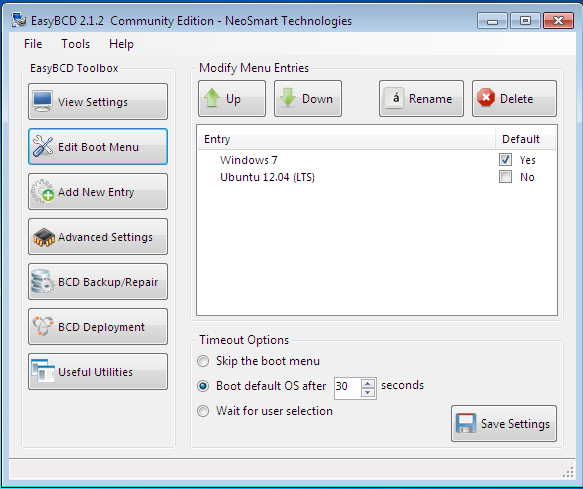
Edit Boot Menu tab to view the new configuration.
These are the two entries you will see every time you (re)boot the
computer. The default is Window 7, but you can change it to Ubuntu 12.04
if you like. Exit EasyBCD and reboot.
That is it. Like I wrote earlier, this was done on real hardware and
in a virtual environment on first try, so I do not think that you will
encounter any issues if you follow this tutorial step-by-step.
Source:
http://www.linuxbsdos.com/2012/05/17/how-to-dual-boot-ubuntu-12-04-and-windows-7/


 When
it comes to Ubuntu, Firefox certainly wins. Even when we evaluate both
the browsers irrespective of the OS we find Firefox has an edge over
Chrome as being aided with more features. What browser do you prefer on
your Ubuntu machine? Chrome or Firefox?
When
it comes to Ubuntu, Firefox certainly wins. Even when we evaluate both
the browsers irrespective of the OS we find Firefox has an edge over
Chrome as being aided with more features. What browser do you prefer on
your Ubuntu machine? Chrome or Firefox?
 openly encourages user trouble reports so the issues can be remedied.


