You can download LinuxFX10 here:
https://sourceforge.net/projects/linuxfxdevil/
August 22, 2020
August 6, 2020
Improve Firefox Performance on Linux by Turning WebRender On
WebRender promises to deliver a buttery smooth web for all.
A quick and easy way to improve the performance of Firefox on Linux is to force enable WebRender.

What is WebRender? I’ll let Mozilla explain:
“WebRender […] will replace Gecko’s existing compositor, interfacing with Gecko’s main-thread layout code. As WebRender is written in Rust and uses a very different design approach, we expect to get stability and performance benefits from this switch.”
To be (intentionally) reductive: the feature leverages a system’s GPU to render web content rather than the CPU.
It’s a switch that will improved the performance of Firefox on most systems — we’re talking ‘buttery smooth performance at up to 60 frames-per-second’ improvements. KDE’s Nate Graham reports on the performance gains he felt when using web render on his Wayland system, including better overall battery life from reduced CPU usage.
Mozilla began to enable WebRender in Firefox by default on compatible Windows systems starting September 2018. Since then the tech has slowly rolled out to more users on more systems and across more configurations, including macOS.
But WebRender is not yet default on most Linux systems, regardless of whether it is Wayland or Xorg, using closed source or open source graphics drivers, and so on.
To enable WebRender in Firefox on Linux manually:
- Open
about:configin a new tab (and okay any warnings) - Search for
gfx.webrender.all - Set the value to
Trueto enable WebRender (orfalseto disable it)
Source: https://www.omgubuntu.co.uk/2020/07/firefox-enable-webrender-linux

May 26, 2020
Top 5 Best MS Office Alternatives for Linux in 2020
Like it or not, Microsoft Office is the de facto standard in most work
environments, educational institutions, and government offices. As such,
all MS Office alternatives for Linux are automatically measured against
it and evaluated based on their compatibility with the file formats
created by Word, Excel, and PowerPoint.
As a Linux user in 2020, you can choose from multiple mature alternatives to MS Office. Most MS Office alternatives for Linux can be downloaded and used free of charge to open, edit, and create documents in a variety of file formats, including .docx, .xlsx, and .pptx.
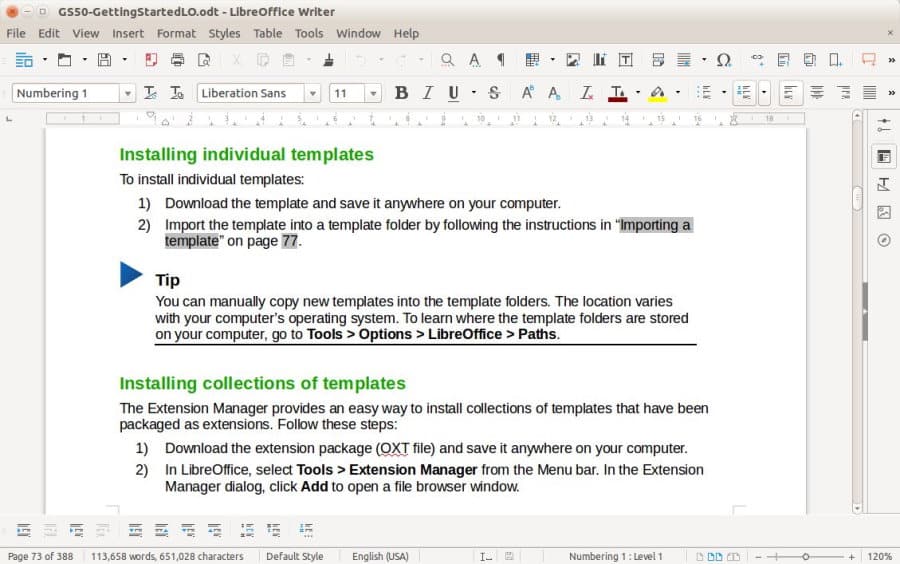
LibreOffice is easily the most popular alternative to MS Office for Linux in 2020. It was first released in 2011 as a fork of OpenOffice.org, another MS Office alternative featured in this article. Because LibreOffice has always embraced a collaborative development process, inviting developers from around the world to join the project and contribute, it quickly gained enormous momentum, and the rest is history.
LibreOffice consists of the following applications:
What makes absolutely no time is getting used to is the fact that LibreOffice is completely free in both senses of the word.
Pros:
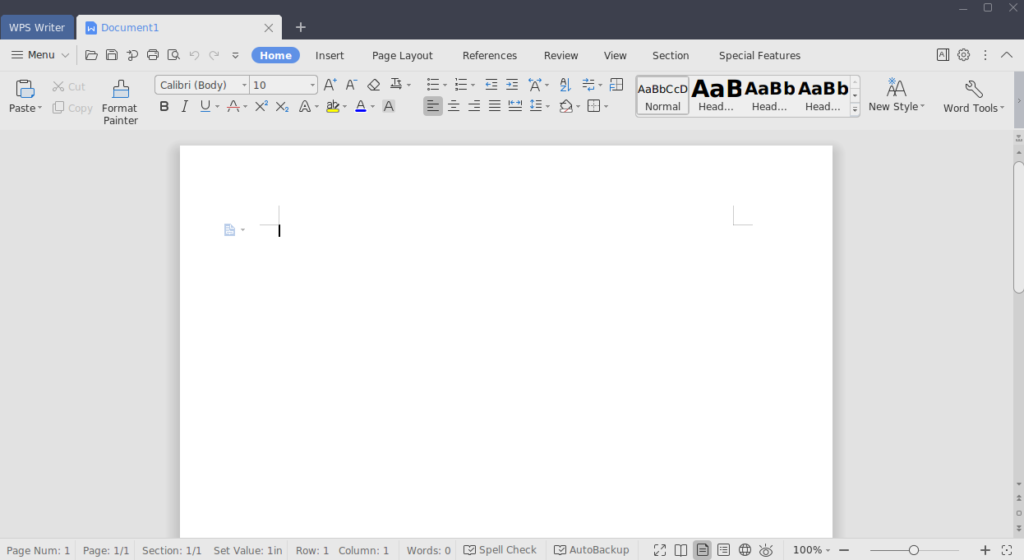
Previously known as Kingsoft Office, this MS Office alternative for Linux is developed by Zhuhai-based Chinese software developer Kingsoft. If you want to use WPS Office for personal purposes, you don’t have to pay any money for it. Online business customers are required to purchase a commercial license.
For a free alternative to MS Office, WPS Office delivers an exceptional level of polish. Its user interface leaves LibreOffice in the dust, and many of its features are so innovative that you won’t find them anywhere else.
WPS Office 2019 introduced all-in-one mode, which supports opening different types of files within a single application window. This mode is especially great for people who use WPS Office on laptops with limited screen real estate.
The latest version of WPS Office also comes with a comprehensive suite of PDF tools that let you comment, annotate, and edit your PDF files. Just like the rest of WPS Office, you can use these tools free of charge for personal purposes.
Pros:
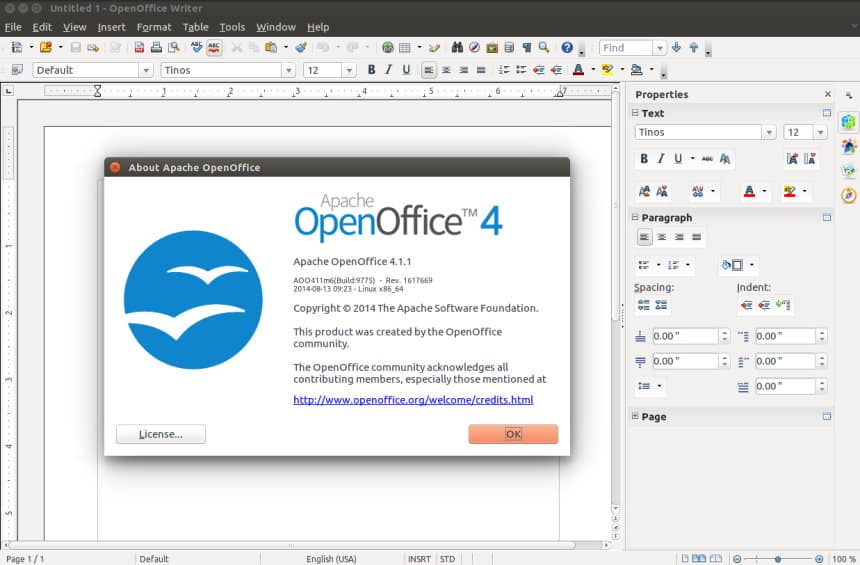
Not long after Oracle Corporation acquired Sun Microsystems in 2010, most developers who worked on OpenOffice.org left the company. A year later, Oracle halted the development of OpenOffice.org and laid off the remaining development team. Fortunately, the company also decided to contribute the source code and relevant trademarks to the Apache Software Foundation, which is how Apache OpenOffice came to life.
Today, Apache OpenOffice is in version 4, available in 41 languages for Linux, Windows, and macOS. It shares many similarities with LibreOffice (after all, they are both forks of the same MS Office alternative), but OpenOffice lacks some important features and capabilities, namely the ability to save .docx Word documents.
It also uses the Apache license, whereas LibreOffice uses a dual LGPLv3 / MPL license. Because Apache OpenOffice uses the Apache license, LibreOffice can freely “borrow” its features, but Apache OpenOffice developers can’t do the same.
Even though the popularity of Apache OpenOffice has been steadily declining since 2013, it still remains a great alternative to MS Office for all Linux users who avoid proprietary software like a plague.
Pros:
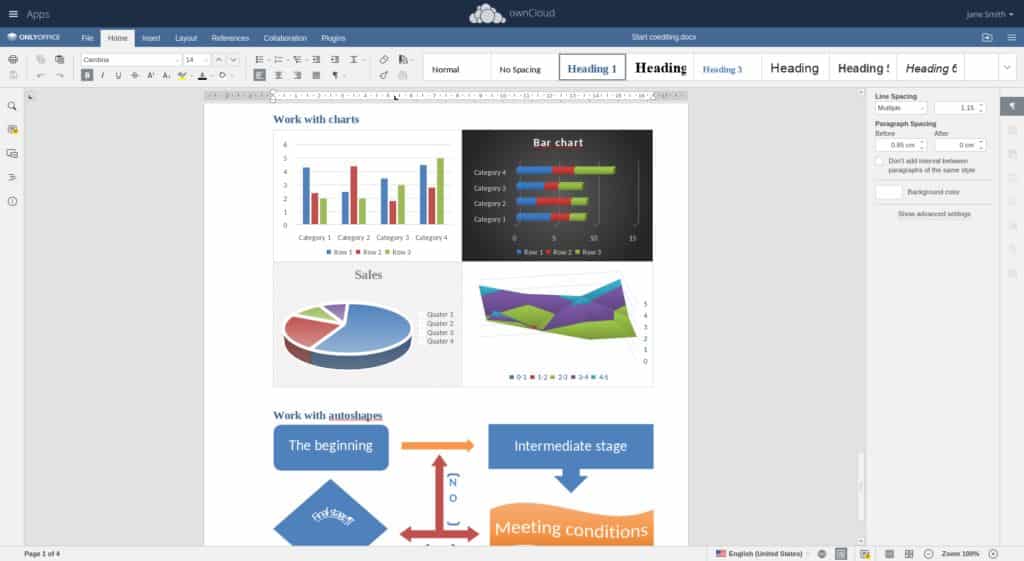
This open source alternative to MS Office is developed by Ascensio System SIA, a company with headquarters in Riga, Latvia. It includes everything home users and small businesses need to be productive and grow.
With its advanced document management capabilities, ONLYOFFICE makes it easy to go paperless and stay highly organized. Users can share documents with a simple click, collaborate on them online, and manage access levels to keep sensitive information under control.
As a complete MS Office alternative, ONLYOFFICE includes an easy-to-use email management tool that you can use to access any email account. There’s also a complete toolkit for sales managers, a project management solution, a full-featured calendar app, and a community platform with blogs, forums, and chat.
ONLYOFFICE boasts the highest compatibility with MS Office formats, and you can verify this claim by installing ONLYOFFICE on your own server or desktop computer.
Pros:
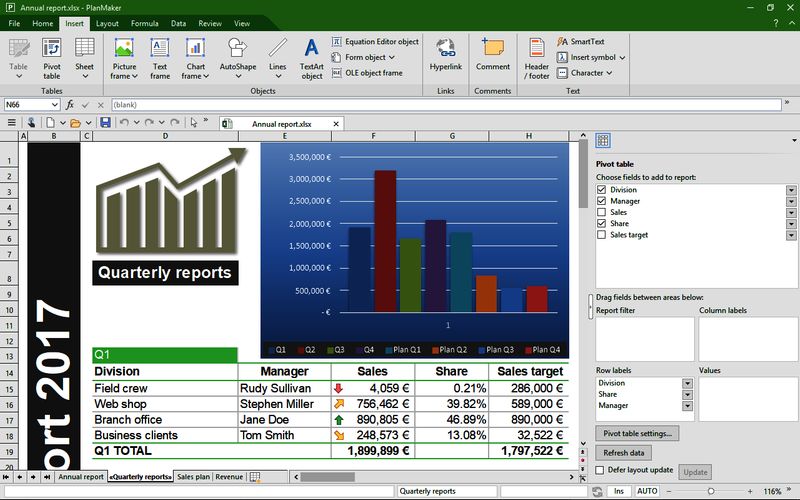
SoftMaker is a German software company, and FreeOffice is its flagship product. The latest version of this multi-platform MS Office alternative consists of the word processor TextMaker, the spreadsheet PlanMaker, the presentation software application SoftMaker Presentations, the scripting language BasicMaker, and a modified version of Thunderbird.
The greatest strength of FreeOffice is its great compatibility with MS Office file formats, but the list of features to enjoy doesn’t end there. With FreeOffice, it doesn’t matter if you prefer traditional menus and toolbars or modern ribbons because you can switch between them at any time. A dedicated touch mode optimizes the user interface of FreeOffice for touch devices, so you can do more on your 2-in-1 convertible.
Unfortunately, FreeOffice is a proprietary MS Office alternative, and you have to register online to use it. If you’re willing to spend some money, you can upgrade to the Professional edition and enjoy a better spell checker with multiple dictionaries and support for Windows Group Policy.
Pros:
Source: https://linuxhint.com/best_ms_office_alternatives_linux/
As a Linux user in 2020, you can choose from multiple mature alternatives to MS Office. Most MS Office alternatives for Linux can be downloaded and used free of charge to open, edit, and create documents in a variety of file formats, including .docx, .xlsx, and .pptx.
1. LibreOffice
LibreOffice is easily the most popular alternative to MS Office for Linux in 2020. It was first released in 2011 as a fork of OpenOffice.org, another MS Office alternative featured in this article. Because LibreOffice has always embraced a collaborative development process, inviting developers from around the world to join the project and contribute, it quickly gained enormous momentum, and the rest is history.
LibreOffice consists of the following applications:
- Writer: A word processor with the ability to create anything from a five-paragraph essay to a novel.
- Calc: A spreadsheet software application with professional features, multiple-user support, built-in integrations with corporate databases.
- Impress: A presentation program that makes it easy to create slides with text, images, animations, bullet points, drawings, and other elements.
- Draw: A diagraming and flowcharting tool with a maximum page size of 300 cm by 300 cm.
- Math: A formula editor that integrates with other LibreOffice applications and makes it possible for users to insert perfectly formatted mathematical and scientific formulas into documents, spreadsheets, and presentations.
- Base: A desktop database front-end with native support for MySQL/MariaDB, Adabas D, MS Access, and PostgreSQL
What makes absolutely no time is getting used to is the fact that LibreOffice is completely free in both senses of the word.
Pros:
- Free and open source.
- Complete functionality.
- Great compatibility with MS Office file formats.
- Outdated design.
2. WPS Office
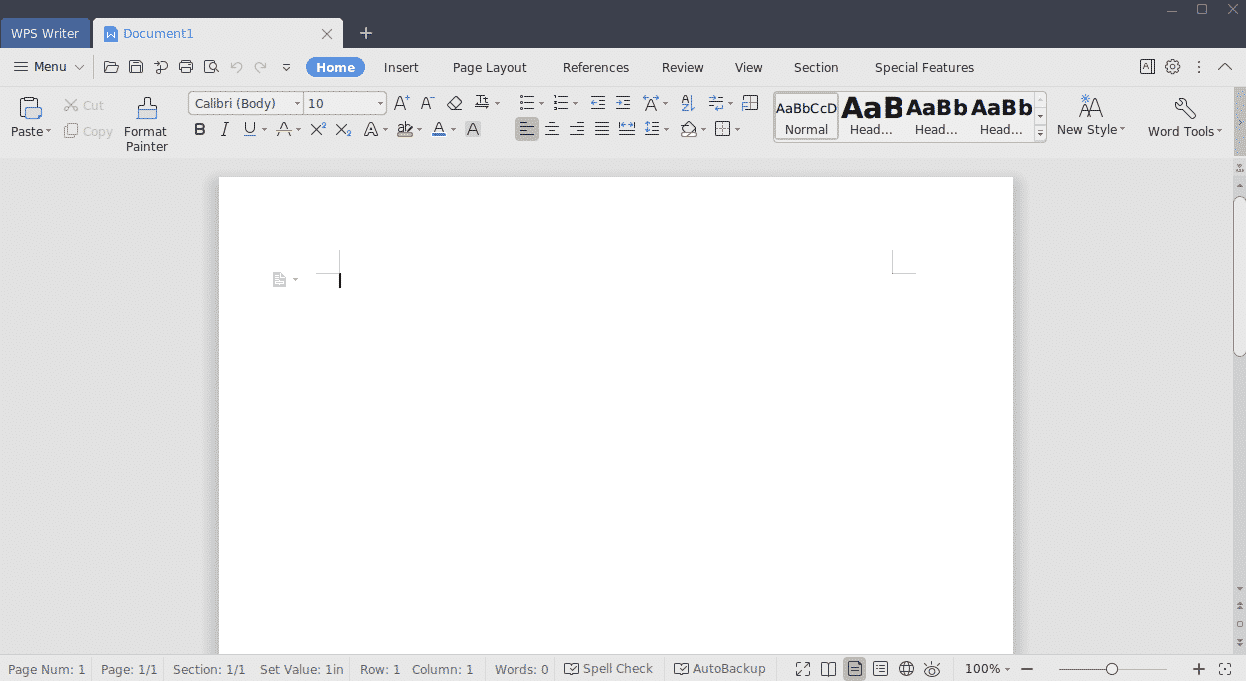
Previously known as Kingsoft Office, this MS Office alternative for Linux is developed by Zhuhai-based Chinese software developer Kingsoft. If you want to use WPS Office for personal purposes, you don’t have to pay any money for it. Online business customers are required to purchase a commercial license.
For a free alternative to MS Office, WPS Office delivers an exceptional level of polish. Its user interface leaves LibreOffice in the dust, and many of its features are so innovative that you won’t find them anywhere else.
WPS Office 2019 introduced all-in-one mode, which supports opening different types of files within a single application window. This mode is especially great for people who use WPS Office on laptops with limited screen real estate.
The latest version of WPS Office also comes with a comprehensive suite of PDF tools that let you comment, annotate, and edit your PDF files. Just like the rest of WPS Office, you can use these tools free of charge for personal purposes.
Pros:
- Beautiful user interface.
- Advanced features.
- PDF editing tools.
- The free version of WPS Office has ads.
3. Apache OpenOffice
Not long after Oracle Corporation acquired Sun Microsystems in 2010, most developers who worked on OpenOffice.org left the company. A year later, Oracle halted the development of OpenOffice.org and laid off the remaining development team. Fortunately, the company also decided to contribute the source code and relevant trademarks to the Apache Software Foundation, which is how Apache OpenOffice came to life.
Today, Apache OpenOffice is in version 4, available in 41 languages for Linux, Windows, and macOS. It shares many similarities with LibreOffice (after all, they are both forks of the same MS Office alternative), but OpenOffice lacks some important features and capabilities, namely the ability to save .docx Word documents.
It also uses the Apache license, whereas LibreOffice uses a dual LGPLv3 / MPL license. Because Apache OpenOffice uses the Apache license, LibreOffice can freely “borrow” its features, but Apache OpenOffice developers can’t do the same.
Even though the popularity of Apache OpenOffice has been steadily declining since 2013, it still remains a great alternative to MS Office for all Linux users who avoid proprietary software like a plague.
Pros:
- Familiar user interface.
- Uses the Apache license.
- Extensive list of supported languages.
- Limited support for MS Office file formats.
4. ONLYOFFICE
This open source alternative to MS Office is developed by Ascensio System SIA, a company with headquarters in Riga, Latvia. It includes everything home users and small businesses need to be productive and grow.
With its advanced document management capabilities, ONLYOFFICE makes it easy to go paperless and stay highly organized. Users can share documents with a simple click, collaborate on them online, and manage access levels to keep sensitive information under control.
As a complete MS Office alternative, ONLYOFFICE includes an easy-to-use email management tool that you can use to access any email account. There’s also a complete toolkit for sales managers, a project management solution, a full-featured calendar app, and a community platform with blogs, forums, and chat.
ONLYOFFICE boasts the highest compatibility with MS Office formats, and you can verify this claim by installing ONLYOFFICE on your own server or desktop computer.
Pros:
- Reliably opens/saves .doc and .docx files.
- Free and open source.
- Can be delivered as SaaS.
- Slower document loading.
5. SoftMaker FreeOffice
SoftMaker is a German software company, and FreeOffice is its flagship product. The latest version of this multi-platform MS Office alternative consists of the word processor TextMaker, the spreadsheet PlanMaker, the presentation software application SoftMaker Presentations, the scripting language BasicMaker, and a modified version of Thunderbird.
The greatest strength of FreeOffice is its great compatibility with MS Office file formats, but the list of features to enjoy doesn’t end there. With FreeOffice, it doesn’t matter if you prefer traditional menus and toolbars or modern ribbons because you can switch between them at any time. A dedicated touch mode optimizes the user interface of FreeOffice for touch devices, so you can do more on your 2-in-1 convertible.
Unfortunately, FreeOffice is a proprietary MS Office alternative, and you have to register online to use it. If you’re willing to spend some money, you can upgrade to the Professional edition and enjoy a better spell checker with multiple dictionaries and support for Windows Group Policy.
Pros:
- Solid compatibility with MS Office file formats.
- Feels like an MS Office product.
- Special touchscreen mode.
- Requires an online license activation.
CONCLUSION
With these various options you should be able to find a suitable alternative to MS Office to get your work done on Linux.Source: https://linuxhint.com/best_ms_office_alternatives_linux/
May 21, 2020
21 Must-Have Apps for Ubuntu (2020 Edition)
What are the best Ubuntu apps? It’s a question I’m often asked. But rather than reply individually I decided to put together a list of the top Ubuntu software so everyone can read it.
So behold this selection of the best Ubuntu apps. This list has something to offer everyone, from those new to or considering a switch to Ubuntu right through to long-time Linux gurus and self-confessed power users.
This list isn’t set in stone either. I keep it updated to include new apps and retire discontinued ones. Do share your favourite Linux apps down in the comments section at the bottom of the article to give me some suggestions.
Ready to discover some great Linux software?
Let’s go!
21 Best Ubuntu Linux Apps
To make this list of tip-top software a tad more interesting I have
chosen NOT to include apps that Ubuntu ships with by default. What does this mean? Well-known software like Mozilla Firefox, LibreOffice and Thunderbird is NOT listed below. Why? Because you already have it!
I also tried to pick Linux apps which are available to install from the Ubuntu archive (though, as you’ll see, there are a few exceptions). This is to cut down on the need for third-party PPAs and external repositories, which often come with drawbacks.
1. Geary E-mail Client
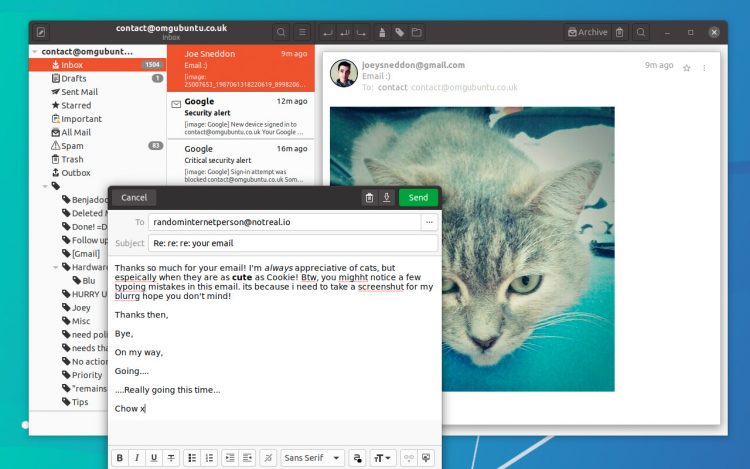
A fully-featured IMAP email client, Geary gets you set-up to send and receive mail from popular webmail providers, including Gmail, Yahoo! Mail and Outlook quickly through its account wizard.
Once things sync’d up, you’ll find Geary offers a clean, modern look with good integration with the GNOME Shell desktop (which is what Ubuntu uses).
It has powerful (and fast) mail search features, a comprehensive email composer, and many other thoughtful features — like its “conversation” based email threading.
You can install Geary on Ubuntu very easily, just be aware that some features differ depending on which Linux distro you’re using.
If you want to use the most up-to-date version of Geary possible you will need to install the app from Flathub (see our guide on how to install Flatpak if you need it).
2. Lollypop Music Player
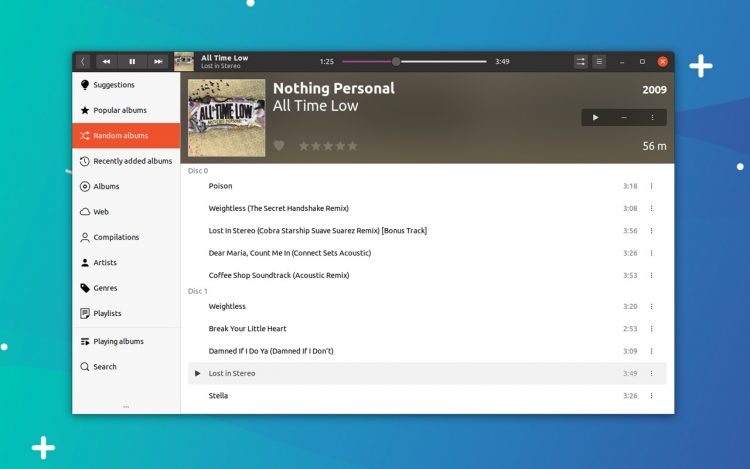
The player integrates flawlessly with the GNOME Shell desktop, and has all the essential features you need, i.e. add music, browse music, play music, create playlists, and so on.
Lollypop also offers a party mode; is able fetch lyrics, album artwork, and artist biographies from online sources; and it can “scrobble” track plays to music tracking sites like like Last.FM and ListenBrainz.
While traditional music player apps like Lollypop might seem old fashioned in the era of music streaming services like Spotify and Amazon Prime Music, they’re not obsolete just yet — and as this app shows, far from looking dated!
To use the very latest version you will need to add the official Lollypop PPA or install the app from Flathub. Alternatively, you can install Lollypop on Ubuntu from the Ubuntu Software store:
3. Google Chrome
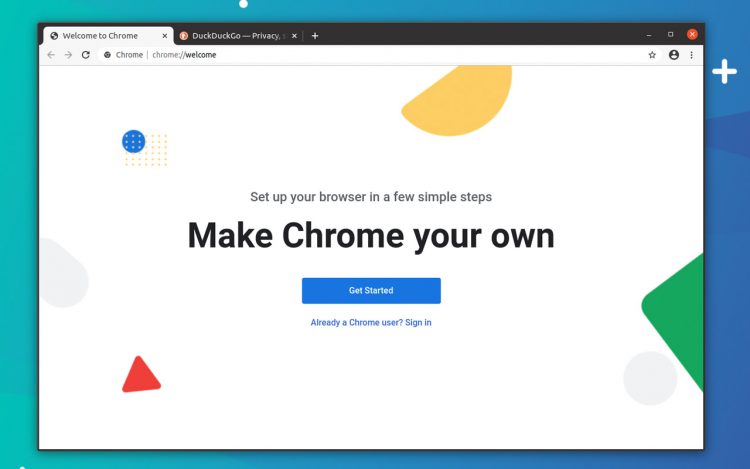
You probably know all you need (or in some cases want) to know about Chrome, suffice to say it’s capable, well supported, feature-packed, and works just as well on Linux desktops as Mac and Windows ones!
You can log in with your Google account to sync bookmarks, extensions, passwords, and even apps between Linux and other devices you use Chrome on, such as a Windows device.
So if you’re Google fan, an avid Android user, or just someone who prefers the way Chrome does things, you can easily install Chrome on Ubuntu, Linux Mint, and related distros.
Head to the official Chrome website page to snag a 64-bit Ubuntu installer, then double-click on it once it’s finished downloaded. Follow the prompts shown on your screen and et voila: installed.
4. The GIMP
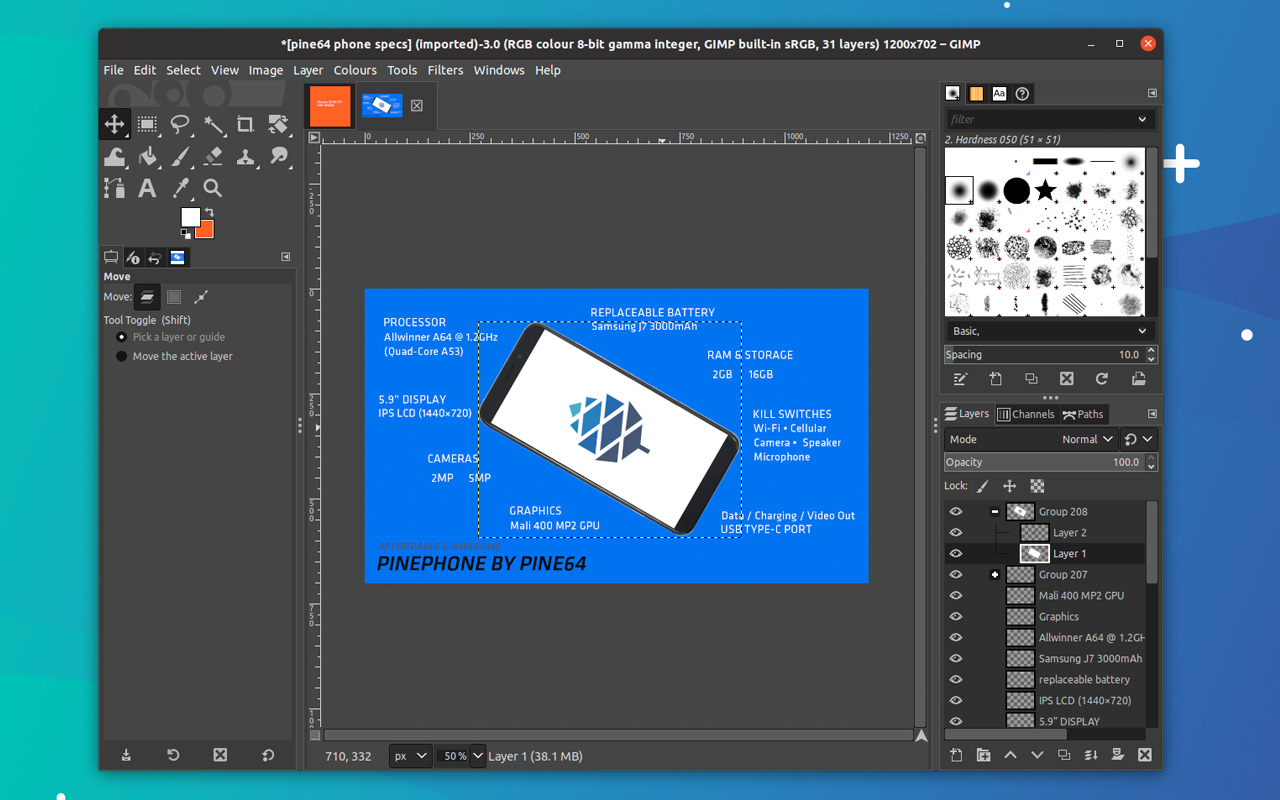
Odd name aside, GIMP is a powerful open source image editor that’s freely available for Linux, Windows and macOS.
Though the app lacks a few of Adobe’s fancier flourishes it’s more than a match for the pricey rival, which is pretty amazing when you remember that it is entirely free software.
So whether you want to flip a selfie, fix a photographic flaw, or create a majestic multi-layered masterpiece to share online, The GIMP can do it.
You can install GIMP on Ubuntu, Linux Mint and other similar Linux distros from the repos:
5. Kdenlive Video Editor

Why? Because Kdenlive is by far and away the best open source video editing software for Linux distros, Ubuntu or otherwise.
This non-linear video editor offers a solid balance of basic and advanced video editing features, including keying, rotoscoping, keyframe editing, cool transitions, and useful export profiles.
6. Telegram Desktop
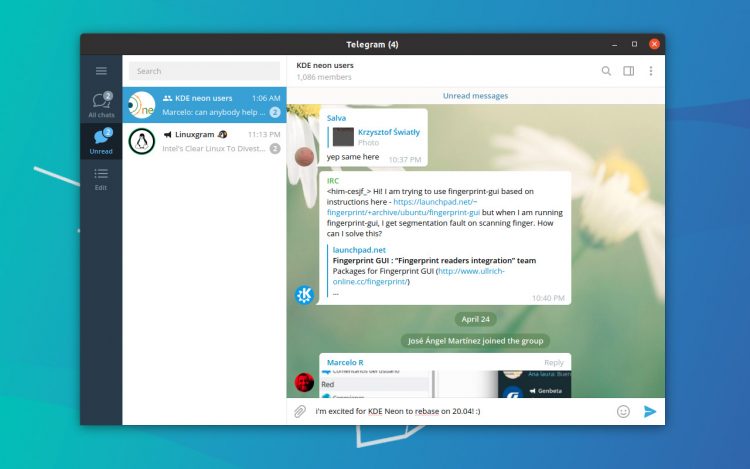
The cross-platform client boasts a user-friendly layout, encrypted chats, and enhanced privacy. Alls messages you send, read, and receive are perfectly synced with your mobile, too.
I should note that, to sign use Telegram you will need a (valid) mobile number. But after that you’re good to go. Check out our post on how to install Telegram on Ubuntu, or grab it right away from the Snap Store:
7. Foliate ePub Reader
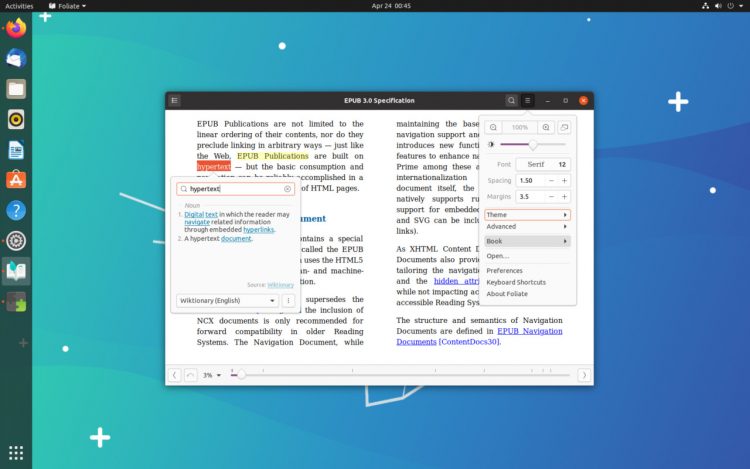
The GTK-based Foliate boasts a clean, thoughtful, and clutter-free UI; provides a stack of font sizing, spacing and page layout options; and supports text notes, dictionary lookups, bookmarks, and tracks your page progress.
Foliate is available from both Flathub and the Snap Store, or you can download an installer package for the latest version of Foliate direct from its GitHub page:
If all of that sounds like a page turner to you, you can grab a copy from the shelves of the Snap Store, on Flathub, or direct from GitHub:
8. Caffeine
Caffeine is a small app with one purpose: to stop your screen locking (or screensaver, if you use one) from kicking in.Why would you want to do that? If you’ve ever tried to watch a video and had the lock screen kick in, you’ll know why. For situation where I don’t want the lock-screen to interrupt me so I use Caffeine.
A veritable software stimulant, Caffeine works as a small tray applet that you can toggle on to keep your computer ‘awake’ (and toggle off when you don’t mind it taking a snooze!
9. Tilix Terminal Emulator
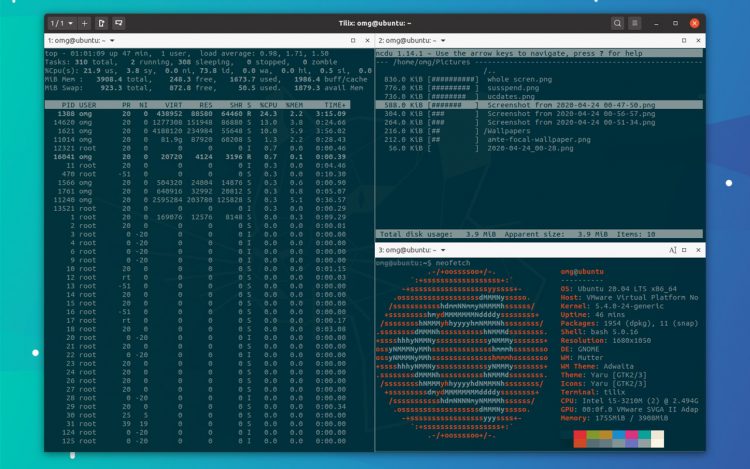
Ubuntu comes with a decent terminal emulator by default. But if you’re looking for something more advanced, check out the Tilix tiling terminal emulator.
Tilix lets you tile multiple terminal sessions inside a single unified window (or more, if you’d rather) both horizontally and vertically. The app also supports custom titles, custom links, and custom backgrounds.
Rounding out the Tilix feature set is drag and drop rearranging, support for persistent layouts (e.g., open same CLI tools in the same position again) and notifications (handy for when a task completes).
Tilix lets you tile multiple terminal sessions inside a single unified window (or more, if you’d rather) both horizontally and vertically. The app also supports custom titles, custom links, and custom backgrounds.
Rounding out the Tilix feature set is drag and drop rearranging, support for persistent layouts (e.g., open same CLI tools in the same position again) and notifications (handy for when a task completes).
10. OnlyOffice
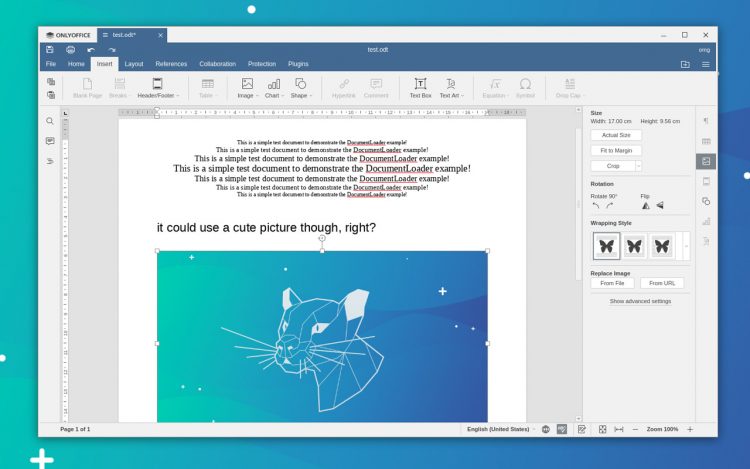
This open source Microsoft Office lookalike is picking up plaudits from productivity fans seeking a free, open source software client that more closely resembles Microsoft Office — and works very well with files made for it
If there’s a downside it’s that the app uses its own toolkit, meaning it doesn’t blend in with your other apps. But it’s functionality not form that counts, and OnlyOffice delivers that in buckets.
11. Etcher Image Writer

If you regularly try out new Linux distributions then you’l know how important it is to have a reliable flashing tool — and Etcher is just that.
Just run the app, select a valid
.iso or .img file, pick a drive to flash it to, and away you go! Bootable USB or SD card in super quick time.Etcher is available to download from the project website in both 64-bit and 32-bit
.appimage format.12. Cawbird Twitter Client
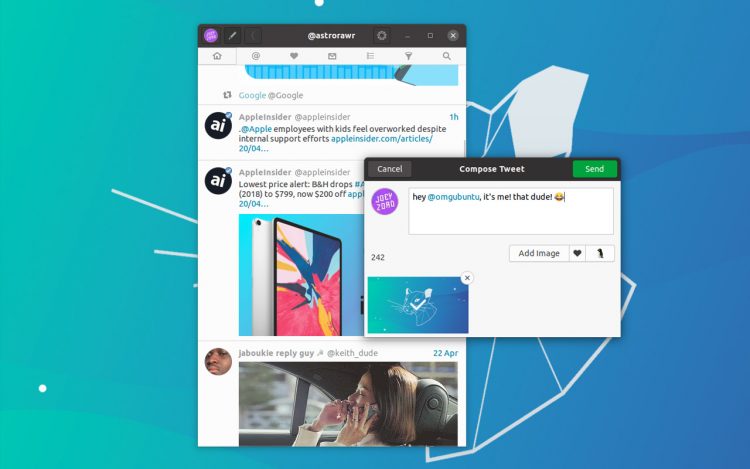
Cawbird wraps a traditional twitter experience (meaning: reverse chronological feed of recent ‘tweets’, not algorithm ranked ones) in a gorgeous GTK UI.
All the essential tweet-related tasks are catered for, including liking, retweeting, and replying to tweets; notification on new mentions; the ability to follow/unfollow accounts; and the ability to send, read, and receive direct messages.
You’ll find a few innovative features tucked up under its wing too, including the ability to text expand phrases and emoji; auto-saving of tweets in the composer box; and (mercifully) the ability to mute specific accounts or terms.
13. VLC

VLC will play almost any media format you throw at it, video, audio or something in between! As well as playing DVDs, VLC can access DLNA shares and online streams, and even transcode video from one format to another.
So while there are a glut of Linux video players available (Celluloid being a personal fave) I still recommend VLC over all of them because of its broad support, huge feature set, and dependable nature.
14. GNOME Tweaks

Whether you want to change GTK theme on Ubuntu, swap icon set, adjust the desktop font, show battery percentage in the top bar, move window buttons to the opposite side…
Whatever the task it’s worth checking to see if this tool can do it first!
15. Feeds (RSS Client)
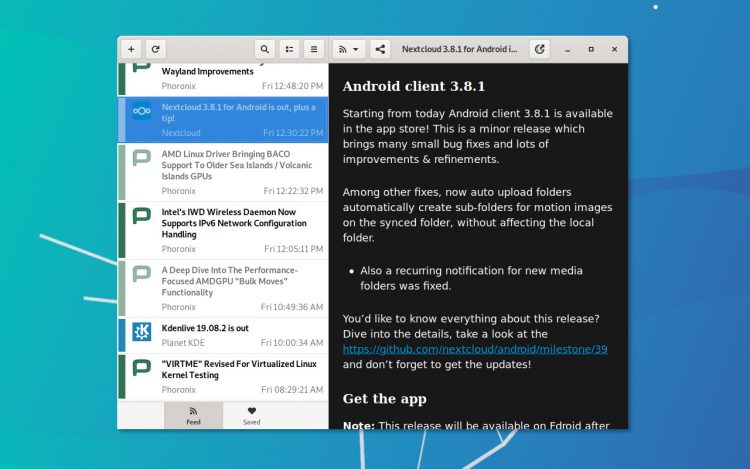
But to start using RSS feeds you need an RSS client. I like Feeds (formerly known as GNOME Feeds). It’s both a well made and superbly designed GTK RSS reader for the Linux desktop.
Admittedly it lacks any kind of “cloud” integration (so you can’t sync you reader items through a RSS service like Feedly or The Old Reader), but the app does let you import and export feed lists easily.
And with “unread only” and “mark all as read” buttons; the ability to save articles for offline reading; and a baked-in reader mode it’s nigh-on-perfect for perusing posts from your preferred publishing outlets — ahem, like this one?
16. Steam

I’ve lost track of how many native Linux games Steam boasts but we’re talking many thousands, ranging from indie hits and retro flavoured favourites through to blockbuster and AAA titles like Shadow of the Tomb Raider, DiRT 4, and the various Warhammer entries.
Better yet, when you buy a game from Steam you can access versions on any platform — so if you already have a tidy library of Windows games then you’ll be able to play any native Linux ports automatically!
To install Steam on Ubuntu just download the official installer package from the Steam website:
17. ULauncher
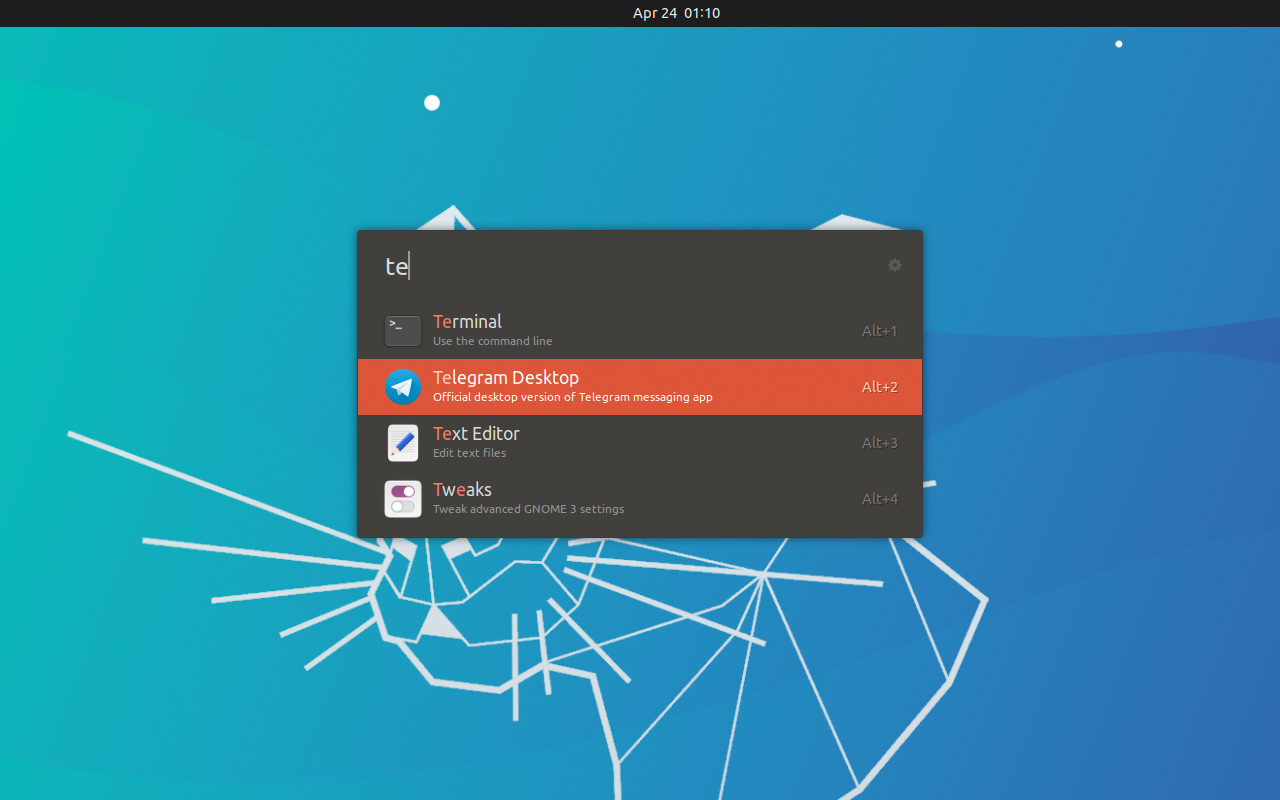
A
ctrl + spacebar productivity bar, Ulauncher is inspired by Alfred for macOS and similar semantic search tools that followed in its wake. The app lets you launch applications on your system using nothing but your keyboard… but Ulauncher can do a lot more than launch apps thanks to extensions.
Adding Ulauncher extensions enables you to extend the capabilities available from the launcher, e.g., look up dictionary definitions; find and copy emoji to the clipboard; launch web searches, and more.
18. VSCode
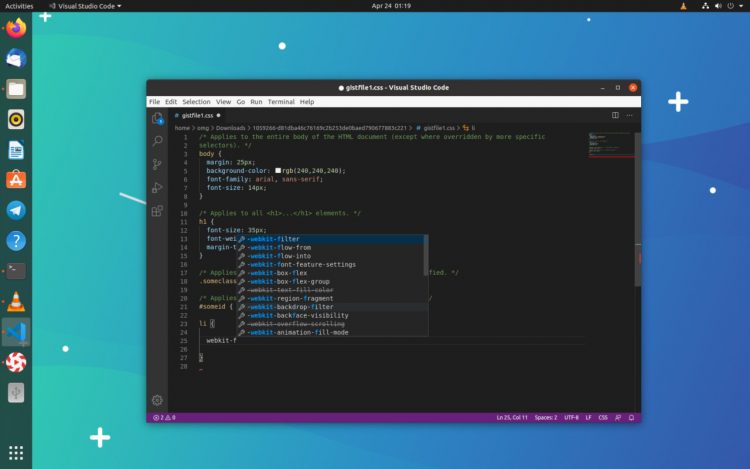
VScode (despite being made by Microsoft) is a free, powerful code editor available for Linux as well as macOS and Windows systems.
It features built-in support for a crop of languages, including TypeScript, JavaScript, and Node.js. It also has a ‘smart’ autocomplete feature, and can be extended and tailored to specific workflows through plugins.
You can install VSCode on Ubuntu as a Snap app:
19. Flameshot
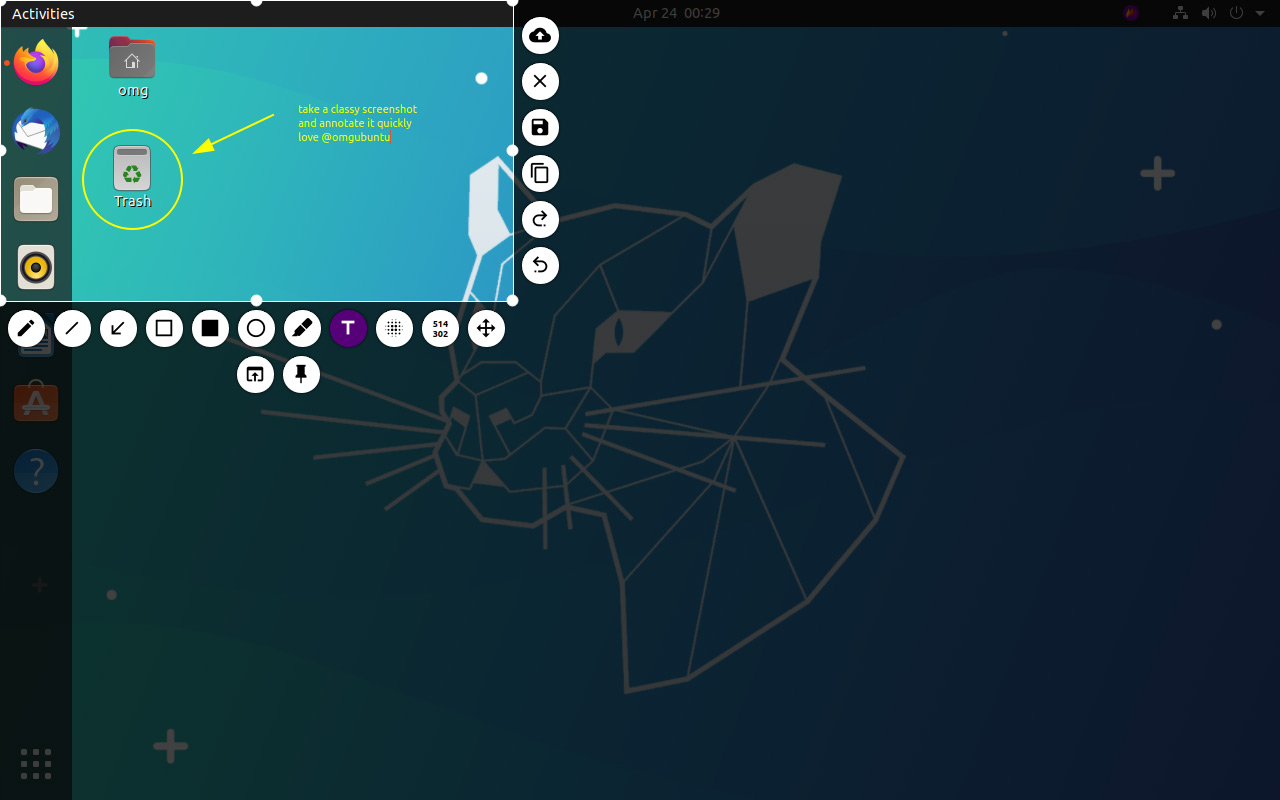
This snaptastic app is rammed full of features (too many to even mention here) but all are within easy reach. Simply select a region of the screen to want to capture, add some markup, highlights, or obscure some sensitive data, then hit the
Enter key to take the snap.If you’re a fan of Shutter (a GTK screenshot taking and editing app that no longer works properly in newer version of Ubuntu) Flameshot is the next best thing.
20. Neofetch
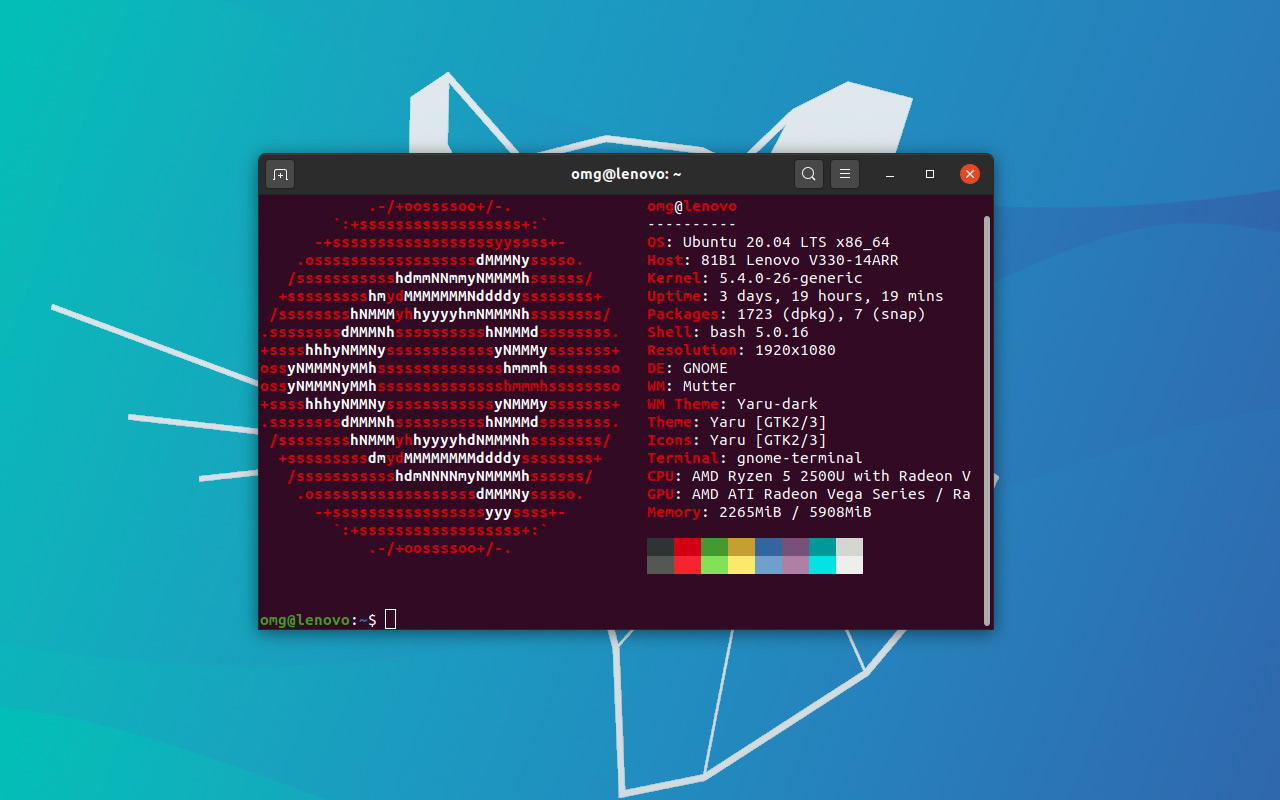
Although not a GUI app (meaning you won’t find a launcher for it added to your app launcher) it’s deliciously simple to use: just run the command
neofetch! You can even set up Neofetch to take a screenshot the instant you run it making it ideal for times you want to show off your slick looking desktop setup!
21. Shortwave

Sporting a simple, straightforward UI, Shortwave‘s singular focus make it a finely-tuned alternative to more general purpose media players, and it boasts tight integration with the GNOME Shell desktop (including media control support).
Sealing the deal is built-in support for Google Chromecast, should you fancy sending your favourite radio stations from your Linux system to a big-screen TV.
Highly recommended.
But wait! There’s More!
Like I said at the start: this list could easily have been “101” apps longer rather than 21 but, mindful that you probably don’t want to be scrolling all day, I’ve limited myself to showcasing just 21 apps — an self-imposed limit.Still, there are a few other apps I’ll give shout outs to.
First off, a stack of big name cross-platform software, like Blender, Spotify, Skype, Slack, Audacity and VirtualBox is freely available on Linux, as are some lesser known pro-tools like Lightworks (video editor) and Waveform Free (digital audio workstation).
On the GUI front, Peek is a great animated GIF screen recorder for Linux desktops built using GTK; Olive is a promising (if a touch unstable) new video editor; and Drawing is sort of like a Microsoft Paint alternative for Linux.
If you’re an Android smartphone users then check out Scrpy (a great tool that lets you mirror your Android phone on your Linux desktop to interact and control it), as well as either KDE Connect or GSconnect.
I didn’t list many CLI based tools above (intentional) but there are a few I can’t resist shouting out, including:
ncdu (disk utility); rainbowstream (CLI Twitter client), cmus (music player), and top top alternative htop (system monitor) .For more app goodness check over out out lists of the best weather apps for Ubuntu, the best Linux music players, and the best app launchers. And check out my pick of the best Electron apps, most of which can be run on Windows, macOS or Linux.
Source: https://www.omgubuntu.co.uk/2016/12/21-must-have-apps-ubuntu
May 7, 2020
Ubuntu Mate 20.04


You can download Ubuntu Mate here: https://ubuntu-mate.org/download/

DeaDBeeF is an open source music player for Linux
by Ashwin on May 07, 2020
Foobar2000 is the go-to music player for many users (including myself). Though it isn't available on Linux, you can opt for an alternative like DeadBeef.
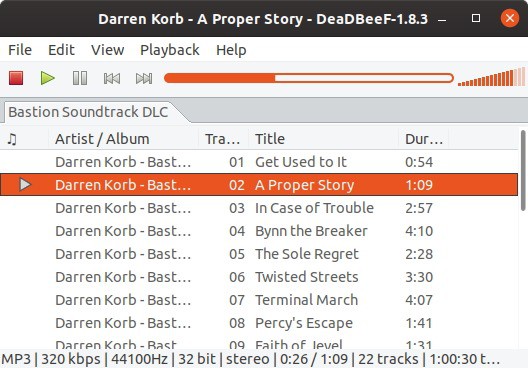
The program's interface is minimal and the playback controls are at the top (its almost like Foobar), but DeadBeeF has a colorized progress bar and volume slider. The large pane below the controls is the playlist pane. It supports tabs, so you can open/manage multiple playlists at the same time.
The pane has many columns inlcuding the current playing status, artist name, album, track number, title, and the duration of the track. Right-click on a column to edit/remove it. You can group columns too. Select the add column option to add any of the following: Album art, Year, Band/Album Artist, Codec, Bitrate or a Custom column.
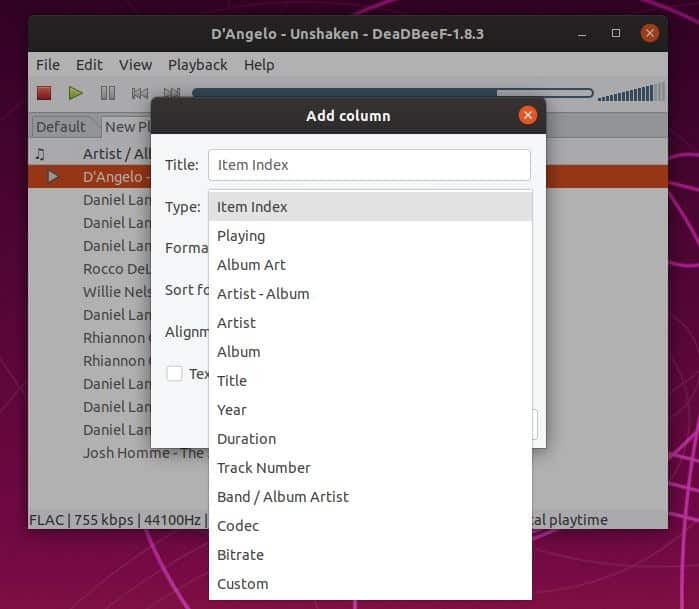
Right-click on a track to add/remove it to the playback queue, reload the metadata, perform file operations (cut, copy, paste, remove).
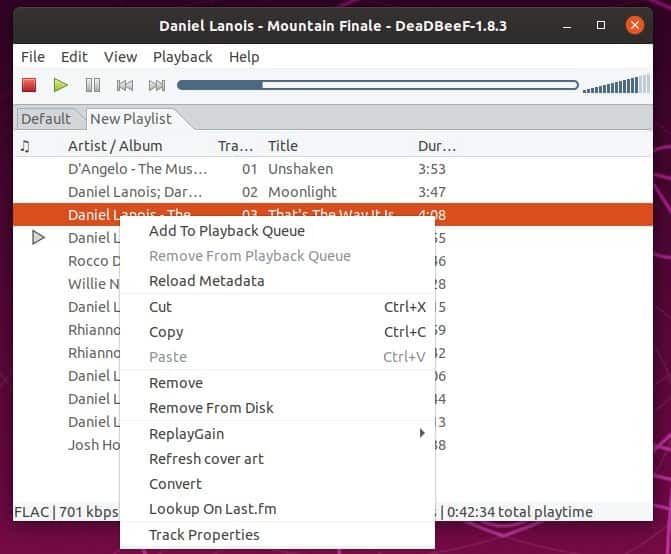
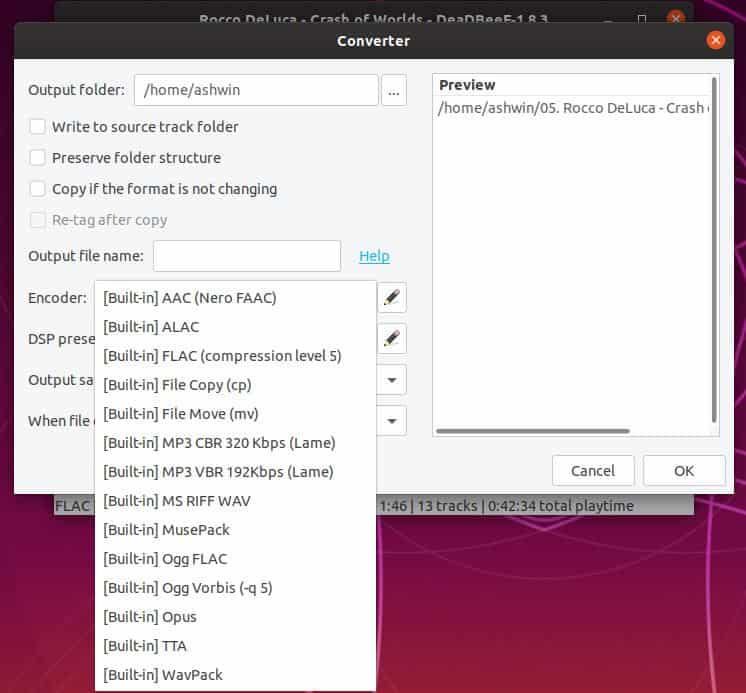
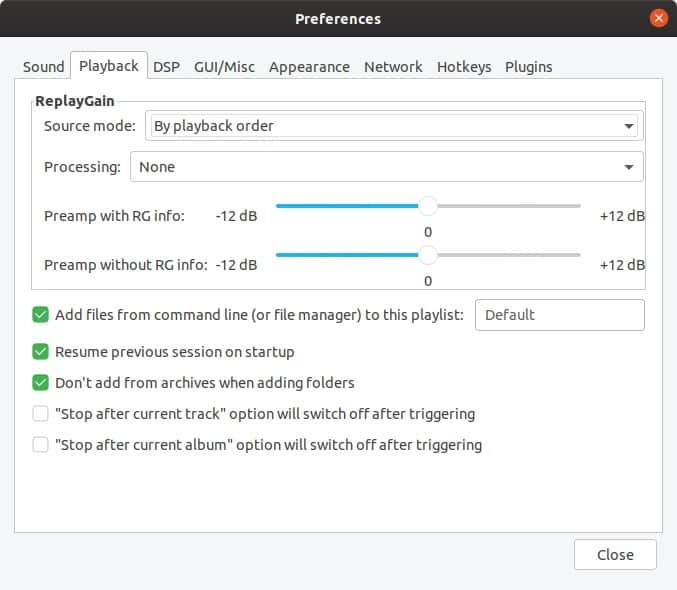
You can set the Replay gain options, refresh the cover art, convert the audio into other formats (AAC, ALAC, FLAC, MP3, OGG, OPUS, etc). It also lets you view the properties and metadata of the track, or look up the track info on Last.fm
Use the Playback menu to set the Shuffle, Repeat settings. You can also toggle scroll follows playback, cursor follows playback, stop after current track and stop after current album from this menu. DeaDBeef auto resumes the playback from where you left off, when you start the application. The program has a few output plugins that you can select from.
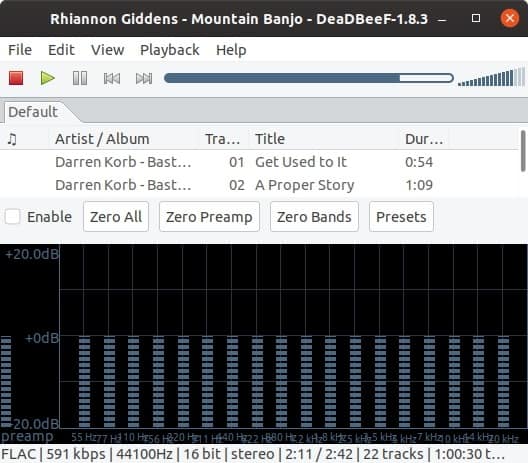
Toggle the Status bar, and the Equalizer from the view menu. Not a the fan of the DeadBeeF color scheme? Open the Preferences window and switch to the Appearance tab to change the color of the bars, the equalizer's background, the text in the tab strip, and various other elements. Set the music player to minimize to the tray from the GUI/Misc tab.
You can create and save playlists in multiple formats including DBPL, M3U, M3U8 and PLS. I may be nitpicking here but, when you have a playlist loaded and then change to a different one, the tab's name displays the older playlist's name. The status bar below the playlist pane displays the audio properties (format, bitrate, total playtime, etc).
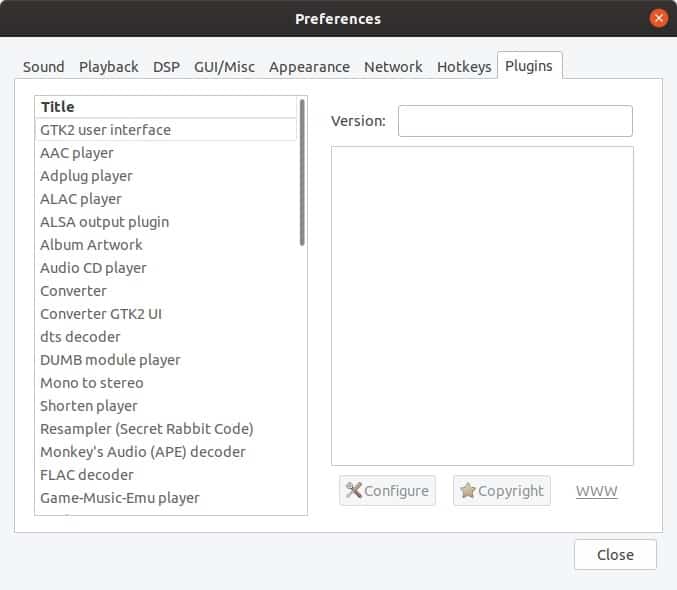
DeaDBeef comes with many plugins that you can configure. To include a few here, it has a plugin that can download album art from different sources, a plugin which can play music directly from zip files, an OSD Notify plugin that can display an on-screen notification when a track is changed.
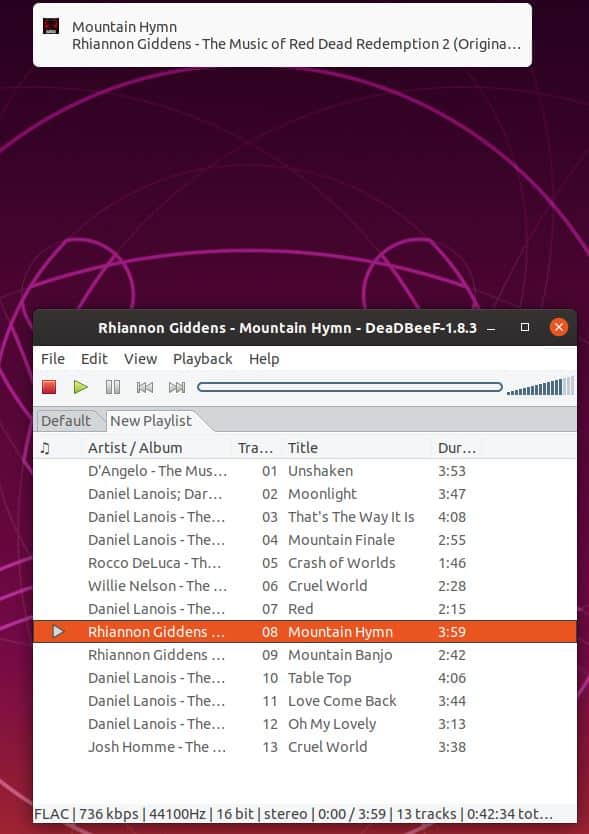
Note: I couldn't get the album art to show up. This issue on Github suggests that it may only work if the picture has been set to the correct type. For what it's worth, the album art works in other players.
DeaDBeef supports MP3, FLAC, OGG, OGA, WAV, AAC, M4A, ALAC, WMA, TTA, SHN, SID, NSF, MOD, S3M, VTX, VGM, VGZ, PSF, MIDI, MPC, MPP, MP+, FFMPEG formats, DUMB, GME, LIBSNDFILE, ADPLUG audio formats.
The program is written in C and C++(GTK2 and 3 for GUI). Head to the SourceForge page to download the DeaDBeeF (.deb) installation package for Linux. An unofficial port of DeaDBeeF is available for Windows. It is fairly identical to the Linux version, but is missing a few plugins (because they're DLLs). The context menu is broken at least for me, it blanks out when trying to modify columns.
DeaDBeef is light on resources, and the sound quality is crisp. It is an excellent alternative for Foobar on Linux.
You can get DeaDBeeF here: https://sourceforge.net/projects/deadbeef/
Source: https://www.ghacks.net/2020/05/07/deadbeef-is-an-open-source-music-player-for-linux/
You can get DeaDBeeF here: https://sourceforge.net/projects/deadbeef/
Source: https://www.ghacks.net/2020/05/07/deadbeef-is-an-open-source-music-player-for-linux/
May 4, 2020
December 24, 2019
Linux Mint 19.3 XFCE is a refined and polished distro
The Linux Mint team has published an update to the project's 19.x series, which is based on Ubuntu 18.04 LTS. The distribution's newest release is Linux Mint 19.3 which is available in three editions (Cinnamon, MATE, and Xfce). One of the big new features in this release is proactive System Reports which will notify the user of potential problems. "You'll notice something new in your system tray after you install Linux Mint 19.3. A little warning icon tries to catch your attention and indicates there are a few things for you to review. In the past, we worked on improving documentation (such as the installation guide) and the welcome you get when you first log in (the first steps section of the Welcome Screen for instance). In Linux Mint 19.3, we're going a step further and we're trying to detect potential issues in your computer. If you're missing a language package, a multimedia codec, if a hardware driver or a new version of Linux Mint is available, this little icon will let you know and provide solutions." Further details can be found in the release announcements (Cinnamon, MATE, Xfce). Download (pkglist): linuxmint-19.3-cinnamon-64bit.iso (1,942MB, SHA256, signature, torrent), linuxmint-19.3-mate-64bit.iso (2,004MB, SHA256, signature, torrent), linuxmint-19.3-xfce-64bit.iso (1,902MB, SHA256, signature, torrent).


Source: https://distrowatch.com/?newsid=10768
Subscribe to:
Posts (Atom)