August 16, 2022

Linux Mint 21 Released, This is What’s New


The stable release of Linux Mint 21 “Vanessa” is now available to download.

This is the latest version of the Ubuntu-based distro, and it carries a sizeable set of changes compared to the Linux Mint 20.3 release we saw at the start of the year.

In this post I show you what’s new in Linux Mint 21, where to download it, and how to upgrade to Linux Mint 21 from an earlier version, should you be running one.

As ever, Linux Mint 21 is available in three distinct distillations: the flagship Cinnamon edition (which uses the Cinnamon desktop environment by default), an Xfce variant (using the Xfce desktop), and a MATE option (which ships with the MATE desktop by default). In this post I focus primarily on the Cinnamon version.

For more details, read on.

Linux Mint 21: What’s New?
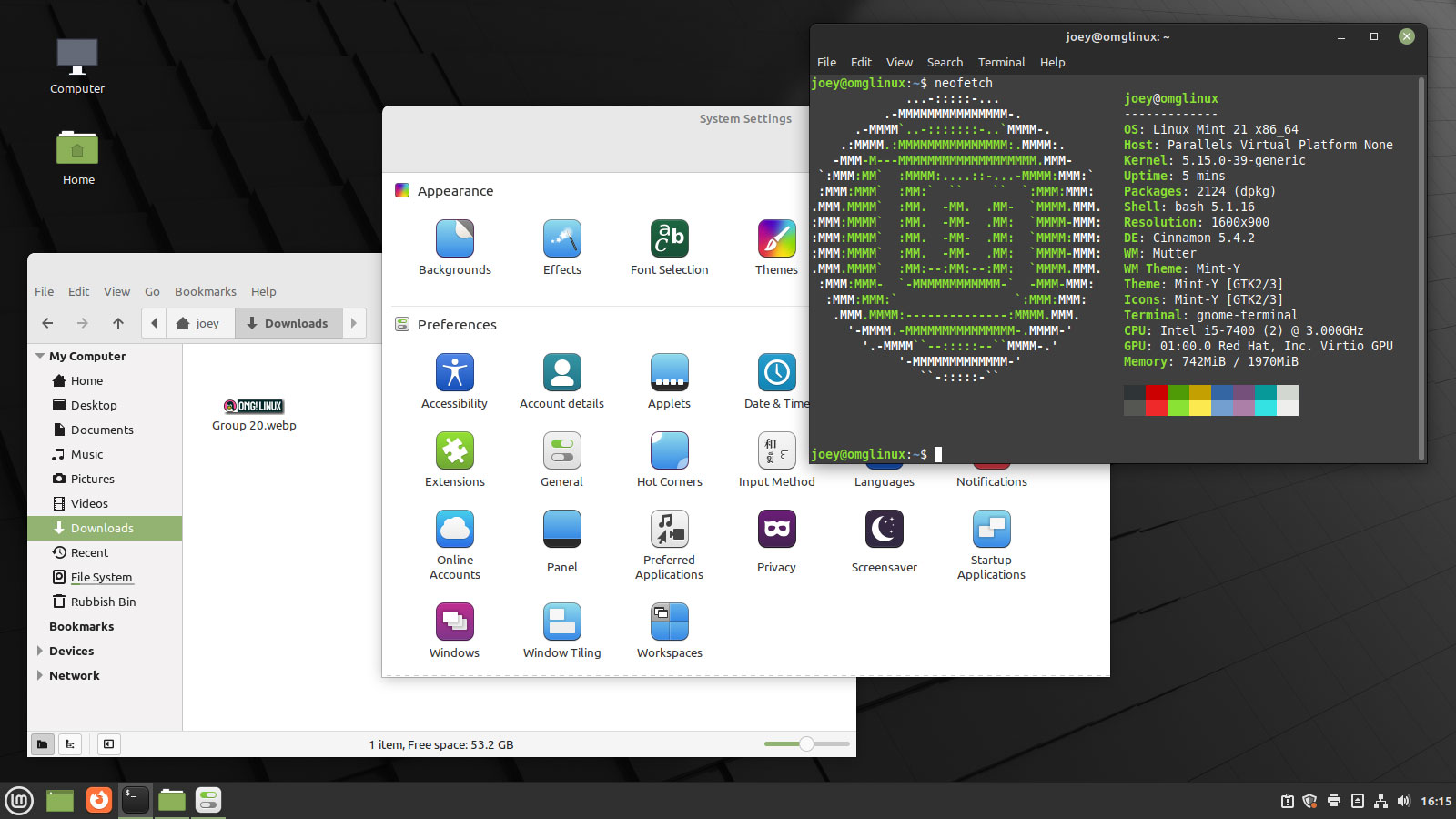
A screenshot of Linux Mint 21  with several applications open
Linux Mint 21 in action

Linux Mint 21 is based on Ubuntu 22.04 LTS, the latest long-term support release of Ubuntu. This provides Mint users with a flurry of foundational tweaks and archive updates, plus the ease-of-mind knowing they are guaranteed security updates for the system for the next five years.

Yes: Linux Mint 21 is supported until 2027.

Kernel wise Mint 21 uses Linux 5.15. This offers (amongst other changes) a new NTFS file system driver (handy when interacting with Windows partitions), EXT4 file system improvements (Mint uses EXT4 by default), plus better hardware support, security patches, bug fixes and all that jazz.

But what about the desktop?

Cinnamon 5.4

Linux Mint 21 ships with Cinnamon 5.4, the latest version of its relatively lightweight, WIMP-orientated UI. In this iteration, devs rebase the desktop atop a more modern version of Mutter, a move designed to bring its codebase closer to upstream and reduce delta.

As a result, there are notable improvements in performance, compatibility, and stability in this update. Now, to its credit Mint has always been pretty fast, even on aged hardware, but enhancements in this area are sure to be appreciated by those on a high-end and mid-range hardware as much as low-tier users.

A related change sees Cinnamon’s window manager Muffin render all windows using the GTK theme rather than, as before, a mix of GTK (CSD) and Metacity (SSD) window types. Apps appears more consistent with each other regardless of their toolkit choice, and windowing elements look sharp and undistorted.
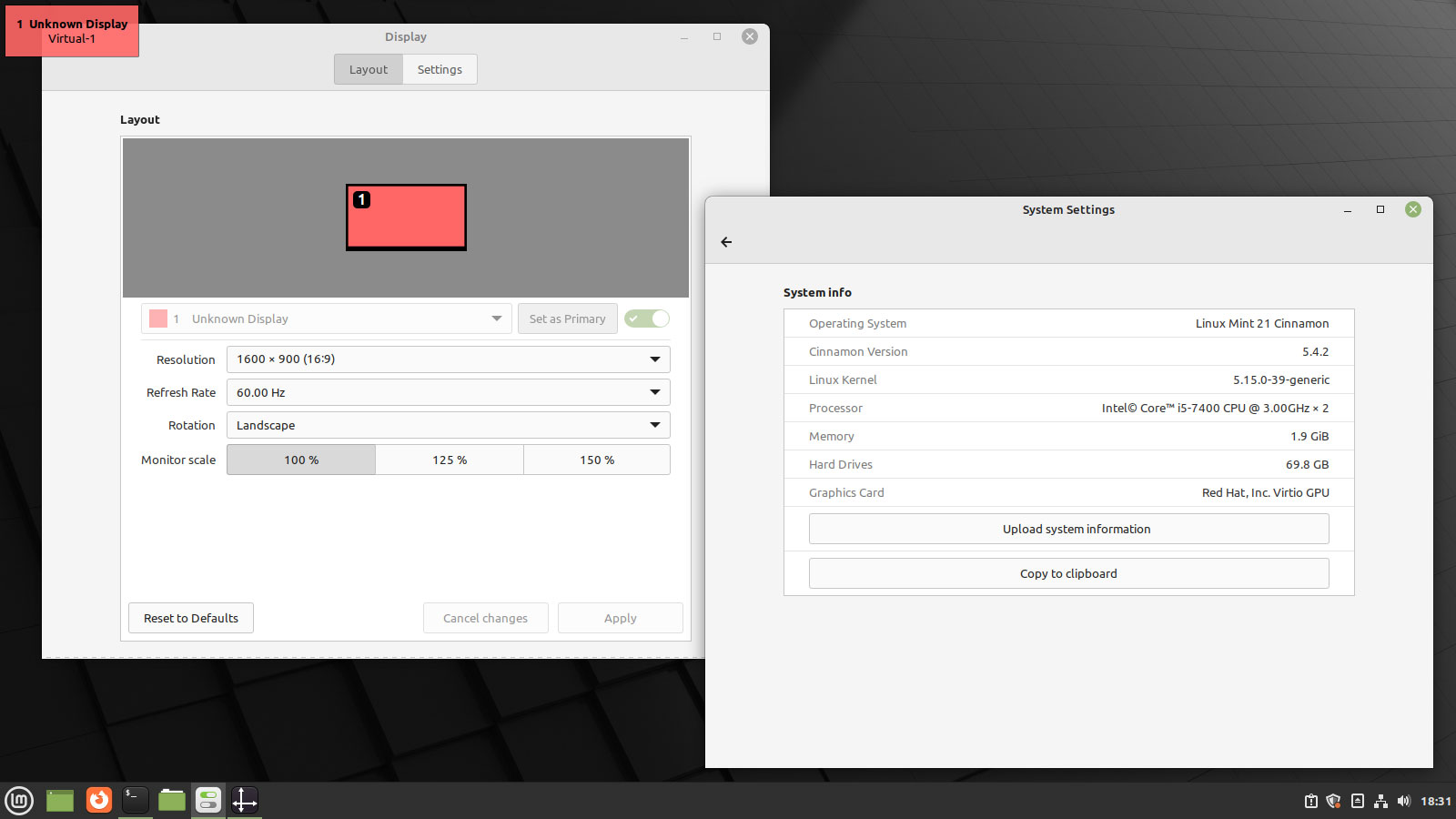
screenshot of Linux Mint 21 beta
Improved fractional scaling features in Mint 21

Improved window animations also feature, albeit at the cost of express configurability. Still, Mint devs have paid attention to the default settings and strike a good balance between speedy and slick. A global control to adjust the speed of animations in Linux Mint 21 is also included, should you want it.

Modest enhancements to the Displays panel add buttons for fractional scaling (rather than a drop-down menu), and there’s a backend rejig on how fractional scaling is handled. The technical details don’t matter here as much as the effects: Linux Mint 21 looks much nicer on high-resolution displays.

Other Changes in Linux Mint 21
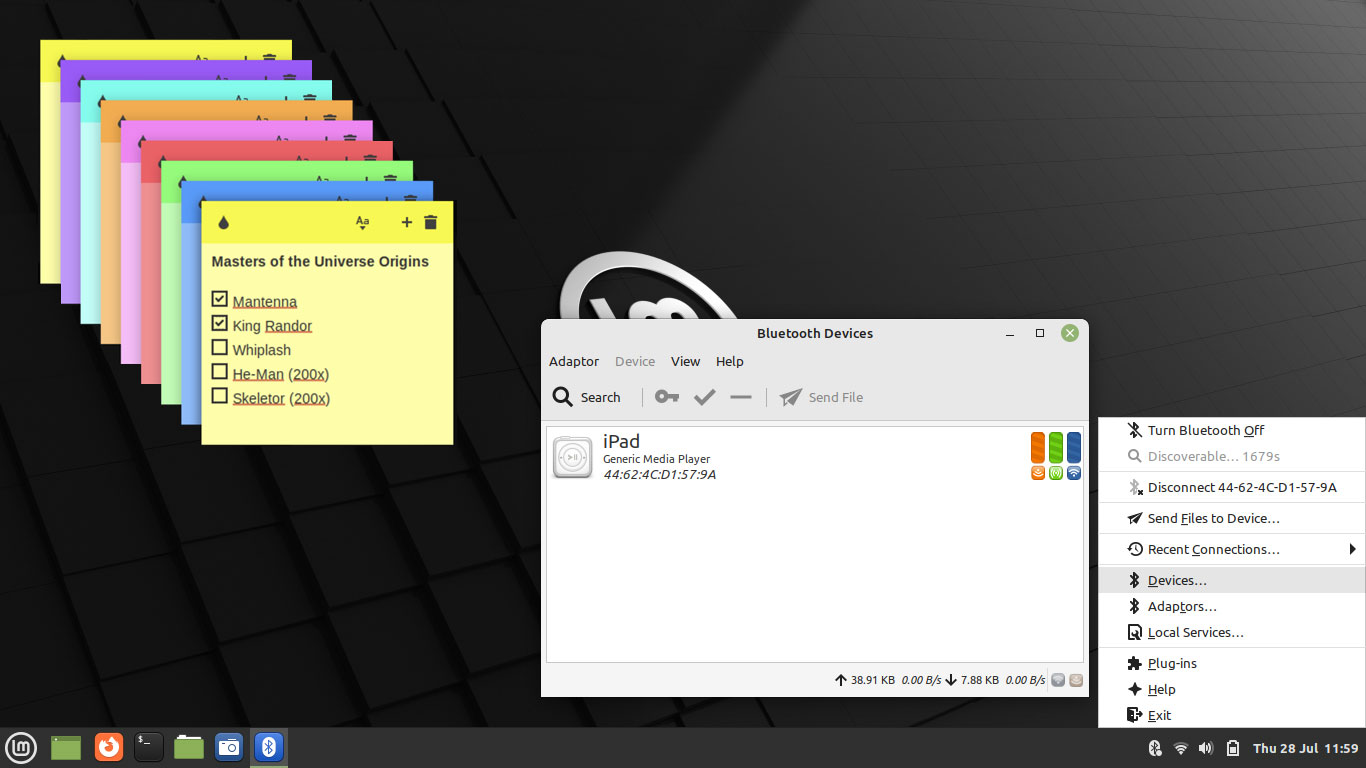
Linux Mint 21 screenshot showing the notes app and blueman bluetooth tool
Colourful notes and new Bluetooth manager

Linux Mint 21 introduces a new tool for connecting to Bluetooth devices. Blueman is a desktop-agnostic approach that integrates well in all environments, including Linux Mint’s Cinnamon, Xfce, and MATE experience. Blueman is built atop Bluez, the ‘official Linux Bluetooth protocol stack’.

There are also rich thumbnails for the following file types in the Nemo file manager:

  • AppImage
  • ePub
  • MP3 (album cover)
  • RAW pictures (most formats)
  • Webp

Additionally some Xapps, like the Pix image viewer, are also able to handle many of these formats.

Nemo file manager showing thumbnails for more file types including epub and webp
Nemo can show thumbnails for more file types

Mint’s bundled Notes app — a favourite of mine, I must say — is able to duplicate existing stickies. It also gives each new note a different colour (by cycling through the set, not at random). And the system tray icon has been redesigned to look more in-tune with the rest of the Mint icon pack.

When an automated task is running in the background (e.g., system backups, upgrades, etc) Mint now put a little indicator in the tray area. The idea is that this indicator will let users know if/when an active process that may (however slight) impact performance is underway.

Mint 21 also ships pre-stocked with the latest versions of popular Linux software. This includes LibreOffice 7.3 for productivity needs, Mozilla Firefox 103 for web surfing, and Thunderbird 91 for realising you’ll never reach inbox zero email.
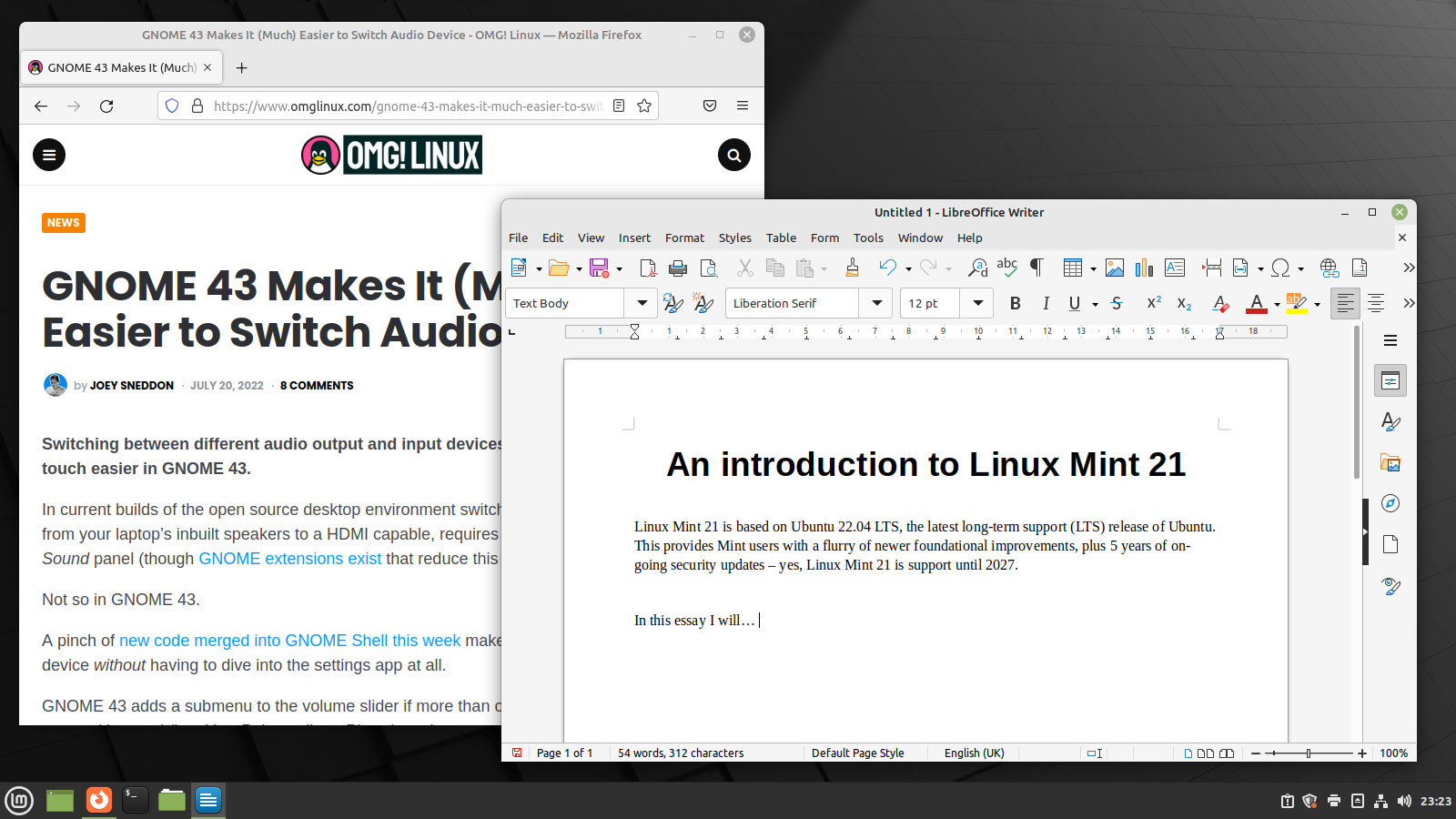
Refreshed software set comes pre-installed

Some other, smaller changes:

  • Timeshift is now maintained as an XApp
  • Xviewer document viewer improves directory browsing
  • If Warpinator fails to find other devices it now shows links
  • WebApp manager supports additional browsers/custom browser commands
  • Uninstalling apps from the main menu queries dependencies
  • NVIDIA Prime applet lets you cancel switching graphics card
  • Copy System Info stats to the clipboard in a single click
  • Right-click on apps in the Mint Menu to access ‘quick list’ actions
  • Calendar applet now shows full duration for current/pending events
  • Power applet shows text + value when adjusting brightness
  • Sound applet hides microphone mute icon when mic not being used
  • Window List applet lets you change button width
  • Shutdown timeout reduced to 10s

Plus lots more.

Download Linux Mint 21

System requirements for Linux Mint 21 have not changed since Linux Mint 20, so if your computer is fairly modern (64-bit processor, at least 2 GB RAM, and 15 GB free space) you’re good to go. The Linux Mint website has a comprehensive installation guide should you need assistance installing Linux Mint 21.

Do check out the official Linux Mint 21 “Vanessa” release notes for more information, or skip straight to the action and download Linux Mint 21 from the Linux Mint website (where you have a direct download, a choice of mirrors, and torrent options).

Upgrade to Linux Mint 21

screenshot of the Linux Mint 21 upgrade assistant
You can upgrade to Linux Mint 21 from a previous version

To upgrade to Linux Mint 21 from 20.3 you should ideally wait until Linux Mint publish their official upgrade guide. To do it before then run sudo apt install mintupgrade from the command line, followed by mintupgrade check to check for a new release. After this, just follow the steps as they appear on the screen to complete the upgrade — be sure to make backups before you do it, though!

Source: https://www.omgubuntu.co.uk/2022/07/linux-mint-21-download-and-new-features

Note: Mint 21 is the first Linux Distro that found my network printers.

The Linux Mint team have announced a new version of its Ubuntu-based distribution, Linux Mint 21. The new version swaps out the old Blueberry Bluetooth software in favour of Blueman, improvements have been made to the Sticky Notes application to make it easier to identify different notes, and there is a new process monitor which will indicate to the user when automated tasks are consuming system resources. "Automated tasks are great to keep your computer safe but they can sometimes affect the system's performance while you're working on it. A little process monitor was added to Linux Mint to detect automated updates and automated system snapshots running in the background. Whenever an automated task is running the monitor places an icon in your system tray. Your computer might still become slow momentarily during an update or a snapshot, but with a quick look on the tray you'll immediately know what's going on." A more complete list of changes can be found in the release announcement for each edition (Cinnamon, MATE, Xfce) and in the What's New documents (Cinnamon, MATE, Xfce). Download (SHA256, signature, pkglist): linuxmint-21-cinnamon-64bit.iso (2,335MB, torrent), linuxmint-21-mate-64bit.iso (2,394MB, torrent), linuxmint-21-xfce-64bit.iso (2,303MB, torrent).

Source: https://distrowatch.com/?newsid=11602

August 7, 2022

Distribution Release: Linux Lite 6.0 - Easy to use and attractive XFCE Linux Distro

 Linux Lite 6.0


Linux Lite 6.0 has become my favorite Linux Distro because it is so easy to use and looks so good. Jerry Bezencon has announced the release of Linux Lite 6.0. The distribution, which is geared toward providing a user friendly experience on an Ubuntu base, is focusing on bringing assistive technologies to users. "It's a well known fact that we target Windows users. Out of the box, Windows offers a fairly complete system. That includes tools for the hearing and sight impaired. In this release you can zoom in on the desktop, have a screen reader talk to you and complete tasks with an onscreen keyboard. We've made all of these functions highly configurable. The onscreen keyboard application is Onboard. On-screen virtual keyboard is an alternative input method that can replace a real hardware keyboard. Virtual keyboard may be a necessity in various cases. For example, your hardware keyboard is just broken; you do not have enough keyboards for extra machines; your hardware does not have an available port left to connect a keyboard; you experience difficulty in typing on a real keyboard; or you are building a touchscreen-based web kiosk. Orca is a free and open-source, flexible, extensible screen reader from the Gnome project for individuals who are blind or visually impaired." Additional information along with screenshots are available in the project's release announcement.

Source: https://distrowatch.com/?newsid=11561


July 20, 2022

The 10 Best Instant Messaging Apps for Linux

Stay connected with your friends and family by installing these instant messaging applications on your Linux desktop.

It's essential to stay in touch with family and friends, given the human need for socializing. Instant messaging apps like WhatsApp, Signal, Telegram, and many others have changed the very essence of communication, and their ready availability makes them a must-have option.


Given the innovations in digital communications, the Linux community is blessed with instant messengers, each winning users across premium and open-source OSes.

Here are some of the best instant messaging apps to use on your Linux desktop.

1. Signal
Signal Desktop login screen on Ubuntu


Signal is an open-source, cross-platform application with top-notch end-to-end encryption facilities. The messenger provides users with multilingual support, standard VoIP features, call and contacts registry, among many other features.

Related:
Is Signal the Ultimate Secure Messaging App?

You can set timers for auto-deletion of old messages. In addition to that, you can also create groups for chatting and file-sharing. Rest assured, as Signal has a fun list of stickers, alongside the standard emojis, to spruce up your chats.

Download: Signal


2. Telegram
Telegram Desktop Linux


Telegram is a direct, instant messaging application for one-on-one and group communications across Linux and other desktops/mobile platforms. It's a top-rated app that offers well-performing VoIP services alongside its text chat functionalities.

It features a minimalist but intuitive UI/UX. You can use Telegram for encrypted messaging and use its fun sticker packs to liven up your communications. Telegram helps users with its happening business communications on the go.

One of its most dependable features is auto-deletion for inactive accounts that ensures your old unattended chats don’t fall into the wrong hands.

Download: Telegram


3. Franz
Franz desktop application


Franz is an open-source messaging app that you can use on your Linux desktop. It renders a highly secure messaging service with rich features.

Franz is not a standalone messaging app though. Instead, it brings together premium services like Slack, Messenger, Telegram, Skype, Zendesk, etc. in one place and provides a common platform to communicate to the users.

Franz allows you to use it for personal and business communication. Using automation, you can schedule and streamline your chats. With Franz, you can also set up multiple accounts and segregate them into different workspaces for diverse business agendas, team members, etc.

Download: Franz


4. Skype
Skype running on Linux


Skype is perhaps one of the oldest known apps on this list, which continues to be a supported instant messenger for Linux. It dispenses global VoIP support for your contacts. You can also use your internet/data services through its natively offered low-rate mobile/landline calls.

Related:
How to Get a Skype Phone Number

With its P2P communication features, Skype helps you conduct conference calls and place secure, encrypted calls for personal and business purposes. Skype has always been the standard-bearer in quality VoIP calling with minimal data usage.

Download: Skype


5. Jami
Jami interface


Formerly known as GNU Ring/SFLPhone, Jami is a peer-to-peer softphone and SIP-based IM application. The application has evolved through a combination of developer and community-maintained efforts to rapidly become an open-source alternative to Skype.

Jami allows you to seamlessly communicate with your contacts across diverse desktop and mobile platforms. It renders end-to-end encryption and authentication features for your communications with its distributed hash table.

Jami has superb VoIP functionality, complete with screen-sharing, conferencing, and privacy-centric features. It offers multi-account support for diverse workspaces as well.

Download: Jami


6. Discord
discord running on linux


Discord runs equally well on Linux, Windows, and smartphones. It lives to enhance your cross-platform gaming and non-gaming-related communications on Linux.

Its social media-like, channel-based group messaging system allows you to interact with users not on your contact list, based on interest groups.

Discord’s most significant advantage is its integration capabilities; you can plug it with many applications to enrich its instant messaging services.

You can also run Discord as a browser-based client. Discord is the perfect messaging platform to engage with your contacts on Windows, macOS, Linux, and smartphones.

Download: Discord


7. Gajim
Gajim on linux


Gajim is a GTK-based, open-source, Jabber/XMPP chat client you can use on Linux. It doubles as a multilingual, business productivity, and networking application, making it an instant hit with the masses.

The app offers a highly functional UI with its PyGTK GUI library foundations. This light and fast messenger has emoticons, URL grabbers, bookmarks, avatars, dictionary support, and even search engine lookup to enhance your experience.

It dispenses decentralized messaging over custom server configurations; you can log in via multiple accounts to use it as a segregated workspace communications hub. In one-on-one communications and group conversations, you can share files, pictures, and videos with this application.

Gajim secures your communications with OMEMO, OpenPGP, and PGP encryption certificates. You can augment your communications with Gajim’s extensive library of plugins.

Download: Gajim


8. Wire
Wire instant messenger


You can register on Wire with your number or email for an open-source, secure messaging space with system-wide encryption. Wire comes along with features like GIF messages and in-app picture drawing.

It's available as a free and paid version, and continues to be executable as a web client while being a GDPR compliant application. Its sophisticated encryption stands out for supporting WebRTC, PFS, and Proteus protocols.

Wire offers you a security leg-up by locally storing your data when compared with its contemporaries. But there is a trade-off in its security with a still-missing 2FA security support.

Nonetheless, you can use Wire on Linux for its nifty voice memo and location sharing functions.

Download: Wire


9. Slack
Slack best instant messenger


Slack is a productivity and communications app that you can use on Linux. Its intuitive interface organizes your business tasks, simplifies contact management, and renders VoIP with extreme clarity.

It allows you to create an independent workspace to collaborate with your team members and create isolated channels to discuss different topics with exclusive members. You can integrate Slack with your email and business project management accounts to streamline operations further.

Slack allows you to automate your task management and communication strategies for responsive business management. You can easily share rich content over Slack with E2E encryption security to protect your communication hub.

Download: Slack


10. ICQ
ICQ app on Linux


ICQ is a lightweight yet powerful chatting client for your Linux desktop. It's a part of the OpenSSL toolkit and can serve you with history synchronization, voice message conversions for storage, live chatting, high-resolution video chats, and much more.

With ICQ, you can send a limited number of free SMSes to mobile users from the desktop application. ICQ's dynamic and user-friendly contact book, greeting cards, contact synchronizations, and smart notification systems, make it one of the best multilingual, cross-platform text messaging apps for Linux.

Download: ICQ
Stay Connected With Friends and Family on Linux

Linux is home to some of the best text messaging desktop apps. Stay connected with your loved ones using the top apps single-handedly from your Linux desktop.

Source: https://www.makeuseof.com/best-instant-messaging-apps-linux/?utm_source=MUO-NL-RP&utm_medium=newsletter


July 12, 2022

Linuxfx 11 | The Most Convincing Windows 11 Look Alike


You can download Linuxfx11 here:
https://distrowatch.com/table.php?distribution=linuxfx


February 23, 2022

How to change the GRUB Bootloader Screen Resolution


To edit it with Gedit as
 root run:

gksu gedit /etc/default/grub

(Or if you're using Kubuntu, run kdesudo kate /etc/default/grub instead.)

You'll get a lot of messages in the Terminal, if you run that command in the Terminal rather than with Alt+F2. You'll notice they don't say they pertain to the file you're editing, so that's fine.

You'll find that part of the file says something like this:

# The resolution used on graphical terminal
# note that you can use only modes which your graphic card supports via VBE
# you can see them in real GRUB with the command `vbeinfo'
#GRUB_GFXMODE=640x480

Uncomment (i.e., remove the leading # from) the line that says GRUB_GFXMODE, and change the resolution from 640x480 to auto. The line should now read:

GRUB_GFXMODE="1024x768x32"
or
GRUB_GFXMODE="1920x1080"
or
GRUB_GFXMODE=auto

Save the file and quit the editor. In the Terminal, run:

sudo update-grub

(This must be run after every modification to /etc/default/grub, to apply the changes.)

Now reboot, and see if that does what you want.

It might not (as it uses the "platform default" which might not be the highest possible). If that is the case, edit /etc/default/grub again, and this time change the line so it says something like:

GRUB_GFXMODE=1600x1200,1280x1024,1024x768,800x600,640x480

You will not necessarily want to use exactly that line. You should list all the resolutions you want to be tried, in the order you want them to be tried. The resolutions I have listed are the most standard resolutions for monitors with a 4:3 aspect ratio, but widescreen monitors (including most laptop screens these days) have different form factors and use different resolutions. Wikipedia has a list of common resolutions which may help you. If you know the specific resolutions you want for each device, you can just list them (highest first). You should probably include 640x480 or auto at the end . I recommend this because I don't know if GRUB2 will always try a safe low resolution, if you don't include that.

Then save the file again, run sudo update-grub again, reboot again, and see if that does what you need.

If it doesn't, you may be out of luck. GRUB2 doesn't display video the same way as Ubuntu does once it's booted. GRUB2 uses VESA BIOS Extensions to display the boot menu with enhanced resolution (and color depth), and a machine's maximum resolution through VBE is not always as high as the maximum resolution supported by the video card and monitor.

Source: The official GRUB2 documentation. (You'll notice the version number is 1.99. It's still GRUB2. A bit confusing, but true.)

Source: https://askubuntu.com/questions/54067/how-to-safely-change-grub2-screen-resolution

Step 1: find the preferred mode

Reboot and press and hold Shift to display your grub. Press C to enter console mode. Then type (for Ubuntu versions before 18.04):

$ vbeinfo

For Ubuntu 18.04 and later:

$ videoinfo

This will display various stuff how grub recognizes your display. At the bottom is "preferred mode" - in your case it should say 1280x800. Note down the value.

Note: sometimes, some buggy video cards incorrectly give Grub the wrong preferred resolution - if the preferred mode is much higher than you were expecting, then select the nearest mode in the list displayed that you were expecting.

Press Esc to return to grub and press Enter to boot.

Step 2: Setting the resolution in grub

Reach for your terminal and type

$ sudo nano /etc/default/grub

find the line

#GRUB_GFXMODE=640x480

remove the # and change 640x480 with the preferred mode you wrote down. E.g.:

GRUB_GFXMODE="1280x800"
or 
GRUB_GFXMODE="1024x768x32"

save, then type

$ sudo update-grub

Note: the preferred mode has to be among those listed by vbeinfo. For example, if your preferred mode is 1920x1080 (a common 16x9 aspect ratio setting), your preferred mode is NOT supported by vbeinfo and may not work correctly. In fact, there do not seem to be any 16x9 modes supported by vbeinfo, as of Ubuntu 13.04. In that case you could try falling back to something common like 640x480, which, it seems most monitors support and vbeinfo supports. Also, not all the modes supported by vbeinfo are necessarily supported by your monitor and you may have to experiment.

Source: https://askubuntu.com/questions/54067/how-to-safely-change-grub2-screen-resolution


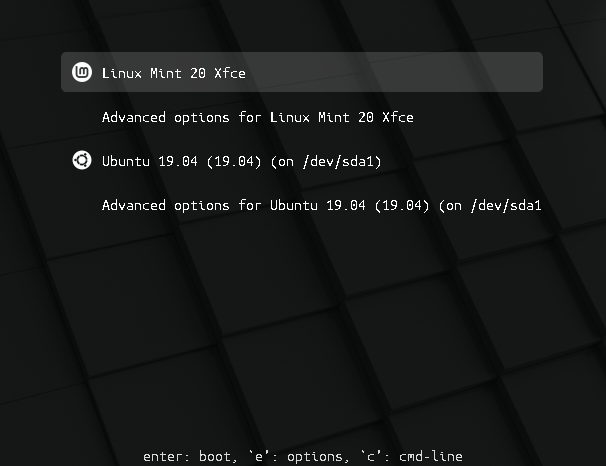
Also to set the Mint Theme enter the following:

apt install --reinstall -o Dpkg::Options::="--force-confmiss" grub2-theme-mint


January 27, 2022

How To Fix Broken Ubuntu OS Without Reinstalling It

Just in case if your Ubuntu system is crashed due to power failure or network connectivity issue in the middle of the Upgrade process, you might end up with broken Ubuntu Linux. In such cases, you can easily fix broken Ubuntu OS without reinstalling it from scratch, and also without losing data as described below.

Introduction

Today, I was upgrading my Ubuntu LTS system. Unfortunately, the power has gone in the middle of the upgrade process and the system is powered off while upgrading packages.

When the power is back, I did boot the system again. Right after entering the login password in my Ubuntu system, it's gone blank and didn't respond. Keyboard and mouse also didn't work.

All I see is just a blank screen! Thankfully, It's just a test machine and there were no important data in it. I can simply wipe off the entire OS and install Ubuntu again.

But, I don't want to do that. Since I got nothing to lose, I just wanted to repair my broken Ubuntu system without reinstalling it completely. To my luck, it worked!!!

Now let us see how to recover the broken Ubuntu Linux system, without reinstalling it.

Fix broken Ubuntu OS without reinstalling it

1. First of all, try to login with live cd and backup your data in an external drive. Just in case, if this tutorial didn't work, you can still have your data and reinstall everything!

2. At the login screen, press CTRL+ALT+F1 to switch to tty1. You can learn more about switching between TTYs here.

3. Now, type the following commands one by one to fix the broken Ubuntu Linux:

$ sudo rm /var/lib/apt/lists/lock
$ sudo rm /var/lib/dpkg/lock
$ sudo rm /var/lib/dpkg/lock-frontend
$ sudo dpkg --configure -a
$ sudo apt clean
$ sudo apt update --fix-missing
$ sudo apt install -f
$ sudo dpkg --configure -a
$ sudo apt upgrade
$ sudo apt dist-upgrade

4. Finally, reboot the system using command:

$ sudo reboot

You can now be able to login to your Ubuntu system as usual.

After I followed these steps, all the data in my Ubuntu system were intact and everything was in the same way as I left it.

This method may not work for everyone. However, this small tip worked for me and saved a couple minutes from reinstalling my Ubuntu system from scratch.

If you know any other better way, please let me know in the comment section. I will add them in this guide as well.

January 26, 2022

How To Fix Initramfs Error On Ubuntu


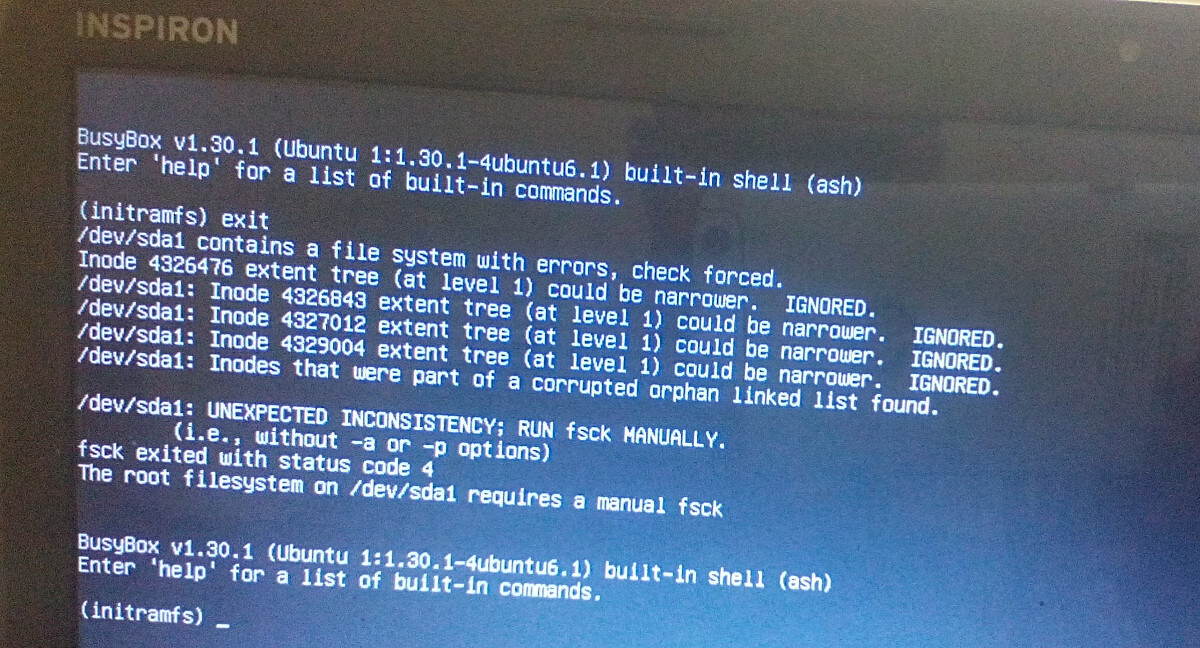
This brief guide explains how to fix Busybox Initramfs error on Ubuntu Linux. I use Ubuntu 20.04 LTS as my daily driver on my Dell Inspiron laptop. Today I turned it on and the boot process dropped to the BusyBox shell and I ended up at the initramfs prompt.

As far as I can remember, I did nothing wrong. I didn't forcibly power off it. It was working just fine yesterday! When I switched it on today, I landed in the BusyBox shell:

BusyBox v1.30.1 (Ubuntu 1:1.30.1-4ubuntu6.1) built-in shell (ash) 
Enter 'help' for a list of built-in commands.

(initramfs)

I can't get past this screen. Also it doesn't show what exactly the problem is. All I see is just a blank busybox shell.

I wasn't sure what to do at this point. So I simply passed the exit command to see what happens.

And then I saw the actual error:

(initramfs) exit
/dev/sda1 contains a file system with errors, check forced.
Inode 4326476 extent tree (at level 1) could be narrower, IGNORED.
/dev/sda1: Inode 4326843 extent tree (at level 1) could be narrower, IGNORED.
/dev/sda1: Inode 4327012 extent tree (at level 1) could be narrower, IGNORED.
/dev/sda1: Inode 4329004 extent tree (at level 1) could be narrower, IGNORED.
/dev/sda1: Inodes that were part of a corrupted orphan linked list found.

/dev/sda1: UNEXPECTED INCONSISTENCY; RUN fsck MANUALLY.
        (i.e., without -a or -p options) 
fsck exited with status code 4. 
The root filesystem on /dev/sda1 requires a manual fsck. 

BusyBox v1.30.1 (Ubuntu 1:1.30.1-4ubuntu6.1) built-in shell (ash)
Enter 'help' for a list of built-in commands.

(initramfs)
Busybox Initramfs Error On Ubuntu

As you can see in the above output, the /dev/sda1 partition is corrupted. The file system in this partition has some errors. If you ever encountered with this type of problem, you need to check and repair the problematic Linux filesystems with fsck command.

Please note that sometimes you don't see any errors after typing the exit command. In that case, try to run fsck on all filesystems.

For those wondering, BusyBox is software suite that provides many common UNIX utilities into a single small executable. It provides replacements for most of the utilities you usually find in GNU fileutils, shellutils, etc.

Initramfs is an initial ram file system based on tmpfs. It contains the tools and scripts required to mount the file systems before the init binary on the real root file system is called.

Fix Busybox Initramfs Error On Ubuntu Linux

1. To solve initramfs error on Ubuntu Linux, you need to repair the filesystem in the corrupted partition using fsck command like below:

(initramfs) fsck /dev/sda1 -y

Replace /dev/sda1 with your partition name. In your system, it could be /dev/sdb1, /dev/sdc1 etc. You can use cat /proc/partitions or blkid commands to get your Linux partition details in Busybox.

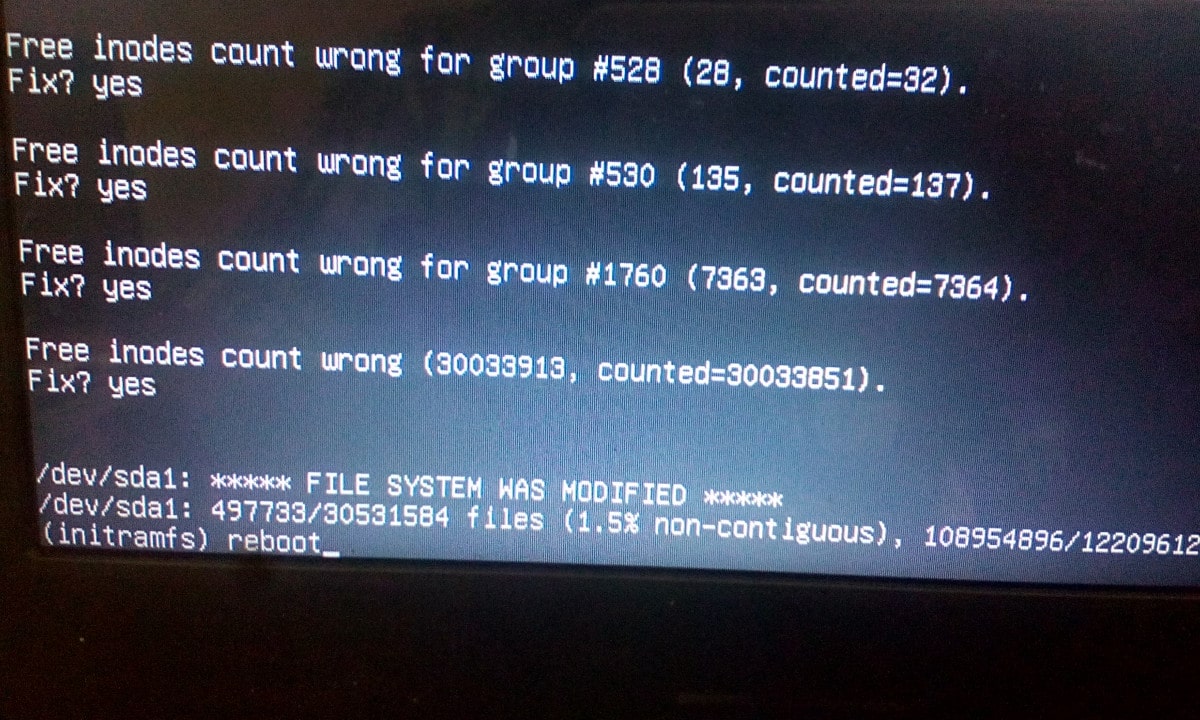
2. Now the fsck command will start to fix all bad blocks automatically in the filesystem.

After a couple minutes, you will see an output like below:

/dev/sda1: ***** FILE SYSTEM WAS MODIFIED *****
/dev/sda1: 497733/30531584 files (1.5% non-contiguous), ........

3. Next, type reboot and hit ENTER to restart your system!

(initramfs) reboot
Fix Busybox Initramfs Error On Ubuntu Linux

If the reboot command doesn't work, type exit and hit ENTER.

Cross your fingers and wait for the system to reboot! If all went well, your system will boot normally without any problem.

These steps helped me and many others (see the comment section below) to solve Busybox Initramfs error on Ubuntu Linux operating system. If you are stuck in initramfs prompt, this guide will definitely help.

Heads Up: If you keep getting this error often, probably your hard disk is getting weaker. In that case, it is recommended to backup the data and replace the hard disk as soon as possible.


If your Ubuntu system is crashed due to power failure or network connectivity issue in the middle of the upgrade process, you might end up with broken Ubuntu. In that case, you can easily fix broken Ubuntu without reinstalling it as described in the following guide.
How To Fix Broken Ubuntu OS Without Reinstalling It


Source: https://ostechnix.com/how-to-fix-busybox-initramfs-error-on-ubuntu/


January 7, 2022

Linux Mint 20.3: here is what is new

 By Martin Brinkmann,Jan 6, 2022

The Linux Mint team started to push the final stable ISO images of Linux Mint 20.3 to its distribution network. The final release comes weeks after the release of Linux Mint 20.3 Beta releases. Read on to find out what is new and changed in the new versions of the popular Linux distribution.

linux mint 20.3 release

Linux Mint 20.3 is a long-term support release, which means that the distribution is supported until 2025. The new version of Linux Mint is available in all three flavors -- MATE, Xfce and Cinnamon -- as usual.

A blog post on the official Linux Mint blog reveals that the new version will be made available as a free download and upgrade, from Linux Mint 20.2, this week. Some mirrors have the new ISO images already, but it will take some time before the release can be announced officially on the site.

Linux Mint 20.3: important links

The release notes list known issues and bugs, the new features links reveal what is new in the particular environment.

  • Linux Mint 20.3 features Cinnamon 5.2, a Linux kernel 5.4 and an Ubuntu 20.04 package base.
  • Linux Mint 20.3 features MATE 1.26, a Linux kernel 5.4 and an Ubuntu 20.04 package base.
  • Linux Mint 20.3 features Xfce 4.16, a Linux kernel 5.4 and an Ubuntu 20.04 package base.

Linux Mint 20.3: new features

The IP TV player Hypnotix received an update in this release. It displays flags now to make it easier to find regional IP TV stations, and a search, which also helps find channels, movies and series using it. Hypnotix supports the Xtream API next to m3u and local playlists.

thingy

The new document manager Thingy makes an appearance in Linux Mint 20.3. It lists recently opened documents as well as favorites, and keeps track of reading progress.

A search function has been added to the Sticky Notes application to filter notes quickly. Linux Mint users who use the Sticky Notes application may also notice a changed look as the title is now embedded within the note. The app features a new option to control the site of text.

The Linux Mint 20.3 theme features several changes according to the release notes:

Linux Mint 20.3 features an updated look and feel with larger titlebar buttons, rounded corners, a cleaner theme and support for dark mode.

All three desktop environments feature the changes. The "what is new" posts go into great detail and you may want to check these out for a full rundown on the changes. One particular change that needs mentioning is that support for displaying select applications in dark mode while dark mode is not enabled on the desktop.  Four applications, Celluloid, Hypnotix, Xviewer, Gnome Terminal and Pix, support this out of the box.

Linux Mint users who prefer the older style of the desktop may enable the Mint-Y-Legacy theme to restore the previous theme that was used by the Linux distribution.

Cinnamon 5.2's calendar applet features multi-calendar events, which events using the same color as the calendar they belong to for easy recognition. The applet supports online calendars and syncing.

The file manager Nemo has a new feature that adds an option to file copy or move conflicts. Besides the already existing options to skip, ignore or overwrite old ones, it is now possible to have files renamed automatically.

Cinnamon features the following improvements in the new release next to that:

  • Increased support for right-to-left languages in the sound and menu applets and in the window settings
  • NVIDIA Optimus: Support for PrefersNonDefaultGPU field in .desktop files
  • nemo: The clipboard content no longer vanishes if the nemo process dies
  • grouped-window-list applet: icon fix for certain applications (virtualbox)
  • nemo-media-columns: m4a and audio mp4, composer and description columns
  • sound applet: support for base64 URI album art
  • nemo-actions: support for UriScheme
  • capi.py: Support for non x86 architecture
  • menu applet: all applications shows an icon
  • settings daemon: trackball support
  • accessibility: new Alt+Super+S shortcut to active the screen reader
  • Support for 3x fractional scaling when the hardware allows it
  • nemo: xls2csv fixed

Other changes:

  • HPLIP 3.21.8 introduces support for the latest HP printers and scanners.
  • IPP-USB and sane-airscan were backported and may be an option if scanners or printers won't work out of the box.
  • Xreader PDF received manga reading support; this includes right-to-left mode and inverted cursor keys so that the left-arrow key goes forward in a document.
  • The image viewer Xviewer has a new control to fit the image to the height or width of the image.
  • The text editor Xed supports Ctrl-Tab and Ctrl-Shift-Tab to switch tabs.
  • Xed and Xreader support hiding the menubar.
  • Xreader does not show its toolbar anymore in fullscreen mode.
  • System reports run once per day instead of once per hour to save battery.
  • The WebApp manager displays the browser that is used for particular applications.
  • Bluetooth can be turned on or off from the Bluetooth tray menu.


    Source: https://www.ghacks.net/2022/01/06/linux-mint-20-3-here-is-what-is-new/

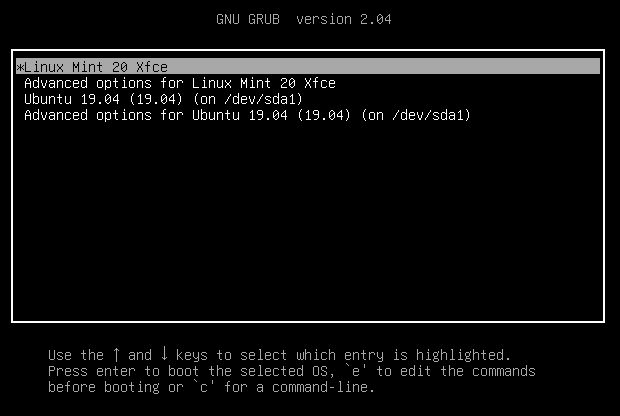
How to theme the Mint 20.X Grub menu


How to theme the Grub menu

For compatibility reasons, some releases sometimes ship without a Grub theme:

_images/grub.png

You can make it look like this:

_images/grub2-theme-mint.png

To do so, open a terminal and type:

apt install --reinstall -o Dpkg::Options::="--force-confmiss" grub2-theme-mint

Or if you have a HiDPI screen, type this instead:

apt install --reinstall -o Dpkg::Options::="--force-confmiss" grub2-theme-mint-2k


Source: https://linuxmint-user-guide.readthedocs.io/en/latest/grub.html