May 30, 2011

10 Other Great Linux Browsers

Just because many use Firefox or Chromium, does not mean there are not other alternatives. See the below article on others...

Firefox has been a reliable browser for me for many years and it still continues to be so to a certain extent. However, over the last few releases Firefox has become bloated and slow in performance that same way IE used to be before we switched to Firefox. The only thing that is stopping me from switching to another browser, is the large number of extensions available for Firefox. Specifically firebug. Since I spend most of my time on a Linux system, over the last few days I have been looking for an alternative Linux browser. Here are 10 of the best Linux browsers out there that can be a decent alternative to Firefox:

1) Opera
screenshot-woopra-a-real-time-web-tracking-application-for-the-rest-of-us-geektechnica-opera

2) Konqueror

konq_about

3) Galeon

screenshot

4) Epiphany

screenshot-2

5) Arora

arora_webbrowser

6) Midori

screen1

7) Seamonkey

screenshot-11

8) Netsurf

gtkbbcnews

9) Amaya

amaya

10) Kazehakase

screenshot-31

You might also want to try out early builds of Chrome for Linux, which is not quite ready yet. If you are in to terminal based browsers, check out lynx and links.

Source:  http://geektechnica.com/2009/05/beyond-firefox-10-other-great-linux-browsers/

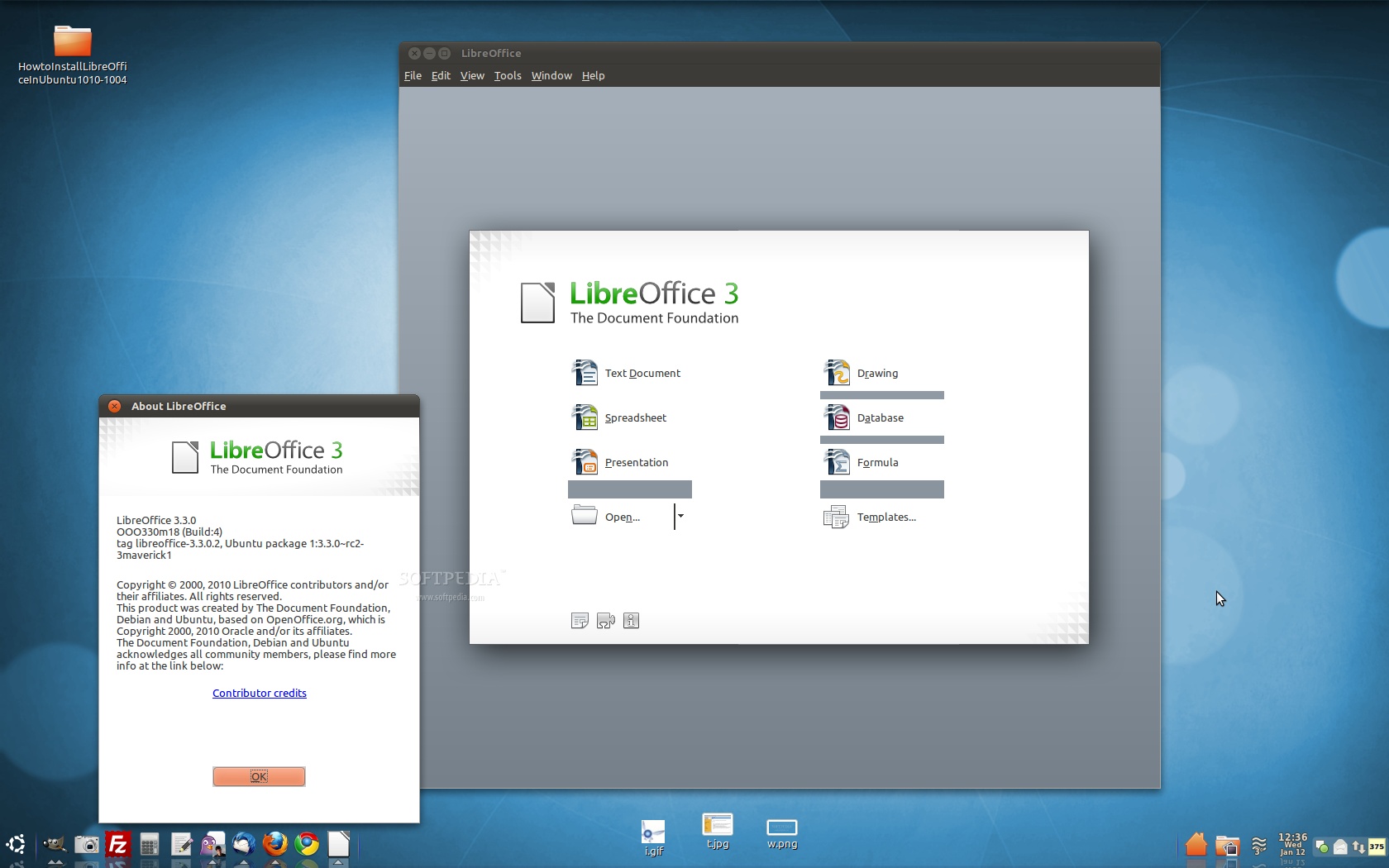
How to Install LibreOffice in Ubuntu 10.xx

The following tutorial will teach every Ubuntu 10.10 and Ubuntu 10.04 LTS user how to install the new LibreOffice open source office suite and replace the old OpenOffice.org office suite from Oracle. From Softpedia.com

Last week we've announced that the Ubuntu developers started the transition of the outdated OpenOffice.org packages to the new LibreOffice ones, in the upcoming Ubuntu 11.04 (Natty Narwhal)operating system, due for release in late April this year.

However, the LibreOffice package are also available for Ubuntu 10.10 (Maverick Meerkat) and Ubuntu 10.04 LTS (Lucid Lynx) users. To remove OpenOffice.org from your system and install LibreOffice, follow the next step-by-step (with screenshots) tutorial.

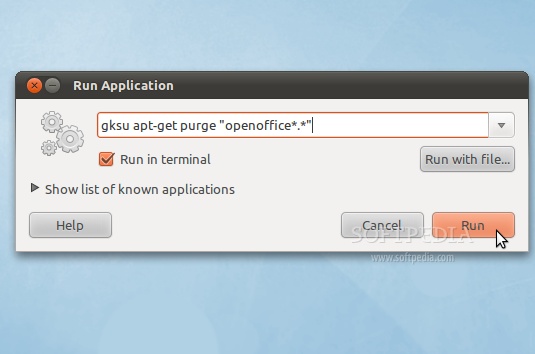
Step 1 - Remove OpenOffice.org

Hit the ALT+F2 key combination on your keyboard, check the "Run in terminal" option and paste the following command in the "Run Application" dialog:

sudo apt-get purge "openoffice*.*"

Review image

A terminal window will appear. Enter your password when asked and hit the OK button.

When you will be asked if you want to remove the OpenOffice.org package, type Y and hit Enter. After this, the OpenOffice.org packages will be removed and the terminal window will disappear...

Review image

Step 2 - Add the LibreOffice repository

No matter what operating system you are running (Ubuntu 10.10 or Ubuntu 10.04), hit the ALT+F2 key combination on your keyboard, check the "Run in terminal" option and paste the following command in the "Run Application" dialog:

gksu add-apt-repository ppa:libreoffice/ppa

Review image

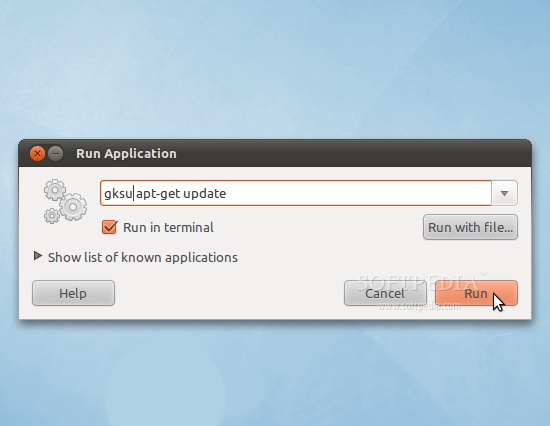
Enter your password when asked and hit the OK button. A terminal window will appear for a few seconds, and it will automatically close. Hit the ALT+F2 key combination again, check the "Run in terminal" option and paste the following command in the "Run Application" dialog:

gksu apt-get update

Review image

Enter your password when asked and hit the OK button. A terminal window will appear for a few seconds, and it will automatically close.

Step 3 - Install LibreOffice

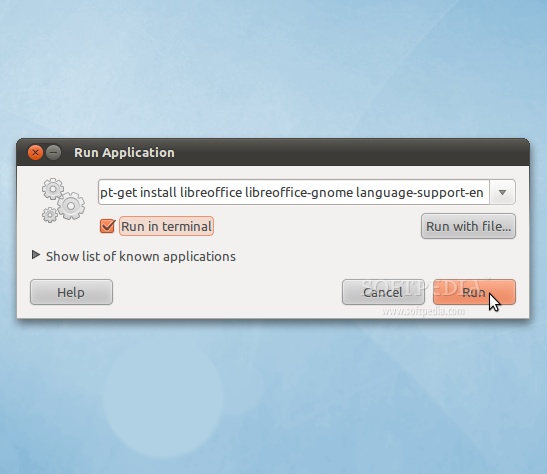
Hit the ALT+F2 key combination on your keyboard, check the "Run in terminal" option and paste the following command in the "Run Application" dialog:

sudo apt-get install libreoffice libreoffice-gnome language-support-en

Review image

A terminal window will appear. Enter your password when asked.

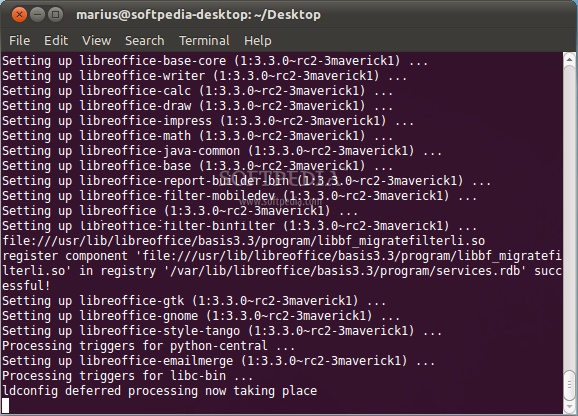
When you will be asked if you want to install the LibreOffice packages, type Y and hit Enter. Wait for the installation to finish...

Review image

That's it! LibreOffice is now completely installed in your Ubuntu machine.

Review image

If you have problems with the tutorial, do not hesitate to comment below!

http://news.softpedia.com/news/How-to-Install-LibreOffice-in-Ubuntu-10-10-and-Ubuntu-10-04-177762.shtml

May 21, 2011

Ubuntu alternatives who hate the Unity Interface

Top 4 Lightweight, Official Ubuntu Based Alternatives for Ubuntu 11.04's Unity 3D
POSTED BY MANUEL JOSE ON WEDNESDAY, MAY 18, 2011, from techdriveIn.com


Many long term Ubuntu users have been quite critical towards Ubuntu's new Unity interface. Unity has its share of issues which Canonical is hopeful of rectifying by the next major release,Ubuntu 11.10 Oneiric Ocelot. In the mean time, if you are not at all able to adjust with the revamped albeit buggy Unity desktop, there are a bunch of absolutely awesome Ubuntu based distros which runs on other interfaces like KDE, XFCE, LXDE etc. Here is how you install each of them as a different session in Ubuntu 11.04 Natty Narwhal.

Ubuntu 11.04 Unity Replacements


Ubuntu 11.04 Unity Replacements 
Linux is all about choice. If you don't like Ubuntu 11.04's new Unity interface, simply download and install an alternative distro of your liking. Speaking of alternatives, here are some of the most respected yet official Ubuntu derived distros you need to know.

Unity 2D
unity 2d ubuntu 11.04

Unity 2D's goal is to provide the Unity desktop shell on hardware platforms that cannot currently support Unity's OpenGL requirements. Simply put, Unity 2D is a lightweight Unity interface that can run smoothly on non accelerated hardwares. Unity 2D is not a default in Ubuntu 11.04 Natty Narwhal and is very much a work in progress. But from Ubuntu 11.10 Oneiric Ocelot onwards, Unity 2D will replace classic GNOME as the default fall back desktop.
  • In order to install Unity 2D in Ubuntu 11.04 Natty Narwhal, copy-paste the following commands into Terminal.
sudo apt-get install unity-2d
  • Now, if you want to install the latest build of Unity 2D in Ubuntu 11.04 instead of stable Unity build, do the following.
sudo add-apt-repository ppa:unity-2d-team/unity-2d-daily
sudo apt-get update
sudo apt-get install unity-2d
  • Done. Now, simply choose Unity 2D session from Ubuntu login window.


Lubuntu
install lubuntu in Ubuntu 11.04

Lubuntu is a faster, more lightweight and energy saving variant of Ubuntu based on LXDE desktop, the Lightweight X11 Desktop Environment. Lubuntu is actually not part of the Ubuntu family yet, but might soon become one. According to Distrowatch's statistics, Lubuntu is already popular than Ubuntu derivatives like Kubuntu and Xubuntu and even fares well against such established names like Mandriva. Lubuntu project started off in 2008 only.
  • Install Lubuntu in Ubuntu 11.04 by doing the following in Terminal.
sudo apt-get install lubuntu-desktop
  • Done. Lubuntu desktop will now be available within your Ubuntu GDM login window as a different session already.


Kubuntu
kubuntu in ubuntu 11.04

Kubuntu is Ubuntu's KDE based desktop. Kubuntu does not have a good rapport among KDE users and it is considered to be one of the worst implementations of KDE among other Linux distros running KDE. Though I haven't tested it out myself, latest Kubuntu 11.04 is considered to be a much improved version.
  • Install Kubuntu in Ubuntu 11.04 Natty Narwhal by doing the following in Terminal.
sudo apt-get install kubuntu-desktop
  • Done. As before, select Kubuntu session from GDM.


Xubuntu
Top Lightweight Ubuntu Based Alternatives for Ubuntu 11.04

Xubuntu is a Canonical Ltd. recognized, community maintained derivative of the Ubuntu operating system, based on lightweight Xfce desktop environment. Similar to Lubuntu's LXDE environment, the Xfce desktop environment is intended to use fewer system resources than the default Ubuntu Unity desktop. The Xubuntu developers claim that the minimum RAM Xubuntu can be run on is 128 MB, with 256 MB of RAM strongly recommended.
  • Install Xubuntu in Ubuntu 11.04 Natty Narwhal by doing the following in Terminal.
sudo apt-get install xubuntu-desktop
  • Done. Now, simply select Xubuntu session from Ubuntu GDM login window.
Hope you enjoyed the list. There are other immensely popular yet unofficial Ubuntu derivatives as well. Some of them include Elementary OSPinguy OSLinux Mint and Bodhi Linux among others. Thanks for reading Tech Drive-in.

Source:http://www.techdrivein.com/2011/05/top-4-lightweight-official-ubuntu-based.html?utm_source=feedburner&utm_medium=feed&utm_campaign=Feed%3A+techdrivein+%28Tech+Drive-in%29

May 8, 2011

May Desktop in Blue

The newly announced Bluebird theme for XFCE and Gnome has a nice clean look. Using this metacity theme and the Zuki Blues theme, I went all Blue for May. Included are Chromium and Firefox personas also in blue. Below are my results and a link where to get the themes...


The Zuki Blues theme can be found here:
http://lassekongo83.deviantart.com/art/Zuki-Blues-175190463?q=&qo=

The Bluebird metacity theme can be found here:
http://gnome-look.org/content/show.php/Bluebird+metacity?content=140011

Chrome Bluebird theme:
https://chrome.google.com/webstore/detail/hedddjdackneeciinimepakidindpgdd

April 24, 2011

Ubuntu 11.04 Beta 1 test drive with Gnome desktop

I downloaded the Ubuntu v11.04 beta 1 today and started moving around in the new Unity desktop manager. There has been lots of reviews on this. But I am a fan of the Gnome desktop so I wanted to take this version for a drive. I logged out and then selected the classic desktop option, as noted in my earlier post. The Gnome desktop is in fact part of the beta build. I logged in as a live user. It comes with Firefox 4 which is much faster than the previous 3.6.xx. I installed the Shiki Human theme to use its metacity title bars for a more traditional look. My next task is to figure how to boot into Gnome every time by default.

You can download the Ubuntu 11.04 beta 1 here: http://www.ubuntu.com/testing/natty/beta

The Gnome desktop and menu, gone are the traditional Applications, Places, and System menu options. They are on the menu drop down.


Firefox 4 browser with my favorite MX3 theme.


Nautilus File Manager


Libre Office has replaced Open Office...


The Software Center has seen more improvements including the ability to try applications without fully installing them.


The familiar Gnome theme panel and terminal...


The Synaptic Software Manager looks the same.


The Rhythmbox Music Player has been replaced with the Banshee Media Player v1.9.5. The Amazon MP3 store is also now included as a default music source as well as Ubuntu One.


Added the Menu bar back to the top toolbar, my own favorite short-cut icons, and Ubuntu wood wallpaper to make it my own.


Below is a review of 11.04 beta 1

The Ubuntu project released the Beta 1 version of Ubuntu 11.04 (“Natty Narwhal”), which switches the Linux distribution to the homegrown, 3D multitouch Unity desktop environment. Ubuntu 11.04 advances to Linux 2.6.38, adds LibreOffice 3.3.2, offers Firefox 4, and Software Center enhancements including a try-before-you-buy function.

With Ubuntu 11.04, the open source, Canonical-backed Ubuntu project has combined Ubuntu Netbook Edition (UNE) and Ubuntu Desktop Edition into a single release called “Ubuntu,” while Ubuntu Server Edition is now called “Ubuntu Server.”

Ubuntu Netbook lives on only in the ARM OMAP3 and OMAP4 images, which ship with the new Unity 2D interface by default, says the Ubuntu project. The beta release is also said to debut a “headless” developer image for Texas Instruments OMAP3 and OMAP4 hardware, featuring a serial port set-up and a minimal command line installation.
Ubuntu leapfrogs several Linux kernels since October’s Linux 2.6.35-driven  

Ubuntu 10.10 (“Maverick Meerkat”), moving up to the latest Linux kernel 2.6.38. This brings Ubuntu new features including AppArmor security, support for Intel IPS (Intelligent Power Sharing), removal of the Big Kernel Lock, and file system improvements to Btrfs, Ext4, and XFS, says the project.
Other upgraded underpinnings include GCC 4.5, Python 2.7, Dpkg 1.16.0, and Upstart 0.9, says the project. The beta also brings X.org 1.10.0 and Mesa 7.10.1, as well as an updated Network Manager said to have been patched to use Appindicator.

Unity and Disunity

As promised back in October, Ubuntu 11.04 also debuts a switch from the GNOME desktop environment as the default in favor of Canonical’s multitouch-enabled Unity interface, thereby improving 3D graphics support and touchscreen support, according to the company. Available as a preview with UNE in Meerkat, Unity is now front and center, and is clearly the most significant change in Natty Narwhal.

Unity is said to include a launcher that provides drag-and-drop re-ordering of icons, full keyboard navigation support, keyboard shortcuts, right-click context menu quick-lists, and the ability to switch between running applications. In addition to offering the “Dash” start screen, Unity adds a full “Lenses” (previously known as “Places”) implementation for applications and files. A 2D version of Unity is also said to be available.

While GNOME is still available under the installation option “Ubuntu Classic,” and will still be required for those who lack 3D driver support, there are few details on the release, or when an upgrade to the upcoming GNOME 3.0 might be available. Classic GNOME panel applets are not supported in Unity, although indicators such as nm-applet will still work, says the project.


Ubuntu 11.04 Beta 1 Software Center
Source Webupd8.org
(Click to enlarge)

The switch to Unity has caused controversy in the Ubuntu community, along with other changes that are not yet implemented, including a switch from X Window to the Wayland windowing interface, which won’t be ready in time for the final Natty Narwhal release on Apr. 28, according to PC World‘s Katherine Noyes.
In another move causing controversies among some Ubuntu loyalists, Natty Narwhal is introducing Qt libraries as an alternative development environment to Gtk+. As with the switch to Unity, this further extricates Ubuntu from its traditional embrace of all things GNOME.

LibreOffice and Firefox 4
Less controversially, the release has swapped out OpenOffice.org for the new LibreOffice 3.3.2 office suite fork. Application upgrades, meanwhile, include the switch to the major new Firefox 4 release, and the Banshee 1.9.5 music player, which has been integrated into Ubuntu’s sound menu.

The Ubiquity installer is now “much simpler,” says the project, offering more clearly worded instructions. Meanwhile, users can now replace or upgrade existing Ubuntu installations with the Desktop CD installer.Ot

The Ubuntu One personal cloud service for Ubuntu users now allows selective syncing on the control panel, says the project. File syncing is said to be faster, and sync progress is shown in a graphic display.

Ubuntu 11.04 also uses the Compiz window manager rather than Mutter by default, says the project. According to PC World‘s Noyes, a touch-enabled “Love Handles” UI feature is now available as a Compiz plug-in. This is said to make it easier to resize or move windows on a touchscreen device.

Noyes also notes that after the Ubuntu Technical Board considered enabling by default the option to “install third-party software” when installing Ubuntu, the board voted last week not to go through with the plan. As a result, explains Noyes, Adobe Flash, for example, will be downloadable from within Ubuntu, but the option won’t be selected by default.

Software Center review and test features
The Ubuntu Software Center now allows users with Ubuntu Single Sign On accounts to rate and review installed applications, and they can optionally share reviews via integration with social networking services added to the available Gwibber app, says the Ubuntu project. Other Software Center improvements are said to include faster startup, more integrated software purchase workflow, improved feedback on installation and removal, and alternate search suggestions.


AbiWord test drive using Ubuntu 11.04 Software Center
Source Webupd8.org
(Click to enlarge)

While the project makes no mention of it in the release notes, the beta Ubuntu Software Center lets users test out selected applications before installing them, according to Webupd8.org. The “Test drive” feature runs the apps on a remote server, so it requires a good broadband connection, says the story. The publication also posted a YouTube demo of the feature, available below, and shown in the Ubuntu 11.04 Software Center images above.

Demo of Ubuntu 11.04 Software Center test drive feature on YouTube
Source Webupd8.org
(Click to play)

Ubuntu Server improves power management, tries out OpenStack
Ubuntu Server has also been upgraded, with features such as easier server provisioning. There is also an updated Powernap 2.0 power management app that enables a new method to reduce power consumption, resulting in typical power savings of about 14 percent, claims the project.
Ubuntu Server upgrades its Eucalyptus cloud technology to version 2.0.2, and also offers as a technology preview alternative, the open source OpenStack, available in the Universe repository.
Additonal Server improvements are said to include an update to Libvirt 0.8.8 and an updated kernel for the Ubuntu Server cloud. We expect our sister publication eWEEK will review Ubuntu Server, once Natty Narwhal goes final on Apr. 28.
Availability

The Beta 1 version of Ubuntu 11.04 (“Natty Narwhal”) is available now for free download, although with the usual early beta caveats. More information and links to downloads may be found on the Ubuntu 11.04 Beta 1 release notes page

Source: http://ubuntulinux.co.in/blog/ubuntu/ubuntu-11-04-beta-release/


April 9, 2011

How to switch to Gnome desktop in Ubuntu 11.04

From Techienote.com -
From last couple of months I am using UBUNTU 11.04 RC release. I am not die hard fan of GNOME but from the start of my Linux usage I am using GNOME over KDE. Now UBUNTU’s default desktop environment would be Unity, so I tried to make myself comfortable to this change and using unity from couple of months.

But I still found, I am more comfortable with GNOME rather than UNITY. I am writing this post for those who still want to use GNOME in UBUNTU 11.04.

For switching to the GNOME desktop environment you don’t need to install any extra package. You just need to select Ubuntu Classic Desktop while logging into UBUNTU 11.04 desktop. See the screen shot for better understanding.

1.) At Ubuntu 11.04 login screen, choose login to “ubuntu classic”.
2.) Right click on “main menu”, “global menu” at top left screen and uncheck “lock to panel”, then select to “remove from panel”
3.) Right click on top panel, choose “add to panel” and then add “menu bar”.
Now you’re in Ubuntu 11.04 with classic gnome desktop!


Source: http://www.techienote.com/2011/03/switching-to-gnome-in-ubuntu-11-04.html

April 8, 2011

Elementary Jupiter Linux is a light Ubuntu fork

I had the chance to try the new Elementary linux distro called "Jupiter" based on Ubuntu 10.10. It is a simple Ubuntu distro. Overall a nice clean look, but a little lightweight. I would start customizing it by adding Firefox, Chromium, and Audacious & Rhythmbox music players. The only browser included is Midori and is very fast. Also included is Empathy IM, and the simpler office offerings of Abiword, calc, etc. Postler is the simple mail client offered which was slow. No media player is installed by default however. Below are my screen shots, a link where to download it, and a review.


You can download it here: http://elementaryos.org/

Elementary OS review – ‘Jupiter’ is massive, but it’s largely hot air…

by Dmitri Popov

What, another Ubuntu-based Linux distro? Yes, but Elementary OS is meant to be something more than just an Ubuntu spin with a different wallpaper. We take a brief look at the new distro to see whether it lives up to its original promise…

This article is due to appear in issue 101 of Linux User & Developer magazine.Elementary OS review - 'Jupiter' is massive, but it's largely hot air... Subscribe and save more than 30% and receive our exclusive money back guarantee – click here to find out more.
In brief
Pros: Polished look, a handful of brand new applications and a tweaked file manager
Cons: Several new applications like Slingshot and Pantheon haven’t made it to the first release meaning beyond a couple of original applications and a slick theme, it’s still just an Ubuntu derivative
Homepage: Elementary OS
Nowadays, Ubuntu-based Linux distributions pop up everywhere like mushrooms after the rain. Hardly a week goes by without news of yet another Ubuntu derivative. But many of them don’t go beyond changing the default appearance and software bundle.

Elementary OS review - 'Jupiter' is massive, but it's largely hot air...

Midori is the default browser in Elementary OS and we quite like it.
At first sight, Elementary OS looks like one of these innumerable Ubuntu clones, albeit a rather pretty one. But unlike other Ubuntu derivatives, the new distro offers more than just a slick new theme. Take a closer look at the Docky launcher, and you’ll notice three new applications: the Postler email client, the Dexter address book, and the Purple dictionary tool.

Elementary OS review - 'Jupiter' is massive, but it's largely hot air...

The Gloobus Gnome extension lets you quickly preview documents and files.
All of them can be described as applications that favour simplicity and pleasing appearance over functionality — and we mean that in the most positive way. In addition to these new applications, Elementary OS comes with a tweaked version of the Nautilus file manager which sports a few seemingly small changes that significantly improve the overall usability of the file manager.

Elementary OS review - 'Jupiter' is massive, but it's largely hot air...

Elementary OS sports a tweaked Nautilus file manager
An examination of the rest of the supplied software bundle reveals the Elementary OS developers’ penchant for lightweight software. So instead of LibreOffice or OpenOffice.org, the new distro ships with the AbiWord word processor and the Gnumeric spreadsheet application. The duties of the default browser are performed by Midori. We reviewed this lightweight browser in a previous issue of Linux User and Developer, where it scored very respectably.

Elementary OS review - 'Jupiter' is massive, but it's largely hot air...

It features several original applications like the Purple dictionary tool...
However, we feel that Midori’s functionality is too basic and the browser is still not stable enough for everyday use – Google Chrome or Chromium would have been a much better fit for Elementary OS. The distro sports another handy addition: the Gloobus Gnome extension that lets you preview files and documents without opening them in the associated applications. Select, for example, a photo, hit the Space bar and you should see the photo’s preview in a pop-up window.
The rest of the software bundle is pretty standard fare: the Empathy instant messaging application, the Shotwell photo management tool, the Simple Scan utility – we’re sure you get the picture.

Elementary OS review - 'Jupiter' is massive, but it's largely hot air...

...and the Dexter address book.
Unfortunately, the list of software that didn’t make it to the first release of Elementary OS is almost as long as the list of applications that did. Apparently, neither the Sligshot application launcher nor the brand new Pantheon Gnome shell were deemed stable enough to be included with Elementary OS’s first release. Unfortunately, these are the applications that would have elevated Elementary OS above most of the Ubuntu derivatives.

Verdict: 3 of 5
The first release of Elementary OS provides a glimpse of what this distro can become in the future. But in it’s current form, it feels like just another Ubuntu spin with a few tweaks and lightweight apps thrown on top of it. Elementary OS won’t replace Ubuntu on our machines just yet, but we will definitely keep a close eye on the project.

Source: http://www.linuxuser.co.uk/reviews/elementary-os-review-jupiter-is-massive-but-its-largely-hot-air/