As you all know, Unity Greeter is now the default login manager in Ubuntu 11.10 (Oneiric Ocelot), and it will still be available in the upcoming Ubuntu 12.04 LTS (Precise Pangolin), due for release next month, on April 26th. Unity Greeter uses LightDM to provide a very nice and modern login screen, which has the ability to display the current wallpaper used on users' desktops. Now, there's a problem with that, as it is limited to only the default Ubuntu wallpaper pack offered by Canonical. Yes, you can add you own wallpapers, but there is now normal way to make them appear on the login screen, as it will display the default Ubuntu wallpaper. How do we resolve this issue? Well, this is why we've created this short tutorial. To teach you guys how to make that beautiful desktop background you love so much, appear at the login prompt. Of course, this is only a temporary workaround, until Canonical will develop a tool to make it easy for users to select a wallpaper for the login screen. What you need? A healthy Ubuntu 11.10 (Oneiric Ocelot) installation and that amazing wallpaper! Step 1 - Install Simple LightDM Manager No matter what Ubuntu operating system you are running, open a terminal by hitting the CTRL+ALT+T key combination and paste the following commands, one by one (hitting enter after each one): sudo apt-add-repository ppa:claudiocn/slm sudo apt-get update && sudo apt-get install -y simple-lightdm-manager
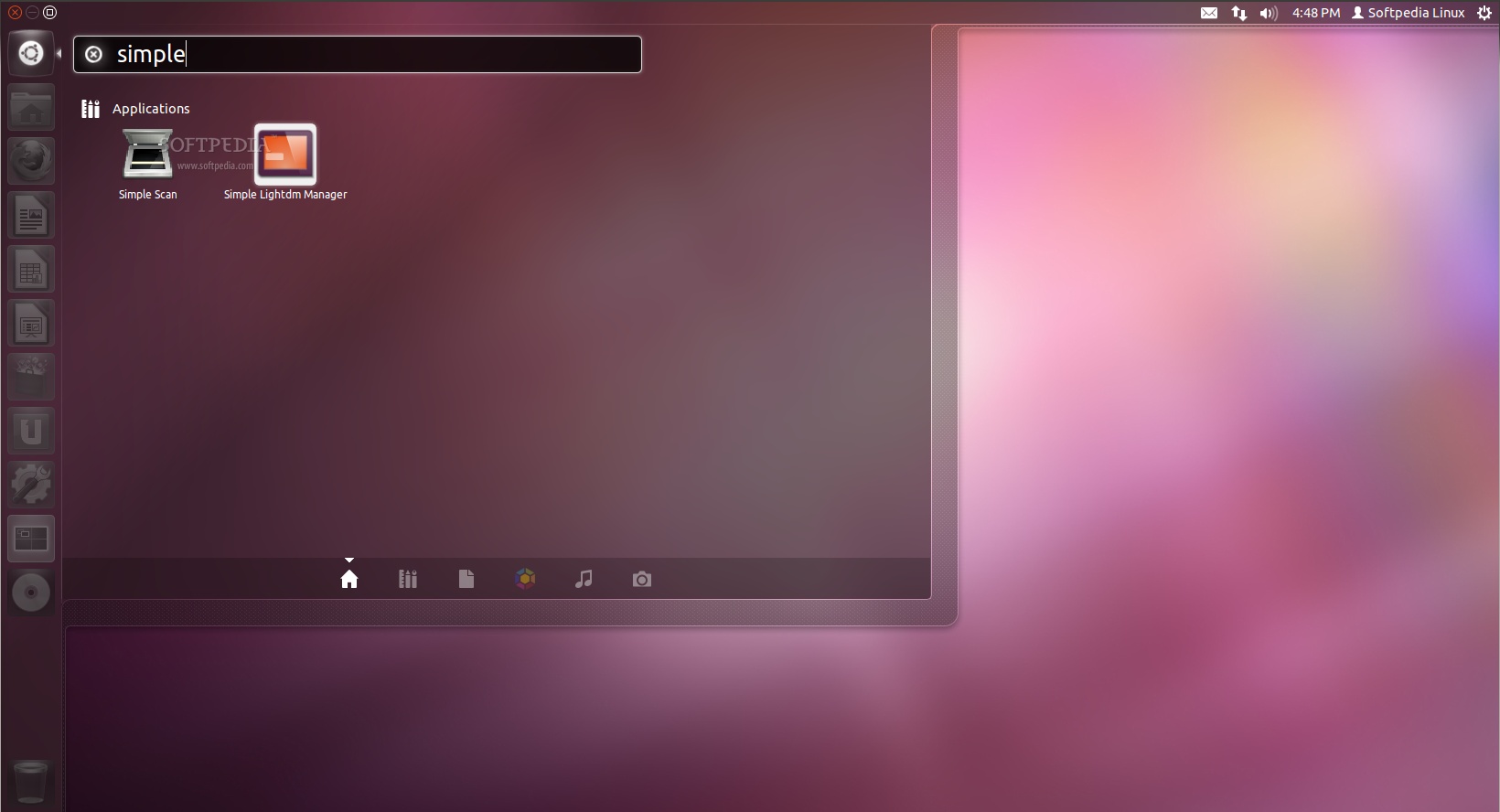
Wait for the installation to finish and close the terminal window. Proceed to the next step! Step 2 - Set a wallpaper for the login screen Open the newly installed application, called Simple LightDM Manager, from Unity Dash...
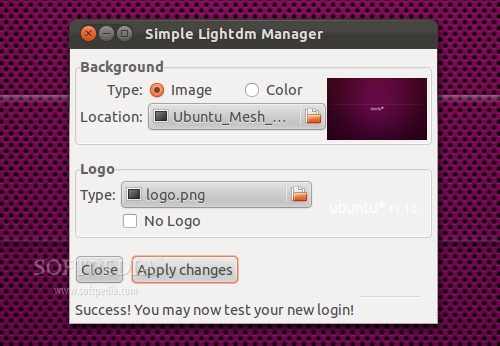
... and select the wallpaper you want to set as default, for both your desktop and login screen, by clicking the "Location" button...
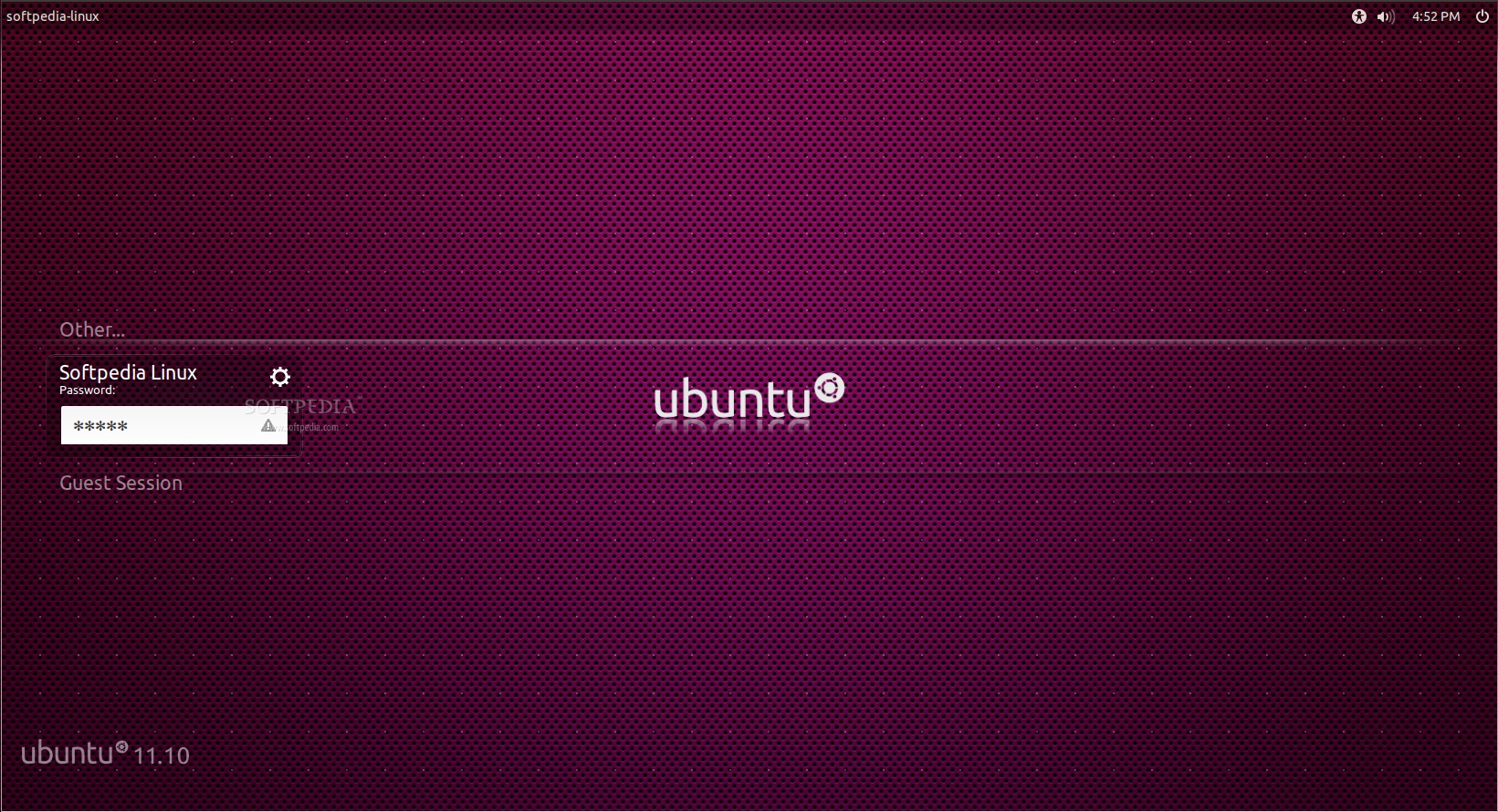
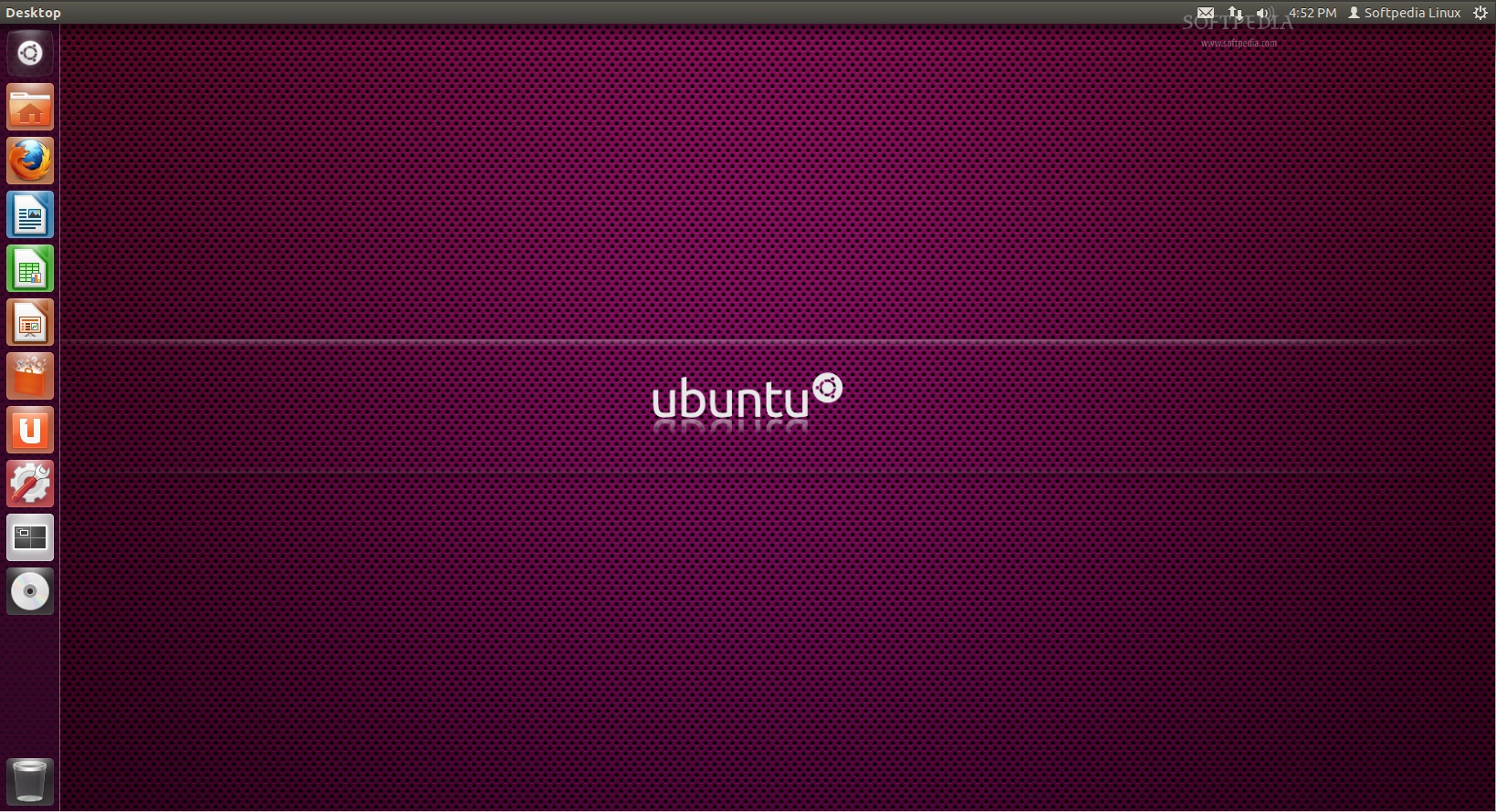
Click the "Apply" button. It will ask for your password, so enter it and click OK. That's it. Yes, it was that simple! Now log out and you'll see that the wallpaper you have on your desktop is also displayed on the login prompt.
If you have problems with the tutorial, do not hesitate to comment below! | |||||||
March 30, 2012
Change the Login Screen Wallpaper on Ubuntu 11.10



March 18, 2012
Download web videos with Movgrab
Download Web Videos With The Command Line Using Movgrab [Linux]
February 25, 2012, By Justin Pot
Use the command line to quickly download videos from YouTube, Vimeo, Ted, Discovery and over 40 other sites using one simple program. It’s called MovGrab and it’s a great, free program for Linux.
We’ve shown you a few easy ways to download online videos, and Linux and Mac users can check out check out Clipgrab for basic video downloading. It’s hard to match Movgrab, though, in terms of the sheer number of sites it supports. As of this writing, 45 different sites are supported. Combine this with a simple command-line interface – all you need to do is type the name of the program followed by the URL of the file – and MovGrab is a program worth having for anyone who likes to watch their online video offline.
For example: if you’d like to download Nyan Cat (and you would), the command would would be
Here’s what the command looks like when it’s running:

You should do this right now, and watch Nyan Cat on a continuous loop for the rest of your life. At the very least there should be a computer in your house that is always playing it, music and all.
The basic process is pretty much the same for any video, regardless of where it’s hosted. Here’s me dowloading a video about trick photography from Ted:

Once the download is done, you’ll find the video in the folder your Terminal was set to. Here’s me watching my Ted download:

Wasn’t that easy?
There’s a lot more this program can do, so be sure to check out the
You’ll need a relatively recent version of Ubuntu for the first command to work.
Users of other operating systems can grab the source code at the movgrab homepage. You’ll need to compile the source code yourself, but it’s not anymore complicated than the standard configure, make and make install.
Get a Linux geek to help you out if you’re not sure what that means!
How do you like this program? Please leave a note in the comments below, along with any recommended similar software.
Source: http://www.makeuseof.com/tag/download-web-videos-command-line-movgrab-linux/
February 25, 2012, By Justin Pot
Use the command line to quickly download videos from YouTube, Vimeo, Ted, Discovery and over 40 other sites using one simple program. It’s called MovGrab and it’s a great, free program for Linux.
We’ve shown you a few easy ways to download online videos, and Linux and Mac users can check out check out Clipgrab for basic video downloading. It’s hard to match Movgrab, though, in terms of the sheer number of sites it supports. As of this writing, 45 different sites are supported. Combine this with a simple command-line interface – all you need to do is type the name of the program followed by the URL of the file – and MovGrab is a program worth having for anyone who likes to watch their online video offline.
Basic Usage
Are you familar with the terminal? The basic command here isn’t that hard, then. Just browse usingcd to the folder where you’d like to store your download, then type movgrab followed by the URL of the video you’d like to download.For example: if you’d like to download Nyan Cat (and you would), the command would would be
movgrab http://www.youtube.com/watch?v=QH2-TGUlwu4.Here’s what the command looks like when it’s running:
You should do this right now, and watch Nyan Cat on a continuous loop for the rest of your life. At the very least there should be a computer in your house that is always playing it, music and all.
The basic process is pretty much the same for any video, regardless of where it’s hosted. Here’s me dowloading a video about trick photography from Ted:
Once the download is done, you’ll find the video in the folder your Terminal was set to. Here’s me watching my Ted download:
Wasn’t that easy?
A Few Advanced Features
Do you want to know what this program can really do? Typemovgrab -h
to see the full instructions. Command line experts will be able to
figure out pretty much everything based on that, but let’s go over the
highlights.- If you want the download to happen in the background just add
-bto the command. The download will happen in the background, letting you use your terminal for other things. - If you want to continue a download you started earlier, you can add
-rto the command. - If you want to pick a particular format, you’ll need to do two things. First: use the
-Toption to get a list of your options. Then, run the command again using the-foption followed by the format of your choice. For example, downloading Nyan Cat, I would use this command:movgrab http://www.youtube.com/watch?v=QH2-TGUlwu4 -f webm:845x480It’s the same command, just followed by-fand the format I’d like to download the video from.
movgrab -test-sites and your computer will test each and every supported site. If many are broken, it may be time to update Movgrab.There’s a lot more this program can do, so be sure to check out the
-h option to get a complete rundown.Installing MovGrab
I found this program thanks to a great article on WebUpd8, a site I recommend you all check out. That site’s PPA is probably the simplest way for Ubuntu users to install MovGrab, and all you need to do is enter the following three commands in the terminal:sudo add-apt-repository ppa:nilarimogard/webupd8sudo apt-get updatesudo apt-get install movgrabYou’ll need a relatively recent version of Ubuntu for the first command to work.
Users of other operating systems can grab the source code at the movgrab homepage. You’ll need to compile the source code yourself, but it’s not anymore complicated than the standard configure, make and make install.
Get a Linux geek to help you out if you’re not sure what that means!
Supported Services
This program supports a lot of different sites. Some may or may not be working, but here is a currently complete list:- YouTube
- Metacafe
- Dailymotion
- Vimeo
- Break.com
- eHow
- 5min.com
- vbox7
- lip.tv
- Ted
- MyVideo
- ClipShack
- MyTopClip
- RedBalcony
- Mobando
- Yale University
- Princeton University
- Reuters
- LiveLeak
- Academic Earth
- Photobucket
- VideoEmo
- VideosFacebook
- Aljazeera
- Mefeedia
- IViewTube
- Washington Post
- CBS News
- Euro News
- MetaTube
- MotionFeeds
- Escapist
- Guardian
- RedOrbit
- Sciive
- Izlese
- uctv.tv
- royalsociety.tv
- British Academy
- Kitp
- Dotsub
- Astronomy.com
- Teachertube.com
- Discovery
- Bloomberg.com
Conclusion
This is simply a must-have video downloader for anyone who wants to download from a wide variety of sites. The command-line interface may make it inaccessible to some, but those who take the time to figure it out won’t be disappointed.How do you like this program? Please leave a note in the comments below, along with any recommended similar software.
Source: http://www.makeuseof.com/tag/download-web-videos-command-line-movgrab-linux/
March 16, 2012
Lubuntu 12.04 Beta 1 is a winner
I tried the new Lubuntu 12.04 Beta 1 image and was very impressed with the polished theme they have given it. It comes with a new Elementary /OSX silver style theme, Chromium browser 17.0963, Abiword, Gnumeric, Pidgin 2.10, Sylpheed email client, Audacious media player 3.2.1, along with a new fresh looking wallpaper. What a veteran Linux user like me appreciates is that Lubuntu is 100% workable right out of the box without any tweaking. No having to install classic Gnome, moving title buttons back to the right, downloading and tweaking the installed theme & wallpaper, or needing to add must-have programs like Chromium and Pidgin. Everything is there for you on one CD ISO image. I find this so amazing. Lubuntu 12.04 has got it right, and is everything a top Linux distro should be: fast, good looking, simple, and stable. Very nice job Lubuntu. Below are some screen shots and a link where to get it.


You can download the 12.05 Beta 1 here:
http://cdimage.ubuntu.com/lubuntu/releases/precise/beta-1/
March 7, 2012
Nightingale Music Player Released
First Official Release of Songbird Fork - Nightingale Music Player - Just Happened!
Quoting our previous article on the topic, "Not so long ago, Songbird
was one of the most loved music player app among Linux users. It all
changed when Songbird developers decided to stop supporting Linux and
concentrate on Mac and Windows platforms. But some hardcore Songbird
users were not ready to give up yet." They forked the project and after
more than an year of hard work, Nightingale 1.11.0 is officially
released.

What's New in Nightingale 1.11.0?
- Based on the latest Songbird changes and provides better performance.
- Based on the latest Gecko 1.9.2, adds a play queue.
- Refreshed feather, looks a lot sleeker now.
- Brand new update feature which will download and install future releases automatically.
- A good number of Songbird add-ons already ported. Ported add-ons can be installed into both Nightingale and Songbird.
- Tons of bug fixes.
- More details and changelog can be found here.
Download First Official Release of Nightingale Music Player
- Nightingale is cross-platform is can be easily installed on Windows, Mac and Linux
- If you have installed earlier developer preview release of Nightingale (Nightingale 1.8 ie.) before, you need to remove it first.
Source: http://www.techdrivein.com/2012/03/first-official-release-of-songbird-fork.html?utm_source=feedburner&utm_medium=feed&utm_campaign=Feed%3A+techdrivein+%28Tech+Drive-in%29
March 4, 2012
Favorite Gnome GTK3 Themes
For March I've been testing the new Ubuntu, Xubuntu, and Lubuntu 12.04 beta 1 builds.
Below is my March desktop which resembles the older OSX Tiger look and a collection of favorite Gnome GTK3 themes. It is nice to have these all in one place.


The above theme is GrayDay theme and can be downloaded here:
http://gnome-look.org/content/show.php/GrayDay?content=149310
To install the Elements-GS Gnome 3.x theme:
sudo add-apt-repository ppa:webupd8team/themes
sudo apt-get update
sudo apt-get install elements-gs-theme
Source: http://www.webupd8.org/2011/10/4-beautiful-gnome-32-compatible-gtk.html
========================
You can add the Elementary and Evolve PPA repositories below:
Then just search for Evolve theme from the Synaptic package manager.
sudo add-apt-repository ppa:webupd8team/themes
sudo apt-get update
sudo apt-get install evolve-gtk-theme
==========================
To get the updated Ambiance and Radiance light themes
type the following on a terminal:
sudo add-apt-repository ppa:victored/light-themes-evolved
sudo apt-get update
sudo apt-get dist-upgrade
You can also go into Synaptic and search for "light themes" to avoid upgrading everything.
=============================
Remove overlay toolbars, from root terminal:
sudo apt-get remove overlay-scrollbar liboverlay-scrollbar3-0.2-0 liboverlay-scrollbar-0.2-0
Below is my March desktop which resembles the older OSX Tiger look and a collection of favorite Gnome GTK3 themes. It is nice to have these all in one place.


The above theme is GrayDay theme and can be downloaded here:
http://gnome-look.org/content/show.php/GrayDay?content=149310
To install the Elements-GS Gnome 3.x theme:
sudo add-apt-repository ppa:webupd8team/themes
sudo apt-get update
sudo apt-get install elements-gs-theme
Source: http://www.webupd8.org/2011/10/4-beautiful-gnome-32-compatible-gtk.html
========================
You can add the Elementary and Evolve PPA repositories below:
Then just search for Evolve theme from the Synaptic package manager.
sudo add-apt-repository ppa:webupd8team/themes
sudo apt-get update
sudo apt-get install evolve-gtk-theme
==========================
To get the updated Ambiance and Radiance light themes
type the following on a terminal:
sudo add-apt-repository ppa:victored/light-themes-evolved
sudo apt-get update
sudo apt-get dist-upgrade
You can also go into Synaptic and search for "light themes" to avoid upgrading everything.
=============================
Remove overlay toolbars, from root terminal:
sudo apt-get remove overlay-scrollbar liboverlay-scrollbar3-0.2-0 liboverlay-scrollbar-0.2-0
March 3, 2012
How to easily move button layouts to the right
As of Ubuntu 10.04, the minimize, maximize, and close buttons on all windows were moved to the left side and the system menu was removed. Prior to version 11.10, you could use several methods to restore the original button arrangement.
To move the windows buttons in 10.04, 10.10, and 11.04, you could use Ubuntu Tweak or the Gnome-Art Manager or manually move the buttons using the Configuration Editor(gconf-editor). However, in Ubuntu 11.10 with the Gnome 3 desktop environment, these methods for moving the buttons are obsolete. The only way to move the buttons now is to use a program called Mwbuttons (Metacity Window Buttons) that allows you to specify the availability and position of the window buttons.
To install Mwbuttons, download the Debian/Ubuntu DEB ALL file, not the tar.gz file.
Go to the desktop or open the file manager (from the Places menu) and navigate to the
folder where you saved the .deb file. Double-click on the file.
folder where you saved the .deb file. Double-click on the file.

The Ubuntu Software Center opens and the mwbuttons screen displays. Click Install.
To install software, you must authenticate. Enter your password in the Password edit box
on the Authenticate dialog box and click Authenticate.
on the Authenticate dialog box and click Authenticate.
The progress of the installation displays where the Install button was.
When the installation is done, “Installed” displays next to a check mark. To close the Ubuntu Software Center, click the X button on the window’s title bar.
To start mwbuttons, click the Dash home icon on the Unity desktop.
Enter “mwbuttons” (without the quotes) in the search box. You don’t need to press Enter.
Results are displayed as you type. Click the Metacity Window Buttons icon that displays.
Results are displayed as you type. Click the Metacity Window Buttons icon that displays.
The Metacity Window Buttons window displays. There are eight drop-down lists from which
you can choose which buttons will be available and the order of the buttons on all windows
in
Ubuntu.
you can choose which buttons will be available and the order of the buttons on all windows
in
Ubuntu.

For example, to put the close button back in its usual place, select the X button from the drop-down list on the far right side of the Metacity Window Buttons window.
NOTE: The buttons available in each drop-down list are as follows, in this order: system
menu, maximize, minimize, close. The maximize button is a toggle button. Clicking it once maximizes the window, if it isn’t already, and clicking it again returns it to its previous
state.
menu, maximize, minimize, close. The maximize button is a toggle button. Clicking it once maximizes the window, if it isn’t already, and clicking it again returns it to its previous
state.

We selected the buttons as shown on the following image to put the window buttons back
in
their usual places.
in
their usual places.

Any window you open now will display the window buttons where you placed them.

You can also quickly set the buttons to the way they were in Karmic Koala (9.10). To do
this, move your mouse to the top panel on the desktop to access the menu bar for
Metacity
Window Buttons and select Karmic style from the Settings menu. You can also use this
menu to go back to the style from Lucid Lynx (10.04) or you can even select the
Mac OS X style. To go back to the previously set button arrangement, select Restore style.
this, move your mouse to the top panel on the desktop to access the menu bar for
Metacity
Window Buttons and select Karmic style from the Settings menu. You can also use this
menu to go back to the style from Lucid Lynx (10.04) or you can even select the
Mac OS X style. To go back to the previously set button arrangement, select Restore style.

When you maximize a window on the Unity desktop in Ubuntu 11.10, the buttons go
back to the left side in the following order: close, minimize, maximize. They also move
to the top panel along with the menu. If you click the maximize button again, the
buttons go back to where you placed them.
back to the left side in the following order: close, minimize, maximize. They also move
to the top panel along with the menu. If you click the maximize button again, the
buttons go back to where you placed them.
February 11, 2012
February Desktop


January 25, 2012
Linux equivalents to popular Mac programs
In my most recent article (“Five tips to help ease the migration from Mac to Linux“) I outlined ways to help end-users transfer from the Mac operating system
to the Linux operating system. It was suggested to me that I should
cover applications that could serve as replacements for popular Mac
apps. Your wish is my command.
In this article I will outline a few of the possibilities that can be used to replace the beloved applications often used in Mac. In some cases their may be equivalents that are nearly identical. In some cases, however, there may be equivalents that miss some features, or even offer better features. Either way, after this article, you should feel much more comfortable about migrating from OS X to Linux.
In the previous article I already mentioned using Songbird as a replacement for iTunes. Personally I prefer Songbird to iTunes. The only downfall is that Songbird can not yet communicate to either the iPhone or the iTouch. Yet. There is another tool that is currently in development that will most likely change that. But for now – you can use Songbird as a replacement for iTunes – just don’t expect Songbird to communicate with your iPhone/iTouch.
Garage Band
For those looking to compose music on your Linux machine, a good replacement for Garage Band is Jokosher. Jokosher is a simple, powerful multi-track recording studio. With this outstanding tool you can import music, record instruments, mix down, set tempos, and more. You will not, however, find a large collection of pre-recorded instruments and sounds to add and manipulate. But, if you have a Freesound account, you can import anything from their. Unlike Garage Band, Jokosher is really more a user-friendly multi-track recorder. So don’t expect to just open up the application and start piecing together music without picking up an instrument.
For more information on other audio creating software take a look at Linux-Sound.org. In my humble opinion, if you are looking for mult-media creation, your best bet is to download Ubuntu Studio which will include so man pre-installed applications for media creation/editing.
iWork
This one should be obvious. If you’re looking for an office suite to take care of all your office needs, look no further than OpenOffice. Although OpenOffice may have a different look and feel, you will find it just as easy to use AND it includes more features and applications than iWork.
iCal
If you like Apple’s stand alone calendar (that also integrates with other applications) you can install the stand alone Sunbird calendar. Sunbird was created by Mozilla so it has a very Firefox/Thunderbird feel to it. Sunbird is very close to a feature-for-feature equivalent to iCal.
iPhoto
My wife uses a Mac and she HATES iPhoto. But it is the standard for Mac photo management. For Linux there is the F-spot photo management tool. F-spot not only manages your photo collections, but will work with your digital camera as an import tool. F-spot is actually easier to use than iPhoto and will not have you fighting to try to get a piece of software to do something you KNOW it should do, but won’t.
Final thoughts
It’s not an exhaustive list, but it will help you get by with the main applications one would use on a modern Mac computer. If you have a Mac-based application you are looking for a Linux equivalent, let me know what that is and I will attempt to locate an equivalent for you.
Enjoyed the article?: Then sign-up for our free newsletter or RSS feed to kick off your day with the latest technology news and tips, or share the article with your friends and contacts on Facebook or Twitter.
Source: http://www.ghacks.net/2009/10/15/linux-equivalents-to-popular-mac-apps/
In this article I will outline a few of the possibilities that can be used to replace the beloved applications often used in Mac. In some cases their may be equivalents that are nearly identical. In some cases, however, there may be equivalents that miss some features, or even offer better features. Either way, after this article, you should feel much more comfortable about migrating from OS X to Linux.
In the previous article I already mentioned using Songbird as a replacement for iTunes. Personally I prefer Songbird to iTunes. The only downfall is that Songbird can not yet communicate to either the iPhone or the iTouch. Yet. There is another tool that is currently in development that will most likely change that. But for now – you can use Songbird as a replacement for iTunes – just don’t expect Songbird to communicate with your iPhone/iTouch.
Garage Band
For those looking to compose music on your Linux machine, a good replacement for Garage Band is Jokosher. Jokosher is a simple, powerful multi-track recording studio. With this outstanding tool you can import music, record instruments, mix down, set tempos, and more. You will not, however, find a large collection of pre-recorded instruments and sounds to add and manipulate. But, if you have a Freesound account, you can import anything from their. Unlike Garage Band, Jokosher is really more a user-friendly multi-track recorder. So don’t expect to just open up the application and start piecing together music without picking up an instrument.
For more information on other audio creating software take a look at Linux-Sound.org. In my humble opinion, if you are looking for mult-media creation, your best bet is to download Ubuntu Studio which will include so man pre-installed applications for media creation/editing.
iWork
This one should be obvious. If you’re looking for an office suite to take care of all your office needs, look no further than OpenOffice. Although OpenOffice may have a different look and feel, you will find it just as easy to use AND it includes more features and applications than iWork.
iCal
If you like Apple’s stand alone calendar (that also integrates with other applications) you can install the stand alone Sunbird calendar. Sunbird was created by Mozilla so it has a very Firefox/Thunderbird feel to it. Sunbird is very close to a feature-for-feature equivalent to iCal.
iPhoto
My wife uses a Mac and she HATES iPhoto. But it is the standard for Mac photo management. For Linux there is the F-spot photo management tool. F-spot not only manages your photo collections, but will work with your digital camera as an import tool. F-spot is actually easier to use than iPhoto and will not have you fighting to try to get a piece of software to do something you KNOW it should do, but won’t.
Final thoughts
It’s not an exhaustive list, but it will help you get by with the main applications one would use on a modern Mac computer. If you have a Mac-based application you are looking for a Linux equivalent, let me know what that is and I will attempt to locate an equivalent for you.
Enjoyed the article?: Then sign-up for our free newsletter or RSS feed to kick off your day with the latest technology news and tips, or share the article with your friends and contacts on Facebook or Twitter.
Source: http://www.ghacks.net/2009/10/15/linux-equivalents-to-popular-mac-apps/
January 11, 2012
Ubuntu Tablet Announced at CES
Ubuntu Tablet to Compete with Android, iOS
January 11, 2012
 An Ubuntu tablet will ‘battle’ against Android and iOS Canonical’s CEO Jane Silber has said.
And although Ubuntu isn’t running on tablets yet she told Techworld‘s Paul Krill that ’announcements in that area‘ are to be made later this year.
But are Ubuntu too late to the game?
Windows 8, with its finger-friendly Metro interface and burgeoning basket of app developers, and Android, with Ice Cream Sandwich and massive consumer awareness, are all poised to take significant marketshare. Can Ubuntu really compete with established titans of the tablet arena? WebOS couldn’t, and Blackberry’s Playbook didn’t exactly find itself flavour of the month, either.
Silber is more upbeat: ”We know we’re late, but we think the battle is not over, and we want to compete.’
And just to keep us all on our toes Silber says that Canonical are already in discussions with several hardware manufacturers – although she can’t give us name just yet.
So with devices to ship on, and the passion, commitment and community/employee talent to turn Ubuntu in a Tablet OS there is only one other factor crucial to Ubuntu Tablet becoming successful…
Further still, to attract quality commercial developers and the big name apps that many consumers look out for Canonical are going to need offer competitive pricing for developers and consumers, and attract more business to the Ubuntu Software Centre than it’s seen of late.
According the developer of Memory Owl, Decembers 10th best selling app, it claimed its place by selling a mere 27 copies.
Related posts:
Source: http://www.omgubuntu.co.uk/2012/01/ubuntu-tablet-to-compete-with-android-ios/
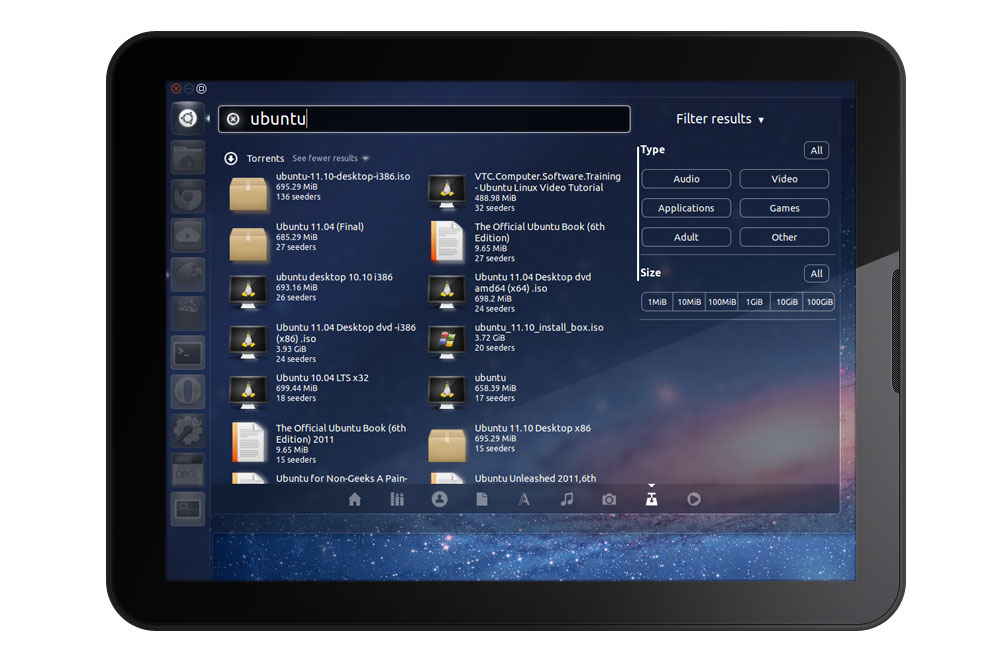
And although Ubuntu isn’t running on tablets yet she told Techworld‘s Paul Krill that ’announcements in that area‘ are to be made later this year.
Ubuntu tablet
Ubuntu Tablet has been a long-held want for many Ubuntu users. As the owner of a variety of tablets I can attest that despite often being called ‘touch-friendly Unity, along with the rest of the Ubuntu desktop, is not as tablet friendly as one would assume.But are Ubuntu too late to the game?
Windows 8, with its finger-friendly Metro interface and burgeoning basket of app developers, and Android, with Ice Cream Sandwich and massive consumer awareness, are all poised to take significant marketshare. Can Ubuntu really compete with established titans of the tablet arena? WebOS couldn’t, and Blackberry’s Playbook didn’t exactly find itself flavour of the month, either.
Silber is more upbeat: ”We know we’re late, but we think the battle is not over, and we want to compete.’
“…the battle is not over..”‘[I think we can compete] …because of characteristics of Ubuntu as a platform, industry dynamics, and an increased wariness around the walled gardens of Apple and to some extent Google and even Amazon, as they are increasingly in this game as well. There is a demand for a platform that has characteristics that Ubuntu meets. The characteristics in my mind that are important are openness, and by openness I don’t just mean open source code, I mean the governance structure, the ability to collaborate, the ability for there to be multiple devices from multiple vendors.”
And just to keep us all on our toes Silber says that Canonical are already in discussions with several hardware manufacturers – although she can’t give us name just yet.
So with devices to ship on, and the passion, commitment and community/employee talent to turn Ubuntu in a Tablet OS there is only one other factor crucial to Ubuntu Tablet becoming successful…
App Store Dynamics
Ubuntu’s success in the tablet-sphere – however niche it might end up – will hinge on more than just decent hardware and shops willing to sell it. The platform will need to have application developers so enthused by the platform that they are will to develop for it. And that’s no mean feat of itself.Further still, to attract quality commercial developers and the big name apps that many consumers look out for Canonical are going to need offer competitive pricing for developers and consumers, and attract more business to the Ubuntu Software Centre than it’s seen of late.
According the developer of Memory Owl, Decembers 10th best selling app, it claimed its place by selling a mere 27 copies.
Related posts:
January 7, 2012
How to run Xubuntu on Ubuntu 11.10
How-to: Run Xfce on Ubuntu 11.10 Final
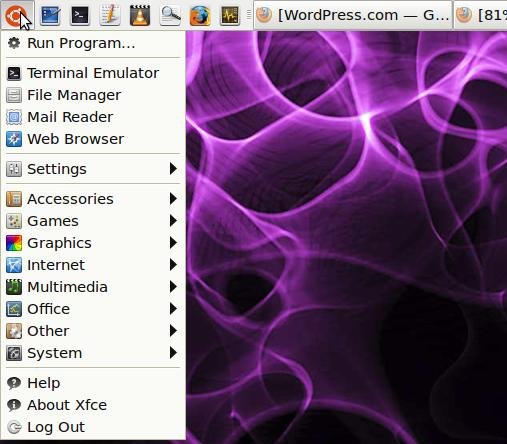
Xfce is a lightweight desktop environment which is designed to be responsive and consume fewer system resources than say, Gnome with Unity, or KDE. It’s also a useful substitute for Unity now that Gnome panel has been removed in 11.10. I am now running it on the regular Ubuntu 11.10 Unity release; that’s not Xubuntu, but the regular 11.10 with the usual Ubuntu applications stack, with Xfce4 on top. I now have the choice of Unity or Xfce. Guess which I’m using for my everyday environment?
Xfce 4.8 is the current stable version, available since Jan 2011. You can install it either from the Ubuntu Software Center, the command line (apt-get install xfce4) or Synaptic Package Manager and it works not only for Ubuntu but also for other Linux distros such as Linux Mint and Fedora.
Downloading and installing the Xfce4 meta-package from the official Ubuntu repository, which you can do through Software Centre, Synaptic or the Aptitude command line with a simple search on Xfce4, takes a few minutes. You might also want to pull in the ‘extras’ packages,
- xfce4-goodies containing more artwork and a stack of utilities
- xfprint4 which is the printer GUI for xcfe
Choosing the Xfce Session
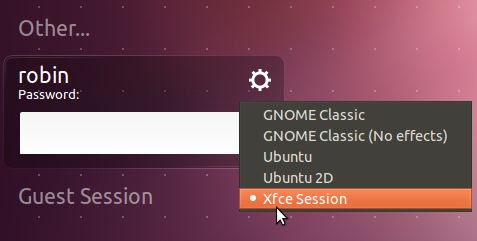
From the Light DM login screen, select Xfce as your session using the dropdown list triggered by the cog icon.
Configuring Xfce
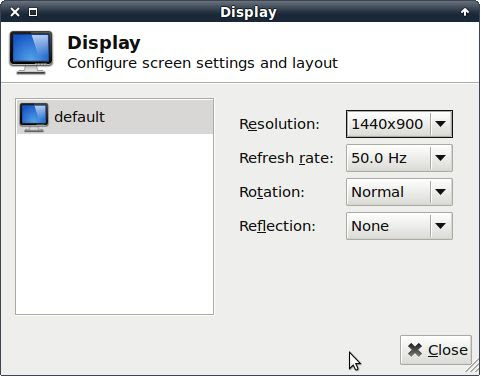
If you haven’t already run the application to install Restricted Drivers, do so in order to pull in the best version of graphics drivers you can find. Then adjust the display settings through Settings, Display. Get the right resolution, but if in doubt over refresh frequencies, don’t mess with them.
Appearance
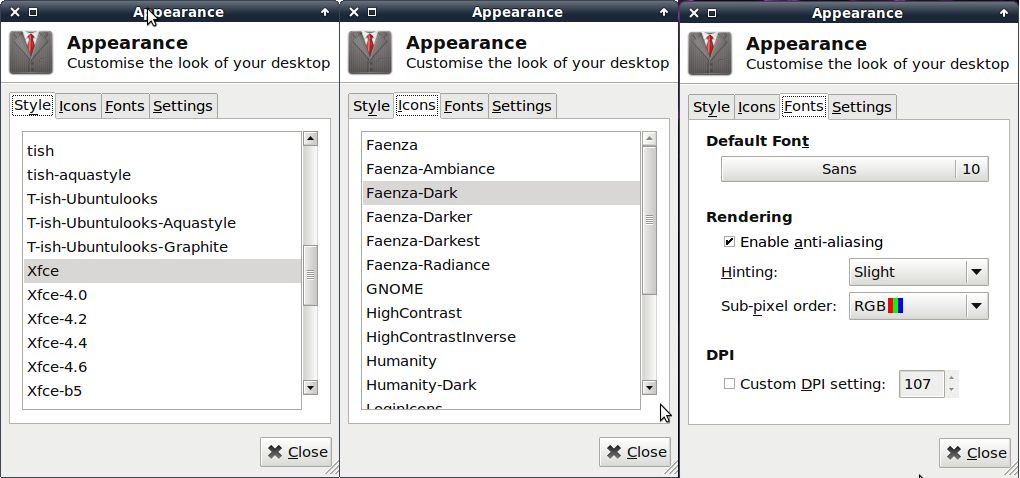
There are controls for setting just about everything in the Xfce desktop, although not all in the one place. Going to Settings, Appearance, you can work through the tabs of controls. Style sets window border styles, Icons selects icons. Under fonts, you will definitely need Enable anti-aliasing checked.
Next, play around with the Hinting and Sub-pixel order option as you get different results depending on your lcd panel.
Slightly confusing is that if you go Settings, Window Manager, the first tab has another Style selector which changes the desktop theme. You can also change the Window Controls (Button) order.
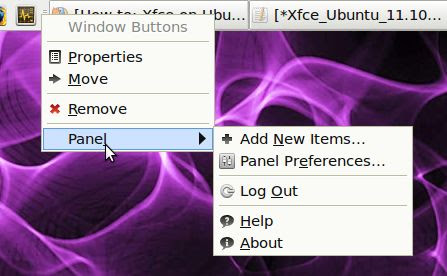 From
then on, you can play around with the Xfce panel. Right clicking brings
up the Panel Context menu, from which you can add, delete and configure
panels including adding launchers and menus to get the working desktop
you want. RC
From
then on, you can play around with the Xfce panel. Right clicking brings
up the Panel Context menu, from which you can add, delete and configure
panels including adding launchers and menus to get the working desktop
you want. RCAdvertisement
http://everythingexpress.wordpress.com/2011/10/28/how-to-run-xfce-on-ubuntu-11-10-final/
January 1, 2012
January Desktop
Inspired by the look of Xubuntu 11.10 during my testing, I used a similar theme for my current Ubuntu 11.10 Gnome Shell Remix. The theme is Elements GS-Classic and the wallpaper is Ubuntu grey swirl from the Ubuntu-art.org. One of the great things about Linux is the ability to customize it any way you like. Installed the Docky application launcher, removed the bottom panel, and added the workspaces indicator to the top panel inspired by Xubuntu. With the coming Winter snow season, the desktop is not that far from the colors of the season.

.
.

.

And an alternate grey background and glass theme for the Docky laucher

To install the gnome 3.x theme:
sudo add-apt-repository ppa:webupd8team/themes
sudo apt-get update
sudo apt-get install elements-gs-theme
Source: http://www.webupd8.org/2011/10/4-beautiful-gnome-32-compatible-gtk.html

.

.


.

And an alternate grey background and glass theme for the Docky laucher

To install the gnome 3.x theme:
sudo add-apt-repository ppa:webupd8team/themes
sudo apt-get update
sudo apt-get install elements-gs-theme
Source: http://www.webupd8.org/2011/10/4-beautiful-gnome-32-compatible-gtk.html
December 31, 2011
Best Linux Downloads for 2011 by Lifehacker
Lifehacker Pack for Linux: Our List of the Best Linux Downloads
Linux may not be the most popular OS around, but that doesn't mean it
we're going to sit here and ignore it. Here are our favorite downloads
for everyone's favorite open source operating system.
Just like our Windows pack, the awesome team at Ninite has graciously put all these apps into a one-click installer for you. Just check off the apps you want, and it'll spit out a unified, one-click installer package for all of them.
Download the 2011 Lifehacker Pack Here
Note that, unlike Windows and Mac OS X, Linux comes in many flavors and with a number of different desktop environments. Since most of you are using the GNOME-based Ubuntu, that's what this pack is designed for.
Below, we've got explanations of what each program in the pack does, and why we chose it. Want to skip to a specific category? Use these links:
The Lifehacker Pack is a yearly snapshot of our favorite, must-have applications for each of our favorite platforms. If you're curious to see how things have changed this year, here's last year's Lifehacker Pack for Linux.

Download Page

Download Page

Download Page

Download Page

Download Page

Download Page

Download Page

Download Page

Download Page

Download Page

Download Page

Download Page

Download Page

Of course, we know the choice of music player is a deeply personal one, so if Banshee isn't your thing, we recommend checking out Rhythmbox, Amarok, and Exaile as alternatives.
Download Page


Download Page

Download Page

Download Page

Download Page

Download Page
Download Page

Download Page
Just like our Windows pack, the awesome team at Ninite has graciously put all these apps into a one-click installer for you. Just check off the apps you want, and it'll spit out a unified, one-click installer package for all of them.
Download the 2011 Lifehacker Pack Here
Note that, unlike Windows and Mac OS X, Linux comes in many flavors and with a number of different desktop environments. Since most of you are using the GNOME-based Ubuntu, that's what this pack is designed for.
Below, we've got explanations of what each program in the pack does, and why we chose it. Want to skip to a specific category? Use these links:
The Lifehacker Pack is a yearly snapshot of our favorite, must-have applications for each of our favorite platforms. If you're curious to see how things have changed this year, here's last year's Lifehacker Pack for Linux.
Productivity
GNOME Do
Inspired by Mac favorite Quicksilver, GNOME Do is the application launcher to get on Linux. Not only can you launch apps with just a few taps of your keyboard, but its large plugin library lets you add even more functionality, like sending emails, IMs, playing music, searching the web, and more.Download Page
LibreOffice
After OpenOffice became a less-than-open-source project, the community broke off and bore LibreOffice, the now-premiere open source office suite on Linux. It's got all the functionality you need for word processing, spreadsheets, presentations, and more. It may not be quite as ubiquitous or feature-filled as Microsoft's offerings, but it'll get the job done more often than not.Download Page
gedit
Text editor gedit comes with a ton of different Linux distributions, and it's easy to see why. It's lightweight, super customizable, and works for pretty much any text-based needs you could have—whether it's making a few notes or writing some serious code. Plus, it's got plugins that let you add word completion, file browsing, and tons more to give it an even bigger boost of power. The bottom line: if you ever need to edit text in Linux (and believe me, you will), you'll want to have gedit close by.Download Page
AutoKey
If you ever feel like some of your typing is just busywork, AutoKey will save you a lot of keypresses by filling in large passages, addresses, or even code by hitting just a few letters. Not only can you fill in text, but if you know a little Python, you can write out more complex scripts to manipulate that text pretty much any way you want, saving you hours of typing every week.Download Page
Internet/Communication
Chromium
Chromium is the open source project behind Google Chrome, the favored browser of power users everywhere. Fast browsing, awesome extensions, and preference-syncing tools make this the browser to beat on any platform, so while most Linux distributions still ship with Firefox, we recommend you make it your second-in-command and put Chromium your browser of choice.Download Page
Thunderbird
While your first instincts may be to go with web-based mail, or with the GNOME-integrated Evolution, we just can't get over Thunderbird. It's got most of the features you love about Gmail, like archiving and conversations, and a huge add-on library that lets you tweak it to your liking. If you prefer your email in webapps, that's totally cool—but we recommend keeping an IMAP client like Thunderbird around for offline access and in case of emergency.Download Page
Pidgin
It may not be shipping with Ubuntu by default anymore, but we still recommend Pidgin as your go-to IM client. It's been around for years, and had more than enough time to build up a huge library of features, supported chat protocols, and plug-ins to let you customize it right down to the last pixel. We may take another look at the pre-packaged Empathy one day, but for now, Pidgin's still got our hearts.Download Page
Skype
Video chat apps abound these days, but chances are everyone you know has Skype. It doesn't get quite as much love on the Linux platform, and it rarely gets updated, but if you plan on video chatting with your friends and family, it's inevitable that you'll end up using Skype. It's okay if it isn't your favorite, but we recommend tucking it away in the corner for those occasions when you actually need it.Download Page
Deluge
Deluge has slowly risen to become the best BitTorrent clients available on Linux. Modeling itself after µTorrent on Windows, it's super lightweight while packing a big punch in the features department. It's got loads of plugins, so you can get pretty much any feature you desire added on, including watch folders, IP blocklists, bandwidth scheduling, a web UI, and much, much more. If you're downloading torrents, deluge deserves a permanent spot in your applications menu.Download Page
Music, Photos and Video
Flash Player
Flash is especially annoying on Linux, but sadly, it's still necessary for browsing a good portion of the web. Whether you're watching videos, listening to music, or—heck—just online shopping, chances are you'll need Flash installed to get anywhere on the net. Keep it at bay with FlashBlock for Chrome and FlashBlock for Firefox so it only opens when you actually need it.Download Page
VLC
The default player in your distribution is usually pretty great, but we know that a lot of you guys love VLC. It's lightweight, it plays any format you could ever want, and has loads of advanced features in its preferences to make your video-watching experience as good as possible. It's still one of the first things we install on any distribution, and we know it is for you too.Download Page
Handbrake
Watching video on the go? Ripping some high-def Blu-Ray discs? If you ever need to convert video, Handbrake is the way to do it. Rip or convert video to one of a bunch of different presets, or tweak the quality to your liking with all its advanced settings. It's an essential tool for any video watcher's arsenal.Download Page
The GIMP
The GIMP isn't included in Ubuntu anymore, and while you can make very basic edits with with the built-in F-Spot photo manager, anything beyond a simple crop or resize will require an actual editing program. The GIMP may seem complicated, but if you're doing more than just organizing a few photos, you'll want to have it around, and if you're doing any kind of advanced editing, it's a must-have. We recommend grabbing the GIMP and putting it back in place as your default photo editor.Download Page
Banshee
This is one of Ubuntu's recent changes we actually agree with: Banshee is now the default music player, and it should be your go-to as well. Besides the standard music management, CD ripping, and iPod syncing, it's got a ton of advanced features that make it the player to beat on Linux. It's integrated with the Amazon MP3 store, Miro for podcast support, and it has a good plug-in library for extra customization. Above all, though, it's got a great, easy-to-use, polished interface.Of course, we know the choice of music player is a deeply personal one, so if Banshee isn't your thing, we recommend checking out Rhythmbox, Amarok, and Exaile as alternatives.
Download Page
Restricted Extras
If you didn't download them when you installed Ubuntu, this is a package you're going to want. There are a few computing necessities—like MP3 support, DVD support, and more that are copyrighted and thus aren't always bundled by default with Linux. So, unless you're very gung-ho about open source and you're purposely avoiding these formats, you'll need the Restricted Extras package.
Utilities
Dropbox
If you have multiple computers, Dropbox is an absolutely essential tool. It syncs files between your machines, backs them up to the cloud, and does all sorts of other neat things. Grab your free 2GB to start, then rack up your storage for free to make it even more versatile.Download Page
Conky
Conky is an awesome system monitor for your desktop, displaying things like CPU and memory stats to RSS feeds, email, weather, packages that need updating, and tons more. You can customize every inch of it to fit in with the rest of your desktop, and keep track of everything while staying productive.Download Page
Wine
It's a sad fact of life, but despite your best efforts you'll probably have to run the odd Windows program from time to time. Wine makes this possible, letting you run Windows programs in your regular window manager, as if they were Linux apps. It won't suck up a ton of resources like a virtual machine, but not all programs are compatible with Wine, so it can sometimes be a crapshoot. Still, when it works, it's a godsend.Download Page
VirtualBox
When a Windows program isn't compatible with Wine, VirtualBox is next in the line of solutions. VirtualBox brings a full Windows environment to your desktop, which can be a bit slower, but it will run any Windows program out there. If you have the hard drive space and RAM to spare, it's a good idea to keep that Windows environment around for when you need it.Download Page
Guake
Linux has certainly come a long way in the user-friendliness department, but you'll be hard-pressed to use Linux as your daily driver without ever needing the command line. Guake brings the Terminal to a quick-access drop-down window, accessible with a hotkey. Plus, like everything else in Linux, it's fully customizable so you can tweak it to fit your workflow.Download Page
p7zip
P7zip is basically the Linux version of our favorite Windows compression tool 7-Zip. With it, you can compress and decompress tons of different archive formats, like ZIP, 7Z, RAR, and more, no terminal necessary. Just right-click on them and decompress them with one click.Download Page
Optional (for Beginners)
Ubuntu Tweak
If you're running Ubuntu, Ubuntu Tweak is a great little program that simplifies some of the basic Linux processes that can be intimidating to first-time users. It may not upgrade well with your system, but it's a good install for beginners: it'll help you install third-party apps, configure your system without the Terminal, clear up disk space, and more.Download Page
Source: http://lifehacker.com/5827968/lifehacker-pack-for-linux-our-list-of-the-best-linux-downloads
Subscribe to:
Posts (Atom)