February 21, 2015

How to enable the Composting Manager in Ubuntu Mate

I've noticed that the Ubuntu Mate Tweak utility has been removed. For anyone looking to enable the Composting Manager. Here is how to do it from the Terminal. Enjoy....
first ensure you have installed compiz:
sudo apt-get install compiz compiz-plugins compizconfig-settings-manager


Open compiz settings manager by typing  ccsm  in the terminal, or just find it in the dash.
Under EFFECTS, enable Window Decorations.

This is where I got stuck for 2 months. In most distros, this is all you have to do, but there is another step in Mate:


Open a terminal and type:


dconf write /org/mate/marco/general/compositing-manager true

You should now have compositing enabled.


Source: http://askubuntu.com/questions/536717/mate-compositing-windows-manager

February 9, 2015

Why Evolve OS could win you over to Linux and me away from Ubuntu


Jack Wallen has found the one take on Linux that could possibly move him away from his distribution of choice since 2006.


There are so many Linux distributions, each one claiming that they are the one flavor best designed for the new user in mind. Ubuntu, Linux Mint, PCLinuxOS -- all outstanding distributions and very much ready for users who want a platform built on the premise that Linux isn't nearly as challenging as many people assume.


In 2014, a new distribution appeared out of nowhere, one that cut straight to the heart of the matter and promised to deliver a Linux distribution like no other. That distribution is Evolve OS. For the longest time, the distribution was in a state of limbo, and the best you could do was download an alpha and hoped it would run. I tried a number of times and finally opted to just install the Budgie desktop on a Ubuntu distribution. That attempt gave me an idea of how Evolve OS would look, but not much more.


All of that changed last week when the beta of Evolve OS was finally released, and the distribution could finally be tested against what's considered the gold standard of user-friendly Linux distributions.
It not only fared well, it crushed the competition.
I should probably preface this by saying that I'm already a bit biased towards the Budgie interface. It's a near clone of the Chrome OS UI -- beautiful, elegant, and simple (Figure A). It makes lesser hardware sing, and it's quite stable for a beta.
Figure A


Figure A


The Budgie desktop in action.
Evolve OS is built from scratch, using a fork of the PiSi package manager, and it's integrated with the GNOME stack to avoid technical debt and needless overhead.
What's underneath the hood will not concern the new user -- but what will is the complete lack of a learning curve. Any user could hop onto Evolve OS and feel right at home. At the heart of that is the similarity to the Chrome OS UI. Although the Chromebook, by nature of its design, does have limitations (I should also mention that I'm a big fan of the Chromebook), the UI is as flawless an interface as you'll ever find. Evolve OS takes perfect advantage of this and re-creates that platform, sans limitations.


Imagine the Chromebook with the ability to run full-blown applications and work seamlessly offline. That's the very heart and soul of Evolve OS. With a simple menu, notification area, and panel, Evolve OS enjoys a familiar desktop metaphor that has worked for decades with the modern, minimal twist of Chrome OS.
From the user's perspective, Evolve OS borrows the following from the GNOME stack:
  • Files -- GNOME file manager
  • Maps -- GNOME map tool
  • Weather -- GNOME weather app
It must be said that Budgie is not a fork of GNOME 3. Budgie was built from scratch and uses its own window manager and panel. Outside of the listed apps above, most of the borrowed GNOME stack is underneath the hood.

Why Evolve?

The answer to this question is quite simple. If you're a fan of Chromebooks but long to be able to add an addition layer of usability and power on top, Evolve OS is for you. If you're looking for the epitome of elegance on a desktop, Evolve OS is for you. If you're looking for the single lowest barrier to entry for Linux, Evolve OS is for you.

Why not Evolve?

It's very important to remember that Evolve OS is in beta. This means that you'll find tiny corners that are a bit rough. Take, for instance, the Software Center (Figure B).
Figure B


Figure B

The Evolve Software Center.
The Software Center is quite limited at the moment. With a minimal amount of available packages to install, you'll find yourself having to go the old-school route and install manually. Evolve OS uses the eopkg, which is a fork of the PiSi package manager. You can install a package with a command similar to:
sudo eopkg install audacity
Personally, I'll be following Evolve OS closely to see when the distribution comes out of beta. When it does, it's quite possible that I could evolve from Ubuntu to this incredibly easy-to-use take on the Linux environment. That's a fairly impressive task for any new distribution -- to take me away from my Linux distribution of choice since 2006.
What do you think? Is Evolve OS just what the Linux platform needs to win over new users? Why or why not?

Source: http://www.techrepublic.com/article/why-evolve-os-could-win-you-over-to-linux-and-me-away-from-ubuntu/

January 30, 2015

Windows 10 Theme for Linux (GTK & XFCE)


One of the great things about Linux is the ability to customize your system any way you want. I had some fun with this one. I used the Orion Theme with the Windows 8 metacity title bars and windows icons. Below are links where you can get theme. Enjoy.


You can get the GTK3 metacity Win8 theme here:
http://gnome-look.org/content/show.php/Windows+8+theme+By+Kunal?content=165937

You get the Orion GTK3 theme here:
http://satya164.deviantart.com/art/Orion-GTK3-Theme-281431756

You can get the Win8 icons here:
http://gnome-look.org/content/show.php/Windows+8+Icons+Theme?content=167957

You can get the wallpapers here:

http://www.windows8core.com/download-the-all-new-desktop-hd-wallpapers-from-windows-10-consumer-preview-build-9901/


You can do the same for your XFCE desktop as well....and see the links below...


You can get the XFCE theme, XFCEight here:

http://xfce-look.org/content/show.php/Xfceight?content=158227

January 17, 2015

Ambiance & Radiance Flat Themes


Many of the new themes are heavily influenced by Android & Apple phone & tablets. Minimal flat themes are increasingly being developed for Windows 8 and Linux. Below is the Ambiance Flat theme along with the Vibrancy series icons. There are several color options in the theme. They both give my linux desktop a fashionable look these days. Below are links to get the theme and wallpaper. Enjoy.


The Ambiance Flat Theme can be found here:

http://www.ravefinity.com/p/download-ambiance-radiance-flat-colors.html

The Vibrancy Icons set can be found here:

http://www.ravefinity.com/p/vibrancy-colors-gtk-icon-theme.html

The Ubuntu red squares wallpaper can be found here:

http://www.wallpapershunt.com/wallpaper/ubuntu-logo-orange-2560x1600_w2954.html

January 9, 2015

How To Install The Official Spotify App in Ubuntu


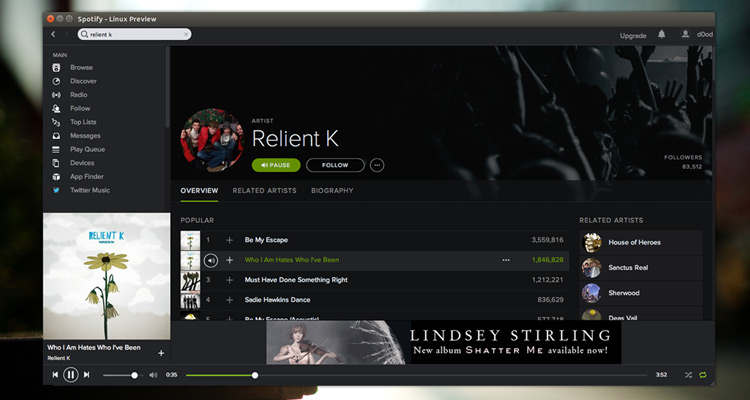
spotify


Spotify is the king of music streaming. Every day tens of millions of users listen to thousands of tracks using it through a variety of different ways.
There are mobile apps for Android, iOS, Windows Phone and Blackberry; a beta web-based player for browser-bound users; and dedicated desktop apps for Windows, Mac and Linux.
It’s the latter of these choices that this guide will show you how to install.

How to Install Spotify in Ubuntu

Spotify for Linux Preview can be installed on Ubuntu 12.04 LTS and 14.04 LTS straight from the Spotify repository. This method is the recommended way to install the player as it allows you to get automatic upgrades to new releases of Spotify through Ubuntu’s Software Updater/Update Manager tool.
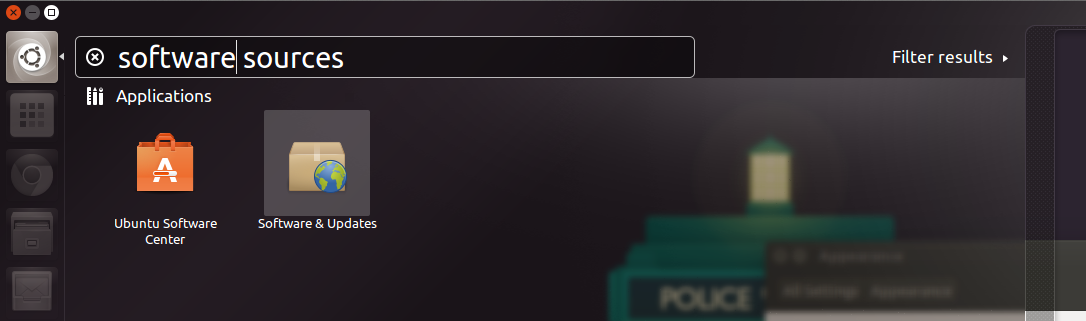
To add it you first need to open the Software Sources app via the Unity Dash:


software sources unity


Select the ‘Other Software’ tab in Software Sources [1]


add-software-sources-ppa-ubuntu


Click ‘Add’ [2] and paste the following the entry field of the box that appears:
deb http://repository.spotify.com stable non-free
Click ‘Add Source’ [3] to confirm the change, then close Software Sources.

Add The Spotify Repository Key

The next step is to add the repository key. This allows Ubuntu to verify that packages installed from the repository are made by who they say they are.
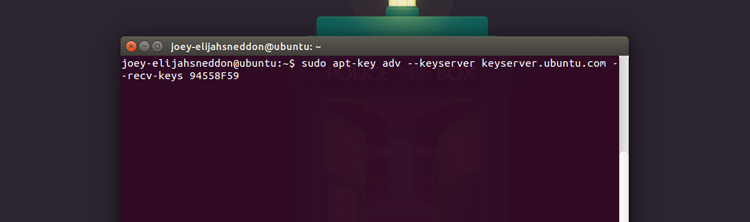
Open a new Terminal window, paste the following command, and then hit return/enter:
sudo apt-key adv --keyserver keyserver.ubuntu.com --recv-keys 94558F59
 
 
ppa-terminal


That’s that! You can now install Spotify through the Ubuntu Software Center (after checking for new software updates first) or by running the following command in the Terminal window:
sudo apt-get update && sudo apt-get install spotify-client
Once installed you can launch Spotify from the Unity Dash.


From Spotify:

Debian

# 1. Add this line to your list of repositories by
#    editing your /etc/apt/sources.list
deb http://repository.spotify.com stable non-free

# 2. If you want to verify the downloaded packages,
#    you will need to add our public key
sudo apt-key adv --keyserver hkp://keyserver.ubuntu.com:80 --recv-keys 94558F59

# 3. Run apt-get update
sudo apt-get update

# 4. Install spotify!
sudo apt-get install spotify-client

Another way to run Spotify is through your web browser. Chrome has a Spotify extension here:
https://chrome.google.com/webstore/detail/spotify-music-for-every-m/cnkjkdjlofllcpbemipjbcpfnglbgieh?hl=en-US


Source: http://www.omgubuntu.co.uk/2013/01/how-to-install-spotify-in-ubuntu-12-04-12-10

January 8, 2015

Can You Run It On Linux? 10 Vital Apps You’ll Want When You Switch

Now has never been a better time to switch to Linux, but you may still be hesitant about it because you’re not sure whether your favorite applications from Windows will work on it. To help answer your questions, we’ll take a look at 10 popular Windows applications and whether you have options for them in Linux or online.
With this list, you should have more confidence when trying to make the switch.

Chrome

chrome

Except for Internet Explorer, all of the major browsers (Firefox, Chrome, and Opera) are all available on Linux. There are even several lesser-known browsers that are available on Linux such as Midori. These browsers give you plenty of choice and loads of features, so you should be able to access any content that you wish with no problems whatsoever. Native Official App: Yes
Best Linux Alternative App: Chrome or Firefox
Best Online Alternative App: N/A

Outlook

linux_email_thunderbird

To take care of your email needs, you have plenty of options on Linux as well — although Outlook isn’t one of them. Thunderbird, one of the most popular email clients, is also available there. If you need an email client that has great support for Microsoft Exchange accounts like Outlook has, then Evolution may be better for you. Otherwise, you can also easily use any web-based email interface with your preferred browser, including Gmail and much more. Native Official App: No
Best Linux Alternative App: Thunderbird or Evolution
Best Online Alternative App: Gmail

Microsoft Office

linux_libreoffice4

The world’s most popular office suite doesn’t have an offering on Linux, and people who try installing it with the Wine compatibility layer for Windows software tend to have mixed results at best. Instead, the best alternative for the Linux desktop is LibreOffice, which is still full of features and offers surprisingly good compatibility with Microsoft Office formats. In fact, you’ll only really come across issues if you tend to use very high-level Office features such as Macros; LibreOffice has macros as well, but they aren’t compatible with Office’s macros. Native Official App: No
Best Linux Alternative App: LibreOffice
Best Online Alternative App: Google Drive

Photoshop

open_source_gimp

Photoshop also isn’t natively available on Linux, and although people seem to have relatively decent success at installing it via Wine, and that process usually involves installing an older version. If you want up-to-date versions of Photoshop, you’re out of luck. However, you can easily install GIMP, which is an extremely capable image manipulation tool. Although some of the workflows may be different (and sometimes longer) than in Photoshop, you can achieve virtually the same tasks. And if GIMP doesn’t provide a feature you’re looking for by default, there’s a good chance that there’s a plugin to help you out. Native Official App: No
Best Linux Alternative App: GIMP
Best Online Alternative App: Pixlr

Windows Movie Maker

pitivi_3

As you might expect, Windows Movie Maker and iMovie are both meant only for their respective platforms and therefore not available on Linux. However, there are a couple of Linux alternatives that you can choose from. If you’re looking to create very simple home videos, then look no further than PiTiVi. There’s also OpenShot and Kdenlive for slightly more advanced projects, but they haven’t been in active development for a while. Finally, as a professional-grade video editor there’s Lightworks, but it also asks for a professional-grade price. Native Official App: No
Best Linux Alternative App: PiTiVi
Best Online Alternative App: WeVideo

Eclipse

fedora_android_eclipse

Developers need to have a trusty IDE (Interactive Development Environment) by their side to help with all of their programming projects. Eclipse is a popular one for a lot of developers, especially those building Android apps. Thankfully, it is also available on Linux and easily installable. If you use a different IDE such as Visual Studio, which isn’t available on Linux, then you may need to switch to Eclipse. Additionally, if you’re looking for a lightweight IDE/code editor, then I’d suggest Geany. If I’m working on simpler projects (such as for school assignments), then I prefer to use Geany as it doesn’t have excessive functions that I don’t need. Native Official App: Yes
Best Linux Alternative App: Geany
Best Online Alternative App: N/A

Minecraft

minecraft

Arguably the most popular indie game available, Minecraft, is a must for a lot of people, and thanks to its Java roots, it can run on Linux as well. In fact, there’s pretty much no difference between the Windows and Linux versions whatsoever. The only difference would be that some add-ons or mods come packaged in .exe installers that won’t work on Linux, but they also tend to provide the files in a .zip file, so you shouldn’t have to miss out on anything. Native Official App: Yes
Best Linux Alternative App: Minetest
Best Online Alternative App: N/A

AutoCAD

freecad

A common complaint about Linux is that there isn’t good software for some more specific tasks, including CAD sofware. While you can’t get AutoCAD onto your Linux system, there’s a great free alternative called FreeCAD which can take care of your CAD needs. It’s also made to be modular, so you can add in extra functionality if you need it. If need be, you can also try out FreeCAD on Windows or Mac OS X before you make the switch to Linux so you’ll already feel comfortable with it. Native Official App: No
Best Linux Alternative App: FreeCAD
Best Online Alternative App: Tinkercad

Steam

steam4linux

Steam is a popular platform for finding, getting, and managing/updating games. Since early 2013, Valve has been pushing to turn Linux into a viable gaming operating system, and after approximately two years you’ll find quite a few games on Steam that work on Linux as well. You’ll still have to skip out on huge titles like Battlefield and Call of Duty (although Battlefield expressed interest in Linux), but there are other AAA titles already available on Linux such as Civilization V. The list of Linux-compatible games is only going to grow, so you should check out Steam’s listing of games and see which ones you want run on Linux. Alternatively, you can always try to get a game by itself (not via Steam) and use Wine to get it to run. Your success will vary widely from game to game. Native Official App: Yes
Best Linux Alternative App: Wine
Best Online Alternative App: N/A

Spotify

spotify_desktop

The most popular music streaming service has spread itself rapidly with easy access on mobile devices and desktops via a web player and a desktop client. If you run a Linux distribution which uses .deb packages (such as Debian, Ubuntu, or derivatives of either), then you can install the beta Spotify client for Linux. Alternatively, you can also just access Spotify from their web player via your browser. Native Official App: Yes
Best Linux Alternative App: Atraci
Best Online Alternative App: Spotify Web Player, Google Play Music

Time to Switch!

With these 10 vital apps, you should be ready to tackle Linux without breaking a sweat. With all of the benefits that an open source operating system provides, and knowing that you have apps available to get work done, there’s no excuse for you to not try it out.
Don’t forget to also check out our Best Linux Software list for other great Linux apps to try out!
What’s still an issue that’s keeping you from Linux? Let us know in the comments!

Source: http://www.makeuseof.com/tag/can-run-linux-10-vital-apps-youll-want-switch/