Important Things/Tweaks to do after Install of Ubuntu 12.10 Quantal Quetzal
From noobslab.com (10-18-2012) Ubuntu 12.10 Quantal Quetzal has been released, NoobsLab know what people want. So after a-lot of work today bring this article for you. After applying these tweaks you can get better experience with new Ubuntu. After these tweaks we can say your Ubuntu is ready to use, Every tweak is tested by NoobsLab. So lets start tweak to your Ubuntu 12.10.

1: Install Gnome-Tweak-tool 3.6:
Gnome Tweak Tool is well-known powerful tweak tool, With this tool you can manage your Ubuntu environment like: Change theme, icons, fonts, cursor and so on options.
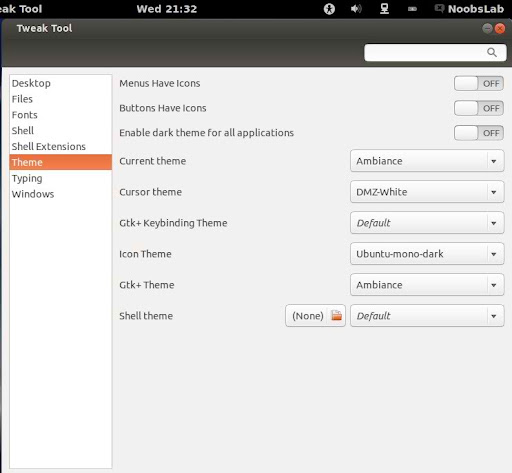 Install with following command:
2: Install Ubuntu Tweak:
Ubuntu Tweak is an application designed to config Ubuntu easier for everyone. It provided many useful desktop and system options that the default desktop environment isn't provided.
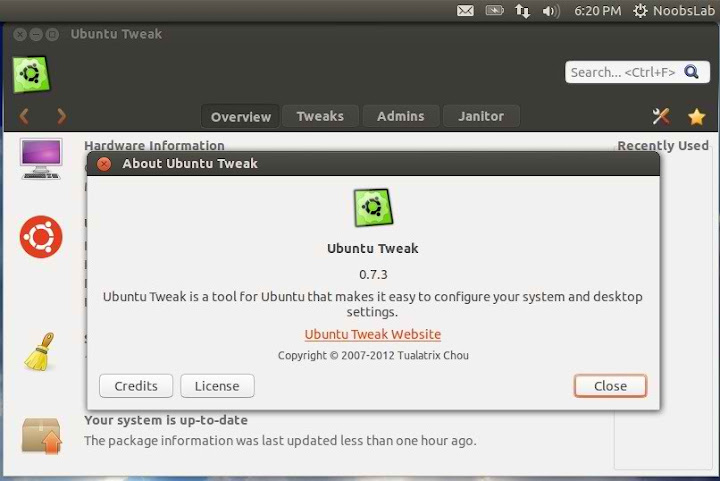 Enter following commands to install Ubuntu Tweak:
3: Install Compiz (CCSM) and extra plugins:
CCSM, short for CompizConfig Settings Manager, is a configuration tool for Compiz Fusion. It is used to configure the many plugins included in Compiz and Compiz Fusion, as well as the use of various profiles and intergrating better with existing desktop settings.
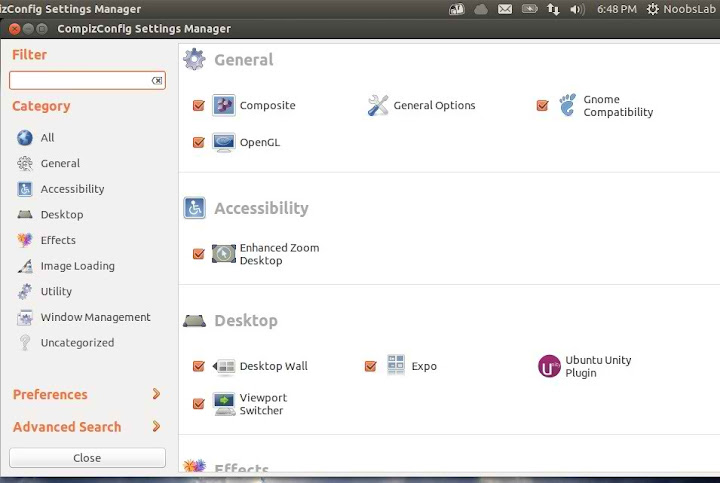
To install Compiz Config Setting Manager enter following command in Terminal:
4: Install Synaptic Package Manager:
Synaptic is a graphical package management program for apt. It provides the same features as the apt-get command line utility with a GUI front-end based on Gtk+.
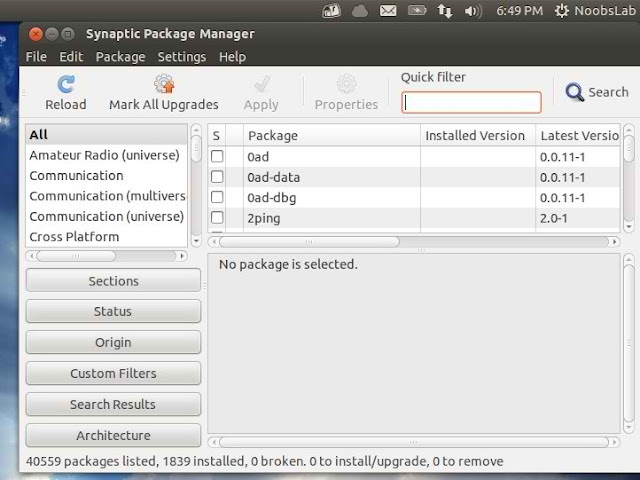 To install Synaptic Package Manager enter following command in Terminal:
5: Enable Hibernate option:
Ubuntu has disabled hibernate option since last distro 12.04, So here is tweak to enable hibernate in 12.10.
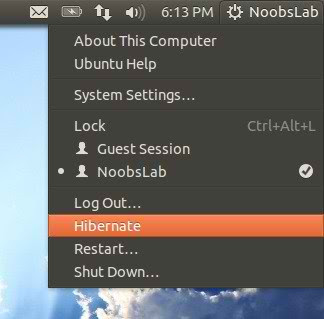 Open Terminal and enter following command:
6: Remove White Dots from Ubuntu 12.10 Login Screen
Some People don't like white dots in Ubuntu 12.10 Login screen, So here is a tweak you can easily remove these dots from login screen.
 Enter following commands in Terminal:
7: Disable Online Search in Dash:
Personally I don't like this online search option in unity. So if anybody want to turn off, follow the method.
Go to Dash and Search "Privacy" and turn off the online search option.
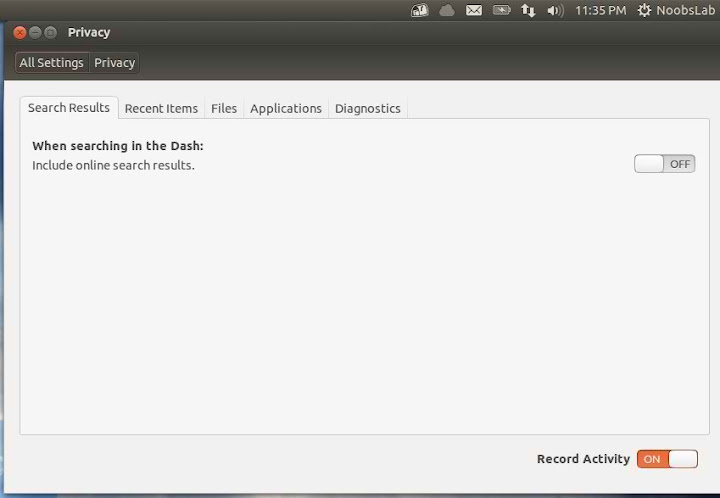 Alternative remove shopping lens by following command:
8: Change HUD Key:

Go to "Dash" System Settings > Keyboard > Shortcuts > Launchers > Key to show HUD
Click on Key to show HUD to change key. I set my key Alt+Z because it is easy to press, You can change whatever you want.
9: Disable overlay Scrollbars:
You can disable overlay scrollbars, if you don't like that.
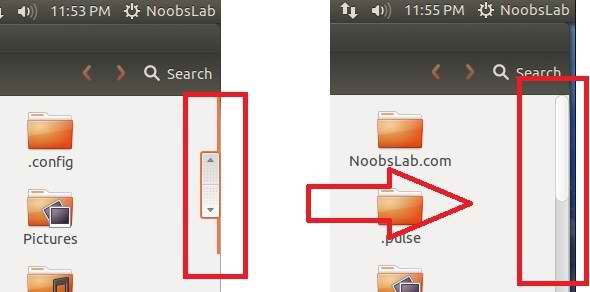 Enter following command in terminal to disable overlay scrollbar:
10: Show username on panel:
UserName is disabled by default in Ubuntu 12.10, So here is tweak you can enable it very easily.
 Enter following command in terminal:
11: Disable System Crash Reports:
If you are experiencing something crashes in your Ubuntu, and you don't like to notify with reports. You can disable them easily.
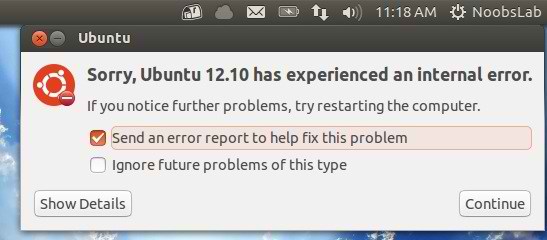 Enter following commands to disable crash reports:
Now enter following command in terminal to stop apport service:
12: Install and enable XScreensaver:
XScreenSaver is a collection of about many free screensavers for Linux.
 Install XSreenSaver with following commands:
13: Show Laptop Battery Percentage:
This tweak shows laptop battery percentage in the Ubuntu panel.
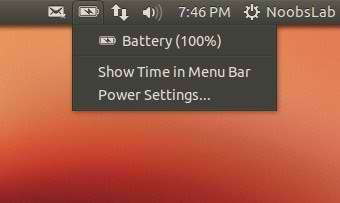 To install enter following commands in the Terminal:
14: Install Hardware Temperature Monitor:
The Psensor Indicator is providing a quick access to sensor values and settings. When a sensor temperature is too much hot, a desktop notification bubble appears and the Application Indicator icon is changed to a red one. Your pc must have sensors to use complete features.
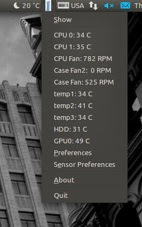 Enter following command in terminal:
15: Install Ubuntu-One Indicator:
UbuntuOne indicator provides the overview of Ubuntu One Account synchronization state.
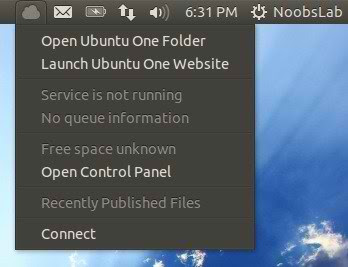 To install enter following commands in the Terminal:
16: Install Recent Notifications Indicator:
Recent Notifications is a GNOME applet that collects recent messages sent with libnotify to a notification daemon, such as notify-osd.
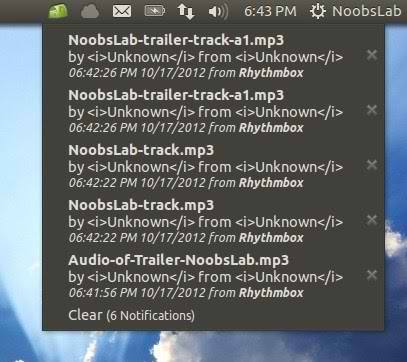 To install enter following commands in the Terminal:
17: Install Weather Indicator:
My-Weather is really cool indicator for Ubuntu, it can show up to two location weather with complete details.
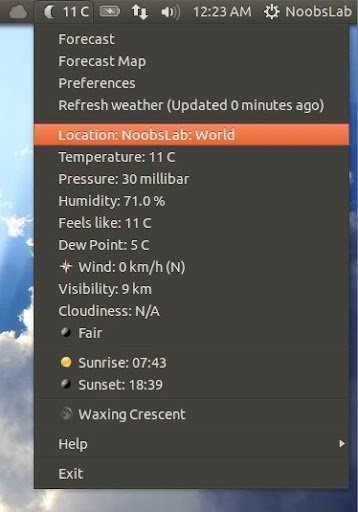 Enter following commands in terminal to install my-weather indicator:
18: Install Window-List Indicator:
This Window-List indicator show which windows are currently open, and you can easily switch between them.
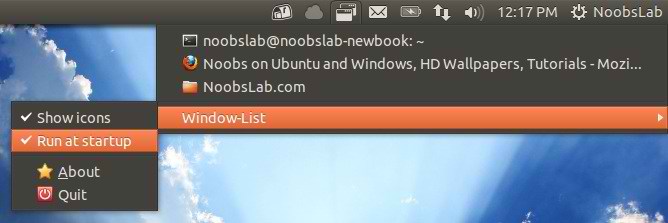 Enter following commands in terminal:
19: Show all startup apps in Startup Applications:
By Default Startup Application show only few apps in the list, So now you can see which applications are going to start by following command:
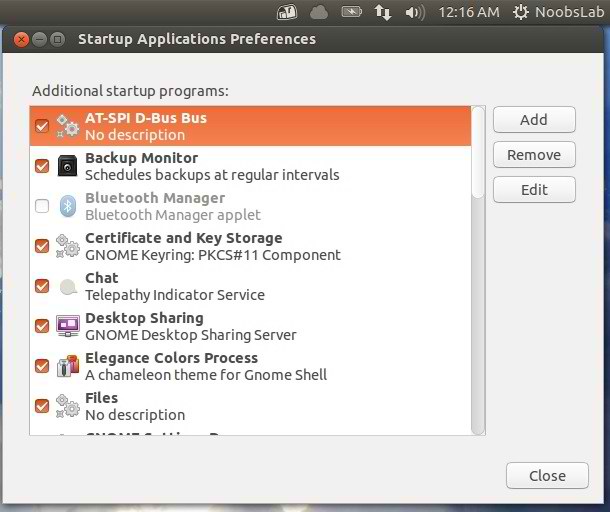
20: Disable Global Menu:
If you don't like Global menu then you can disable it easily.
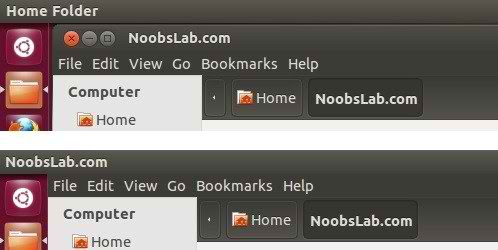
Enter following command in Terminal:
To disable Global Menu for Firefox, Go to 'Tools' –> 'Add-ons' –> 'Extensions' and Disable 'Global Menu Bar integration'
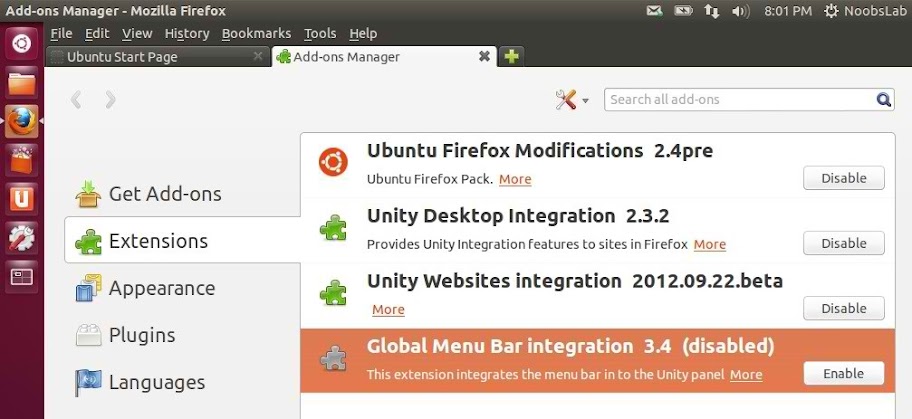 To revert the changes enter following command in Terminal:
21: Move Minimize, Maximize, Close Buttons to Right:
This tweak is about to move Minimize, Maximize, and Close buttons to the right side.

Enter following command to move buttons to right:
Enter following commands in Terminal to install gconf-editor:
Right mouse click, and select Edit Key.
Change the value to the following: menu:minimize,maximize,close then Press Enter.
22: Add other Media Player to Ubuntu Sound Menu
If you are using different audio player to player audio files then you can add player in sound menu with following method.
Enter following command in terminal to install Dconf-Tools:
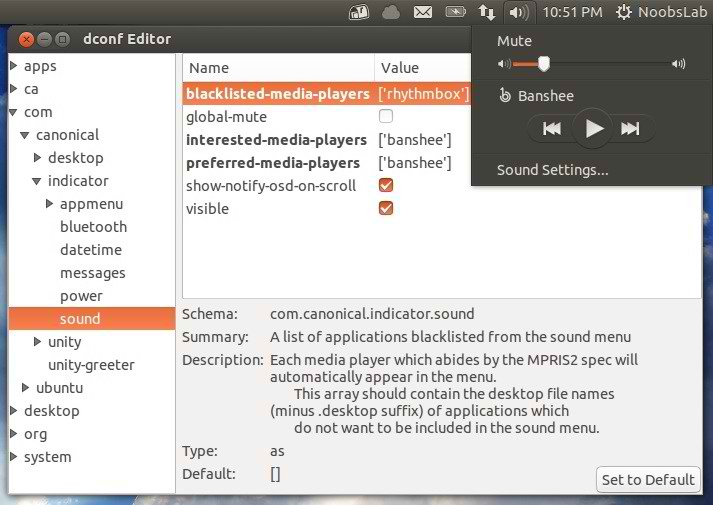
Type your Player name in (interested-media-player + preferred-media-player) and you can remove any media player by writing name in (blacklisted-media-players). See following image
23: Enable Global Menu for LibreOffice in Ubuntu 12.10
By default LibreOffice doesn't support global menu, So you can enable Global Menu easily for LibreOffice.
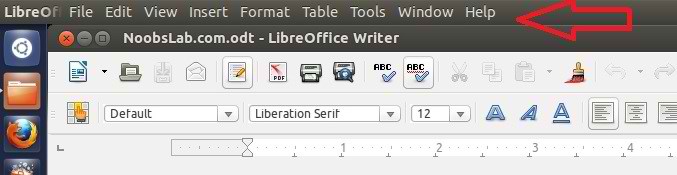 Enter following command in terminal to install global menu.
24: Open as Administrator in Ubuntu 12.10 Quantal Quetzal
This is really cool tweak for those who want to open file and folder with Administrator permissions, So now it is really easy to do.
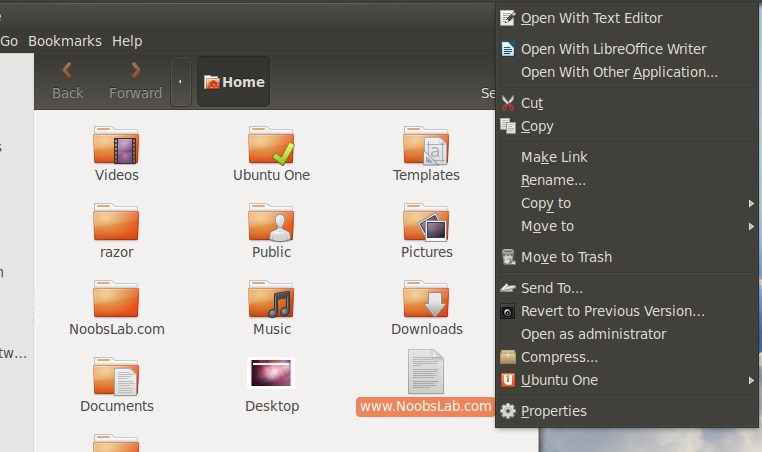 To add "Open as Administrator" entry enter following commands in Terminal:
25: Move Nautilus Forward & Back button to Left Side:
 To move these buttons to left side just follow steps:
Open Terminal (Press Ctrl+Alt+T) and copy the following commands in the Terminal:
Now Back in Terminal, run the following:
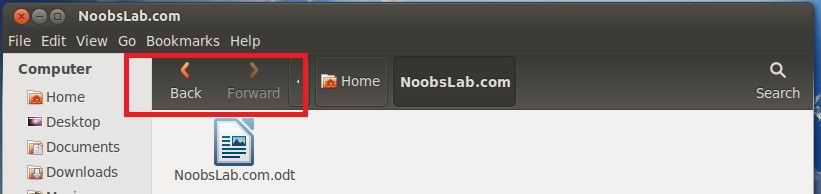
Now logout and login back or restart.
To undo the changes and revert back to stock Nautilus, you can simply run following command:
For Unity If SomeThing Went Wrong Enter following commands to Reset:
>> to reset the Unity:
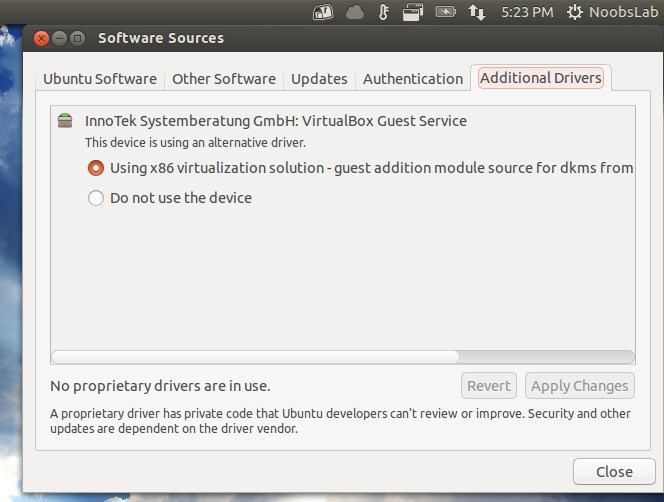
26: Enable Hardware Drivers:
In Ubuntu 12.10 Quantal "Additional Drivers" location has been changed, You can choose best drivers for your hardware from additional driver and can enable/disable from there easily.
Open Dash and Search for "Software Sources" Here you can find "Additional Drivers" in the last Tab.
27: Install Adobe Flash Plugin:
By default firefox doesn't install flash player, So now you can install flash player.
 Open Terminal and enter following commands:
28: Install qBittorrent:
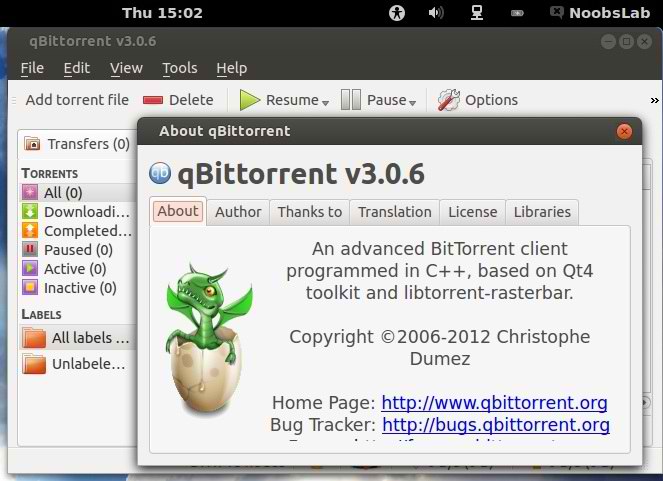 I
think everybody like to download from torrents, It is safe and easy
method to download. So you can install qBittorrent with following
commands:
I
think everybody like to download from torrents, It is safe and easy
method to download. So you can install qBittorrent with following
commands:
29: Install Plugins for Rhythmbox (Like Equalizer):
Rhythmbox is default Audio player in Ubuntu 12.10, You can install plugins for rhytmbox. Plugins are: Audio-read, Album-art-search, Countdown-playlist, plugin-cover-art-browser, Equalizer, Jump-to-Playing, Jump-to-Window, lyrics, micro-blogger, open-containing-foler, radio-browser, Random-album-player, Remember-the-rhythm, repeat-one-song, rhythm-web, send-first, small-window, stop-after, suspend, tab-guitar, tray-icon, web-menu, stream-ripper
Enter following commands to install plugins.
30: Install Gnome Shell 3.6:
Install latest Gnome Shell 3.6 in 12.10
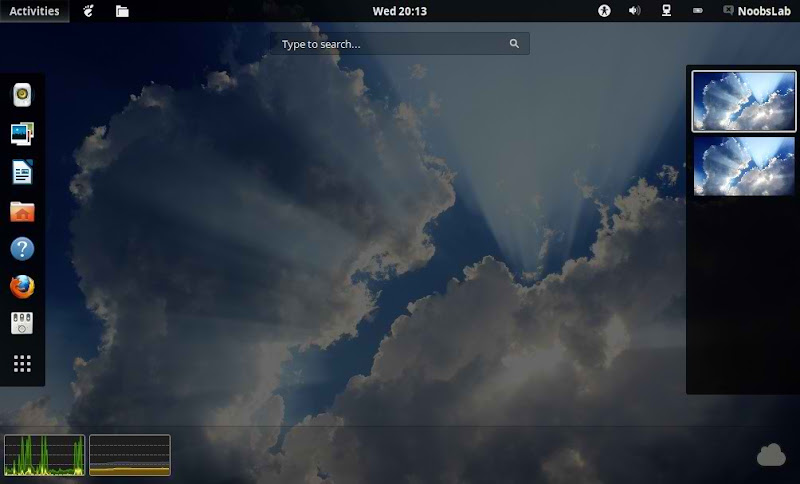
Enter Following commands to install Gnome-Shell 3.6:
31: Install User-Theme and other Extensions in Gnome Shell 3.6:
With User-Theme Extension you can enable Gnome Shell 3.6 themes in Gnome-Tweak-Tool.
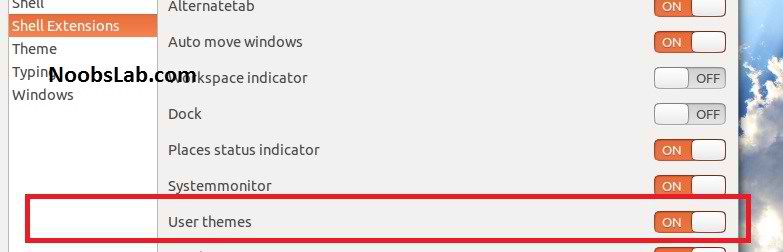
Now Restart Gnome Shell (Press Alt+F2 and type 'r') and enable User Themes Extension, again Restart Gnome Shell.
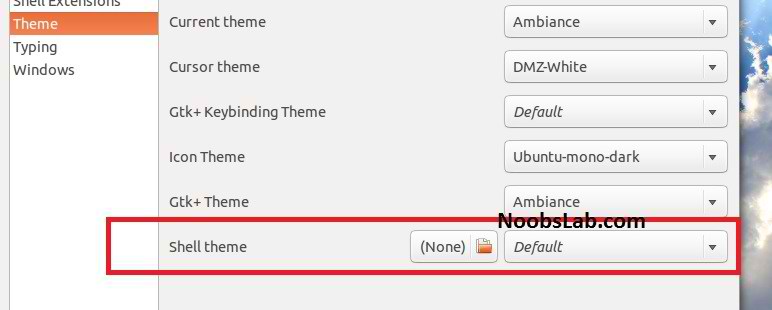 Install
official extension in 12.10, Following extensions will install:
Alternative Status Menu, Native Window Placement, Alternative Tab, Auto
Move Windows, Workspace Indicator, Dock, Places Status Indicator, System
Monitor, Gajim IM Integration, User Themes, Removable Drive Menu,
Window Navigator, Applications Menu.
Install
official extension in 12.10, Following extensions will install:
Alternative Status Menu, Native Window Placement, Alternative Tab, Auto
Move Windows, Workspace Indicator, Dock, Places Status Indicator, System
Monitor, Gajim IM Integration, User Themes, Removable Drive Menu,
Window Navigator, Applications Menu.
Enter following command to Install Gnome Shell 3.6 Extensions:
32: Install Restricted Extras:
There are some Restricted extras in Ubuntu which can't be install while installation of Ubuntu by default but you can install these Restricted extras by yourself. Restricted mp3 playback and decoding, support for various formats, fonts, java, flash plugin, lame, dvd playback.
33: Install Codecs:
If you are multimedia user and use Ubuntu for multimedia then these codecs are very useful for you. You can install them by single command.
34: Install Compression/Decompression tools:
You can compress and decompress 7z, zip, gzip, rar, xz, tar, bz2, xar, tar.gz, tar.bz, and many others.
Enter following command in terminal to install:
35: Install Other Environments:
>> Install Kde Plasma Desktop
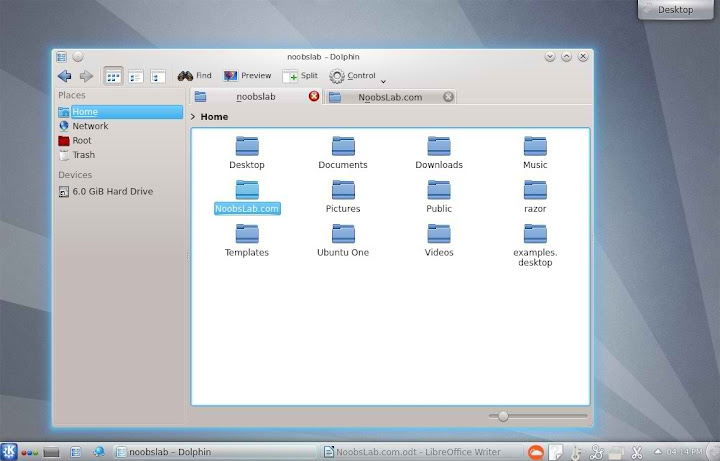 Enter following command to install Kde-Plasma-Desktop:
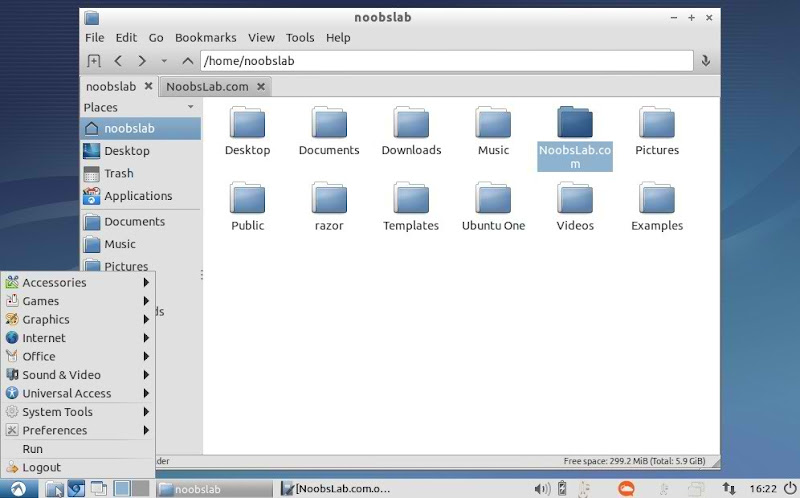 Enter following command in terminal to install Lubuntu-Desktop
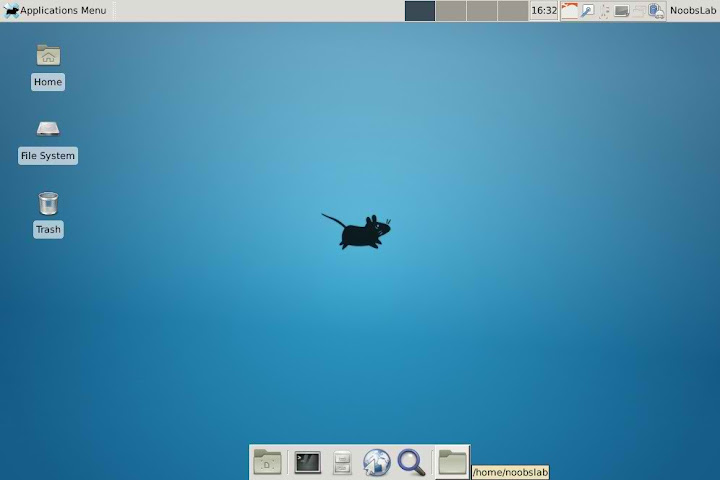 Enter following command to install XFCE4 Desktop:
>> Install Razor-qt
36: Misc/Softwares for Ubuntu 12.10 Quantal Quetzal:
Install Latest Google Chrome
Install Latest Skype
Install Latest WineHQ (Windows Program Loader)
Install and Configure Samba Sharing between Windows and Ubuntu
Install Latest Nvidia Drivers (Only for those who own Nvidia Card)
Source: http://www.noobslab.com/2012/10/important-thingstweaks-to-do-after.html
Things You Do After Installing Ubuntu 12.10- 10-22-2012 (from WebUpd8)
If you've been following WebUpd8 for a while, you've probably noticed that we used to make a post with things to tweak after each Ubuntu release (here are the 12.04 and 11.10 posts). This time, let's do things differently!
From noobslab.com (10-18-2012) Ubuntu 12.10 Quantal Quetzal has been released, NoobsLab know what people want. So after a-lot of work today bring this article for you. After applying these tweaks you can get better experience with new Ubuntu. After these tweaks we can say your Ubuntu is ready to use, Every tweak is tested by NoobsLab. So lets start tweak to your Ubuntu 12.10.
1: Install Gnome-Tweak-tool 3.6:
Gnome Tweak Tool is well-known powerful tweak tool, With this tool you can manage your Ubuntu environment like: Change theme, icons, fonts, cursor and so on options.
- sudo apt-get install gnome-tweak-tool
2: Install Ubuntu Tweak:
Ubuntu Tweak is an application designed to config Ubuntu easier for everyone. It provided many useful desktop and system options that the default desktop environment isn't provided.
Here you can find more tweak tools Unsettings Tool
- sudo add-apt-repository ppa:tualatrix/ppa
- sudo apt-get update
- sudo apt-get install ubuntu-tweak
3: Install Compiz (CCSM) and extra plugins:
CCSM, short for CompizConfig Settings Manager, is a configuration tool for Compiz Fusion. It is used to configure the many plugins included in Compiz and Compiz Fusion, as well as the use of various profiles and intergrating better with existing desktop settings.
To install Compiz Config Setting Manager enter following command in Terminal:
Go to Dash and Search "CCSM"
- sudo apt-get install compizconfig-settings-manager compiz-plugins-extra
4: Install Synaptic Package Manager:
Synaptic is a graphical package management program for apt. It provides the same features as the apt-get command line utility with a GUI front-end based on Gtk+.
Go to Dash and Search "synaptic"
- sudo apt-get install synaptic
5: Enable Hibernate option:
Ubuntu has disabled hibernate option since last distro 12.04, So here is tweak to enable hibernate in 12.10.
copy and paste the following code in file:
- sudo gedit /var/lib/polkit-1/localauthority/50-local.d/hibernate.pkla
Save file and Exit, then Restart and check.[Re-enable Hibernate] Identity=unix-user:* Action=org.freedesktop.upower.hibernate ResultActive=yes
6: Remove White Dots from Ubuntu 12.10 Login Screen
Some People don't like white dots in Ubuntu 12.10 Login screen, So here is a tweak you can easily remove these dots from login screen.
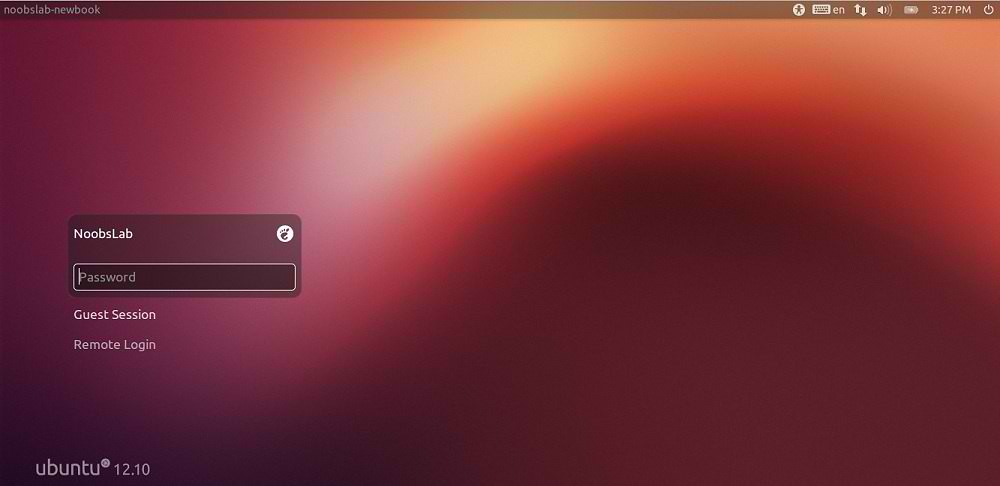
- sudo xhost +SI:localuser:lightdm
- sudo su lightdm -s /bin/bash
- gsettings set com.canonical.unity-greeter draw-grid false
7: Disable Online Search in Dash:
Personally I don't like this online search option in unity. So if anybody want to turn off, follow the method.
Go to Dash and Search "Privacy" and turn off the online search option.
You will not see anymore online searches in dash.
- sudo apt-get remove unity-lens-shopping
8: Change HUD Key:

Go to "Dash" System Settings > Keyboard > Shortcuts > Launchers > Key to show HUD
Click on Key to show HUD to change key. I set my key Alt+Z because it is easy to press, You can change whatever you want.
9: Disable overlay Scrollbars:
You can disable overlay scrollbars, if you don't like that.
If you want to get back overlay bar, enter following command:
- gsettings set com.canonical.desktop.interface scrollbar-mode normal
- gsettings reset com.canonical.desktop.interface scrollbar-mode
10: Show username on panel:
UserName is disabled by default in Ubuntu 12.10, So here is tweak you can enable it very easily.
- gsettings set com.canonical.indicator.session show-real-name-on-panel true
To remove name from panel, Enter following command:
- gsettings set com.canonical.indicator.session show-real-name-on-panel false
11: Disable System Crash Reports:
If you are experiencing something crashes in your Ubuntu, and you don't like to notify with reports. You can disable them easily.
Now text file will open, In the last line you will see "enabled=1" change it to "enabled=0". Save and close file.
- sudo gedit /etc/default/apport
Now enter following command in terminal to stop apport service:
- sudo service apport stop
12: Install and enable XScreensaver:
XScreenSaver is a collection of about many free screensavers for Linux.
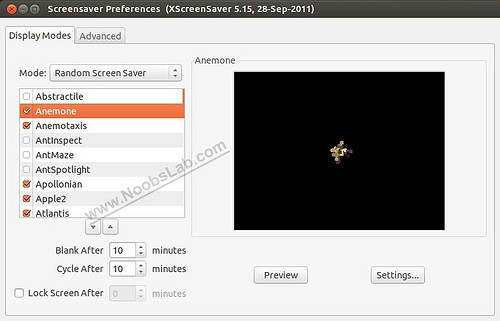
create file for autostart enter following command in terminal:
- sudo apt-get remove gnome-screensaver
- sudo apt-get install xscreensaver xscreensaver-gl-extra xscreensaver-data-extra
after that copy and paste the following code in file:
- sudo gedit /etc/xdg/autostart/screensaver.desktop
Save and Exit the file.[Desktop Entry] Name=Screensaver Type=Application Exec=xscreensaver -nosplash
13: Show Laptop Battery Percentage:
This tweak shows laptop battery percentage in the Ubuntu panel.
Then logout and login back.
- sudo add-apt-repository ppa:noobslab/initialtesting
- sudo apt-get update
- sudo apt-get install indicator-power
14: Install Hardware Temperature Monitor:
The Psensor Indicator is providing a quick access to sensor values and settings. When a sensor temperature is too much hot, a desktop notification bubble appears and the Application Indicator icon is changed to a red one. Your pc must have sensors to use complete features.
- sudo apt-get install lm-sensors hddtemp psensor
15: Install Ubuntu-One Indicator:
UbuntuOne indicator provides the overview of Ubuntu One Account synchronization state.
Then logout and login back.
- sudo add-apt-repository ppa:noobslab/initialtesting
- sudo apt-get update
- sudo apt-get install indicator-ubuntuone
16: Install Recent Notifications Indicator:
Recent Notifications is a GNOME applet that collects recent messages sent with libnotify to a notification daemon, such as notify-osd.
After installation open indicator-notification from Dash.
- sudo add-apt-repository ppa:jconti/recent-notifications
- sudo apt-get update
- sudo apt-get install indicator-notifications
17: Install Weather Indicator:
My-Weather is really cool indicator for Ubuntu, it can show up to two location weather with complete details.
After installation open my-weather-indicator from Dash and configure it.
- sudo add-apt-repository ppa:atareao/atareao
- sudo apt-get update
- sudo apt-get install my-weather-indicator
18: Install Window-List Indicator:
This Window-List indicator show which windows are currently open, and you can easily switch between them.
After installation go to Dash and search "Window-List" then open it. Make it startup from Window-List option.
- sudo add-apt-repository ppa:jwigley/window-list
- sudo apt-get update
- sudo apt-get install window-list
19: Show all startup apps in Startup Applications:
By Default Startup Application show only few apps in the list, So now you can see which applications are going to start by following command:
- sudo sed -i 's/NoDisplay=true/NoDisplay=false/g' /etc/xdg/autostart/*.desktop
20: Disable Global Menu:
If you don't like Global menu then you can disable it easily.
Enter following command in Terminal:
and restart.
- sudo apt-get autoremove appmenu-gtk appmenu-gtk3 appmenu-qt
To disable Global Menu for Firefox, Go to 'Tools' –> 'Add-ons' –> 'Extensions' and Disable 'Global Menu Bar integration'
then restart.
- sudo apt-get install appmenu-gtk appmenu-gtk3 appmenu-qt
21: Move Minimize, Maximize, Close Buttons to Right:
This tweak is about to move Minimize, Maximize, and Close buttons to the right side.
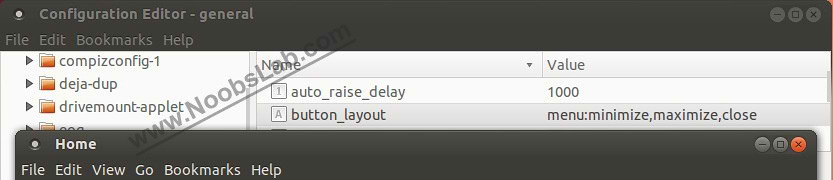
Enter following command to move buttons to right:
Alternative Method
- gconftool-2 --set /apps/metacity/general/button_layout --type string menu:minimize,maximize,close
Enter following commands in Terminal to install gconf-editor:
now start gconf-editor with following command:
- sudo apt-get install gconf-editor
Go to the following: 'apps' -> 'metacity' -> 'general' Find the "button_layout" parameter,
- gconf-editor
Right mouse click, and select Edit Key.
Change the value to the following: menu:minimize,maximize,close then Press Enter.
22: Add other Media Player to Ubuntu Sound Menu
If you are using different audio player to player audio files then you can add player in sound menu with following method.
Enter following command in terminal to install Dconf-Tools:
Go to Dash and open "Dconf-Editor"
- sudo apt-get install dconf-tools
Type your Player name in (interested-media-player + preferred-media-player) and you can remove any media player by writing name in (blacklisted-media-players). See following image
23: Enable Global Menu for LibreOffice in Ubuntu 12.10
By default LibreOffice doesn't support global menu, So you can enable Global Menu easily for LibreOffice.
- sudo apt-get install lo-menubar
24: Open as Administrator in Ubuntu 12.10 Quantal Quetzal
This is really cool tweak for those who want to open file and folder with Administrator permissions, So now it is really easy to do.
After that enter following command:
- wget http://dl.dropbox.com/u/53319850/NoobsLab.com/libnautilus-gksu.so
- sudo cp libnautilus-gksu.so /usr/lib/nautilus/extensions-3.0/ && sudo rm libnautilus-gksu.so
- nautilus -q
25: Move Nautilus Forward & Back button to Left Side:
Open Terminal (Press Ctrl+Alt+T) and copy the following commands in the Terminal:
Now, scroll down to line 130 or Find for "gtk_toolbar_insert (GTK_TOOLBAR (self->priv->toolbar), item, 0)" and change the "0" to a "2". So change the original line from:
- sudo apt-get install -y dpkg-dev
- mkdir ~/Desktop/nautilus-mod
- cd ~/Desktop/nautilus-mod
- sudo apt-get update
- apt-get source nautilus
- sudo apt-get build-dep nautilus
- cd ~/Desktop/nautilus-mod/nautilus-3*
- gedit src/nautilus-toolbar.c
gtk_toolbar_insert (GTK_TOOLBAR (self->priv->toolbar), item, 0);
To:
gtk_toolbar_insert (GTK_TOOLBAR (self->priv->toolbar), item, 2);
When you're done, click save and close Gedit.Now Back in Terminal, run the following:
- ./configure --prefix=/usr
- make
- sudo killall nautilus
- sudo make install
Now logout and login back or restart.
To undo the changes and revert back to stock Nautilus, you can simply run following command:
- sudo apt-get --reinstall install nautilus
For Unity If SomeThing Went Wrong Enter following commands to Reset:
>> to reset the Unity:
- sudo apt-get install dconf-tools
- dconf reset -f /org/compiz/
- setsid unity
>> to reset Compiz:
- git clone https://github.com/phanimahesh/unity-revamp.git
- cd unity-revamp
- chmod +x unity-reset.py
- ln -s ./unity-reset.py /usr/bin/unity-reset
Then run in terminal:- unity-reset
- gconftool-2 --recursive-unset /apps/compiz-1 unity --reset
26: Enable Hardware Drivers:
In Ubuntu 12.10 Quantal "Additional Drivers" location has been changed, You can choose best drivers for your hardware from additional driver and can enable/disable from there easily.
Open Dash and Search for "Software Sources" Here you can find "Additional Drivers" in the last Tab.
27: Install Adobe Flash Plugin:
By default firefox doesn't install flash player, So now you can install flash player.
- sudo apt-add-repository "deb http://archive.canonical.com/ $(lsb_release -sc) partner"
- sudo apt-get update && sudo apt-get install flashplugin-installer
28: Install qBittorrent:
- sudo add-apt-repository ppa:noobslab/initialtesting
- sudo apt-get update
- sudo apt-get install qbittorrent
29: Install Plugins for Rhythmbox (Like Equalizer):
Rhythmbox is default Audio player in Ubuntu 12.10, You can install plugins for rhytmbox. Plugins are: Audio-read, Album-art-search, Countdown-playlist, plugin-cover-art-browser, Equalizer, Jump-to-Playing, Jump-to-Window, lyrics, micro-blogger, open-containing-foler, radio-browser, Random-album-player, Remember-the-rhythm, repeat-one-song, rhythm-web, send-first, small-window, stop-after, suspend, tab-guitar, tray-icon, web-menu, stream-ripper
Enter following commands to install plugins.
After installation open Rhythmbox and Go to "Edit" -> "Plugins" and enable plugins.
- sudo add-apt-repository ppa:fossfreedom/rhythmbox-plugins
- sudo apt-get update
- sudo apt-get install rhythmbox-plugin-complete
30: Install Gnome Shell 3.6:
Install latest Gnome Shell 3.6 in 12.10
Enter Following commands to install Gnome-Shell 3.6:
- sudo add-apt-repository ppa:ricotz/testing
- sudo add-apt-repository ppa:gnome3-team/gnome3
- sudo apt-get update
- sudo apt-get install gnome-shell
31: Install User-Theme and other Extensions in Gnome Shell 3.6:
With User-Theme Extension you can enable Gnome Shell 3.6 themes in Gnome-Tweak-Tool.
Now Restart Gnome Shell (Press Alt+F2 and type 'r') and enable User Themes Extension, again Restart Gnome Shell.
Themes Enabled
Enter following command to Install Gnome Shell 3.6 Extensions:
After Installation Press Alt+F2 and type 'r' to restart Gnome Shell, or just logout and login back. Open Gnome Tweak Tool to change/install shell Themes.
- sudo add-apt-repository ppa:noobslab/gnome
- sudo apt-get update
- sudo apt-get install gnome-shell-extensions
32: Install Restricted Extras:
There are some Restricted extras in Ubuntu which can't be install while installation of Ubuntu by default but you can install these Restricted extras by yourself. Restricted mp3 playback and decoding, support for various formats, fonts, java, flash plugin, lame, dvd playback.
- sudo apt-get install ubuntu-restricted-extras
33: Install Codecs:
If you are multimedia user and use Ubuntu for multimedia then these codecs are very useful for you. You can install them by single command.
- sudo apt-get install gstreamer0.10-plugins-ugly gstreamer0.10-ffmpeg libxine1-ffmpeg gxine mencoder libdvdread4 totem-mozilla icedax tagtool easytag id3tool lame nautilus-script-audio-convert libmad0 mpg321
34: Install Compression/Decompression tools:
You can compress and decompress 7z, zip, gzip, rar, xz, tar, bz2, xar, tar.gz, tar.bz, and many others.
Enter following command in terminal to install:
- sudo apt-get install p7zip-rar p7zip-full unace unrar zip unzip sharutils rar uudeview mpack lha arj cabextract file-roller
35: Install Other Environments:
>> Install Kde Plasma Desktop
>> Install Lubuntu Desktop
- sudo apt-get install kde-plasma-desktop
>> Install XFCE4 Desktop
- sudo apt-get install lubuntu-desktop
>> Install Cinnamon
- sudo apt-get install xfce4
>> Install Razor-qt
36: Misc/Softwares for Ubuntu 12.10 Quantal Quetzal:
Install Latest Google Chrome
Install Latest Skype
Install Latest WineHQ (Windows Program Loader)
Install and Configure Samba Sharing between Windows and Ubuntu
Install Latest Nvidia Drivers (Only for those who own Nvidia Card)
Install File Managers Marlin, SunFlower Twin-Panel
Wallpapers Ubuntu Wallpapers, Black Wallpapers
Checkout Conky Collection
Checkout Themes Collection
Checkout Icons Collection
Your Ubuntu is complete now, That's it Enjoy.
Checkout Conky Collection
Checkout Themes Collection
Checkout Icons Collection
Your Ubuntu is complete now, That's it Enjoy.
Source: http://www.noobslab.com/2012/10/important-thingstweaks-to-do-after.html
Things You Do After Installing Ubuntu 12.10- 10-22-2012 (from WebUpd8)
If you've been following WebUpd8 for a while, you've probably noticed that we used to make a post with things to tweak after each Ubuntu release (here are the 12.04 and 11.10 posts). This time, let's do things differently!
I'll start by sharing with
you the first things I did after installing the latest Ubuntu 12.10 and
you, the readers, can post comments, telling us what you've installed /
customized / tweaked after installing 12.10, no matter what Ubuntu
flavour you're using.
What I did after installing Ubuntu 12.10
The first thing I did after installing
Ubuntu 12.10 was to restore my PPAs backup from Ubuntu 12.04. That's
right, I'm addicted to PPAs. That's because, even though Ubuntu 12.10
has the latest version of most packages, there are some apps which
aren't available in the official repositories that I can't live without.
For this I've used Y PPA Manager which imports the GPG keys automatically and can also update the PPAs that work with the latest Ubuntu release.
Firefox extensions and webapps.

I'm using Firefox because it works better for me with a large number of open tabs (especially since there's an option not to load tabs until clicked). I only use three addons: Adblock Plus, Tab Badge (adds a a small badge to your tabs to alert you when you have notifications for websites like Facebook, Google Plus, etc.) and LastPass (for better password security and sync).

And speaking of browsers, I've also installed some webapps (they work with both Firefox and Chromium, though Chromium requires an extension available in the repositories):
- Google Plus - I don't want to miss any posts so the notifications provided by the Google Plus webapp are really useful;
- Facebook - integrates Facebook with the Messaging Menu, without using a separate application. Sweet!
- Gmail - this is a really useful webapp too as it displays the number of unread emails as a badge on the Unity luncher and in the Messaging Menu, along with new email notifications (though the notifications are currently broken for me using Firefox).
AppIndicators.

I was telling you there are some applications which I can't live without. Well, many of them are appindicators:
- My Weather Indicator - weather on the panel is a must for me, a feature that Ubuntu should really add by default;
- Google Calendar Indicator - I use Google Calendar a lot, and this appindicator is very useful, displaying future events, notifications and more;
- Caffeine - because there's nothing more annoying than watching a video / movie and having the screen lock pop-up in the middle of it;
- Glippy - in my opinion, a clipboard manager is a must. Glippy is my favourite, but any will do;
- Dropbox - Ubuntu One is nice, but there are some features for which I prefer Dropbox. It can be installed from the Ubuntu repositories repositories too.
Other applications.
- VirtualBox - for testing the next Ubuntu release and other Linux distributions of course, something I need for WebUpd8;
- GNOME Tweak Tool - for changing the GTK / Window theme, because at the time I've installed Ubuntu 12.10, the other tools like Ubuntu Tweak, MyUnity, etc. didn't yet support 12.10 (and they still don't fully support it yet);
- CCSM - since Ubuntu Tweak and the other tweaking tools don't fully support Ubuntu 12.10 yet, CCSM is the way to go right now if you want to tweak various Unity aspects;
- Shutter - the best screenshot tool for Linux, is also one of the first applications I install since I need it for the new WebUpd8 posts;
- Movies / music: Ubuntu Restricted Extras is a must. And for me, so are SMplayer and sometimes VLC for playing videos. For music, I use Nuvola Player because Grooveshark is all I need and it integrates nicely with the desktop, with some extra features compared to the Grooveshark webapp.
Of course, the list can get very long, but I'm trying to stick with the basics here.
Note: this post uses links to the
online Ubuntu Software Center from which you can install the
applications with a click. For the applications not available in the
repositories, I've added links to the installation instructions.
What are the things you've done after installing (or upgrading to) Ubuntu 12.10?
Now it's your turn! What did
you install or tweak after you've started using the latest Ubuntu 12.10,
be it the default favour, Ubuntu GNOME Remix or X/K/Lubuntu? And even
if you're not using Ubuntu 12.10 yet, what are the first things you do
after installing Ubuntu?
Source: http://www.webupd8.org/2012/10/things-you-do-after-installing-ubuntu.html
Source: http://www.webupd8.org/2012/10/things-you-do-after-installing-ubuntu.html


