September 28, 2007

Ubuntu Ultimate Release - Multimedia Heaven

What is Ubuntu Ultimate Edition? Screenshots.

Due to the popularity of Ubuntu Christmas Edition (~15,000 downloads in 2 weeks) 1.2 has seen over 50,000 in 3 days. I have decided to make another distro I'm calling "Ubuntu Ultimate Edition" it has everything listed in the Christmas Edition plus much more. I have however removed Java, Flash and Acrobat reader due to licensing agreements. Please freat not included in the release is my custom repo which contains all the software and much more. Firefox's homepage will give a detailed description on obtaining all additional
software from the repo. To answer the question...


What is Ubuntu Ultimate Edition? It is Ubuntu Edgy Eft with the following software pre-added:

New theme / splash screen / wallpaper
VCD Gear debian style
Subversion & build tools
Wireless Internet integration
Bluetooth integration
PPP integration
Networking tools
35 Additional fonts
Tons more themes
Repository driven Beryl
New sounds theme
Integrated Custom repository support
All current Updates 158 at time of posting
IPod support
Beagle
Gramps - Genealogy software (thanks poweruser2600)
Legends - Video Game
Kapote - Instant Messenger
Integrated codecs (the good the bad & the ugly)
Mplayer, VLC, Songbird & Amarok players with mp3 support
Mencoder, K9Copy, DeVeDE, DVD Shrink - dvd copying software.
Integrated Nvidia drivers (will work with other cards)
Automatix 2 & Automatix Bleeder (in case you want additional software)
Gaim beta 5 & plugins
GFTP - FTP Client
KVIrc - IRC Client
Additional Themes, icons, cursors & logins
XSnow
Samba
NFS
EasyTag - MP3 Tag Editor
GDesklets
Inkscape - 2D vector drawing
Screem - HTML Editor
Gambas - Programing environment
QEMU & Kqemu Accelerator - Emulation
Screem - HTML Editor
Avidemux - Avi (divx /xvid) editor
GDesklets - Eyecandy & info
NTFS read / write support
Lamp - web server (Apache2, mysql, PHP5)
phpmyadmin
Azureus - P2P software
MS core Font's and extra fonts
Wine - Windows emulation (always newest version - through repo)
Alien - Allows installation of foriegn packages (RPM, suse etc)
Gobby Team programing software
Ksnapshot - Screen capture software
Google Picasa - Graphic editing software
Frostwire Pro - P2P software
Kolourpaint - Graphic editing software
Qcad - Autocad wannabe
Archive Suite - virtually any archive can be handled.
Ajunta IDE - Programing environment
Bluefish - HTML Editor
Glade - Interface designer
Gtranslator
Bit Tornado - P2P Software
Amule - P2P software
Kino - Flick editor
Audacity - Sound editor
Debian Menu (pdmenu)
Dvdrip - Dvd ripping software
Democracy Player
Listen Media Manager
Steamripper
Ilinux (banshee)
Gnucash - Financial software
Aria - Download manager
Build Essentials and make utility's
Quanta Plus and extras - HTML Editor
Graveman - burning software
New Grub splash screen and animated "very pretty" boot up screen
Bum - Boot-up manager
Sum - Startup manager (newer improved version gtk and terminal based)
Istanbul - Live screen capture
Ghex - Hex editor
Gourmet - Recipe manager
Isomaster - CD / DVD ISO editor
GPHPEdit - PHP Editor
Kino - Clip editor
Aria - Download manager
Democracy - Movie streamer
ClamAV - Anti-virus software
Listen - Media manager
DVDRIP - Dvd ripping software
Lifrea - RSS feed reader
Brasero - Disc burning tool
X-Chat - IRC Client
QDVDAuthor - DVD authoring software
Furthermore additional software such as Flash, Java, Acrobat Reader and Google Earth among others can be added using our integrated custom repo. Screenshots reflected are from 1.0 release a beta.

Current version is 1.2Filesize: 1,718,566,912 bytes (1.7GB)md5sum: aa4af59aecb14a860f5d2f03f3dec807

Ubuntu Ultimate 1.5 website and screen shots: http://ubuntusoftware.info/Ubuntu_Ultimate_1.5/#screenshots

September 27, 2007

Ubuntu Christmas Edition - a customized Distro

Ubuntu Christmas Edition

Ubuntu Christmas is a full multimedia custom Distro that was downloaded over 50,000 times in just 3 days. This gives you an idea of how much Ubuntu users crave a fully integrated multimedia install. Ubuntu Christmas is no longer available except via searching on Torrent websites. Ubuntu Ultimate is the new custom Distro that grew out of Ubuntu Christmas. And Linux Mint is the new official Distro that serves this need.


For more screenshots on Ubuntu Christmas custom Distro see the below link:

Sam Linux - a Media Friendly, Well Made Distro

Published on tuxmachines.org (http://www.tuxmachines.org)

Sam Linux 2007 - For the XFCE Lover

Created 03/23/2007 - 02:09

[0]Sam Linux [1] 2007 was released yesterday [2] and since it's been little over a year since my last test of Sam, I thought I might see what was new. The first Sam I tested [2] two years ago was very unstable, while last year's Sam [2] was so much improved. But this year finds Sam based on PCLOS 2007 and it is better than ever. It looks better, it performs better, it even smells better.

Ok, I couldn't actually smell anything, but it definitely looks better. From start to finish Sam Linux 2007 looks great, and I do love a pretty face. The boot screen is lovely in abstract blends of floral to peridot greens accented by the customized Sam logo. The Sam logo is inherited from PCLOS I believe as it's very similar. The logo is a green circle containing the XFCE mouse and the distribution name. The silent boot splash is the same background and logo, but adds a nice progress bar. The verbose boot splash is perfectly aligned and centered bringing one the login screen in which one will find a graphical login container and the same background and logo. After login one finds the matching background set as the wallpaper with the Sam Logo in the center. The icon text background color is also green, matching really well. The default windec is gray, even if focused, but a green one is available. The menu and various highlights are in nice shades of coordinating greens. The package in its entirety has a lot of curb appeal. It appears very polished and makes a great impression.

[2] [2] [2]


The only wrinkle in the fabric was this black box around the wbar on my desktop machinemy laptop [3] using an NVIDIA GeForce Go 6150 under nv this didn't happen. The beryl/xgl 3D desktop [3] is available if one installs Sam onto their harddrive using the included PCLOS (mandriva) harddrive installer. [2]. As tested, I was using an NVIDIA 6800 chipset with Xorg nv drivers. On

[3] [3]


I tested Sam Linux 2007 in the livecd mode, but it's also possible to boot it from a USB stick (as well as saving and using a /home on usb). It was a 700mb download [4], but it came in fairly quickly. Once upon a time, Sam was mini-distro of 200mb, but has since grown to be a full blown system. As such, it comes with a plethora of software. In using XFCE4 4.4.0 as the desktop, there is room for lots of great apps, tools, and accessories.

It'd be such a long list to try and name all the software. Some applications include Gaim 2.0b6, Firefox 2.0.0.2, Opera 9.10, Abiword, OpenOffice.org 2.2rc, The Gimp 2.3.10, FLPhoto2, Xsane, MPlayer, Gxine, RealPlayer, Xmms, Skype, Chestnut, gtk-grutella, Liferea, Exaile, Gnomebaker, Tilda, Streamtuner, GnomeCommander, Frozenbubble, Sylpheed, and even minesweeper under wine. There were several apps listed in the menu that run under wine, including a wine package manager. This means that one might have a bit of luck trying to install and use other software requiring wine. Also included are Flash 9 and java. Under the hood we have a 2.6.18 kernel, Xorg 7.1.0, and gcc 4.1.1. There is just so much included it's impossible to list it all. Here's a Full RPM List [4].

[4] [4] [4]


[4] [4] [4]


Sam comes with Synaptic/apt-get for package management set up to use the PCLOS 2007 repositories and the PCLinuxOS Control Center for system configuration. It also has the XFCE4 desktop settings panel full of those modules, as well as the Sam Desktop Configuration. In the Sam Desktop Configuration center one can access the XFCE4 Desktop Settings, add or remove adesklets, or reconfigure the WBar. The Wbar is that application launcher at the top of the screen with the 'exploding' icons. What a nice touch.

[4]

I was quite pleased with Sam on my laptop as well, or even moreso I believe. It seemed to take a bit longer to boot the livecd, but it did wonderfully. My touchpad responded accurately and immediately, a startup sound greeted me, and my resolution was set to the optimal 1280x800.

If you've booted Mandriva or PCLOS 2007, you might remember the start up configuration that appears before the login. Here one sets up their language, keyboard, timezone and net connection. On my laptop I chose the wireless option and clicked next. There it asked if I needed to use ndiswrapper and upon clicking ok, I got offered one included or the chance to install one from my windows partition. I chose to install new driver and clicked to its location. The driver was installed and my access point was detected. Next a dialog box appeared for me to input my wep key. Then it connected. Easy as pie.

At the desktop, one can add a battery monitor applet to the lower panel. Cpufreq and powersave are included as well.

Overall the performance of Sam was good. I did experience a bit of menu lag from time to time. Firefox popped right open, but OpenOffice.org took several seconds to open. Otherwise the other applications including the nicer 2d games performed very well. Xsane worked out of the box with my old epson scanner and removeable media such as a USB memory stick is automounted with an icon [4] placed on the desktop. This is another nice touch for an XFCE desktop. All applications performed their specific duties without complaint and MPlayer played all video types tested. The fonts were just gorgeous, which is a very important factor to me. In conclusion, I just really liked it. I think it's wonderful, wonderful, wonderful.

[4]

Links:
[1] http://sam.hipsurfer.com/news.php
[2] http://distrowatch.com/4124
[3] http://h10025.www1.hp.com/ewfrf/wc/genericDocument?docname=c00770899&cc=us&dlc=en&lc=en&jumpid=reg_R1002_USEN
[4] http://sam.hipsurfer.com/readarticle.php?article_id=21

September 20, 2007

Ubuntu vs. Vista: The Battle For Your Desktop

Ubuntu Linux Vs. Windows Vista: The Battle For Your Desktop
Is Linux finally ready to take on Windows as a desktop OS? We tried out both Vista and Ubuntu on individual PCs to see which works better. Here's who won.
By Serdar Yegulalp
InformationWeek April 27, 2007 12:00 AM

The prevailing wisdom about Linux on the desktop runs something like this: "I'll believe Linux is ready for the desktop as soon as you can give me a Linux distribution that even my grandmother can run."

For some time, the folks at Ubuntu have been trying their best to make Granny -- and most everyone else -- happy. They've attempted to build a Linux distribution that's easy to install, use, configure, and maintain -- one that's at least as easy as Windows, and whenever possible, even easier. As a result, Ubuntu is one of the Linux distributions that has been most directly touted as an alternative to Windows.
In this feature, I'm going to compare the newly-released Ubuntu 7.04 (codenamed "Feisty Fawn") with Microsoft (NSDQ:
MSFT) Windows Vista in a number of categories. To keep the playing field as level as possible, I'm looking wherever I can at applications -- not just in the sense of "programs," but in the sense of what the average user is going to do with the OS in a workday. Sometimes the differences between the two OSes are profound, but sometimes the playing field levels itself -- OpenOffice.org, for instance, is installed by default in Ubuntu, but adding it to Vista isn't terribly difficult.

I tried to stick whenever possible with preinstalled software, although this rule sometimes had to be bent a little -- for instance, to see what backup solutions were available for Ubuntu through its own software catalog.
Also, while I was tempted to compare Vista's Aero interface to the Beryl window manager (which has a similar palette of visual effects), I decided that pretty graphics, while nice, had more to do with personal preference than efficiency. In addition, Beryl isn't installed by default in Ubuntu, and Aero isn't available on all PCs.
In each case, I've tried to look at practical benefits rather than theoretical ones -- what works, what doesn't, and what you have to do to get certain things done. I should also note that, despite being a big fan of Vista, I've tried to keep my enthusiasm for it from overriding my judgment. Everyone needs something different, and not everyone needs (or wants) Vista -- or Ubuntu -- so I've done my best to keep my mind, and my eyes, wide open.

Installation

Most people never have to deal with installing Windows on a new PC, since Windows typically comes as a preload.
The few times you have to install it yourself, though, the whole thing needs to be as painless as possible. To that end, I installed both Ubuntu and Vista on three different test machines:
1. A Sony VAIO VGN-TX770P notebook computer, with 1GB RAM, an 80GB HD, and an Intel (NSDQ:
INTC) 915GM shared-memory integrated graphics controller.
2. A dual
Opteron desktop computer with 2GB RAM, a 320GB HD, and an ATI Radeon 9550 graphics controller. (This is my day-to-day computer.)
3. A Microsoft (NSDQ:
MSFT) Virtual PC 2007 session running on the desktop system, with 512MB RAM and a 16GB HD.
Vista and Ubuntu have roughly the same installation procedure. Pop in the installation disc, boot the computer, and run the setup process (which can take an hour or more). Both OSes let you manually choose disk partitioning schemes for an existing disk, or have the computer wipe everything down and sort things out.
Ubuntu Linux

Windows Vista

(click image for larger view)The Ubuntu install process can work automatically (i.e., erase and repartition an entire hard drive as needed), or you can manually edit partitions.view the image gallery
(click image for larger view)Vista's setup process is mostly automatic; however, there are some useful disk-management tools if you need them.view the image gallery
If you wanted to install Windows XP on a computer that used a mass-storage controller with no drivers available for it on the installation CD, you had to place the drivers on a floppy and go through a bit of rigmarole to get them working. Vista has improved this process enormously: You can read drivers needed for installation from any attached mass-storage device, like a USB drive.
This is particularly important in my case, since my desktop machine uses an integrated
Silicon Image SiI3114 SATA RAID controller which has no drivers on the Vista setup DVD. I had to download the drivers from the manufacturer's Web site; once I did, I was able to provide them on a USB drive during Vista's setup routine. Ubuntu, however, detected the SiI3114 automatically at startup and had drivers ready for it. Other people haven't been as lucky, though: Folks who used the HighPoint HP370 controller under 6.10 had issues getting Ubuntu installed.
If you attempt to install Ubuntu on a system where Windows XP is present, the
Ubuntu Migration Assistant will attempt to import your files and documents from your XP installation. IE settings, wallpapers, user avatars, and the contents of the My Documents / Music / Pictures folders can all be imported this way. Unfortunately, one key piece of the migration puzzle, e-mail (not just e-mail client settings, but the contents of one's e-mail), isn't fully supported yet. The Ubuntu people are working hard on it.

One of Ubuntu's biggest positives is its "live CD" mode. Boot the CD and you can run a full, working copy of Ubuntu directly from the CD without installing anything on the host computer. Obviously you won't get the full range of functionality possible with Ubuntu when you do this (you might not be able to persistently save files or settings, for instance), but you can get a very good feel for how things work without actually committing yourself completely to the OS.
You can also use this live-CD feature to perform system recovery to some extent. (Ubuntu 7.04 does have read/write support for NTFS partitions, although it doesn't support encrypted files or security groups.) The closest thing Vista has to something like this is the ability to install a full working version of the OS on a computer without a Vista license key, and to try it out for 30 days (extendable to 120).
Both operating systems include a few utilities on the CD itself. Ubuntu's install CD includes a self-test to determine if the disc has any burning errors and a memory test routine (the venerable
Memtest86+). Vista includes a memory test as well, and the ability to restore the system from a backup, but no integrity check for the installation media -- for instance, if you downloaded and burned it as an .ISO from MSDN. You can also boot to a command prompt to do some basic recovery work -- get access to hard disks and CD/DVD drives, for instance.
Finally, I mentioned at the top of this section that most of us deal with Vista as a preload and will probably install Ubuntu manually. That said, it is possible to buy a computer through some PC vendors with Ubuntu preloaded.
System76, for instance, offers Ubuntu 6.10 as a standard preload, and some of the other major vendors (Dell (Dell), for instance) are making noises that they might start offering some distribution of Linux as an option. It's not clear whether they'll offer Ubuntu, but it's one of the better candidates
The Winner:
Ubuntu has a slight edge here, if only because it can be run directly from the CD and tried out non-destructively.

Hardware And PnP Support

Ubuntu makes it far easier to deal with hardware than previous, less user-friendly versions of Linux did, but only up to a point. The most common types of hardware and usage scenarios are handled the best, but the further you drift from that, the more complicated it gets. At its worst, Ubuntu's way of dealing with hardware often involves manual hacking to accomplish things that ought to be trivial (and in Windows usually are).
Vista's way of dealing with hardware is pretty centralized -- the Device Manager lets you browse all the installed hardware in a system, manage each device's driver and configuration, and so on. Ubuntu has a device manager, but it's just a static list, and can't be used for configuring devices per se. To do that, you often need to edit a configuration file, and the exact file to edit may depend on the type of device.
Ubuntu Linux

Windows Vista

(click image for larger view)Many of the actions for PnP devices in Ubuntu are controlled through the Removable Drives and Media Preferences window.view the image gallery
(click image for larger view)Vista's Device Manager keeps all the information about installed hardware in one centrally-managed display.view the image gallery
The way printers are handled in Ubuntu can also be tricky, but I think this part says at least as much about hardware makers as anything else. In my case, I was using the HP LaserJet 1000, which uses a non-standard protocol that had to be reverse-engineered by Linux users to make it useable in that OS. Ubuntu had drivers for it, but they didn't work -- I had to dig around in the Ubuntu wiki for information, then download and compile a properly-updated set of drivers before I could print. Vista, by contrast, simply used the existing XP drivers provided by Hewlett-Packard (NYSE: HP) (since no Vista drivers are available).
I give the Ubuntu (and Linux) people points for completeness, but I have to retract them for the sheer aggravation required to get it working. To be scrupulously fair, a generic PostScript printer will typically work as-is, but those of us whose devices aren't that universally supported may have to go through a similar ordeal.
Generic
Plug-and-Play (PnP) devices in Ubuntu fare a lot better, but there are still some shortcomings. Most devices like cameras, external hard drives, or storage cards are recognized as-is when you plug them in. Ubuntu also has a central interface for handling PnP device events: the Removable Drives and Media Preferences console. Here you can set behavior preferences for removable storage and CD/DVD discs, as well as many other classes of removable devices: cameras, PDAs, printers, scanners, and input devices.
However, it's not like Windows where you can pick a device type and then assign one of a number of predefined actions from a menu; each device action is just a reference to an executable. And the default action didn't always run: when I plugged in my scanner (a Canon (NYSE:
CAJ) CanoScan N1240U), the default scanning application, XSane, didn't launch. That said, I launched XSane manually and it identified the scanner immediately and worked fine with it. A Dell A920 multifunction printer (made by Lexmark), however, wasn't recognized by XSane at all -- so a lot of what is and isn't supported often comes down to how much information about the device is available or has been provided by the manufacturer.

Power management, in both Vista and Ubuntu, is another topic about which there's been plenty of controversy. I could name about as many people in both camps who have had power-management issues, and I could name about as many more who haven't, so I will simply describe my own experiences. With Ubuntu, suspend and resume, as well as hibernate and resume, did work on my notebook, albeit very slowly. In Vista, the same functions worked as well and took a great deal less time. My desktop would not enter sleep mode in Ubuntu, although it did hibernate; Vista, however, slept and woke up without a hitch. So I suspect people's mileage will vary across the board.

The Winner:
On the whole, Windows still deals with hardware more elegantly and efficiently than Ubuntu.

Software Installation

Ubuntu has two basic ways to deal with adding software: the the Add/Remove Applications tool (easy) and the Synaptic Package Manager (for experts). Add/Remove Applications lets you search the entire directory of applications recommended for Ubuntu -- dozens of programs in 11 categories -- and install them with little effort. I added applications like Adobe Reader and the Thunderbird mail client without too much difficulty. It all compares pretty favorably to Windows's Add/Remove Programs system, which should be familiar to everyone reading this. (Linspire's CNR digital software delivery service is also set to be offered for Ubuntu in the future.)
Ubuntu Linux

Windows Vista

(click image for larger view)Ubuntu's software management tool plugs you into a hand-picked, searchable repository of applications for Ubuntu, organized by licensing.view the image gallery
(click image for larger view)Vista's Add/Remove Programs panel probably served as the inspiration for Ubuntu's software management console. view the image gallery
Ubuntu also tries to simplify the process of adding programs that aren't installed through the above-mentioned package manager systems. For instance, if you insert a CD, Ubuntu attempts to detect the presence of valid packages on the disk, and offers you the chance to install them.

Another Windows-like feature in Ubuntu is the ability to set preferred applications for certain common functions -- your default Web browser, mail reader, or console application. Unlike the Removable Drives and Media Preferences console, though, the choices you can make are available from an existing drop-down list; you don't have to provide the name of a specific executable, although you can if you want to. Vista's way of handling the default programs issue is a little more central, via the Default Programs section in Control Panel; there, you can set defaults by program, file type, or protocol.

One thing I liked about Ubuntu was the way you could browse in the Add/Remove Applications list for free software hand-picked by the Ubuntu community. The closest thing in Vista is the Digital Locker feature, where you can purchase software online and download it in a protected fashion. In addition, a number of free / trial programs are available through their system (such as the free version of AVG Anti-Virus).

The Winner:
It's a tie. Both operating systems show much the same centralization and efficiency in dealing with applications, protocols, and programs.

Networking / Web Browsing / E-Mail

Network setup in Ubuntu, both wired and wireless, was quite easy. My notebook's wireless adapter was detected and worked fine; all I had to do was supply my network name and I was in business. One thing that did worry me was how my unconfigured wireless card seemed to try and seek out whatever available connection there was without notifying me -- at first it attempted to connect to a neighbor's unsecured wireless base station before I redirected it back towards my own.

Both Vista and Ubuntu also let you create network profiles, although the way they're managed is markedly different. Ubuntu only lets you switch between profiles manually; Vista is semi-automatic (it makes a best guess to determine where you are), but can be manually overridden. Network connection sharing, though, is much harder to set up in Ubuntu than it is in Vista, since there's no GUI interface in Ubuntu for doing such a thing. I was able to connect to Vista's shared folders from Ubuntu, but you need to do so via a username/password combination that's valid on the Vista system you're trying to access.

Ubuntu Linux

Windows Vista

(click image for larger view)Ubuntu's default e-mail client is Evolution, which contains calendaring and contact management; it's not hard to switch to another client (like Thunderbird) if needed.view the image gallery
(click image for larger view)Vista's default e-mail client, the newly-designed Microsoft (NSDQ: MSFT) Mail, sports a calendaring application but is, on the whole, still highly limited.view the image gallery

Web browsing is another area where the playing field is relatively level between operating systems, thanks to the general success of Firefox. Firefox is loaded as the default browser in Ubuntu, and if you don't like Internet Explorer in Vista, you can swap it out for Firefox (or most any other browser written for Windows). The behavior of Firefox on both platforms is remarkably similar; in fact, I was able to get support for Flash plugins in Ubuntu by simply pointing Firefox at a Flash-driven page and letting it download the needed components.

Ubuntu's default e-mail client is Evolution, which connects not only to POP accounts and conventional Unix mailboxes, but can also talk to Exchange servers (via Outlook Web Access) and has a built-in PIM / calendaring / appointment system. Vista's Windows Mail application is a heavily rewritten version of Outlook Express, with a stripped-down calendar/appointment application, Windows Calendar, on the side, and integration with Vista's search system. If you want more sophisticated calendaring or a full PIM, you'd need to upgrade to Outlook -- so Ubuntu has another edge here in terms of what's possible right out of the box.

One thing I did have a fair amount of trouble with on both platforms was importing mail from another program -- especially e-mail from Windows. Evolution was allegedly able to import a .CSV mail file exported from Outlook, but the import somehow ended up reading everything as contacts, not e-mail. I eventually used a third-party program called Outport to move e-mail from Outlook into Evolution -- with some limitations, so I'm not sure if the problem lies with Outlook's CSV export or Evolution's importing.

Microsoft Mail had its own share of problems: The only way to import e-mail from a file was by importing from an Outlook Express store directory, or from a copy of Outlook already installed on Windows. If you have existing e-mail stores, be prepared for a migration hassle in both cases.

The Winner:
Windows, but only by a hair. Windows has a bit of an edge in terms of sharing network connections -- but both platforms have possible mail migration complexities.

Word Processing

The widely-touted OpenOffice.org suite is installed with Ubuntu by default. OpenOffice's strongest points are that it provides many of the features of Office ( if not the latest-and-greatest features) without the price tag. Most of the problems that people have reported with OpenOffice involve translating existing Office documents that have a lot of complex elements in them.
To that end, if you're considering moving to OpenOffice from Office and working with existing files, make sure the documents you want to work with can be read first. I tried a variety of documents exported from Word 2003 and had no trouble opening and re-saving them in OpenOffice's native formats, although admittedly they weren't very complex.

Ubuntu Linux

Windows Vista

(click image for larger view)The free (and highly touted) Microsoft (NSDQ: MSFT) Office contender OpenOffice.org is included with Ubuntu as a standard feature.view the image gallery
(click image for larger view)Sadly, Vista's WordPad word processor is the same application it's been -- for what feels like decades.view the image gallery

One other thing that Office migrants might need to be aware of is some slight behavioral differences in OpenOffice. For instance, in Word, the default action for the Ctrl+Up Arrow / Down Arrow key is to move the cursor up or down a paragraph. In OpenOffice, it moves the current paragraph up or down. Granted, this can be changed, but it means that much more retraining. I also toggled off some of OpenOffice's other default features, like the function that attempts to automatically guess what word you're typing and suggest a possible completion for it -- it's more
annoying than handy for someone like me.

On the Vista side, it's not hard to add OpenOffice manually -- especially since the only word-processing program that comes with Vista is the relatively feeble WordPad, which hasn't been updated in any significant way for years. It's suitable for only the most basic of word processing tasks. I've wondered for a while why Microsoft doesn't just include Word 97 or one of the other out-of-support-lifetime versions of Word as an installable freebie with Windows. I also hardly need to mention that the full version of Word (or Office) is a major expense.

The Winner:
Ubuntu, because it comes with OpenOffice -- although that can be added to Windows easily enough.

Indexing / Search

A criticism that's been leveled at Vista is that the indexed search system is not really exclusive to Vista, and that it's been possible to do the same thing in XP by adding easily-available third-party software. True, but with Vista you don't have to do that; it's shipped with the OS; and the search function is integrated with the OS in many useful ways.

Ubuntu Linux

Windows Vista

(click image for larger view)Ubuntu's indexed search function compares favorably to Vista's search in that it returns results for many file types (including metadata in images).view the image gallery
(click image for larger view)Vista's search system has a high degree of integration with the Windows shell, including the ability to add metadata on the fly.view the image gallery

I can't count the number of times I've used Vista's integrated search to look for something I knew was somewhere in my mess of mail or documents, and I usually had what I was looking for in seconds. The other great thing about this feature is that it's a framework onto which other applications can build: Adobe (NSDQ: ADBE) Acrobat, for instance, can register PDFs as a searchable document type with the system. Searches can be saved and reused, and files synchronized for offline storage can be added to the index.

Ubuntu's indexed search system, called Desktop Search (it actually uses the Beagle search engine), is not installed by default but can be easily added through the program manager. Once installed, it augments the Ubuntu's default search function, and indexes and searches a fairly broad range of document types. The indexing includes metadata (i.e., ID3 tags or image tags) and the results come up quite fast.
Unfortunately, it's very difficult to find out how far along the indexer is (i.e., whether or not the search you're conducting is incomplete) without dropping to a command line. Also, one thing I missed in Ubuntu -- and which was in Vista from the git-go -- was the ability to edit or examine a file's extended metadata directly in the shell, and that metadata is a big part of how I find things with the file system.
I'm willing to concede that not everyone will use or get the most out of Vista's native search system, but those who do (me included) will find it hard to live without once they've gotten used to it. Ubuntu's version of this is also quite impressive and useable, though.

The Winner:
Vista, for having its search function integrated from the ground up through the shell and the OS.

Multimedia

Ubuntu comes configured by default with several programs for multimedia: Sound Juicer, for ripping audio from CDs into the FLAC or OGG formats; Rhythmbox, for organizing music and creating playlists (the closest thing to Windows Media Player, really); Serpentine, for authoring audio CDs; and Movie Player and Sound Recorder, which are self-explanatory.

Playing MP3s, however, is not something you can do out of the box. It wasn't immediately clear what I could do to fix that, but after some research I found a separate codec pack (called the Gstreamer Plugins package) which solved the problem. Evidently Ubuntu can't be distributed with the MP3 codecs due to licensing restrictions.

Ubuntu Linux

Windows Vista

(click image for larger view)By default, Ubuntu divides music ripping, CD authoring, and playback among different applications, but they all work really well.view the image gallery
(click image for larger view)Vista's Windows Media Player does a great job of dealing with hundreds or even thousands of albums on the same PC.view the image gallery

Pop in an audio CD and Sound Juicer fires up automatically. By default it just rips CDs to your home directory (/home/), so you may want to create a specific music folder somewhere for it to copy to, which is what I did. Once I got everything set up with the right folders, though, it was a breeze to rip new music to the system and have it automatically identified. Discs that had Unicode metadata showed up correctly, too. This last part is actually pretty important to me, since I have a lot of music from China, Japan, Korea, and other countries that might use non-ASCII song or album titles. There's iPod support through a plug-in; other music devices are essentially handled as large removable drives.

Vista's multimedia components consist of Windows Media Player 11 (WMP) -- best for playing music or whatnot while doing other things -- and Windows Media Center, which is useful if you're using the PC as the center of your entertainment system. WMP has come a long way since its earlier, clunkier incarnations, and version 11 has a lot of things I have come to like. For example, I have a pretty large music library (over 100GB) that I keep ripped to the PC, and WMP's indexed search system lets you find a particular artist or song very quickly. One drawback to WMP is that out of the box it only rips to Microsoft (NSDQ: MSFT)'s own WMA format, WAV, or to plain old MP3; the patent-free AAC and Ogg Vorbis formats aren't natively supported for ripping.

The Winner:
Another tie -- the functionality of the default multimedia programs on both platforms is about even.

Image-Editing / Picture Management

One of the oft-repeated selling points for Vista has been dealing easily and readily with massive amounts of digital images, i.e., one's photo collection. You can do this by adding and managing industry-standard metadata to images, which is not only available through Vista's indexed search but through the included Picture Gallery application.

Ubuntu Linux

Windows Vista

(click image for larger view)Ubuntu's F-Spot application has some of the same features as Picture Gallery, but they're not implemented with the same degree of elegance or ease.view the image gallery
(click image for larger view)Vista's Picture Gallery deals well with importing, tagging, and processing thousands of images or more at once.view the image gallery

The best thing about the Gallery is also one of the best things about Windows Media Player: You can throw thousands of images into it, add tags to them en masse, and organize them quickly. There's also a great deal of usability and finesse in the way the Gallery works -- for instance, if you select a range of images that only have a certain tag applied to some of those images, you can apply that tag to all (or none) of them with one click. Some image types (like .PNG) are not taggable, however, but that's not Vista's fault.

Ubuntu's F-Spot photo manager has some of the same flavor as Picture Gallery, but it doesn't have the same level of polish yet (it's only listed as being revision 0.3.5). For one thing, F-Spot forces you to wait if you want to import a great many photos at once; with Picture Gallery, importing folders can be done passively in the background. It's also not as easy to attach tags en masse or select groups of images quickly, and while there are some nice things in the user interface (for instance, a timeline view for images), they're not implemented as effectively as they could be.

Vista still doesn't have a better native picture editor than the lamentable Paint. This isn't hard to fix, though; the excellent Paint.NET is free, installs with little hassle, and provides most of the features people need from an image editor.

For picture editing, Ubuntu comes with GIMP 2.2, a very powerful Photoshop-like application that unfortunately suffers from a very unfriendly user interface -- although a third-party add-on, GimpShop, fixes that issues fairly well.

The Winner:
Again, 50-50 -- Vista for its Picture Gallery; Ubuntu for having a better native image editor than Paint.

Backup / Restore

It doesn't make sense to trust your data to any operating system unless you can back it up and restore it safely. Ubuntu and Vista have markedly different ways of handling backup. Vista has a native file-and-whole-system backup tool which has been the subject of a good deal of well-directed criticism. Ubuntu has a number of different backup tools in its software library, of varying degrees of polish and requiring different degrees of expertise.
The most straightforward of the user-friendly (as opposed to something invoked from a command line) Ubuntu backup tools listed in the catalog is probably
Konserve, which sits in the system tray and backs up any directory to any other directory (including a remote network repository or FTP site) in the form of an industry-standard .tar.gz archive. You can set up any number of backup profiles and have them run on schedules or on-demand, and you'll be notified if a backup attempt fails (for instance, if the external drive you've been using for backups is offline).

Ubuntu Linux

Windows Vista

(click image for larger view)Ubuntu's Konserve program is a simple directory-to-directory backup that works across a variety of media, including FTP.view the image gallery
(click image for larger view)Vista's backup tool has been derided for having some terrible limitations, but what does work, works really well.view the image gallery

One problem is that it doesn't seem possible to filter files to be backed up; it's everything in the source directory or nothing. Also, each backup set is complete; the program doesn't have an explicit option to perform incremental backups. (I also looked at the Keep Backup system, which had a similar set of options but also many of the same limitations.)

Vista's backup tool has a few things I hate and a few things I love. The biggest problem is the way it defines backup sets -- what you're backing up -- which is not very flexible. When I wanted to back up everything on my main drive except for a certain kind of file, I found I couldn't do it. But what does work, works well -- I've kept rolling backups of my main drive for several months now, and it's saved my bacon more than a few times.
Also, Vista's backup function now has a feature people have demanded for a long time: a full-system backup and restore utility. I've used it and it does indeed "just work"-- all you need to do to restore the backup is boot the Vista CD and plug in whatever media you backed up to.
One other function in Vista which I've grown fond of is shadow copies -- the ability to revert to an earlier point in time for a particular file on a given drive without having to dig out a backup. Shadow copies do take up space on a drive, but Vista reserves space for shadow copies based on the total amount of available free space, and you can always erase old shadow copies if you don't feel you need them anymore. I don't believe Ubuntu has anything similar to it.

[Addendum: After this article went to press, I learned about the ext3cow file system which allows Linux to store versions of files in a point-in-time fashion, much like the Previous Versions/Shadow Copy feature in Windows. It's distributed as a kernel patch (which means recompiling the kernel) and works in kernel versions 2.6 and higher.]
I should point out, however, that restoring shadow copies and the full-system backup and restore are only available in high-end editions of Vista. In Home Basic, for instance, you don't even have the ability to schedule automatic backups.

The Winner:
A tie, but only because both platforms fall short in some ways. Vista's roster of backup features aren't available in every
SKU of the product; Ubuntu doesn't have anything like Vista's shadow copy system (at least not as an out-of-the-box feature) and its user-friendly backup tools are pretty rudimentary.

Conclusions

So how do Ubuntu and Vista shape up against each other?
To be honest, there's a lot about Ubuntu that impresses me. The out-of-the-box software available with the OS is well-chosen, and the Ubuntu community folks have made a good effort to support the vast majority of the things people do with their PCs. The fact that Ubuntu is free is of course another big motivator, especially if you've already blown your budget for a PC on hardware alone.

But there's at least as much about Ubuntu that I find disheartening or frustrating. There are still too many places where you have to drop to a command line and type in a fairly unintuitive set of commands to get something done, or edit a config file, or -- worst of all -- download and compile source code. For a beginner, this last is the kiss of death, because if compiling code fails, a beginner will almost certainly have no idea what to do next.

To be scrupulously fair, the situation isn't always much better in Windows: Most people find the idea of spelunking the Registry to be about as unappealing -- although the Registry does enforce at least some degree of consistency in
the way configuration data is stored.

What Do You Think?
If you're a Windows user, are you considering Linux or is Vista still in your future? If you're a Linux user, do you think more individual users would be comfortable switching to an open-source operating system? Leave a comment at the
InformationWeek Blog and let us know.

Another area where Ubuntu still needs improvement is documentation -- not just the online help manuals, but Ubuntu's own prompts and dialogs. Some of the wording in the installation texts assumes knowledge of Linux that might not be in evidence, and some things are so skimpily documented they scarcely seem to be present at all. For example, the entire section on printing in Ubuntu's online documentation for version 6.10 is essentially a link to LinuxPrinting.org and the Ubuntu Wiki Printer page. The user-prompt problem has been improved a bit since 6.10, but it's still something that needs continual attention.

Ubuntu's user-contributed Wikis are often useful, but they're inconsistent in terms of what's covered and how, and they also often assume knowledge on the part of the reader which may simply not be there. By contrast, Vista's own plain-language documentation for many common system functions has been improved a great deal since XP, and they've implemented a system where contextual help can be supplemented with newer on-line material. (That and they've also made it easier to access the discussion groups used for peer-to-peer support.)
Ubuntu works best at handling the ordinary task-based day-to-day stuff, the kinds of applications that don't need a particular operating system to run well. Admittedly, the applications themselves aren't tied to any one OS anymore; you don't need Windows (or Linux) to run a good word processor, and you don't need Linux (or Windows) to have a good Web browser. Vista, on the other hand, has a level of completeness and polish in many small respects that some people find it hard to do without -- the way hardware devices are handled, for instance.
The very best thing about Ubuntu, in my opinion, is the fact that you can boot the CD and try it out in a totally non-destructive way. If you're curious about whether you can make a clean break (or at least a partial one) from the Windows world, burn yourself a copy of the CD, boot it, and try it out. Just remember that there's still a fair amount about Ubuntu that doesn't quite pass the Granny Test -- but they're working on it, and for some people they may have

already passed it.

The Last Word:
Ubuntu's best strength is handling the ordinary task-based day-to-day stuff. Vista has a level of completeness and polish that some people find it hard to do without.

September 30, 2005

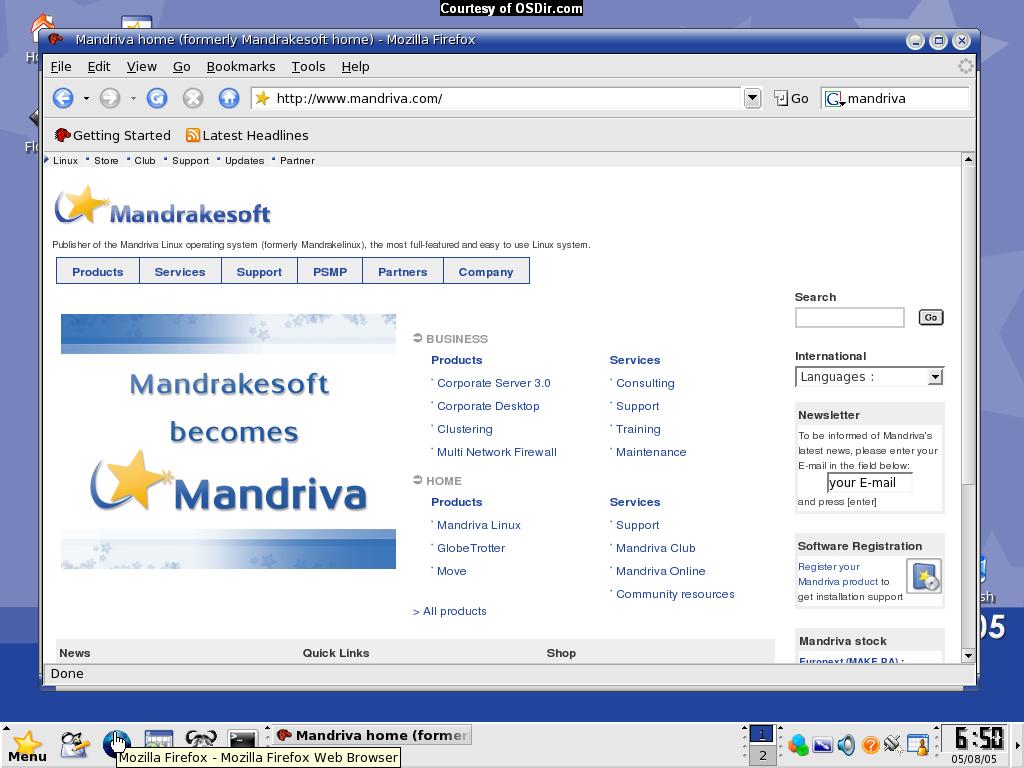
About Linux Mandriva - One of the Best Linux Distro's

Mandriva Linux
Mandriva Linux (formerly Mandrakelinux or Mandrake Linux, and a merger with Conectiva) is a GNU/Linux distribution created by Mandriva (formerly Mandrakesoft). The first release was based on Red Hat Linux (version 5.1) and KDE (version 1.0) in July 1998. It has since diverged from Red Hat and has included a number of original tools mostly to ease system configuration. Mandriva Linux is also notable for compiling its packages with optimizations for Pentium-class and more advanced processors which are incompatible with older CPU versions such as 386 and 486. Mandriva Linux (at those times named Mandrake Linux) was originated by Gaël Duval, who was also a co-founder of Mandrakesoft.
Mandriva logo

Mandrakelinux 10.1 Community desktop (w/KDE)

Features
The major features of Mandriva Linux are:

Internationalization
Mandriva Linux supports over 74 languages

Installation, control and administration
Mandriva Linux uses the Mandrake Control Center for administration of Linux rather than using a text editor to change settings. It has many programs known as Drakes or Draks, collectively named drakxtools, to configure many different settings. Examples include MouseDrake to set up a mouse, DiskDrake to set up disk partitions and drakconnect (previously known as draknet but forced to change its name after a company of the same name complained) to set up a network connection. They are written using GTK and Perl, and most of them can run in both graphical and text mode.

Software
Mandriva Linux comes with several thousand software packages including many varieties of games, office software, servers, and Internet utilities.

Community
Mandriva Linux has a large community of users, that provide help, support, and software to the user of Mandriva Linux.

Constant development
Mandriva Linux is constantly in development. A development version of Mandriva Linux, known as the "Cooker" is publicly available, but it is not recommended for use in a production environment because of the constant changes going on in it.
Next to that, community members provide RPMs for the latest packages of popular software.

Optimization
From the ground up, Mandriva Linux was compiled for Pentium-class processors. As a result, Mandriva Linux provides more optimal performance to this CPU Architecture at the cost of being unusable by the 386 and 486 processors, a problem that rapidly faded out due to current CPU power and memory requirements of latest versions of the popular software.
The provided kernel and glibc have enhancements for more recent processors. For example, the glibc will load libraries from the special directory /lib/i686 if the detected processor is compatible.

Desktops
Mandriva Linux is geared to use KDE or GNOME as the standard desktops, but includes others such as IceWM, Blackbox, Window Maker and Twm. A unique theme known as "Mandrakegalaxy" provides consistency between applications and desktop environments. Mandrakegalaxy debuted in version 9.1 and Mandrakegalaxy II appeared in 10.0. A variant of Mandrakegalaxy is "Mandrakegalaxy Squared", which uses square window buttons rather than round ones.

Package manager
Mandriva Linux uses a package manager called urpmi, which functions as a wrapper to the RPM package management system. It is similar to apt-get in that it allows seamless installation of a given software package by automatically installing the other packages needed. It is also media-transperent due to its ability to retreive packages from various media, including network/internet, CD/DVD and local disk. Urpmi also has an easy-to-use graphical front-end called RPMdrake which is integrated into the Mandrake Control Centre.
Although web sources for urpmi are not added on the installation of Mandriva Linux, they are available at EasyUrpmi (http://easyurpmi.zarb.org/) or through an option in the Software Sources Manager in versions above 2005LE (10.2). This functionality allows the user to choose some or all of the various software repositories available for their version of Mandrivalinux and can greatly expand the amount of software that the user can install through the urpmi system.

Name changes
From its inception to version 8.0, Mandrake named its flagship distribution Linux-Mandrake. From version 8.1 to 9.2 it was called Mandrake Linux.
In February 2004 MandrakeSoft lost a court case against Hearst Corporation, owners of King Features Syndicate. Hearst contends that MandrakeSoft is infringing upon King Features' trademarked character Mandrake the Magician. The word Mandrake is not unique to the King Features character, and MandrakeSoft is appealing the decision. As a precaution, MandrakeSoft has renamed its products by removing the space between the brand name and the product name and changing the first letter of the product name to lower case, thus creating one word. Starting from version 10.0, Mandrake Linux became known as Mandrakelinux, and its logo changed accordingly. Similarly, MandrakeMove became Mandrakemove.
In April 2005 Mandrakesoft annouced that after the corporate merger (http://www.mandriva.com/company/press/pr?n=/pr/corporate/2539) of Mandrakesoft and Conectiva, and the legal dispute with Hearst Corporation, the new company name would be Mandriva, and that Mandriva Linux would be the new name covering products.

Versions

Variants of the same version
Prior to Mandrakelinux 10.0, there was one central distribution which was marketed to consumers and made available for download over the Internet (besides the offspring, detailed below). The development tree of Mandrakelinux has always been known as Cooker. When stabilised, this tree becomes the successor to the current version.

Latest version
The latest version, Limited Edition 2005 was released to Mandriva Club members and on Mandriva Store 13 April, 2005. Free downloads of ISO CD images for the PowerPC platform were released on 29 April, 2005, followed by i586 (Intel) and x86_64 (AMD64) images on 3 May, 2005. This is in line with Mandriva's new strategy of making releases available first to paying customers.
The largest changes from 10.1 includes: use of KDE 3.3 instead of 3.2 and GNOME 2.8 instead of 2.6, replacing Mozilla by Mozilla Firefox, transition to GIMP 2.2 and GCC 3.4, and changes in the Mandriva Control Center.
The Free Edition contains some advertisements in the form of bookmarks in the web browser and slides during installation, as well as is available for download later, to help cover the costs of producing the distribution.

September 1, 2005

Massachusetts set to switch off Microsoft

Massachusetts set to switch off Microsoft

By Richard Waters in San Francisco Published: September 1 2005 00:01 Last updated: September 1 2005 01:58

The state of Massachusetts has laid out a plan to switch all its workers away from Microsoft's Word, Excel and other desktop software applications, delivering what would be one of the most significant setbacks to the software company's battle against open source software in its home market.

The state said on Wednesday that all electronic documents “created and saved” by state employees would have to be based on open formats, with the switch to start at the beginning of 2007.

Documents created using Microsoft's Office software are produced in formats that are controlled by the Microsoft, making them inelligible. In a paper laying out its future technology strategy on Wednesday, the state also specified only two document types that could be used in the future - OpenDocument, which is used in open source applications like Open Office, and PDF, a widely used standard for electronic documents.
The switch to open formats like these was needed to ensure that the state could guarantee that citizens could open and read electronic documents in the future, according to the state - something that was not possible using closed formats.

A senior Microsoft executive said that, if adopted, the proposal could force state agencies in Massachusetts to make an expensive and time-consuming switch to new PC software.
”I think it would be pretty risky for the state of Massachusetts to go in a direction like this without a clear look at the costs first,” said Alan Yates, general manager of the Office division at Microsoft.
He also suggested that the proposal, which was produced by the state’s chief information officer, was the product of “a very political situation,” though he declined to elaborate. Massachusetts was the only state to hold out against a settlement of the US anti-trust case against Microsoft.
The proposal, which is open for comment until the end of next week before it takes effect, would represent a big boost for open source software like Open Office, which is created by volunteer programmers and made available free of charge.

Like Linux, an open source operating system that competes with Microsoft's Windows, OpenOffice is widely used in some emerging countries, though it has very limited use in the US, said Sam Hiser, an open source consultant and author.

The decision by one of the most populous states in the country could influence others which have yet to weigh the issue, he added.

The Office suite of software, which includes Word, Excel, PowerPoint and Outlook, produces roughly 40 per cent of Microsoft's revenues and earnings.