December 29, 2025

9 New Linux Distros That Could Grow Big in 2026

By Roland Taylor - We do not need a mythical “year of the Linux desktop” for Linux to keep growing. We just need good ideas, consistent execution, and projects that keep getting better with every release.

It seems like new Linux distros launch every week, but many struggle to make it past the “hot new project” phase. The ones that do tend to share a few traits: a clear audience (even if within their own niche), a single, strong idea, and a user experience that shines in its own way, even if at times experimental.

In this list, we'll look at nine new and/or revamped distros from 2024 and later that have a real shot at breaking out in 2026 if they keep up their momentum and keep smoothing out their rough edges.

1. AnduinOS

The standard AnduinOS desktop
ℹ️
- Homepage: https://www.anduinos.com/
- Created: 1 September 2024

AnduinOS, created by a former Microsoft engineer, is an Ubuntu-based distro that mirrors the Windows 11 aesthetic while leaning hard into privacy and simplicity. It is known for a small download, a polished desktop, and an experience that works for everyday users and developers alike.

Why It Could Go Big in 2026

At first, AnduinOS looked perfect for Windows switchers, but it lacked a simple default method for installing apps without the terminal. That was a real mismatch for its target audience.

With AnduinOS 1.3 and native Flathub integration, that friction drops significantly. Paired with its focus on polish, it could be the change that turns curiosity into real adoption among Windows exiles.

Want to learn more about it? Check out our review of AnduinOS.

2. blendOS

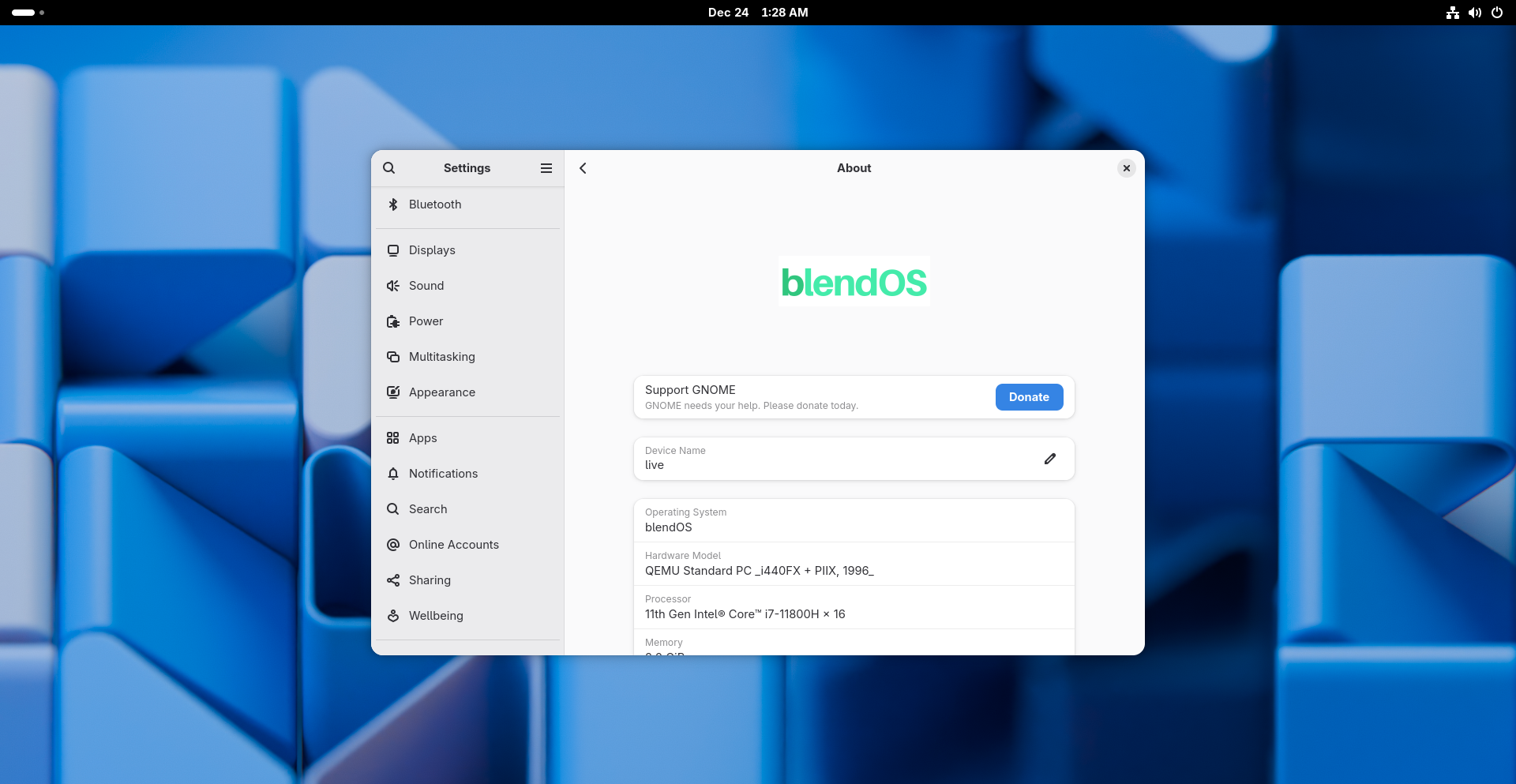
blendOS keeps a lightweight desktop by default
ℹ️
- Homepage: https://blendos.co/
- Created: 5 June 2024

blendOS pairs an Arch base with Podman containers for other distros, so you can run their apps natively, including Android, without a VM. It is an atomic, declarative, immutable system that tries to give you multiple distro worlds in one install.

Why It Could Go Big in 2026

It makes “apps from anywhere” practical without destabilising the OS. The atomic and declarative approach also makes the system easier to maintain and recover. If it keeps smoothing out the experience, blendOS could become a favourite among power users and a credible OEM base.

3. Damn Small Linux (DSL) 2024
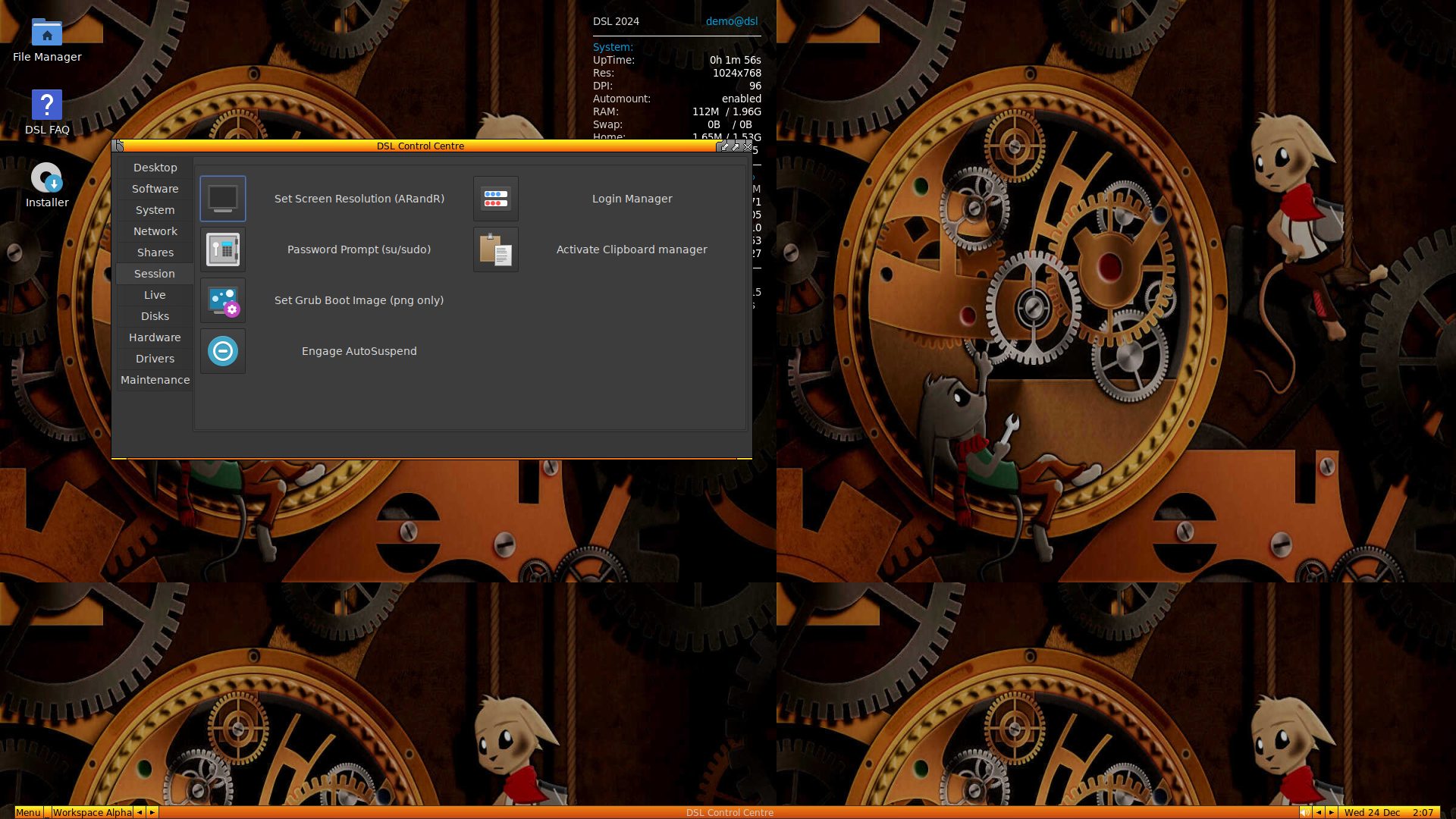
Damn Small, but hella mighty, all Linux
ℹ️
- Homepage: https://www.damnsmalllinux.org/
- Created: 1 February 2024

First released in 2005, Damn Small Linux (DSL) is a mini distro built for older PCs, offering a full graphical desktop with minimal requirements. For many early Linux users, myself included, it was a first taste of life outside Windows. It was also my first ever distro, running inside my Windows 2000/XP desktop.

DSL 2024 is a fully modernised remake based on antiX 23 i386. The original was famous for fitting into 50 MB, but this version expands to around 700 MB, still small enough for a CD while feeling far more modern. It trims things like translations and some documentation, but keeps full apt support and even includes scripts for pulling down anything missing.

Why It Could Go Big in 2026

Retro PCs are having a moment, whether for nostalgia, reducing e-waste, or making computing more accessible on old hardware. A tiny-but-capable distro that also unlocks the wider Debian ecosystem is exactly what that crowd needs. It will not be for everyone, but for its niche, it could be a big deal.

4. IncusOS
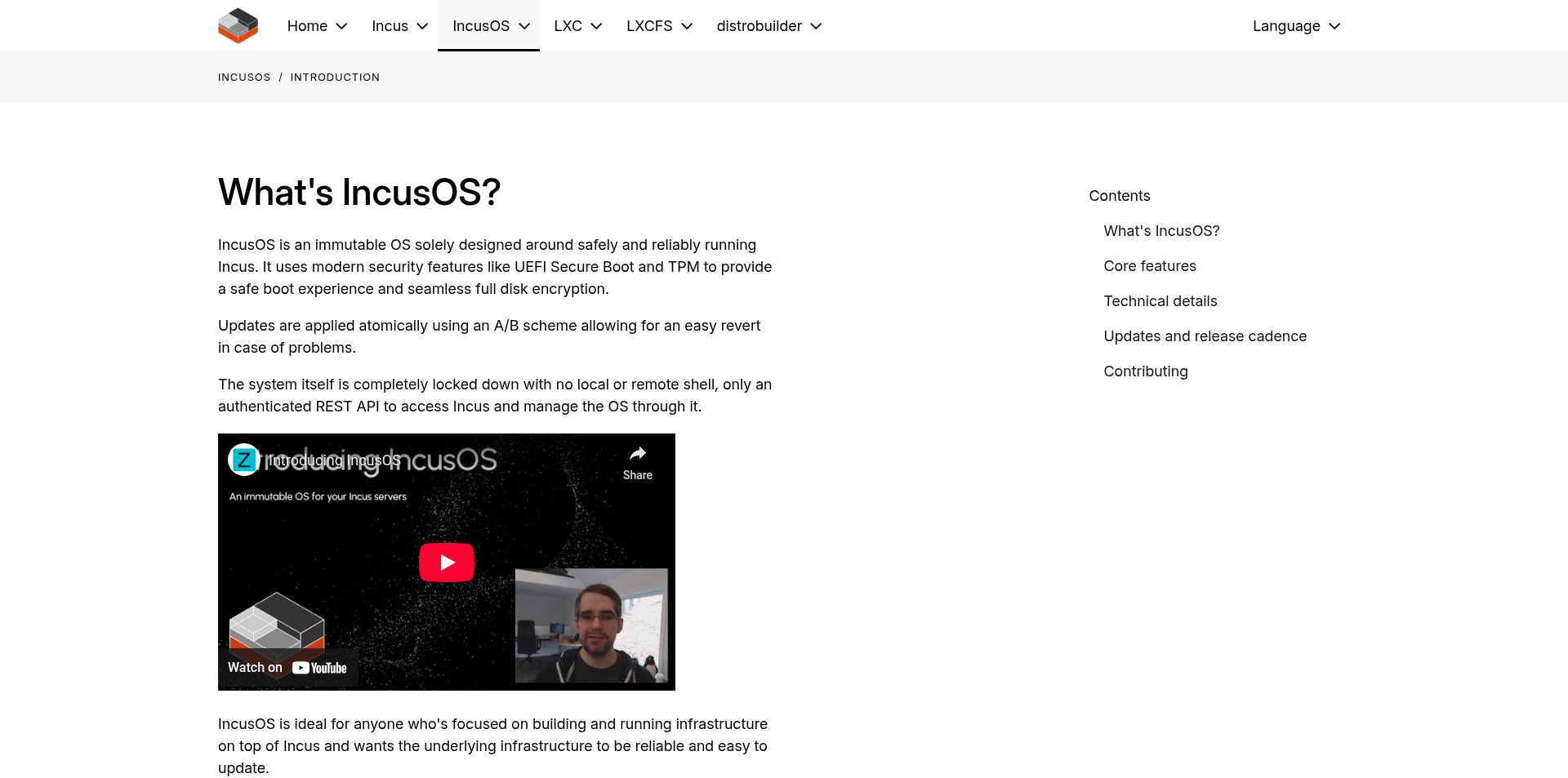
The IncusOS home page
ℹ️
- Homepage: https://linuxcontainers.org/incus-os/introduction/
- Created: 7 November 2025

IncusOS is not like the others in this list. It is purpose-built for running Incus, a container and virtual machine manager created after Canonical made LXD an exclusively Canonical product in July 2023. Aimed at homelabs and servers, IncusOS ships without a desktop and focuses instead on an immutable base with atomic A/B updates and strong defaults such as UEFI Secure Boot and TPM 2.0.

Why It Could Go Big in 2026

Homelabs and self-hosting are no longer just hobbies. They are a practical way to protect user freedom and reduce dependence on companies that monetise access and data. IncusOS fits that shift well: it is predictable, locked down, reproducible, and built to do one job properly.

As more people treat their homelabs like real infrastructure, appliance-style base systems like IncusOS could take off.

5. KDE Linux
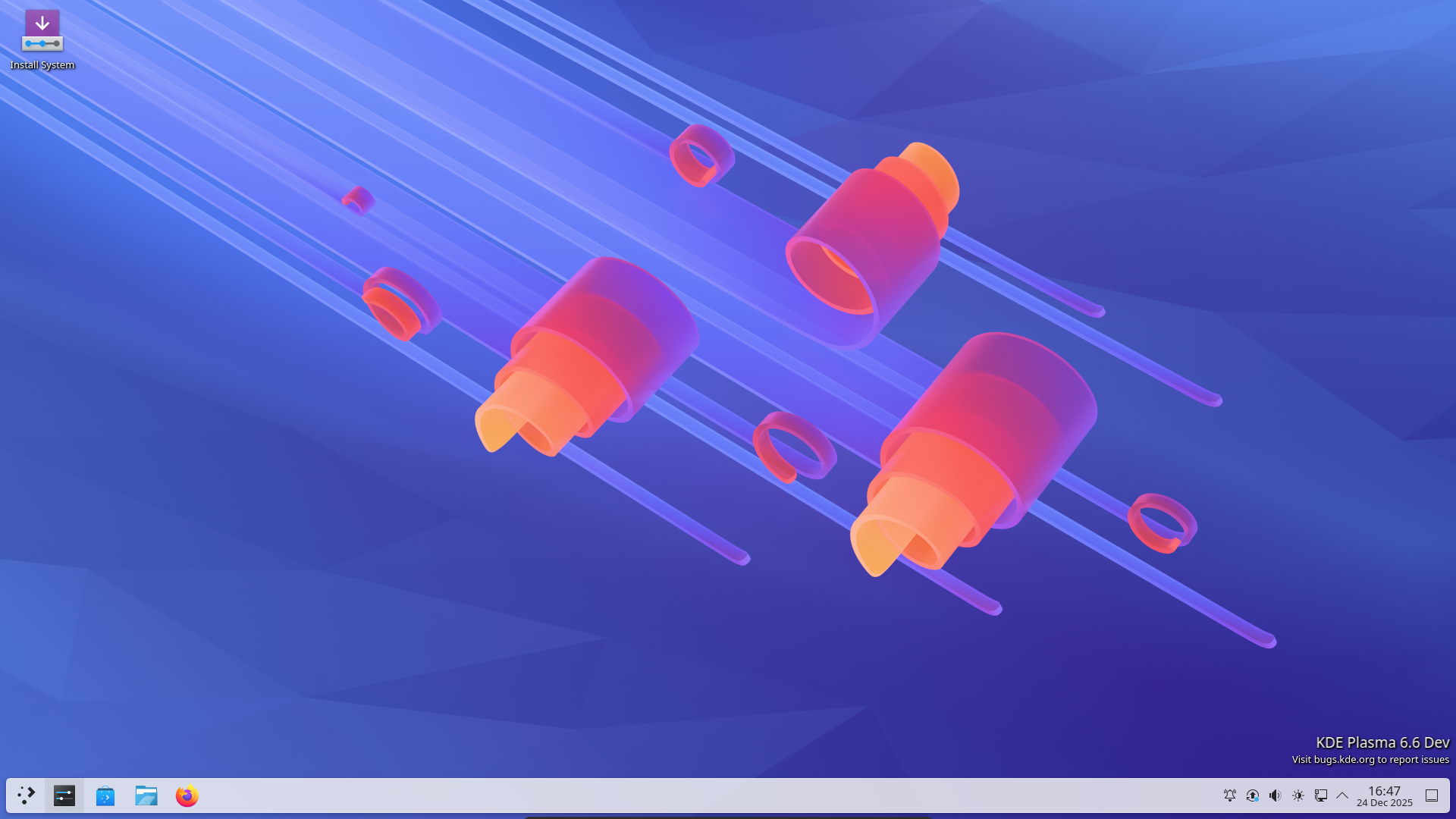
KDE Linux provides a clean experience of the Plasma desktop
ℹ️
- Homepage: https://kde.org/linux/
- Created: 6 September 2025

One of the true outliers in this list, KDE Linux is not your average distro. It is KDE’s official reference implementation for Plasma and KDE apps. Like a few others here, it ships as an immutable base OS. Arch packages are mostly an implementation detail, while apps are expected to come from Flatpaks, Snaps, or AppImages. In other words, the base system is meant to stay untouched, apart from updates and rollbacks.

Why It Could Go Big in 2026

KDE has long delivered a polished, customisable desktop, but it has rarely controlled the full out-of-the-box experience, from the OS stack to defaults and app selection. KDE Linux fills that gap and gives KDE a chance to define “the KDE experience” end to end.

If it matures quickly, it could become the go-to way to run Plasma as intended, and even interest OEMs. KDE’s Slimbook line could plausibly ship with it down the road. Even if it never goes fully mainstream, it can still raise the baseline for what a KDE-first OS should feel like.

6. Kazeta

The Kazeta homepage
ℹ️
- Homepage: https://kazeta.org/
- Created: 1 September 2025

Kazeta is a gaming-focused distro that aims to recreate the 90s console vibe on modern PCs, even turning DRM-free games into “cartridges” stored on SD cards or other removable media. It is built for offline gaming, and that is the point. It targets DRM-free libraries like Itch.io, GOG, and retro titles, with a console-style approach rather than a storefront-first one.

Why It Could Go Big in 2026

Linux gaming is well past basic viability now, which leaves room for a more exotic take. Kazeta’s pitch is simple: no stores, no launchers, just that old-school “insert and play” feel. It is a niche, but a real one, with obvious appeal for retro collectors, parents setting up child-friendly machines, and anyone who wants the console experience without subscriptions and logins.

You can learn more about Kazeta in our review.

7. ObsidianOS

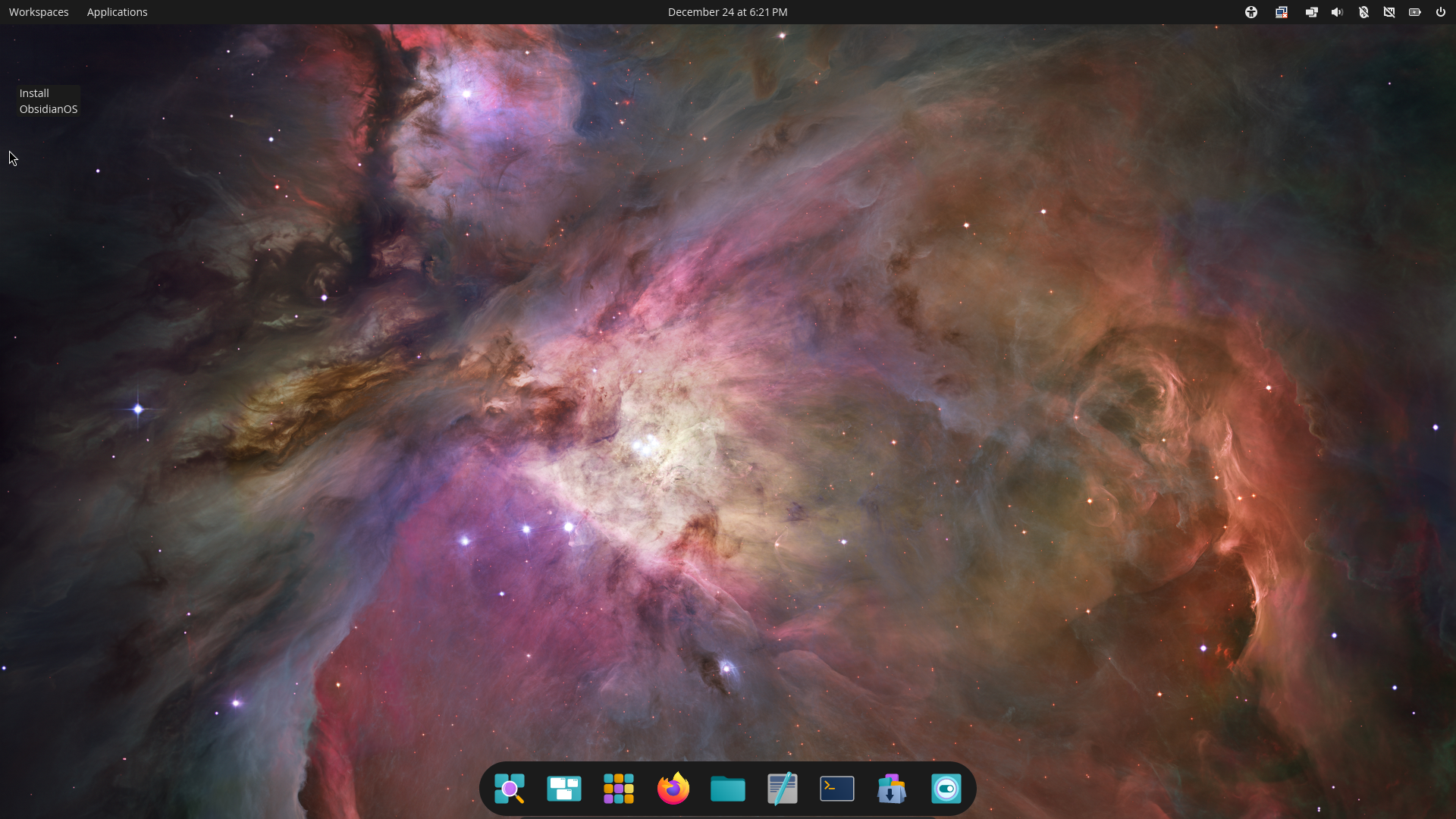
ObsidianOS with the default Cosmic desktop
ℹ️
- Homepage: https://obsidianos.xyz/
- Created: 9 August 2025

ObsidianOS is a new, UEFI-only distro built around A/B partitioning. Updates apply to the inactive slot, so if something goes wrong you can roll back with a reboot. It aims to deliver stability for everyday users, and offers multiple flavours, including a text-based installer and desktops like KDE and COSMIC.

Why It Could Go Big in 2026

Reliability is now a selling point, and A/B updates make “bad updates” far less scary. ObsidianOS is still opinionated and not fully beginner-friendly, but the idea is compelling. If installation and day-to-day polish improve, it could become a serious option for people who want a tougher, more resilient desktop without going full enterprise.

ℹ️
Want a deep dive? See our coverage of ObsidianOS.

8. pearOS

PearOS NiceC0re
ℹ️
- Homepage: https://pearos.xyz/
- Created: 11 December 2025

pearOS, a Linux distribution designed to look and feel a lot like macOS, is back again in the form of pearOS NiceC0re 25.12. This release is a full rebuild on an Arch base with KDE Plasma and a heavily customised experience, including the Sweet Mars UI theme. It does not run macOS apps, but it gets surprisingly close in look and workflow.

Why It Could Go Big in 2026

A revival needs more than nostalgia, and pearOS has clearly put in the work. This is not just a name returning, it is a modern Arch-based Plasma distro with a strong visual identity and a level of polish that stands out.

With more people ditching macOS and Windows alike, pearOS could become an easy “install and enjoy” recommendation for anyone who wants something slick without spending days tweaking.

9. Vanilla OS 2.0 (Orchid)
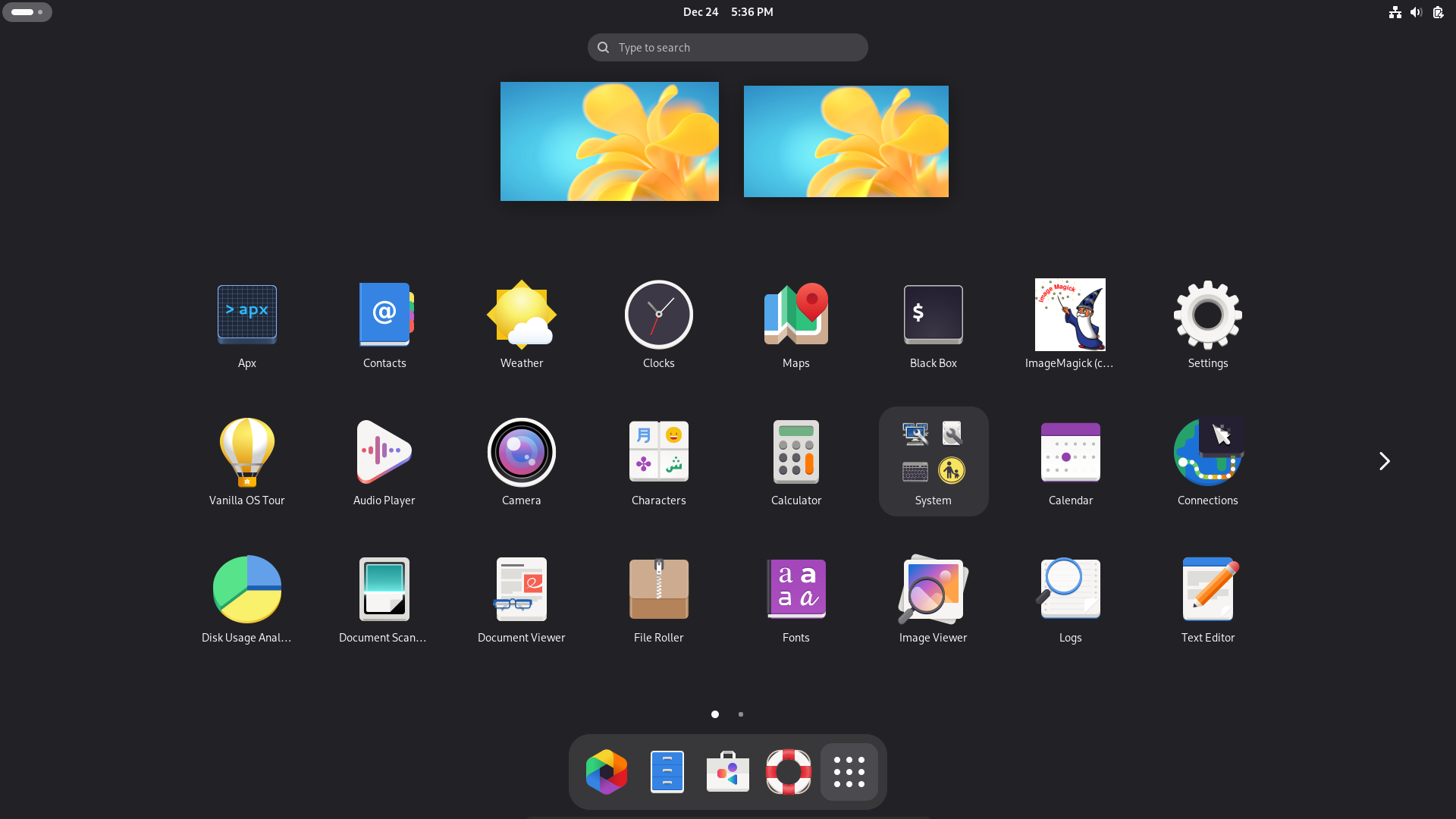
Using GNOME on Vanilla OS 2.0 (Orchid)
ℹ️
- Homepage: https://vanillaos.org/
- Created: 28 July 2024

Vanilla OS 2.0 is a major rewrite, doubling down on immutability and atomic updates with its ABRoot system, making updates and rollbacks both safer and more predictable. Like blendOS, Vanilla OS delivers a containerised system, namely its own "APX". It encourages the use of this system for all app installations, but it gives you the freedom to pull from several distros and even experimental Android app support without entering dependency hell.

Why It Could Go Big in 2026

Atomic, immutable desktops are clearly taking over, and Vanilla OS is one of the clearest attempts to make the immutable desktop feel "normal", with cross-distro tooling not just as a bonus, but the expected experience. If the team keeps improving the UX around this bold and unconventional setup, and makes it effortless for average users, Vanilla OS could become a mainstream-friendly entry point to the immutable future of the Linux desktop.

Christmas is the time for gifting. If you think It's FOSS is doing a great work, please support us by opting for a Plus membership. You also get 5 eBooks on Linux, Docker and Bash scripting.

Final Thoughts

We do not need a mythical “year of the Linux desktop” for Linux to keep growing. We just need good ideas, consistent execution, and projects that keep getting better with every release. These nine distros are not the whole story, but they are strong signals of where the desktop is heading in 2026. A year from now, a few of these may no longer be “interesting,” but genuinely mainstream.

Source: https://itsfoss.com/news/new-distro-go-big-26/

December 27, 2025

I stopped using LibreOffice and switched to this open-source office suite

The discussion around open-source productivity suites is usually dominated by one name — LibreOffice. I even got around to using it when I tried going fully open-source for a week. However, for someone like me, who isn’t a power user, there were aspects of LibreOffice that just didn’t click. Specifically, the need for modern conveniences, such as collaboration and mobility, made me switch to something else.

I ended up settling for another open-source productivity suite called OnlyOffice. While it lacks some of the advanced features of LibreOffice and not everything is free, I discovered it meets my needs. I don’t think I'll go back to LibreOffice anytime soon. Well, not unless it includes some of the features that OnlyOffice provides in its generous package.

OnlyOffice has a better interface
OnlyOffice mirrors Microsoft Office’s design philosophy 


One of the biggest reasons I was put off by LibreOffice was its interface. It’s not ugly by any means, but I can’t get over how it looks like an older version of Microsoft Office, before Microsoft transitioned it to the popular Ribbon interface. The menus are dense, clunky, and cluttered, making it harder to use, especially for new users. LibreOffice feels like it's hanging on to an old and unwelcoming design philosophy.

OnlyOffice, on the other hand, has fully embraced the Ribbon UI, similar to modern versions of Microsoft Office. It’s something Microsoft has perfected over the years to make it intuitive and enjoyable to use. The Ribbon interface makes everything feel like a cohesive, modern workspace rather than a collection of individual tools.

It’s one of the things that makes the transition from Microsoft Office to OnlyOffice effortless. There’s practically no learning curve because everything is where it's expected to be. I also like how OnlyOffice has tabs. Since I prefer a browser-based workflow, the tabs streamline my workflow and make managing multiple documents easier while keeping my desktop uncluttered.

Real-time collaboration is easier to set up in OnlyOffice
It’s free and, best of all, optional 


LibreOffice is primarily an offline solution with no cloud features baked into its DNA. While a majority of LibreOffice’s users prefer it this way, it can be a hindrance to modern workflows, especially when it comes to collaboration.

There is LibreOffice Online, which runs the full office suite in a browser through a self-hosting solution like Nextcloud or OwnCloud. It lets you edit documents from anywhere and collaborate with others in real time. However, setting this up isn't straightforward for most users.

OnlyOffice offers its own native cloud solution, DocSpace. It allows me to break my projects into rooms, where I can invite others to co-edit documents in real-time. I also get the standard suite of professional collaborative features—tracking changes, version history, real-time comments, and mentions. Furthermore, I can use AI agents in this collaborative space, provided I have the API keys and credits for the models and prompts.

To use DocSpace, I just signed up for an account, which made transitioning from a solitary experience to a collaborative one effortless. Alternatively, I can create my own hybrid cloud setup if I want total control over my data. The best part is that it's optional — I don’t have to use DocSpace if I don’t want to.

OnlyOffice has an office mobile app
LibreOffice only has one with viewing capabilities 


LibreOffice is also primarily a desktop app, which is a disadvantage for people like me who sometimes need to finish working on the go. There have been many times when I needed to make last-minute edits or review documents, but I didn’t have a computer. One thing I did have at the time, though, was my phone.

That’s why it helps that OnlyOffice has a free Android and iOS app that translates the desktop experience to mobile very well. Furthermore, it can connect to various cloud services, including DocSpace. This gives me access to my documents wherever I go. LibreOffice doesn’t have an official app like this, and it’s a major sticking point for me.

There’s the LibreOffice Viewer app for Android. However, it's mainly a viewer app (as the name suggests) with experimental editing capabilities. Hopefully, LibreOffice gets an app that works across platforms, has full editing, and built-in cloud syncing capabilities in the future.

I'm not denying that LibreOffice is the gold standard

People usually switch from Microsoft Office to LibreOffice when they’re looking for a free alternative. That’s for a good reason, as LibreOffice is the purest form of open-source there is — community-driven and completely free and unrestricted. Furthermore, it offers a level of depth that OnlyOffice doesn’t always match. This is especially true when it comes to customization, database integrations, and macro support.

However, a lot of this freedom comes with complexity that many average users, myself included, don’t want to deal with. I have a mindset that prioritizes usability over complexity, and I know I’m not alone. Sure, OnlyOffice has some advanced features locked behind paid subscriptions, but I prefer it over LibreOffice because it respects my time, especially when it comes to creating a modern workflow.


Source: https://www.makeuseof.com/stopped-using-libreoffice-switched-to-this-open-source-office-suite/

December 19, 2025

6 most Windows-like Linux distros because old habits die hard

Windows 10's end of life is coming in 2025, and that means you have to hope your machine can run Windows 11, buy a new computer, or try something different -- like Linux.

Linux shouldn't be considered a last-choice alternative, either, because it's every bit equal to Windows or MacOS. It's reliable, secure, user-friendly, and free. What more do you want?

Also: You can try Linux without ditching Windows first - here's how

I know: You want an operating system that looks and feels like Windows 10. That makes perfect sense because you've been using Microsoft's OS for a long time, and change is often hard.

Which distribution is right for those seeking a seamless transition from Windows to Linux? There are quite a few choices out there, and I'll show you what I consider your six best options.


1. KDE Neon

Slight resemblance to Windows 7 and fully configurable


KDE Neon is the flagship distribution for highlighting the KDE Plasma desktop environment. The great thing about KDE Plasma is that it can be configured to look and feel just about any way you like. Out of the box, KDE Plasma does bear a slight resemblance to Windows 7, but you can tweak it to look more like Windows 10 or Windows 11 if you like.

Also: 7 things every Linux beginner should know before downloading their first distro

KDE Neon benefits from an Ubuntu base, so it's very user-friendly and handles hardware recognition like a champ. And anyone coming from just about any version of Windows will feel right at home on the KDE Plasma desktop environment. For those who'd like to eventually work with a desktop that looks nothing like Windows, KDE Plasma can easily make that happen. Turn the bottom panel into a dock and add a top bar, and you have a desktop similar to MacOS. KDE Plasma is that flexible.

Like nearly all Linux distributions, KDE Neon can be downloaded and installed


2. Linux Mint

A very user-friendly operating system


Linux Mint might not be themed like Windows 10 or Windows 11, but it is certainly within the realm of Windows-ish desktops. For example, you'll find a panel, a Start menu, a system tray, and clickable icons, all on top of a very user-friendly operating system.

Also: Want to save your old computer? Try one of these 8 Linux distros for free

Another reason to go the Linux Mint route is that it benefits from the same level of hardware recognition as Ubuntu. That makes perfect sense, given that Linux Mint is based on Ubuntu. Linux Mint uses the Cinnamon desktop environment by default, but you can download editions that use MATE or Xfce. For those migrating from Windows, I recommend sticking with the default Cinnamon desktop, as it will be the most familiar and reliable.

Linux Mint is a free distribution and has a very robust community. The developers listen, and the release schedule is very reliable.

You can download Linux Mint for free on as many machines as you need.

3. Zorin OS

Pro edition looks and feels like Windows 11


Although the goal of Zorin OS isn't to replicate Windows 10, it does offer several desktop layouts, including a very Windows-like UI. If you pay for the Pro edition ($47.99), you get additional layouts, such as one that looks and feels like Windows 11.

Here is one of the primary reasons I am including Zorin OS: You can start out using the Windows 11-like layout and, as you grow accustomed to the open-source OS, switch to a desktop that resembles MacOS or one of the straight-up Linux environments (such as GNOME or KDE Plasma). The Zorin OS desktop is based on GNOME, but the developers have made it far more flexible than your average GNOME desktop.

The free version of Zorin OS comes with four desktop layouts, and the Pro version adds six more. Of those 19 layouts, four are Windows-like (Windows Classic, Windows, Windows List, and Windows 11).

Zorin OS Core can be downloaded and installed for free, and the Pro license can be purchased from the official Zorin OS site.


4. blendOS

Slightly Windows 11-like but also immutable


blendOS might not be on your radar, but it should be. Not only does this Linux distribution bear a slight resemblance to Windows 11, but it's also immutable (meaning it's very secure), and includes several options for installing apps. You will find pacman, apt, Flatpak, Podman, and even blendOS's own unique "blend" tool.

Because of this, you will find tons of applications to install. You can also enable Android app support as well as dnf (the Fedora package manager) support from within the System app. Because blendOS is immutable, the chances of you wrecking the OS are slim. Additionally, you can select a version with GNOME, KDE Plasma, Xfce, Cinnamon, Deepin, MATE, or LXQt.

Also: Ready to ditch Windows? 'End of 10' makes converting your PC to Linux easier than ever

For those coming from Windows, I'd recommend either KDE Plasma or the Deepin desktop. The one caveat to using blendOS is that I wouldn't recommend it for users with very little computer skills. If you know your way around Windows well enough (as in you've used it for a long time and are comfortable with most aspects of the OS), you shouldn't have much trouble with blendOS. The only thing you won't find out of the box is Wine (for Windows apps) or Steam (for games), but you can install both with ease.


5. AnduinOS

New kid on the block


AnduinOS is the new kid on the block, but it also happens to be one of my favorites on the list. This Windows-like desktop is based on Ubuntu and uses the latest version of GNOME to create a rather Windows 11-like desktop.

Also: 8 ways every Linux distro could make things a lot easier for newbies

One thing to keep in mind with this distribution is that it's not filled with tricks, bells, and whistles to fool you into believing you're using Windows. AnduinOS is more about creating a desktop and workflow that Windows users can easily adapt to. By using the combination of Ubuntu (currently version 25.04) and GNOME (currently version 48), AnduinOS creates a desktop that performs brilliantly and reliably. If you want to use Windows apps on AnduinOS, you'll need to install Wine, but other than that, it's ready to go out of the box and is a treat to use.

Although AnduinOS is marketed as a desktop Linux distribution aimed at developers, it really can be used by average users as well. I find the desktop to be similar enough to Windows 11 that anyone who's used that OS will feel right at home here.


6. RefreshOS

Outstanding option


RefreshOS came out of nowhere recently and surprised me with how well it could serve anyone migrating from Windows. This distribution uses a minimal KDE Plasma desktop, configured in the same way as the traditional Windows desktop. It has a panel, a Start menu, and a system tray with a simple and elegant theme that is sure to please anyone. RefreshOS offers the rock-solid stability of Debian and the user-friendliness of Ubuntu, which makes it the perfect combination for users coming over from the world of Microsoft operating systems.

Also: Should you ever pay for Linux? 5 times I would - and why

As far as preinstalled apps, you get LibreOffice, GIMP, a calendar, a contact manager, KMail, VLC media player, and much more. RefreshOS is a Linux distribution that allows you to hit the ground running immediately after installation, so there's no tweaking or post-install work required. Just log in and do your thing. The only gotcha with RefreshOS is that the developers opted not to include either the Snap or Flatpak universal package managers, which means that if you want proprietary apps like Slack or Spotify, you'll have to install either Snap or Flatpak first.

Other than that, RefreshOS is an outstanding option for Windows users making the switch to Linux or for anyone who's curious about the open-source operating system.

Source: https://www.zdnet.com/article/6-most-windows-like-linux-distros-because-old-habits-die-hard/